
How to Uninstall Programs Completely in Windows: Removing software in Windows sounds simple—open the uninstall menu, click a button, and you’re done. But in reality, most users don’t know that a large number of applications leave behind traces even after uninstallation.
These leftovers include registry entries, cache files, configuration data, and folders hidden deep inside Windows directories. Over time, these residues can slow down your PC, occupy valuable storage space, and even cause performance issues or application conflicts.
Whether you’re trying to get rid of a stubborn application, free up storage, or resolve software errors, knowing how to uninstall programs completely in Windows is essential. This guide covers every method—from basic uninstallation to advanced manual cleanup and industry-recommended uninstaller tools—ensuring that no hidden files are left behind.
Also Read: How to Create New Gmail Account Professionally in 2025-26: Full Setup Guide
Why Standard Uninstallation Isn’t Always Enough
When a program is installed, it spreads across multiple locations in the system. The installation directory is only the beginning—applications also create dependency files, logs, registry values, and hidden folders in different system paths. When you uninstall the program, Windows typically removes the main components only, leaving behind:
- Registry entries
- Empty or temporary folders
- Configuration files
- Cache and logs
- Background services or scheduled tasks
These leftovers can stack up, especially if you frequently install and uninstall applications. That’s why many users notice that their systems feel slower after months of regular usage.
To prevent such issues, you need to follow a proper removal process that eliminates every component of an application.
Overview of Complete Uninstallation Methods
There are three reliable approaches to remove programs fully from a Windows PC:
| Method | Difficulty | Removes Leftovers | Best For |
|---|---|---|---|
| Windows Built-in Uninstaller | Easy | No | Regular users |
| Manual Removal (Files + Registry) | Difficult | Yes | Power users |
| Third-Party Uninstaller Tools | Easy | Yes | All users wanting 100% removal |
Most users combine the first method with the third for complete safety and effectiveness.
Method 1: Using Windows’ Built-In Uninstaller (Standard and Safe)
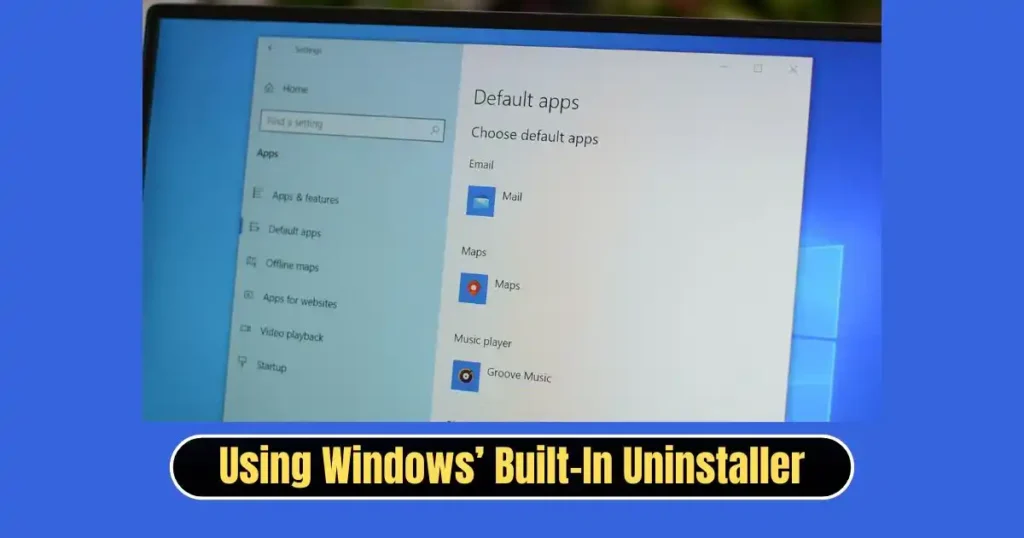
Windows provides two official ways to uninstall applications—via Settings and via Control Panel. These should always be your first steps.
Uninstall Using the Settings App (Windows 10 & 11)
This is the most convenient method for modern Windows versions.
- Open Start Menu → Settings
- Click Apps
- Select Apps & features (Windows 10) or Installed apps (Windows 11)
- Scroll through the list and find the software you want to remove
- Click the three dots (Windows 11) or select the app (Windows 10)
- Click Uninstall
- Follow on-screen prompts
This process uses the application’s built-in uninstaller. It removes the main files but does not clear leftover data, which means the program isn’t eliminated completely.
Uninstall Using the Control Panel (All Windows Versions)
The traditional uninstall method remains widely used.
- Click Start Menu and type Control Panel
- Select Programs → Programs and Features
- Locate the application in the list
- Right-click and choose Uninstall / Uninstall-Change
- Complete the uninstaller instructions
This method is useful when Settings fails to show the program or when older applications are involved.
After Standard Uninstallation: What Still Remains?
Even after using the built-in uninstallers, Windows retains traces in various places, such as:
C:\Program FilesC:\Program Files (x86)C:\ProgramData%AppData%%LocalAppData%- Windows Registry keys
These leftovers can cause issues such as:
- Slow PC performance
- Software reinstallation problems
- Updates not working correctly
- Pop-up errors from missing dependencies
Therefore, the next step is manual cleanup.
Also Read: How to Stop Unwanted Notifications on Android: Step by Step Full Guide
Method 2: Manually Deleting Leftover Files (For Advanced Users Only)
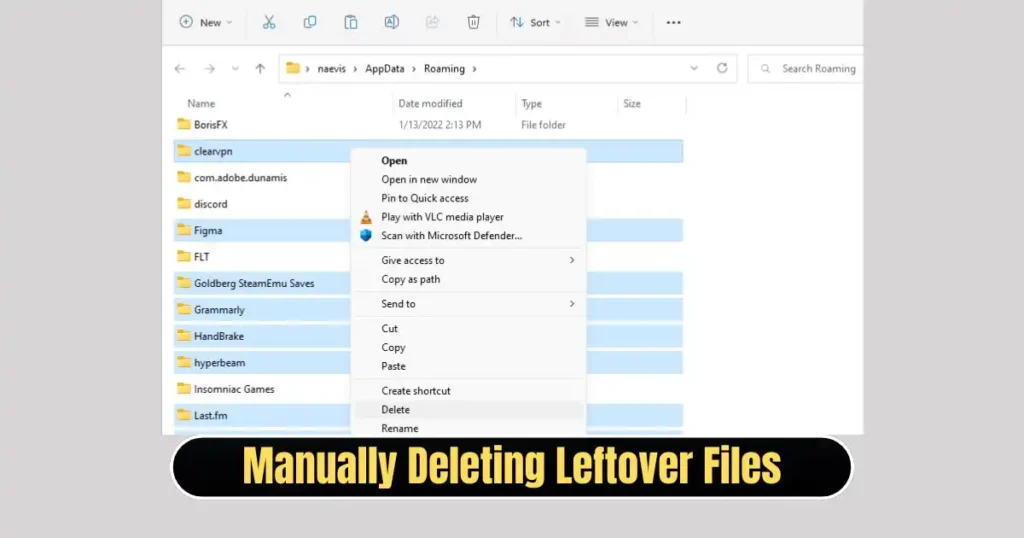
Manual deletion ensures deep removal, but it comes with risks—incorrect deletion can affect system stability. Proceed only if you’re confident.
Step 1: Close Running Processes
Before deleting anything, ensure no associated background processes are active.
- Press Ctrl + Shift + Esc to open Task Manager
- End tasks related to the uninstalled program
Step 2: Delete Leftover Folders
Search the following directories for folders with the software’s name:
| Folder | Path |
|---|---|
| Program Files | C:\Program Files\ |
| Program Files (x86) | C:\Program Files (x86)\ |
| ProgramData | C:\ProgramData\ |
| AppData (Roaming) | %appdata% |
| AppData (Local) | %localappdata% |
If any such folders exist, delete them.
Step 3: Clean Registry Entries
Only if you’re experienced with registry editing.
- Press Windows + R
- Type regedit
- Backup registry (File → Export)
- Navigate to:
HKEY_LOCAL_MACHINE\SOFTWARE
HKEY_CURRENT_USER\Software
- Search for keys related to the program and delete them carefully
Finally, restart the computer to apply changes.
Method 3: Use a Third-Party Uninstaller (Most Preferred Approach)
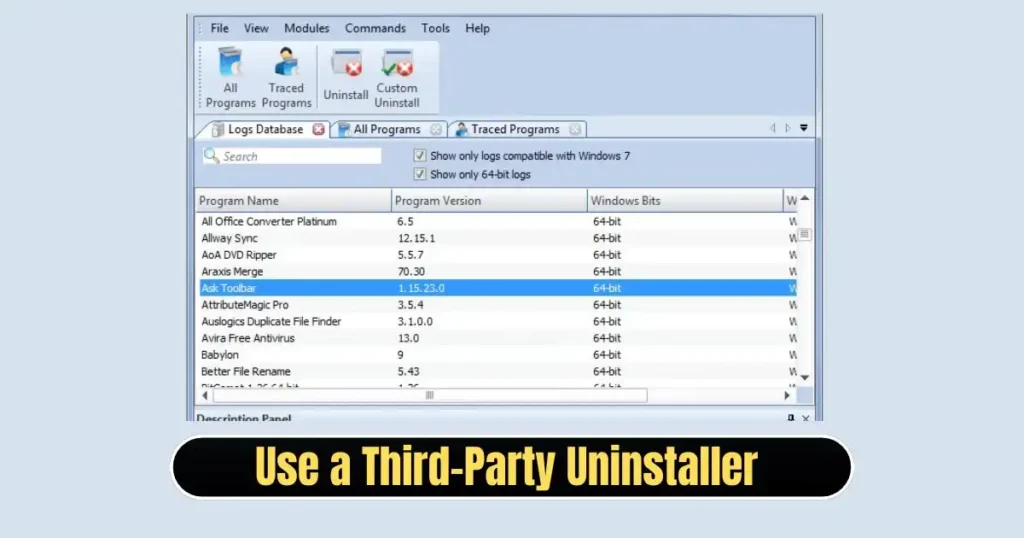
If you want maximum cleanup without spending hours manually searching for traces, third-party uninstallers are the most practical solution.
These tools:
Run the built-in uninstaller
Detect hidden leftovers
Remove registry entries safely
Clean residual files automatically
Recommended Uninstaller Tools
| Tool | Key Benefit |
|---|---|
| Revo Uninstaller (Free) | Deep scan + forced uninstall feature |
| IObit Uninstaller | Batch removal + software health monitoring |
| Geek Uninstaller | Portable—no installation needed |
Most users prefer Revo Uninstaller Free because it provides an excellent balance of power and safety.
Which Uninstallation Method Should You Choose?
| If You’re a… | Best Uninstall Method |
|---|---|
| Beginner | Windows Uninstaller + Third-Party Tool |
| Intermediate User | Third-Party Tool Only |
| Advanced User | Manual Cleanup + Registry Editing |
| IT Professional | Manual Registry Cleanup + Scripting Tools |
Essential Tips for Safe Software Removal
- Never delete registry values unless you’re sure they belong to the uninstalled program
- If uninstall fails, reboot and try again in Safe Mode
- Avoid unknown uninstaller tools—they may include malware
- Run a cleanup program monthly to remove temporary junk files
- Don’t force uninstall antivirus/security tools unless you know the consequences
Conclusion
Here is the final thoughts on ‘How to Uninstall Programs Completely in Windows‘- A complete uninstallation isn’t just about clicking “Uninstall.” It requires clearing the files, data, and registry entries left behind.
Whether you choose to remove programs manually or rely on a powerful uninstaller tool, understanding the uninstallation process gives you better control over your Windows PC. Regular cleanup not only maintains performance but also ensures that unused apps never interfere with system health.
FAQs on How to Uninstall Programs Completely in Windows
1. Why do some programs refuse to uninstall?
Because certain files or processes remain active in the background. Restarting your PC or uninstalling in Safe Mode often solves the issue.
2. Is it safe to delete leftover folders after uninstalling?
Yes, as long as the folder belongs to the program you removed. When in doubt, Google the folder name before deleting.
3. Will registry cleanup improve performance?
Removing unused registry entries may help slightly, but the biggest benefits come from freeing storage and reducing startup processes.
4. Should I always use third-party uninstallers?
Not required, but highly recommended for stubborn programs and complete cleanup.
5. Can uninstalling programs speed up a slow laptop?
Yes—removing large or resource-hungry apps can reduce startup load and free RAM/storage.
Disclaimer: This article is based on general Windows behavior and common user experience. Some system features and UI layouts may vary depending on Windows updates and regional builds. Always proceed with caution when editing the Windows Registry or deleting system files.
Also Read: How to Create a Bootable USB for Windows Installation- Complete Guide 2025

Raj Prajapati is a skilled content writer dedicated to creating clear, step-by-step guides on technology, Health, and everyday solutions. With a focus on user-friendly and SEO-optimized content, he simplifies complex topics, helping readers learn and solve problems effortlessly.