
Buying a new phone should feel exciting, but the moment you unbox it, one key question hits every user: how to transfer data from old phone to new Android without losing anything? Photos, apps, contacts, passwords, chat history, documents, and even system settings have become an essential part of daily life — losing them can be frustrating.
Fortunately, Android has evolved to make data migration smoother than ever. Whether you’re upgrading from one budget device to another, switching brands, or moving to a high-end flagship, you can transfer almost everything — quickly and securely. What’s even better is that users are no longer limited to one method. Android supports USB cable transfer, wireless transfer using Google backup, and app-based transfer tools like Samsung Smart Switch.
This detailed guide covers every method in depth, provides expert tips, highlights potential issues, and helps you choose the best and safest way to migrate your digital life in minutes.
Also Read: How to Recover Deleted Photos from Android Without PC- Full Expert Guide
Why Proper Data Transfer Matters Today
In the earlier days of smartphones, users manually copied contacts to SIM cards or transferred photos one by one. Today, phones store everything — work files, financial data, multi-gigabyte gallery, cloud backups, WhatsApp memories, app preferences, passwords, and more. Losing even a small part of this data may affect personal and professional life.
A smooth transfer ensures:
- No loss of important memories (photos and videos)
- Apps and data open exactly where you left off
- Seamless access to saved Wi-Fi passwords, browsing history, and settings
- No hassles of downloading files individually
- Secure and encrypted migration
Android now allows users to migrate more than 90% of their device data in one shot — provided you choose the correct method and prepare both phones properly.
Before You Start: Prepare Both Phones
To ensure a smooth and error-free migration, follow these preparation steps:
1. Charge both phones
Transfers can take from 5 minutes to over an hour depending on the data size.
Keep both devices above 60% battery to avoid interruption.
2. Ensure enough storage on the new phone
If the new phone has lower internal storage than the old one, the transfer may stop midway.
Delete unwanted files beforehand or use cloud storage if needed.
3. Update both phones to the latest software
System updates optimize compatibility between devices during transfer.
4. Have your Google account password ready
During restoration, you’ll be asked to sign in for authentication.
5. If the new phone was already used
Some data transfer methods require a factory reset before the setup screen appears. Reset only if needed and if your important files are already backed up elsewhere.
Three Proven Methods to Transfer Data From Old Phone to New Android
In this section, every method is explained with steps, suitability, time required, pros, and cons — so you can choose the best one for your situation.
Method 1: Using a USB Cable (Most Recommended)
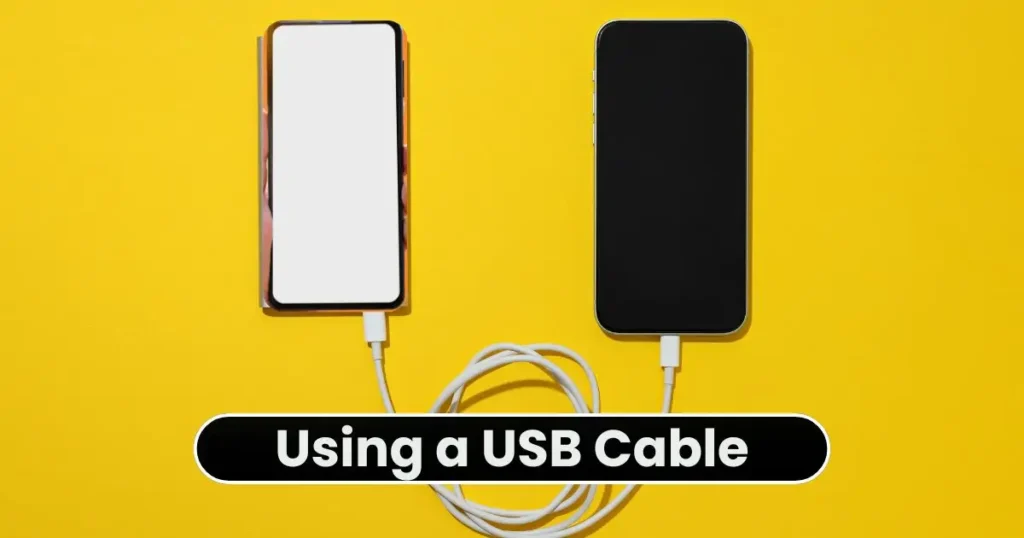
Cable transfer is fast, stable, and ideal for users who want to copy everything — including large media files and app data — without relying on Wi-Fi speeds.
How It Works
Both phones are directly connected via USB-C to USB-C cable (or USB-A cable with OTG adapter). The new phone automatically detects the old one and guides the transfer.
Step-by-Step Process
- Turn on your new Android phone.
- When asked “Copy apps & data?”, select Next.
- Connect both phones using a USB-C cable.
- On the old phone, allow access when prompted.
- Choose Transfer files, if Android asks for connection type.
- On the new phone, wait while it scans your old device.
- Select the data types to move — apps, photos, contacts, videos, call logs, settings, etc.
- Tap Start Transfer and wait until it completes.
Things You Can Transfer with USB
- Contacts, messages & call logs
- Installed apps and app data (majority apps support it)
- Photos, videos, music & documents
- Home screen layout and wallpapers
- Wi-Fi passwords and device settings
Time Required (Approx.)
| Data Size | Average Time |
|---|---|
| 5–10 GB | 5–10 minutes |
| 20–50 GB | 15–30 minutes |
| 100 GB+ | 30–60 minutes |
Why This Is the Best Method
- Fastest speed
- No internet needed
- High success rate
- Most complete data restore
Method 2: Transfer Wirelessly Using Google Backup
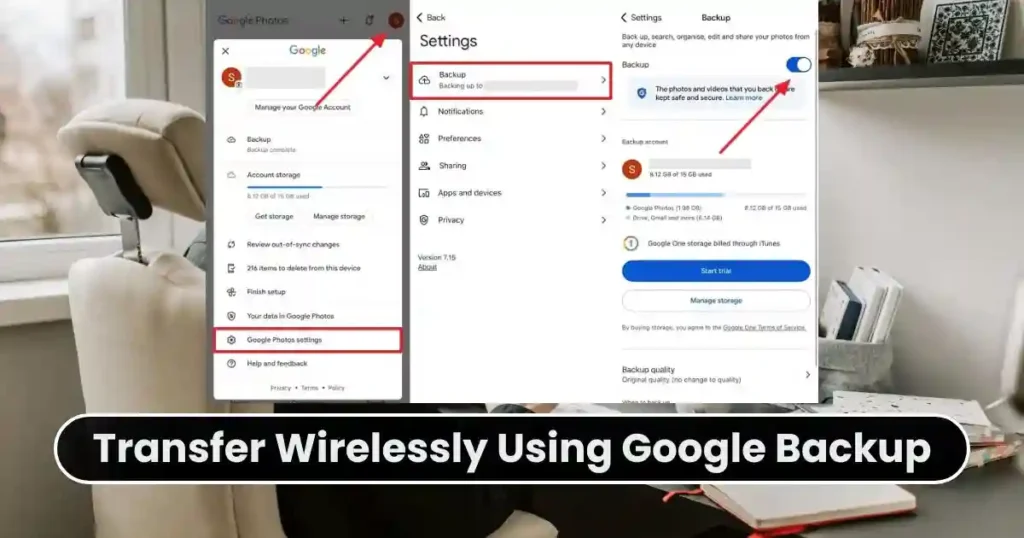
This method is ideal when a cable is unavailable or when the phones aren’t physically next to each other.
How It Works
Your old phone creates an encrypted backup on Google Drive. During setup, the new phone restores data from the cloud.
Steps to Follow
Phase 1 — Create Backup on Old Phone
- Go to Settings → System → Google → Backup
- Turn on Backup by Google One
- Tap Back up now
Phase 2 — Restore on the New Phone
- Turn on your new phone and connect to Wi-Fi
- On setup screen select Copy apps & data
- Choose A backup from the cloud
- Sign in using the same Google account
- Select the backup you created
- Enter lock screen password of old phone (for security verification)
- Choose data to restore and continue
What Gets Restored
- Contacts, messages, call logs
- Photos & videos (if Google Photos backup was enabled)
- Installed apps from Play Store
- Device settings & wallpapers
Limitations
- Requires strong Wi-Fi
- Very large galleries take time
- Some third-party app data might not restore (depends on developer support)
Also Read: How to Uninstall Programs Completely in Windows: Step-by-Step Guide 2025
Method 3: Transfer Using a Dedicated App (Smart Switch & Others)
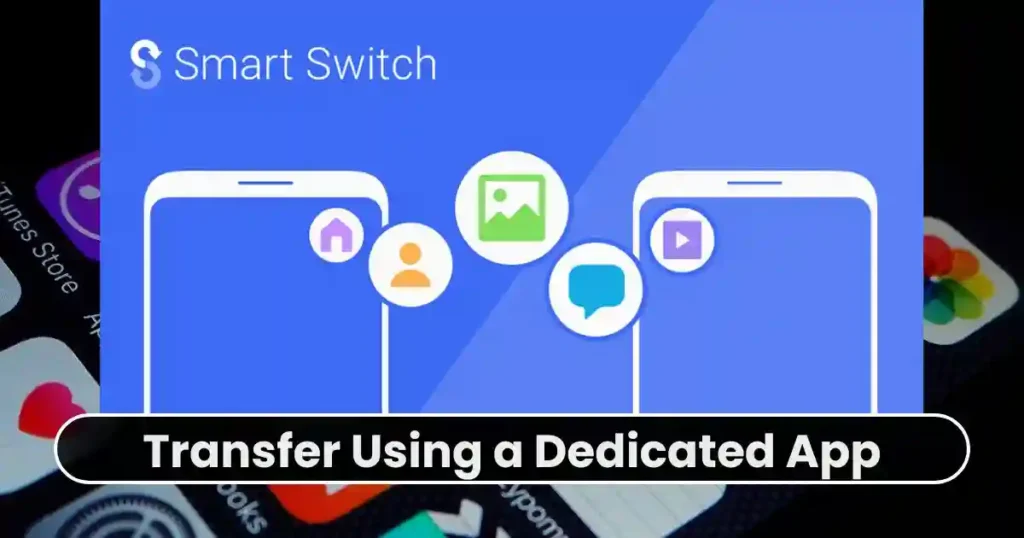
Sometimes brand-specific transfer apps make migration easier — especially when switching to Samsung.
Samsung Smart Switch
- Install Smart Switch on both phones (if not already installed)
- Open the app
- On the old phone choose Send data
- On the new phone choose Receive data
- Pick Wireless or Cable
- Select the content to transfer and proceed
Other Brand-Based Tools
| Brand | Transfer Tool |
|---|---|
| Xiaomi | Mi Mover |
| OnePlus | Clone Phone |
| Oppo | Oppo Clone Phone |
| Vivo | EasyShare |
These tools are useful for brand-to-brand upgrades as they maintain app layouts, themes, wallpaper personalization, and icon styles.
Important Tips for a Smooth Transfer
To ensure zero data loss, keep these recommendations in mind:
- Avoid interrupting the transfer once started
- Keep Wi-Fi enabled (for cloud or app-based migration)
- If transferring WhatsApp, perform a separate WhatsApp backup and restore
- If you have both Google Photos and offline gallery images, ensure both are backed up to avoid duplicates or missing files
- For extremely large video files, consider a cable transfer instead of Wi-Fi
Which Method Should You Choose? (Expert Recommendation)
| Situation | Best Method |
|---|---|
| You want the fastest and most complete transfer | USB Cable |
| You don’t have both phones in hand | Google Backup |
| Switching to Samsung phone | Smart Switch |
| Very low Wi-Fi speed | USB Cable |
| New phone already set up | Google Backup or Transfer App |
From an overall performance & success standpoint, USB cable transfer remains the most reliable for most users.
Troubleshooting: What If Transfer Fails?
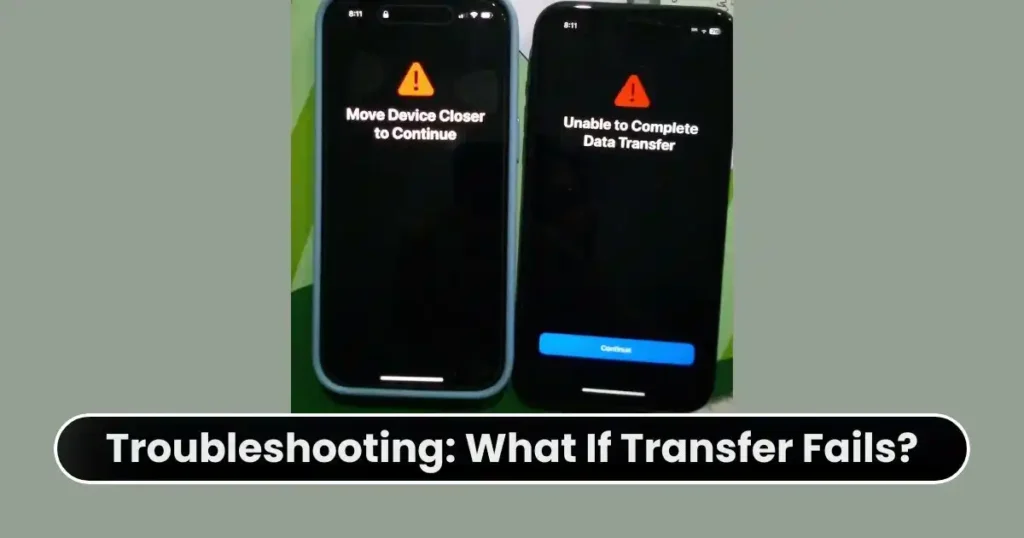
If your transfer gets stuck, freezes, or doesn’t complete, try these solutions:
- Restart both phones
- Switch to a new/different USB cable
- Turn off battery optimization while transferring
- Ensure Google Play Services is updated
- Try wireless if cable doesn’t work (or vice-versa)
Final Words
Upgrading to a new phone becomes effortless once you understand how to transfer data from old phone to new Android safely and completely. Whether you choose cable transfer, Google cloud backup, or a brand-specific migration tool, the key is preparing both phones correctly and selecting the transfer method that suits your situation. With the right approach, your new device will feel like home instantly — with your apps, photos, and memories exactly where you left them.
FAQs: Transfer Data From Old Phone to New Android
1. Can I transfer data after I already set up my new Android phone?
Yes. You can transfer again using Google Backup or a dedicated app like Smart Switch or Clone Phone, even after setup.
2. Will WhatsApp chats transfer automatically using cable or Google backup?
Usually no. You must perform a WhatsApp backup and restore separately.
3. Can I transfer data from Android to iPhone using these methods?
No. For Android to iPhone, you need Move to iOS app.
4. Do I need fast internet for wireless transfer?
Yes, especially if you’re restoring from Google Drive. Slow Wi-Fi increases transfer time.
5. Will apps remain logged in after migration?
Most major apps do, but some banking and secure apps may require login again.
Disclaimer: This article is for informational purposes only. Android brands and software versions may vary, and transfer features may change with updates. Users are advised to follow on-screen instructions carefully and back up important data before performing any transfer.
Also Read: How to Create New Gmail Account Professionally in 2025-26: Full Setup Guide

Raj Prajapati is a skilled content writer dedicated to creating clear, step-by-step guides on technology, Health, and everyday solutions. With a focus on user-friendly and SEO-optimized content, he simplifies complex topics, helping readers learn and solve problems effortlessly.