
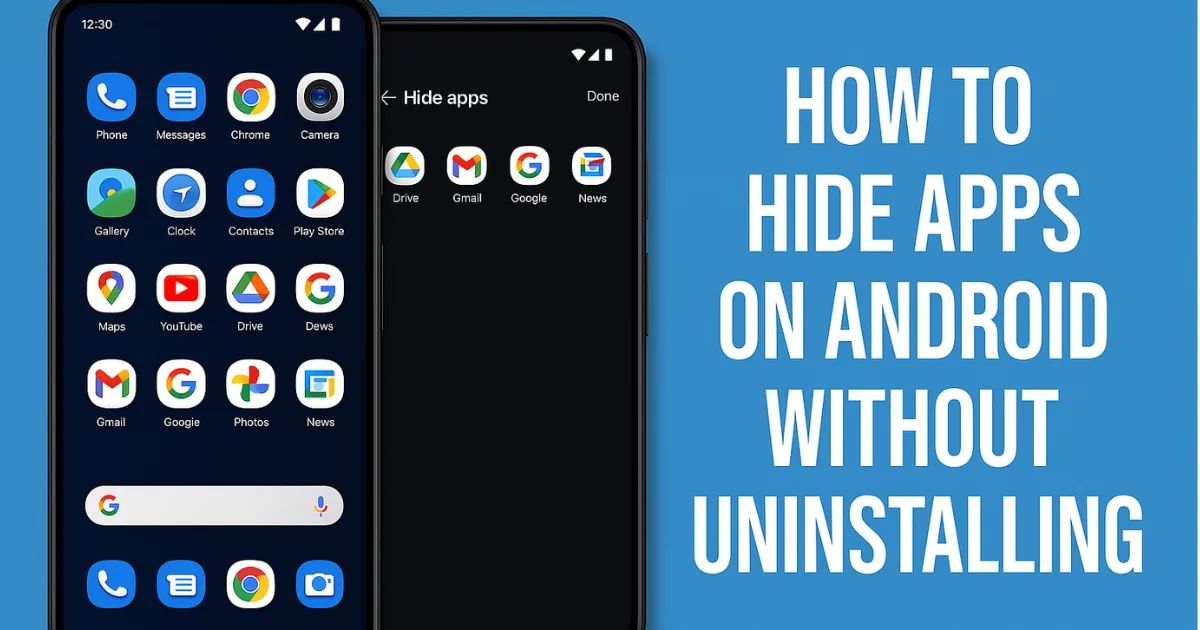
Privacy has become one of the biggest concerns for smartphone users. The more our daily routines shift to digital platforms, the more we begin to store sensitive information on our phones – banking apps, social media accounts, private chats, shopping history, medical portals, and even work-related confidential applications.
Not every app installed on a phone is meant to be visible to anyone who casually scrolls through your home screen. That is exactly why millions of Android users today search for how to hide apps on Android without uninstalling, especially when they share phones with friends, relatives, or children.
People often think uninstalling an app is the only way to remove it from view, but that approach doesn’t work when you need the app every day. For example, you may want to hide financial apps, dating platforms, personal gallery vaults, or work tools without losing your stored data. Fortunately, Android has evolved tremendously in this area, and multiple simple methods exist to hide apps while keeping them intact.
This article explores every possible method in depth: built-in phone settings, specialized brand features, Secure Folder and App Lock systems, guest profiles, launcher applications, and other clever techniques. The objective is to provide a long-form, real-life, practical guide that works for every Android user, regardless of phone model, Android version, or technical experience.
Also Read: How to Transfer Data From Old Phone to New Android – (Cable & Wireless)
Why Hiding Apps Matters in the Real World
While some users hide apps simply to reduce home-screen clutter, many people do it for genuine privacy and security reasons. Today’s smartphones carry sensitive personal, financial, professional, and educational information. Smartphones are often borrowed by children, friends, or family members to play games, attend online classes, click pictures, or make calls. During this shared usage, not every user wants to expose their apps.
Common reasons users choose to hide apps include:
- Protecting financial and banking applications
- Keeping dating apps private
- Preventing children from opening restricted apps
- Avoiding accidental changes in business apps
- Hiding entertainment apps during work hours
- Maintaining privacy during travel or security checks
- Protecting secondary social media accounts or gallery vaults
For these reasons, Android developers and manufacturers have introduced multiple solutions to help users hide apps safely while keeping them ready to use anytime.
Built-in Feature: The Most Common Way to Hide Apps
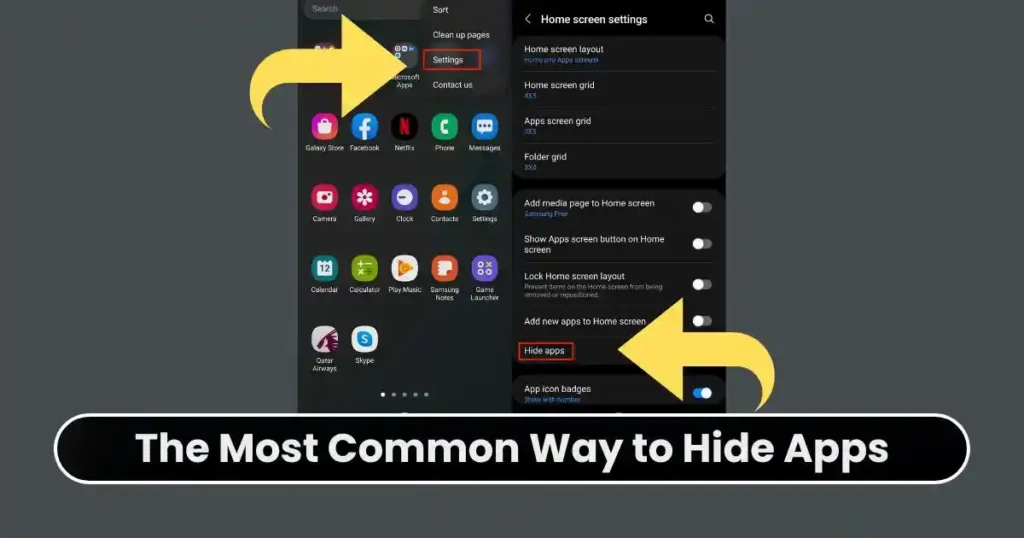
Most modern Android phones come with a built-in Hide Apps feature, usually located under Home Screen or Display settings. Unlike uninstalling or disabling an app, this method hides apps from both the home screen and the app drawer without affecting app performance or data.
How to Use Built-in Hide Apps Feature
The wording and location may differ depending on phone brand and model, but generally the steps follow this pattern:
- Open Settings on your Android device
Use the main Settings app rather than searching on individual screens. - Navigate to Home Screen or Display options
On many phones, the path looks like:
Settings → Display → Home screen → Hide apps If exact wording is unclear, use the search bar in Settings and type Hide apps. - Select the apps you want to hide from the list
The device will show all installed apps; tapping one will move it to a hidden section. - Tap Done or Apply to confirm
The selected apps will disappear from the app drawer and home screen instantly.
Why This Method Is Popular
- Fast and easy
- No third-party apps required
- No storage used
- No app data lost
- Works permanently until manually unhidden
However, this method focuses more on convenience than security. While hidden, these apps may still be visible in settings or notifications if someone has full access to the phone. Users who want a deeper privacy layer should explore the next options.
Samsung Secure Folder: Professional-Grade Privacy
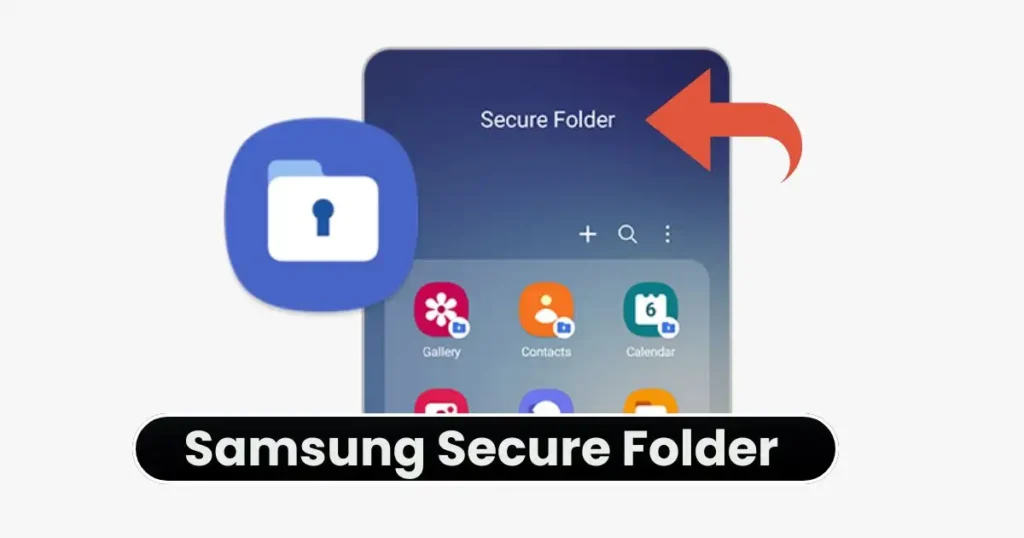
Samsung offers one of the strongest privacy systems in Android phones. Secure Folder creates an independent encrypted space inside the phone where apps, photos, and files can be stored privately. Apps placed inside Secure Folder are invisible from the normal user environment.
How to Set Up Samsung Secure Folder
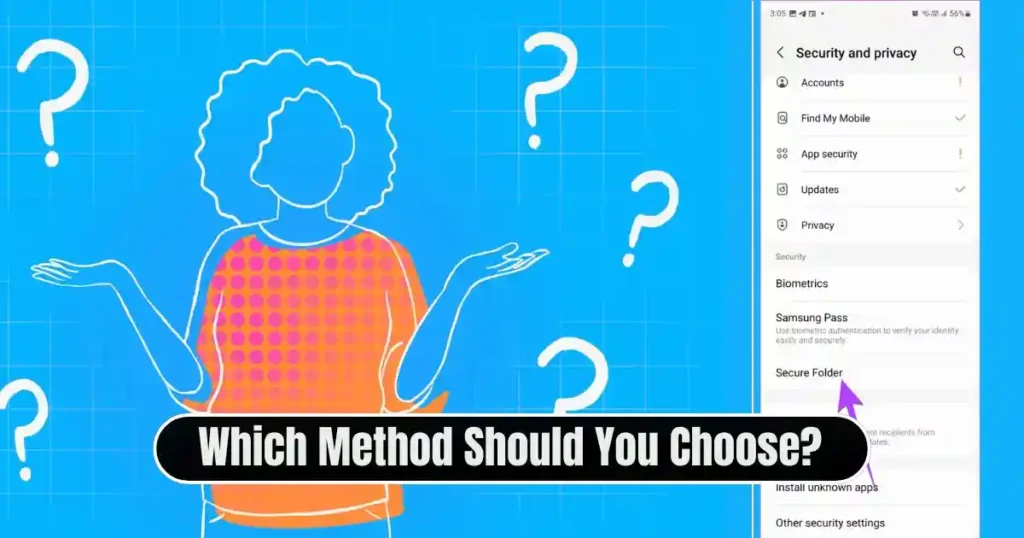
- Go to Settings → Security and Privacy → Secure Folder
- Follow the setup steps and sign in with your Samsung account
- Create a PIN, password, or fingerprint lock
- Open Secure Folder and tap Add Apps
- Select apps to move or install inside the secure area
Once added, the apps disappear from the regular app drawer and can only be opened through Secure Folder.
Advantages
- High-level encryption
- Separate lock system
- Completely invisible to other users
- Notifications hidden by default
- App data stays private even during phone sharing
For Samsung users, this is the safest and most professional way to hide sensitive applications.
Xiaomi Hidden Apps & App Lock Integration
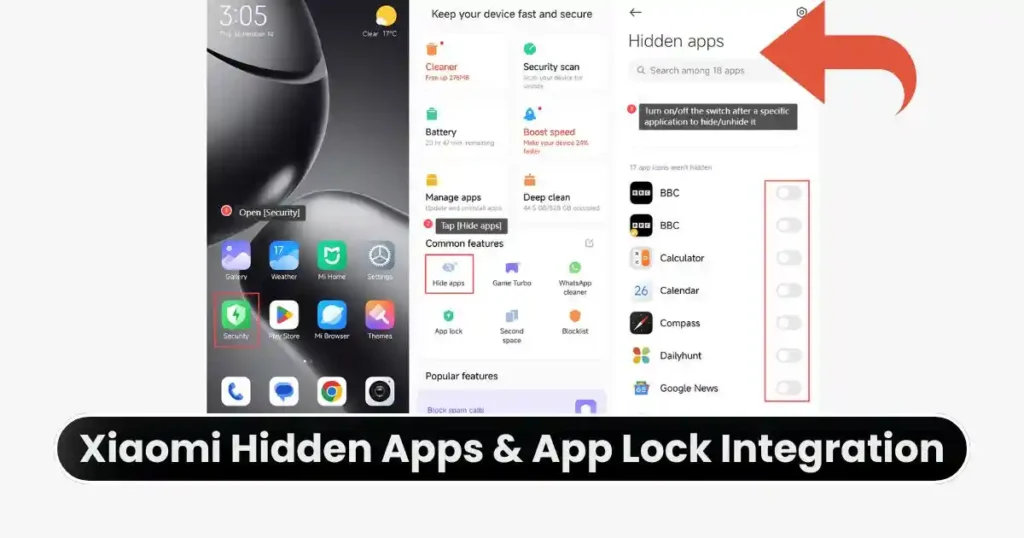
Xiaomi integrates privacy features under App Lock, which supports two functions: locking apps with a password and moving apps into Hidden Apps mode.
How to Hide Apps on Xiaomi Phones
- Go to Settings → Apps → App Lock
- Create a PIN or pattern
- Go to the Hidden Apps tab
- Choose apps you want to hide
Apps hidden through this system disappear from the app drawer and can only be accessed through a private gesture depending on the phone model.
OnePlus Hidden Space
OnePlus phones include a special space for hidden apps inside the app drawer.
How to Use It
- Swipe up to open the App Drawer
- Swipe right to open Hidden Space
- Tap Add and select apps to hide
Hidden Space can also be locked using fingerprint or password for enhanced security.
Also Read: How to Recover Deleted Photos from Android Without PC- Full Expert Guide
Google Pixel / Huawei / Android 15+ Private Space
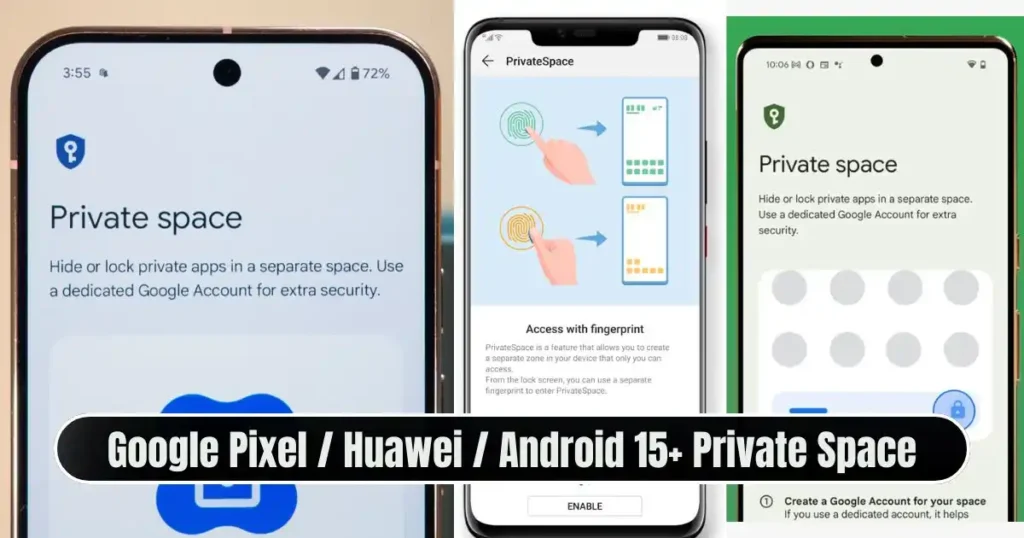
A newer implementation is called Private Space, which essentially creates a secondary user profile for hidden apps. This profile has its own lock and app environment.
Why It Works Well
- Completely isolated from main profile
- Apps installed in Private Space are invisible outside
- Ideal for work and personal separation
What If Your Phone Doesn’t Support Any Built-in Hiding Feature?
Some budget devices and older versions of Android don’t include Hide Apps options. In such cases, there are three practical solutions.
Method 1: Use a Third-Party Launcher
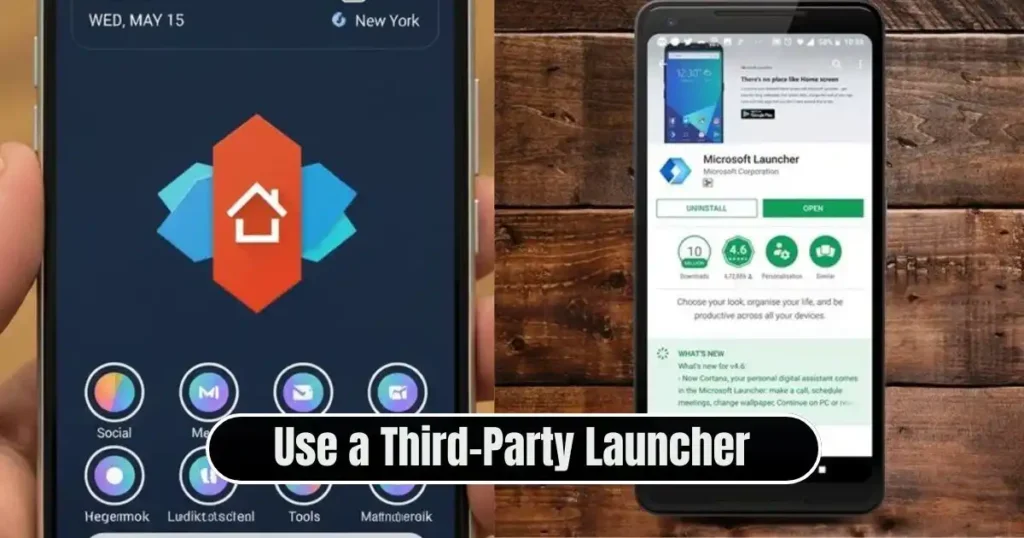
Launchers such as Nova Launcher, Apex Launcher, Microsoft Launcher, and Niagara Launcher allow users to hide apps directly from the home screen and drawer settings.
Why Launchers Work
They replace the default interface, adding richer customization without deleting anything.
Typical Steps
- Install a launcher from Google Play Store
- Set the launcher as default
- Open launcher settings
- Look for Hide Apps or App Drawer Settings
- Select the apps you want to hide
This method is fast and flexible, though advanced protection depends on the launcher’s security features.
Method 2: Create a Guest Mode
A guest account creates a separate user profile with no access to private apps.
How to Create It
- Open Settings
- Go to System → Multiple Users
- Tap Add Guest
Switching to Guest mode offers a safe browsing experience, especially when handing the phone to children or visitors.
Method 3: Disable Unwanted System Apps
Some pre-installed system apps can be removed from the app drawer without uninstalling them using the Disable feature.
Steps
- Long-press the app icon
- Open App Info
- Tap Disable
However, this does not work for every app and is not suitable for frequently-used apps.
How to Unhide Apps
No matter the method, unhiding apps is simply the reverse process.
General Steps
- Go back to the Hide Apps or Hidden Apps section
- Deselect the apps you want to make visible again
- Tap Done or Apply
On Samsung Secure Folder or Private Space, unhiding means moving the app out of the protected area.
Which Method Should You Choose?
| User Type | Best Method |
|---|---|
| You just want to hide icons | Built-in Hide Apps |
| You want maximum privacy | Secure Folder / Private Space |
| You lend phone to children or guests | Guest Account |
| Budget / older device user | Third-party launcher |
| You want to free space and hide | Disable app |
Selecting the correct method depends on how strongly you value privacy and how often you access the hidden app.
Conclusion
Managing smartphone privacy is no longer optional in today’s digital lifestyle. By understanding exactly how to hide apps on Android without uninstalling, you gain control over what others can and cannot see on your phone. Whether your priority is to protect banking apps, personal conversations, work data, or simply reduce visual clutter, Android now offers multiple built-in and third-party solutions to help you securely hide apps while preserving their data and full functionality.
Instead of uninstalling, disabling, or removing an app manually, users can now apply more advanced, secure, and professional privacy mechanisms such as Secure Folder, App Lock, Private Space, launchers, and guest mode. The right method depends on how the phone is used and the level of privacy required. With the right approach, your digital privacy remains under your full control.
FAQs: How to Hide Apps on Android Without Uninstalling
1. Can someone still find hidden apps using search?
On some phones, yes. To prevent this, use Secure Folder, App Lock, or Private Space instead of simple Hide Apps.
2. Does hiding apps affect app performance or notifications?
Typically no. But certain brands hide notifications of secured apps for privacy.
3. Will hidden apps still receive updates?
Yes. Hidden apps continue to update normally through Google Play.
4. Is hiding apps the same as disabling them?
No. Hiding keeps the apps working, while disabling stops them from functioning.
5. Can I hide apps without installing any external software?
Yes. Many phones include built-in Hide Apps, Secure Folder, or App Lock features.
Disclaimer: This article is for educational purposes only. Android features and privacy settings may vary by phone model, brand, and Android version. Users are advised to follow on-screen instructions carefully and verify privacy settings after configuration.
Also Read: How to Uninstall Programs Completely in Windows: Step-by-Step Guide 2025

Raj Prajapati is a skilled content writer dedicated to creating clear, step-by-step guides on technology, Health, and everyday solutions. With a focus on user-friendly and SEO-optimized content, he simplifies complex topics, helping readers learn and solve problems effortlessly.