
In today’s hyper-connected digital world, staying focused has become one of the biggest challenges for anyone working on a computer. Every few minutes, notifications pop up, apps demand attention, and our workflow gets disrupted. Microsoft recognized this modern productivity problem and introduced a built-in feature called Focus Sessions in Windows 11—a clean, simple, distraction-free tool designed to help users concentrate for extended periods.
If you’re wondering How to Use Windows 11 Focus Sessions effectively to improve your productivity, manage your time better, and maintain a healthier work rhythm, this detailed guide walks you through everything you need to know. From setup to advanced customization, you’ll learn how Focus Sessions can transform the way you work.
Also Read: How to Block Websites on Your Browser Without Extensions
What Are Windows 11 Focus Sessions?
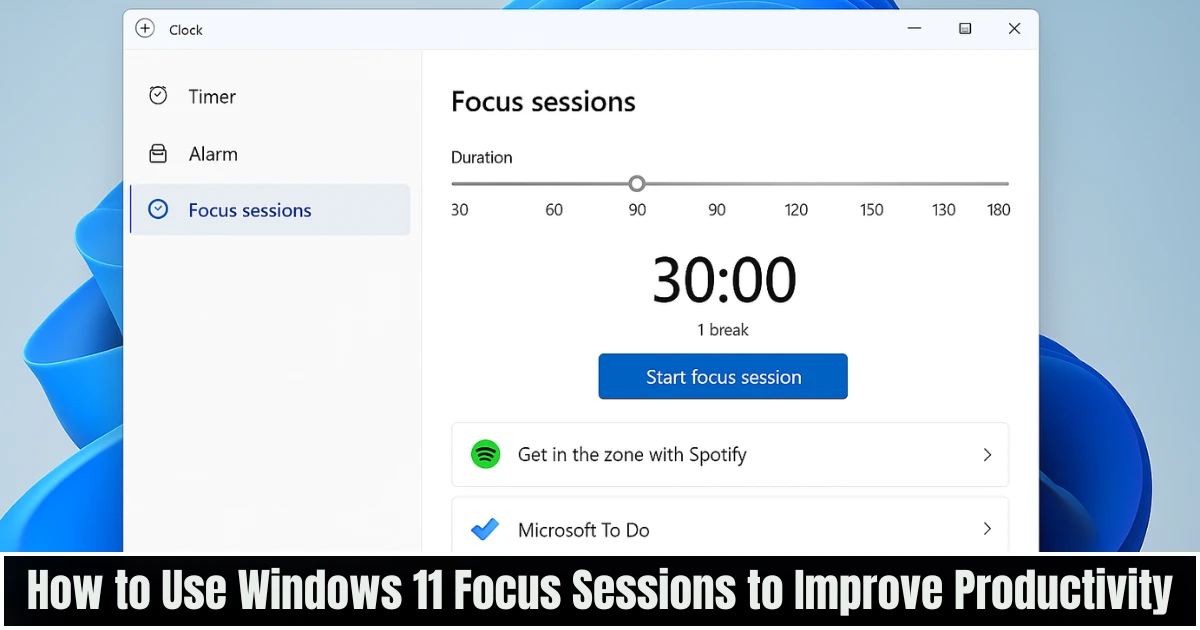
Windows 11 Focus Sessions is a built-in productivity feature available inside the Clock app and notification center. It creates a distraction-free environment by silencing notifications, activating Do Not Disturb, setting a timer, and helping you track your progress.
Unlike third-party productivity tools that require installation, subscriptions, or setup, Focus Sessions is free and native to Windows. This makes it perfect for users who want something quick, reliable, and accessible without overwhelming options.
The feature is built around the classic Pomodoro-style time-blocking approach, where you work for a set period followed by a short break. But Windows takes it a step further by integrating apps like Spotify and Microsoft To Do to create a more complete workflow experience.
Why Focus Sessions Matter for Productivity
To understand How to Use Windows 11 Focus Sessions effectively, it’s important to first understand why this feature exists.
Microsoft designed Focus Sessions based on three core principles:
1. Reducing Distractions
Notifications are one of the biggest productivity killers. Even a small popup breaks concentration and takes several minutes for the brain to regain focus. Windows 11 handles this problem by automatically silencing alerts during a Focus Session.
2. Structuring Work Time
Many workers, students, and professionals struggle to plan their tasks. Focus Sessions solve this by offering timers that help you create dedicated work blocks.
3. Improving Task Completion
The built-in integration with Microsoft To Do ensures that every session is tied to actual task completion, not just passive sitting in front of a screen.
When used properly, Focus Sessions can help increase efficiency, reduce stress, and build a consistent work routine.
How to Use Windows 11 Focus Sessions (Step-by-Step Guide)
Below is a complete, human-like explanation of setting up and using Focus Sessions in Windows 11, based on real user workflows and practical scenarios.
1. Open the Clock App or Notification Center
There are two ways to begin a Focus Session:
Method 1: From the Clock App
- Click the Start menu
- Type Clock
- Open the Clock app
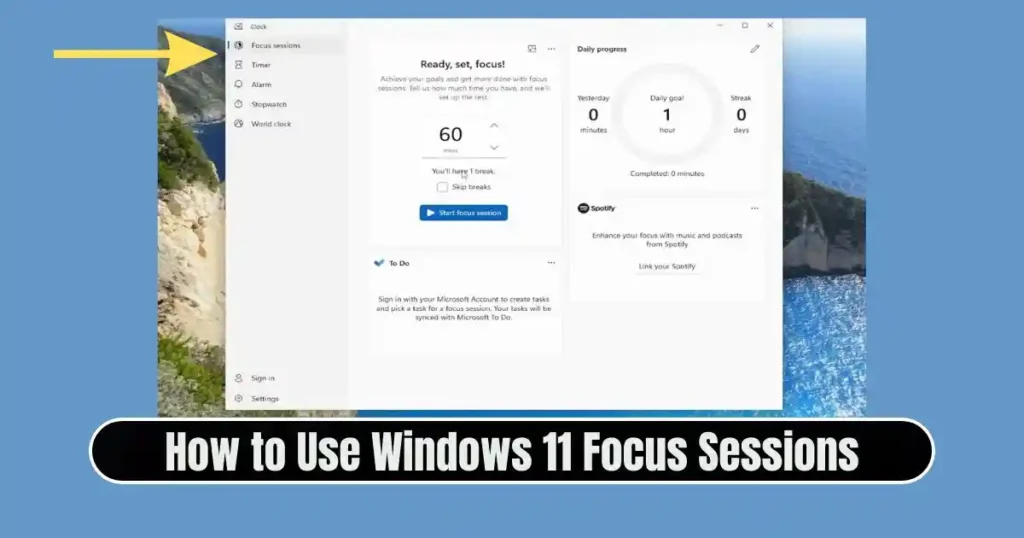
- Navigate to the Focus Sessions section
This method is the most straightforward if you want to configure settings or connect apps like Spotify and Microsoft To Do.
Method 2: From the Notification Center
- Press Win + N or click the Date & Time in the taskbar
- A quick Focus button appears
- Click Focus to instantly start a session
This is the faster method when you need to jump into work immediately.
2. Navigate to the Focus Sessions Dashboard
Once inside the Clock app, you’ll find the Focus Sessions tab on the left panel. Here, Windows provides options to:
- Set a session duration
- Add breaks
- Track daily progress
- Connect Spotify
- Link Microsoft To Do tasks
The layout is simple, clean, and suitable for beginners.
3. Choose the Duration of Your Focus Session
This is the step where you define how long you want to work. Windows lets you choose from:
- 30 minutes (minimum)
- Custom durations
- Long sessions lasting hours
The tool also automatically schedules breaks if your session is long enough. For example:
- A 2-hour session might include two breaks
- A 45-minute session may include no breaks
These breaks are important to prevent burnout and maintain productivity throughout the day.
4. Start Your Focus Session
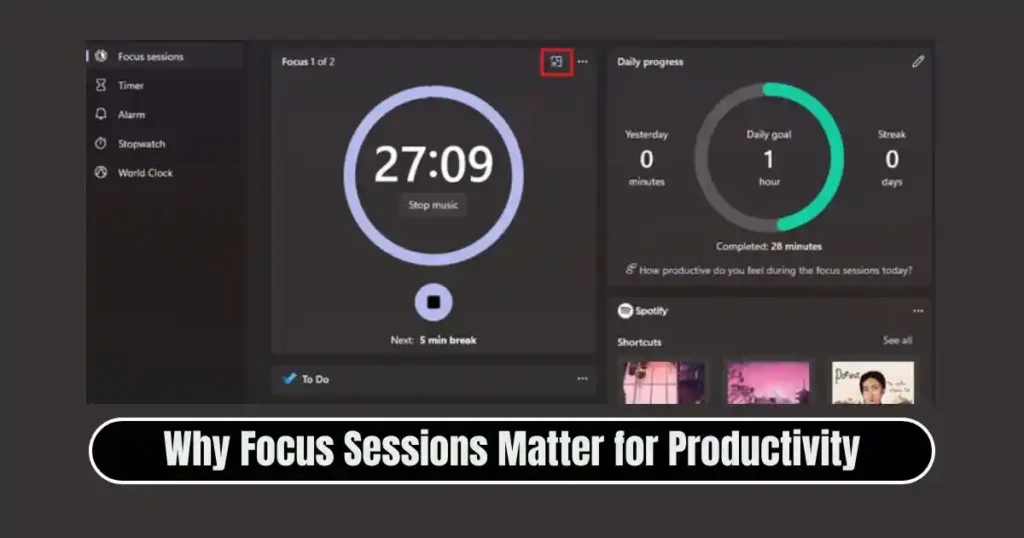
Click Start Focus Session and the timer will begin counting down. As soon as the session starts, Windows automatically:
- Activates Do Not Disturb
- Silences all notifications
- Minimizes interruptions
- Displays a clean timer window
- Tracks your focus streak
You can minimize the Clock app—the session continues running in the background.
5. Customize Your Focus Settings
Before making Focus Sessions a daily habit, it’s smart to personalize the settings so the experience matches your workflow.
Go to:
Start > Settings > System > Focus
Here you can modify:
Show the Focus Timer on screen
Useful if you want visual reminders.
Hide taskbar badges during focus
Badges with unread counts can be mentally distracting.
Hide flashing taskbar icons
Prevents apps from pulling attention increasingly.
Automatically activate Do Not Disturb
A crucial feature that ensures silence throughout your work period.
These settings apply to all future sessions, even if you start them from the notification center.
Also Read: How to Use Google Keep for Notes and To-Do Lists: Complete Beginner to Pro Guide
Advanced Features of Windows 11 Focus Sessions
To truly understand How to Use Windows 11 Focus Sessions in a productivity-focused setup, let’s explore its deeper integrations.
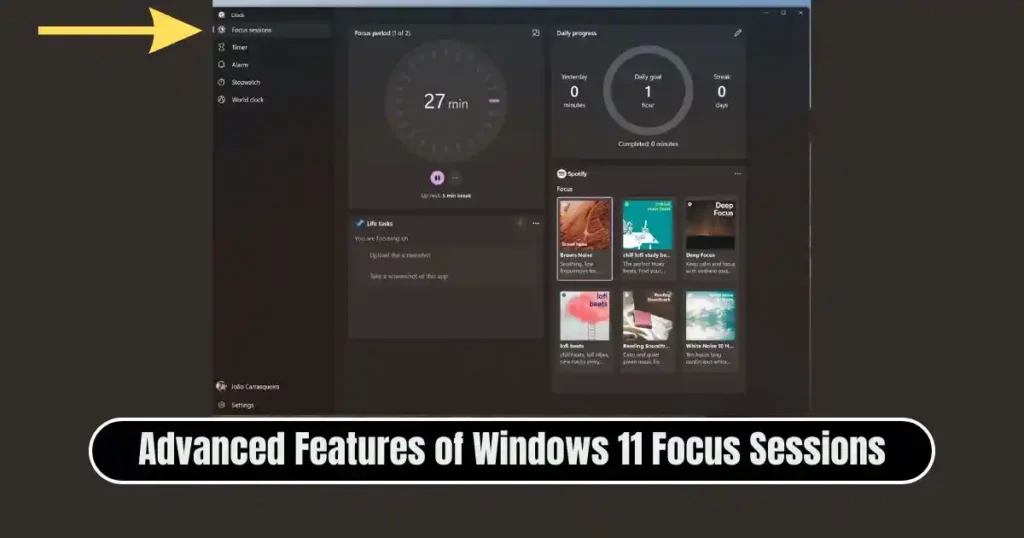
1. Spotify Integration for Productive Work Sessions
Windows 11 allows you to link your Spotify account directly inside the Clock app. Once connected, you can play:
- Lo-fi music
- Nature sounds
- Relaxing background playlists
- Study or work-friendly mixes
Several studies show that ambient or instrumental music helps people enter a deeper state of concentration. The integration is seamless—you don’t need to switch apps or lose time searching for playlists.
2. Microsoft To Do Integration for Task Management
Microsoft To Do syncs with your Microsoft account and allows you to:
- Add tasks
- Categorize items
- Track progress
- Complete activities during your session
When a task is marked complete, it updates both inside the Focus Session and your To Do app. This creates a meaningful connection between the time you invest and the progress you achieve.
This integration makes Windows 11 Focus Sessions more than just a timer—it becomes a complete productivity tool.
3. Do Not Disturb: The Core of Focus Sessions
Do Not Disturb is the backbone of Focus Sessions. When enabled, Windows:
- Silences all notifications
- Prevents notification banners
- Sends all alerts quietly to the notification center
- Stops apps from interrupting your work
However, Windows understands that not all notifications are equal. That’s why it allows a priority list.
Priority Notifications
You can allow specific apps to notify you even while Focus is active. For example:
- Allow Microsoft Teams but block Outlook
- Allow system alerts but block social media apps
- Allow calls and reminders
This level of control ensures that you don’t miss urgent updates but continue shielding yourself from unnecessary interruptions.
4. Tracking Your Daily Focus Progress
Windows 11 keeps track of how much time you spend focusing each day. This progress graph helps you:
- Build a habit
- Maintain daily streaks
- Evaluate productivity patterns
- Understand when you are most focused
For users who want to develop long-term concentration skills, this data is extremely valuable.
Using Viva Insights for Workplace Focus (Optional)
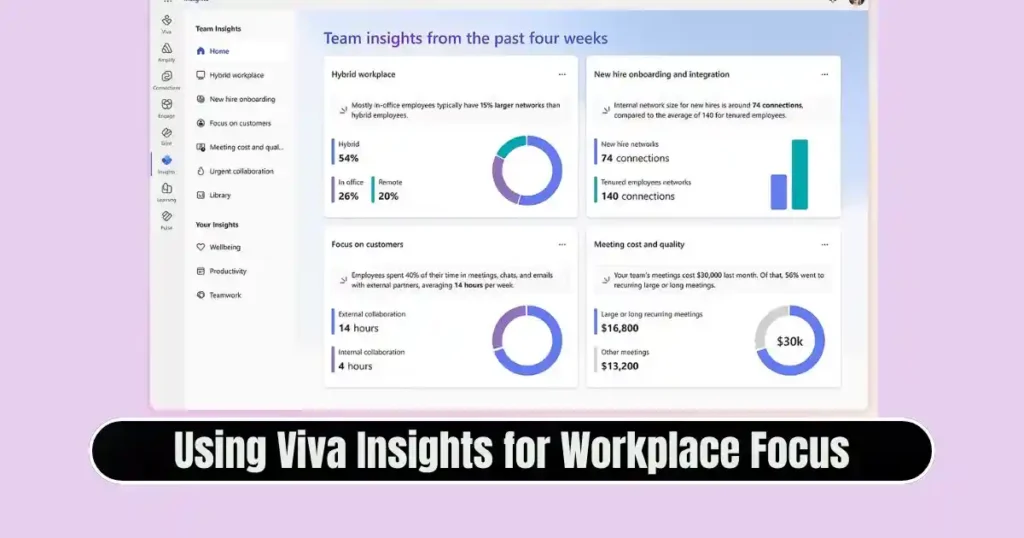
If you’re part of a Microsoft 365 organization, Focus Sessions integrate with Viva Insights, allowing you to:
- Automatically schedule focus blocks on your Outlook calendar
- Notify coworkers that you’re unavailable
- Reduce meeting overload
- Maintain a healthier work-life balance
This is especially helpful in corporate environments where distraction often comes from workplace communication.
Tips to Get the Most Out of Windows 11 Focus Sessions
To maximize productivity while using this feature, here are some practical recommendations:
1. Choose the right focus duration
If you’re new to time-blocking, start with 30–45 minutes. Increase the duration as your concentration improves.
2. Use music intentionally
Not all music helps everyone. Experiment with ambient, classical, and low-fi genres.
3. Prioritize essential apps only
Allow notifications only from apps that are critical to your work.
4. Use Microsoft To Do actively
When tasks are visible during sessions, you tend to complete them faster.
5. Review your progress
Windows’ productivity charts can help you understand your work patterns and improve them.
Comparing Focus Sessions to Other Productivity Tools
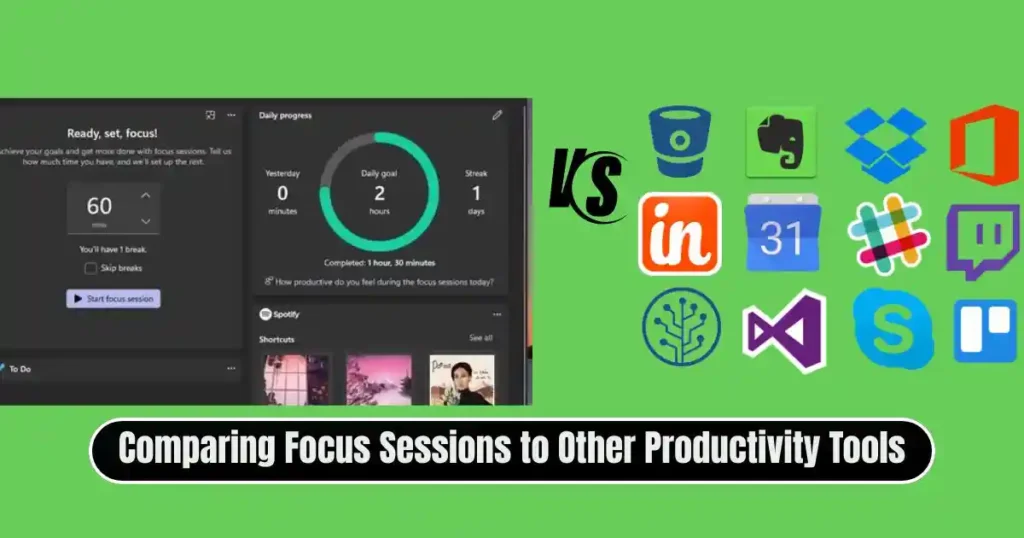
There are many standalone productivity tools, but here’s how Windows Focus Sessions stands apart.
| Feature | Windows 11 Focus Sessions | Third-Party Tools |
|---|---|---|
| Built-in | Yes | No installation required |
| Cost | Free | Often subscription-based |
| Notifications control | Native Do Not Disturb | Limited |
| Integrations | Spotify & Microsoft To Do | Varies |
| Ease of use | Very simple | Can be complex |
| Corporate features | Works with Viva Insights | Limited |
If your requirement is simplicity, deep OS integration, and distraction control, Focus Sessions is one of the most efficient tools available.
Common Mistakes Users Make with Focus Sessions
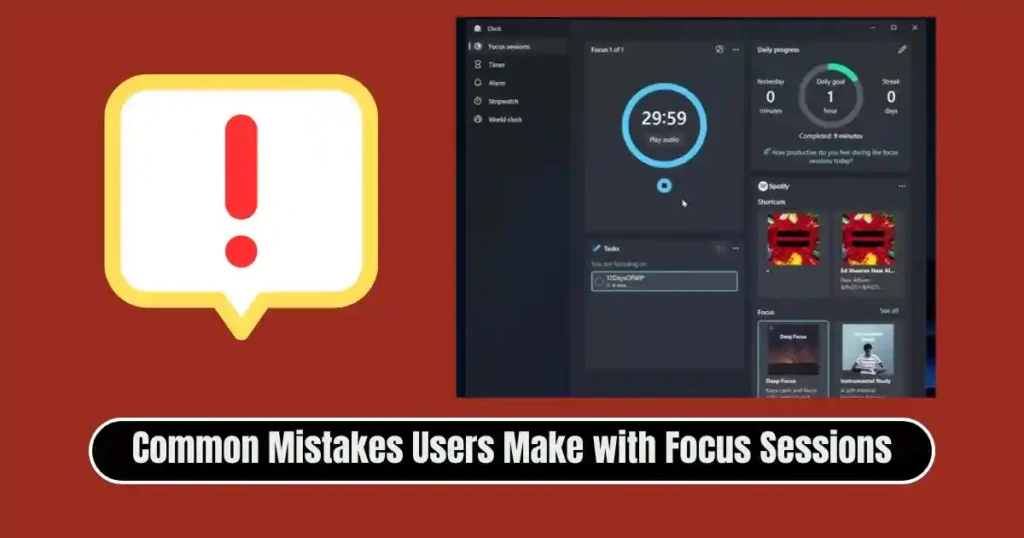
Starting long sessions right away
Too long sessions can lead to burnout. Begin small.
Ignoring task tracking
Without tasks, the session becomes just a timer.
Not customizing Do Not Disturb
If notifications continue appearing, the whole purpose is defeated.
Not taking scheduled breaks
Breaks are critical to long-term productivity.
Conclusion
Learning How to Use Windows 11 Focus Sessions can dramatically improve how you work, study, or manage daily tasks. By silencing distractions, organizing your workflow, integrating music, and offering task management, Windows 11 delivers a simple yet surprisingly effective productivity system.
Whether you’re a student preparing for exams, a remote worker managing deadlines, or a professional handling multiple projects, Focus Sessions can help you stay consistent and efficient throughout the day.
FAQs on How to Use Windows 11 Focus Sessions
1. What is the main purpose of Windows 11 Focus Sessions?
The purpose is to reduce digital distractions, help users focus for set periods, and improve productivity through structured work cycles.
2. Can I use Focus Sessions without Microsoft To Do or Spotify?
Yes. Both integrations are optional. You can run a session with only the timer and Do Not Disturb mode.
3. Do Focus Sessions work when the Clock app is minimized?
Yes, the session continues running silently in the background.
4. Can I allow only certain notifications during Focus Sessions?
Yes. Through priority notifications settings, you can choose which apps can alert you while Do Not Disturb is active.
5. Does Windows save my focus progress?
Yes. Windows tracks your daily focus streaks and overall productivity trends.
Disclaimer: This article is based on commonly available information about Windows 11 features at the time of writing. Microsoft may update or modify Focus Sessions in future Windows releases. Always refer to official Microsoft documentation for the most accurate and up-to-date instructions.
Also Read: How to Hide Apps on Android Without Uninstalling – Complete Guide

Raj Prajapati is a skilled content writer dedicated to creating clear, step-by-step guides on technology, Health, and everyday solutions. With a focus on user-friendly and SEO-optimized content, he simplifies complex topics, helping readers learn and solve problems effortlessly.