
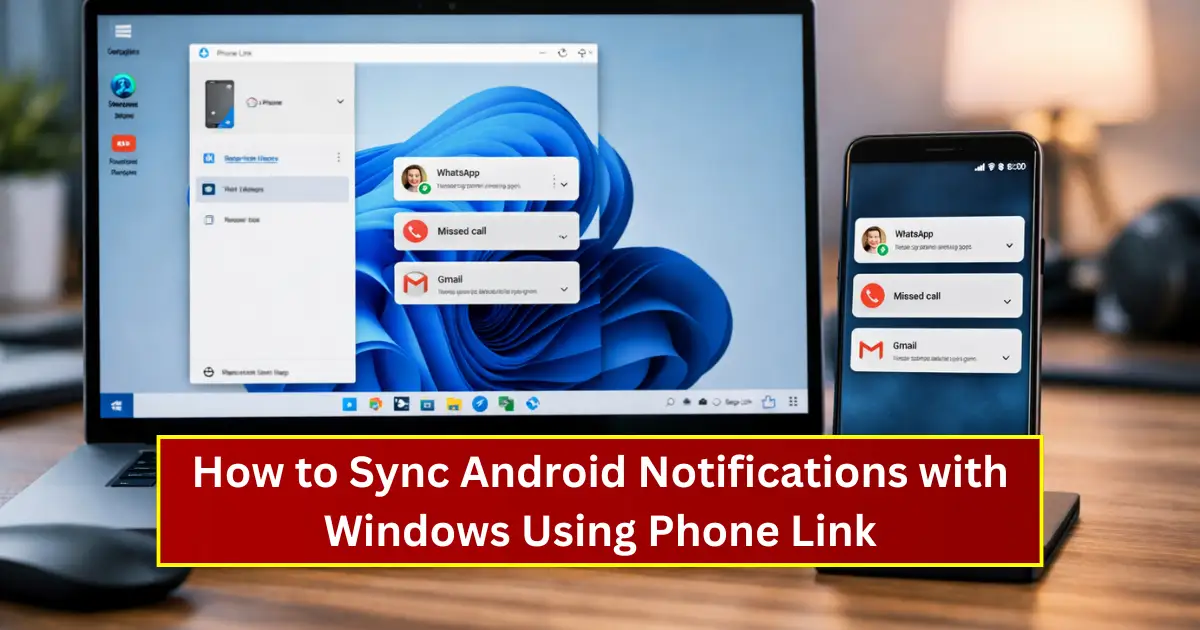
In today’s fast-paced digital world, constantly switching between your smartphone and computer can quietly kill productivity. Every time your Android phone vibrates with a message, app alert, or OTP, your focus breaks. Microsoft’s Phone Link solves this problem by allowing users to sync Android notifications directly with Windows.
This detailed guide explains How to Sync Android Notifications with Windows Using Phone Link, covering everything from setup to customization, troubleshooting, privacy considerations, and real-world usage benefits. Whether you are a student, remote worker, content creator, or office professional, this feature can significantly streamline your workflow.
Also Read: How to Use Smart App Control in Windows 11 to Block Unknown Apps
What Is Phone Link and Why Microsoft Created It
Phone Link, previously known as Your Phone, is Microsoft’s official bridge between Android devices and Windows PCs. Its main purpose is simple but powerful: reduce device friction.
Instead of treating your phone and computer as two separate ecosystems, Phone Link connects them into a single experience. Notifications, messages, calls, photos, and even some apps become accessible directly from your PC screen.
Microsoft introduced Phone Link because modern users live across multiple devices. Productivity suffers when those devices do not talk to each other. By syncing Android notifications with Windows, Microsoft aimed to eliminate unnecessary distractions while still keeping users informed.
Supported Devices and System Requirements
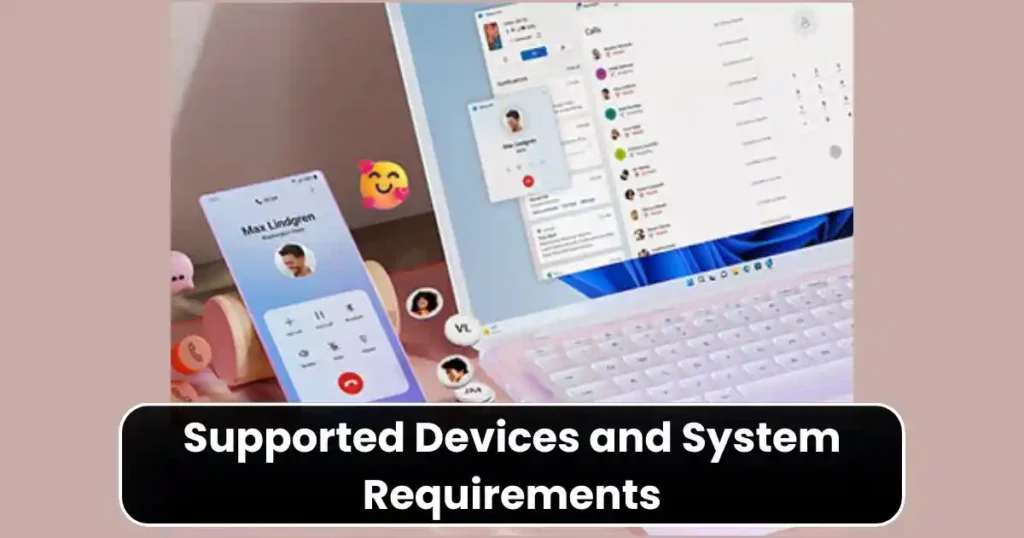
Before learning How to Sync Android Notifications with Windows Using Phone Link, it’s important to understand compatibility.
Windows Requirements
- Windows 10 (May 2019 update or later)
- Windows 11 (recommended for best experience)
- Active Microsoft Account
- Stable internet connection
Android Requirements
- Android 8.0 or later
- Link to Windows app installed
- Same Microsoft account as PC
- Notification access enabled
Some Samsung, Honor, and Surface Duo devices come with Link to Windows preinstalled, which provides deeper integration, but standard Android phones also work perfectly for notifications.
Why Syncing Android Notifications with Windows Is Actually Useful
Many users underestimate the value of notification syncing until they try it. Here’s why this feature matters in real-life usage.
Reduced Phone Dependency
You don’t need to unlock your phone every few minutes. Notifications appear directly on your PC screen.
Faster Replies
You can reply to messages using a physical keyboard, which is faster and more accurate than typing on a phone.
Better Focus
By managing notifications on a larger screen, you avoid constantly switching contexts between devices.
Ideal for Workflows
OTP messages, Slack alerts, emails, and social app notifications all appear in one place.
Understanding these benefits makes How to Sync Android Notifications with Windows Using Phone Link more than just a technical setup. It becomes a productivity upgrade.
How Phone Link Handles Notifications Behind the Scenes
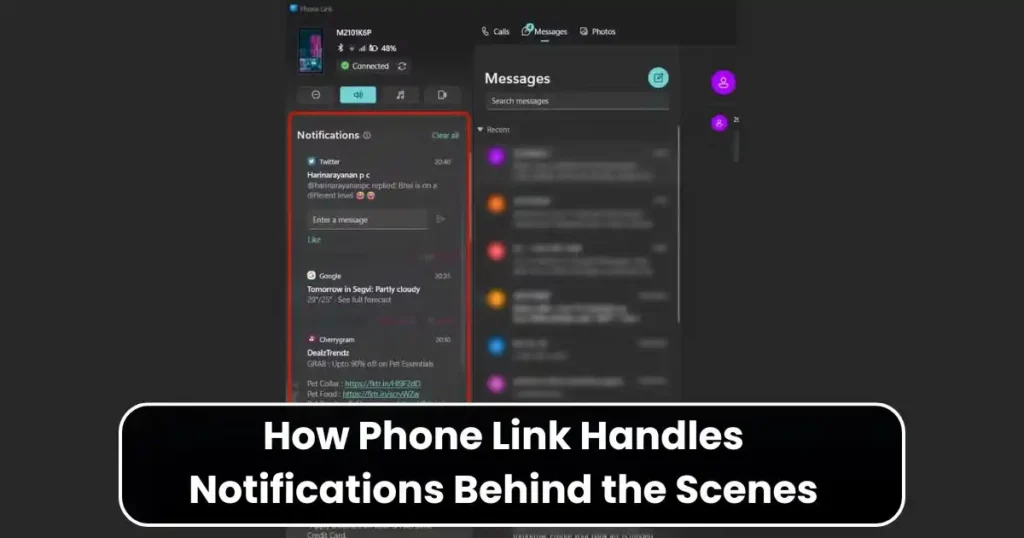
When notification access is granted on Android, Phone Link mirrors alerts securely to your Windows PC. These notifications are not permanently stored on Microsoft servers. Instead, they are temporarily relayed using encrypted channels tied to your Microsoft account.
This means:
- Notifications appear in real time
- Dismissals sync across devices
- Replies are sent directly from your PC to your phone
Microsoft designed this system with privacy in mind, which we’ll discuss in detail later.
Step-by-Step: How to Sync Android Notifications with Windows Using Phone Link
Let’s now move into the practical setup process. Follow these steps carefully for a smooth connection.
Step 1: Launch Phone Link on Your Windows PC
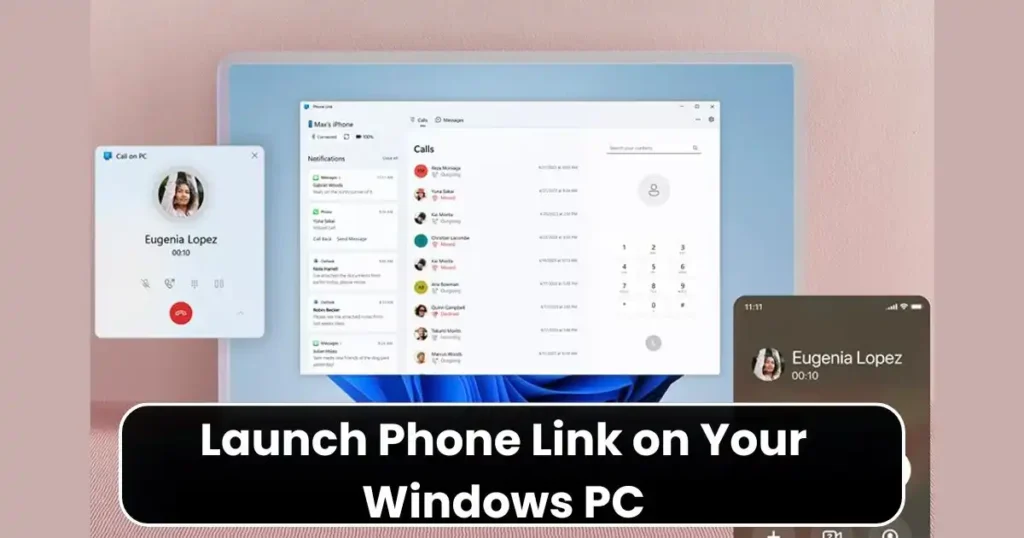
On your Windows PC:
- Click the Start Menu
- Search for Phone Link
- Open the app
- Select Android as your phone type
You’ll see an introduction screen explaining what Phone Link can do. Click Get Started to continue.
Step 2: Install Link to Windows on Your Android Phone
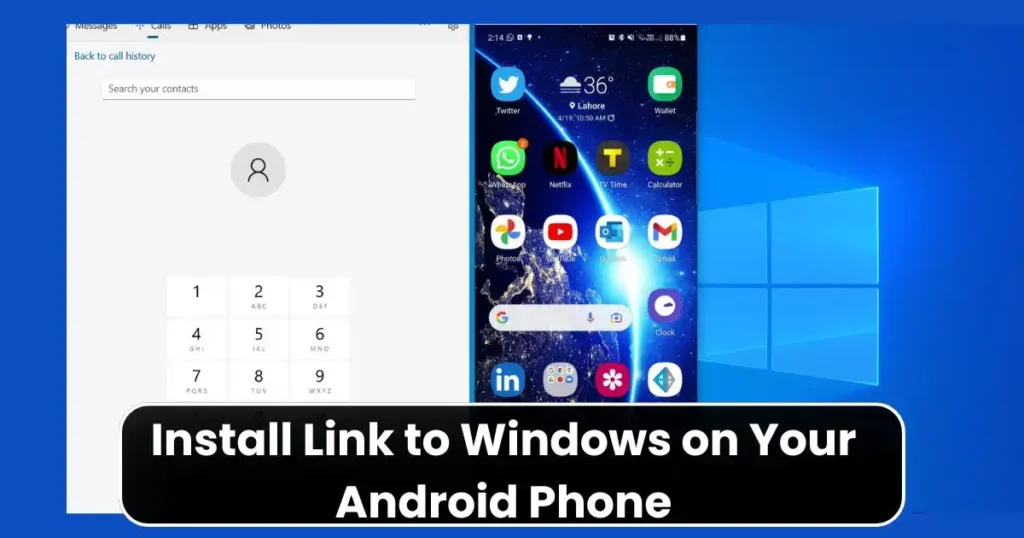
On your Android phone:
- Download Link to Windows from Google Play Store
OR - Open Settings and search for Link to Windows if it’s preinstalled
Once installed, open the app and sign in using the same Microsoft account as your PC.
This account sync is mandatory for notification syncing.
Step 3: Pair Your Devices Using QR Code
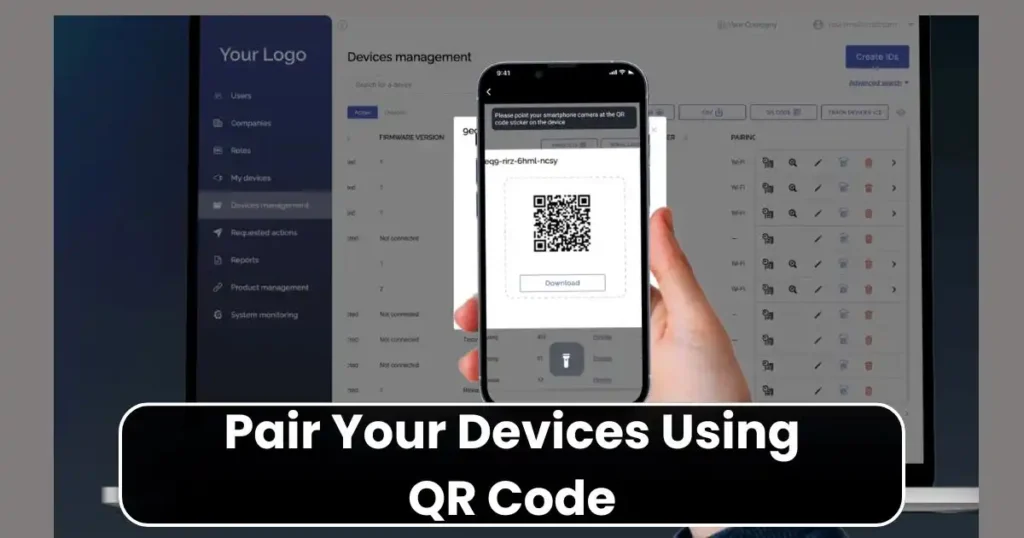
Phone Link on your PC will display a QR code.
On your Android phone:
- Open Link to Windows
- Tap Scan QR Code
- Scan the code shown on your PC screen
This pairing process securely links both devices.
Step 4: Grant Required Permissions (Most Important Part)
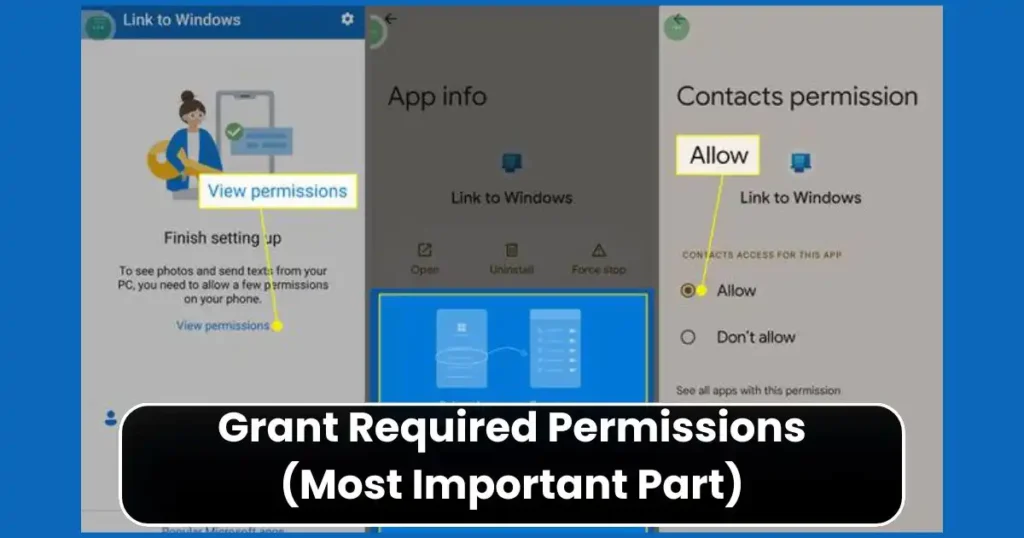
This is the step where many users make mistakes.
Your Android phone will request several permissions:
- Notification access
- Contacts
- Calls
- Messages
- Media access (optional)
For syncing notifications, Notification Access is mandatory.
Go to:
Settings → Notification access → Enable Link to Windows
Without this permission, Phone Link cannot display Android notifications on Windows.
Step 5: Complete Setup and Confirm Connection
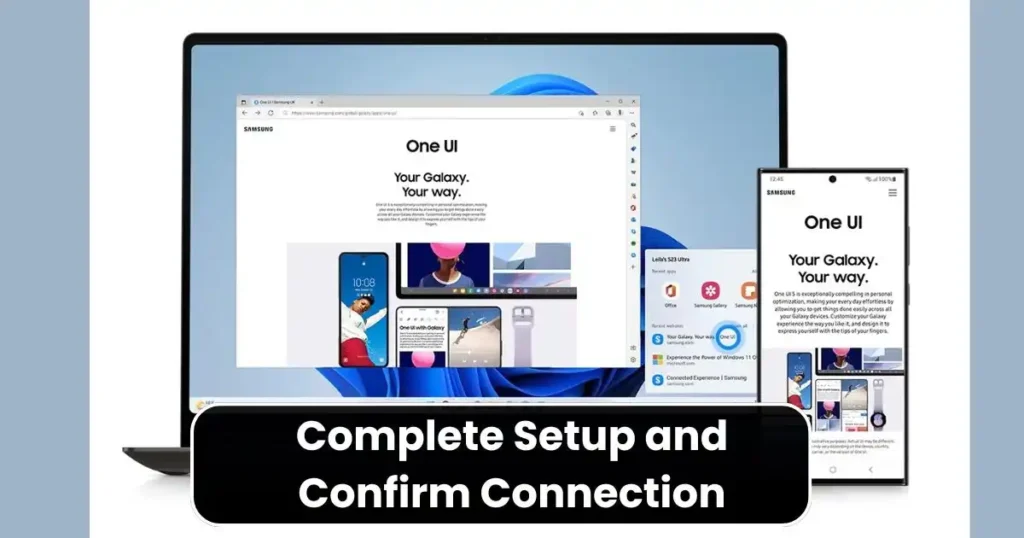
Once permissions are granted:
- Phone Link will confirm the connection
- Your phone status will appear as connected
- Notification section becomes active
At this point, you have successfully completed How to Sync Android Notifications with Windows Using Phone Link.
Also Read: How to Save Mobile Data Using Chrome Lite Mode Alternatives: Practical Guide
Viewing and Managing Notifications on Windows
Once setup is complete, notifications begin appearing automatically.
Where Notifications Appear
- Inside the Phone Link app
- Windows Action Center (for supported alerts)
What You Can Do
- Read notifications
- Dismiss alerts
- Reply to messages
- Clear notifications in bulk
Any action taken on PC reflects on your phone, keeping both devices in sync.
Customizing Notification Behavior in Phone Link
Not all notifications are equally important. Phone Link allows fine-grained control.
How to Customize Notifications
- Open Phone Link on PC
- Go to Settings
- Select Features
- Click Notifications
From here, you can:
- Choose specific apps
- Enable or disable banner pop-ups
- Control taskbar badges
- Silence notifications during work hours
This customization ensures you stay informed without being overwhelmed.
Supported Apps and Notification Types
Phone Link supports notifications from most Android apps, including:
- Telegram
- SMS apps
- Gmail
- Banking apps (limited actions)
- OTP messages
Some sensitive apps may restrict replies for security reasons, but alerts still appear.
Privacy and Security Considerations
A common concern is data safety. Here’s what you should know.
- Notifications are encrypted during transmission
- Microsoft does not permanently store notification content
- Permissions can be revoked anytime
- You control which apps send notifications
If privacy is a priority, you can disable notification syncing instantly from Android settings.
Common Problems and How to Fix Them
Even after following How to Sync Android Notifications with Windows Using Phone Link, some users face issues. Let’s troubleshoot the most common ones.
Notifications Not Showing
- Check notification access permission
- Disable battery optimization for Link to Windows
- Ensure both devices are connected to internet
Delayed Notifications
- Disable aggressive battery saver modes
- Keep Link to Windows running in background
App-Specific Notifications Missing
- Enable app notifications inside Phone Link settings
- Check Android app notification settings
Phone Link vs Third-Party Alternatives
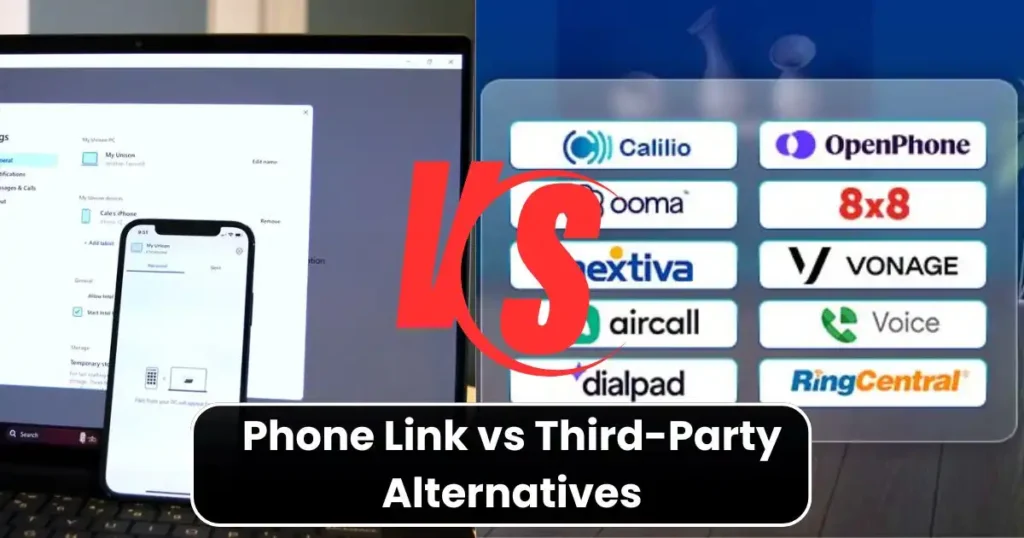
Some users consider third-party apps for notification syncing. Here’s how Phone Link compares.
Advantages of Phone Link
- Official Microsoft support
- Deep Windows integration
- Free to use
- No ads
Limitations
- Limited advanced automation
- Requires Microsoft account
For most users, Phone Link remains the safest and most reliable option.
Real-World Use Cases
Understanding How to Sync Android Notifications with Windows Using Phone Link becomes more meaningful when you see real usage scenarios.
For Office Professionals
- Read OTPs without touching phone
- Reply to work messages instantly
For Students
- Stay updated without breaking focus
- Manage alerts during online classes
For Content Creators
- Respond to social notifications quickly
- Reduce phone dependency while editing
Tips to Get the Best Experience
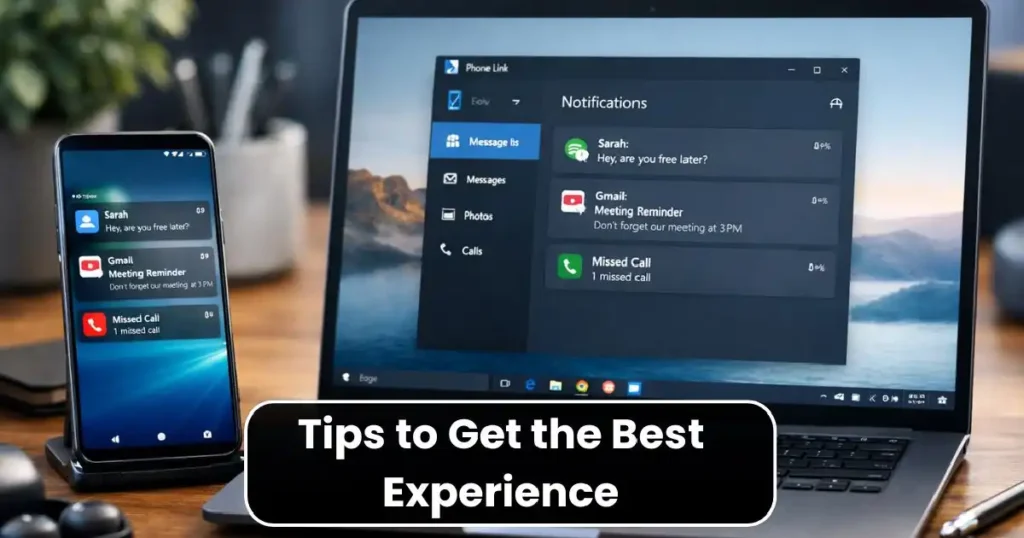
- Use Windows 11 for smoother UI
- Keep Bluetooth enabled
- Disable unnecessary notifications
- Update both apps regularly
These small tweaks significantly improve stability.
Is Phone Link Worth Using in 2025?
Yes. Microsoft continues improving Phone Link with better performance, fewer bugs, and deeper Android integration. For anyone using Windows and Android together, notification syncing is no longer a luxury, it’s a practical necessity.
Final Thoughts
Learning How to Sync Android Notifications with Windows Using Phone Link can dramatically improve your daily digital routine. It reduces distractions, increases efficiency, and keeps you connected without constantly reaching for your phone.
With proper setup and customization, Phone Link becomes an invisible assistant quietly managing your notifications in the background. If you rely on both Android and Windows, this feature is absolutely worth enabling.
FAQs on How to Sync Android Notifications with Windows
1. Can I sync Android notifications with Windows without Phone Link?
No. Phone Link is Microsoft’s official method and the most reliable solution.
2. Is Phone Link safe to use?
Yes. It uses encrypted connections and respects user permissions.
3. Does Phone Link work without internet?
Limited functionality may work via Bluetooth, but full notification syncing requires internet.
4. Can I disable notifications anytime?
Yes. You can turn off notification access from Android settings instantly.
5. Does Phone Link drain phone battery?
Battery impact is minimal if battery optimization is configured correctly.
Disclaimer: This article is for informational purposes only. Features and availability of Microsoft Phone Link may change based on region, device model, and software updates. Always refer to official Microsoft documentation for the latest information
Also Read: How to Use Windows 11 Clipboard History Like a Pro: A Complete Guide

Raj Prajapati is a skilled content writer dedicated to creating clear, step-by-step guides on technology, Health, and everyday solutions. With a focus on user-friendly and SEO-optimized content, he simplifies complex topics, helping readers learn and solve problems effortlessly.