
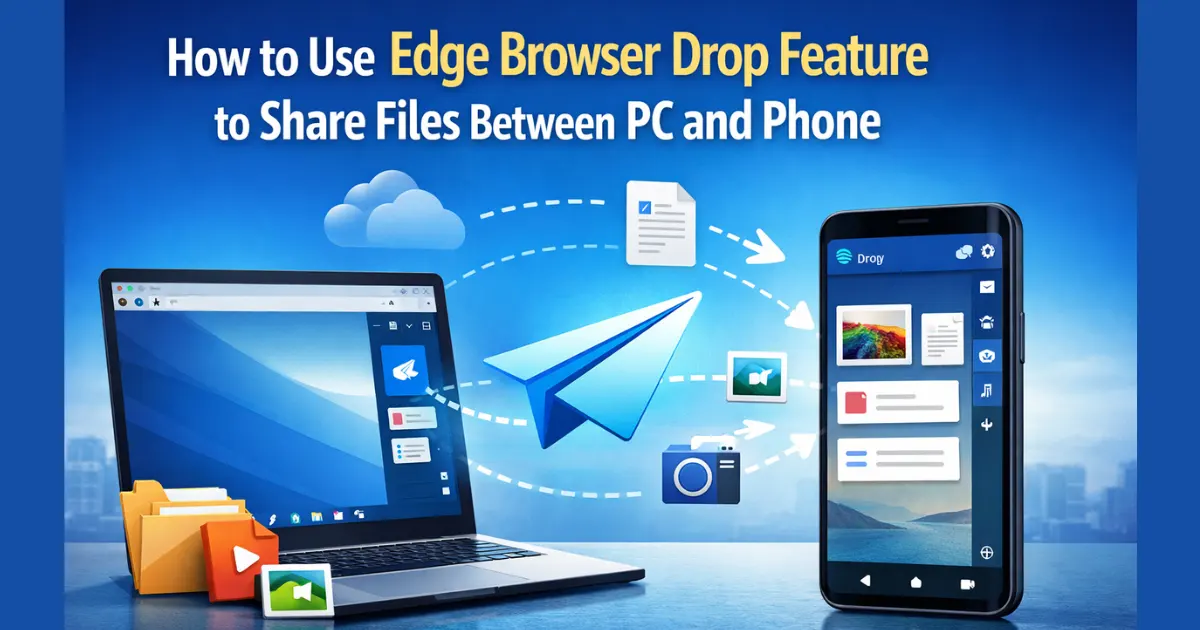
Sharing files between a computer and a smartphone should feel simple, fast, and secure. Yet for many users, it still involves cables, third-party apps, email attachments, or unreliable wireless transfers. Microsoft Edge quietly solves this problem with a built-in tool called Drop, designed to sync files and notes between your PC and phone using your Microsoft account.
In this detailed guide, you will learn How to Use Edge Browser Drop Feature step by step, understand how it works behind the scenes, compare it with other file-sharing options, and explore real-world use cases. This article is written for everyday users who want an easy, private, and integrated way to move files across devices without technical complexity.
Whether you use Windows, macOS, Android, or iOS, Edge Drop works across platforms and requires no extra software beyond the Edge browser itself.
Also Read: How to Set Up Microsoft Recall Alternatives for Better Privacy on Windows
What Is Microsoft Edge Drop and Why It Matters
Microsoft Edge Drop is a built-in feature that allows you to send files, images, documents, links, and text notes between devices signed in with the same Microsoft account. It works like a private chat with yourself, but instead of messages, it focuses on file transfer and quick note syncing.
Unlike traditional file sharing methods, Drop does not rely on Bluetooth, local Wi-Fi pairing, or QR codes. Instead, it uses Microsoft OneDrive as the backend, which means your content is securely stored in the cloud and synced instantly across devices.
Why Edge Drop Is Gaining Popularity
Many users are switching to Edge Drop for a few clear reasons:
- It is already built into the Edge browser
- No third-party apps are required
- Works across Windows, macOS, Android, and iOS
- Files sync automatically using OneDrive
- Transfers happen in the background
- Ideal for quick notes, screenshots, PDFs, and photos
For users who already rely on Microsoft services, Edge Drop feels like a natural extension rather than an extra tool to manage.
How Edge Drop Works Behind the Scenes
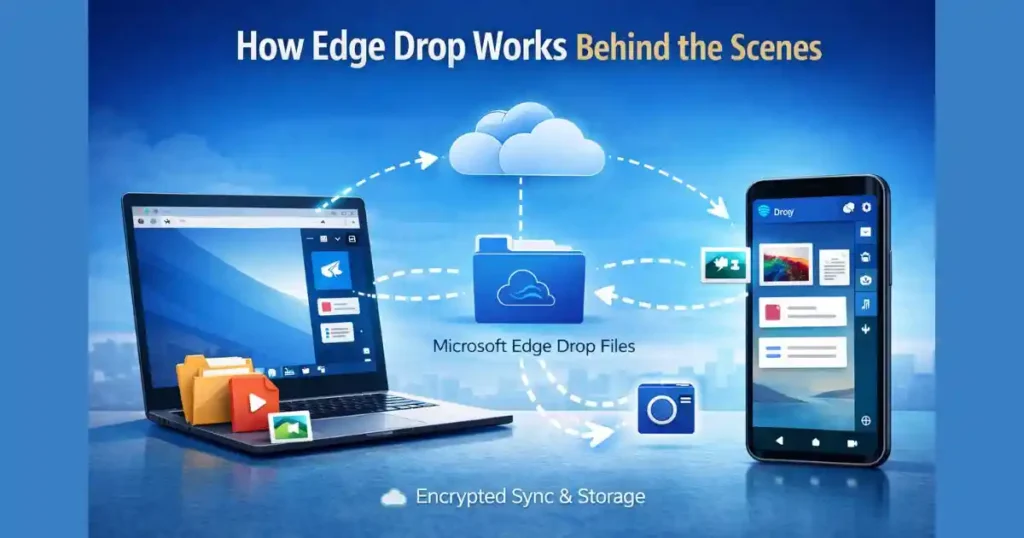
To understand How to Use Edge Browser Drop Feature properly, it helps to know how the system works internally.
When you send a file or note using Edge Drop, the item is uploaded to your OneDrive account and stored in a dedicated folder named Microsoft Edge Drop Files. Every device where you are logged into Edge with the same Microsoft account checks this folder in real time.
As soon as something new appears, Edge displays it inside the Drop panel. Notifications can also alert you when new content arrives, making the process feel instant even though it is cloud-based.
Key Technical Points
- Uses OneDrive cloud storage
- Requires Microsoft account sign-in
- Syncs content across all logged-in devices
- Encrypted using Microsoft’s standard security protocols
- No public sharing links unless manually created
This approach makes Edge Drop both private and reliable.
Devices and Platforms Supported by Edge Drop
Edge Drop is not limited to Windows PCs. It works across multiple platforms, which is one of its biggest strengths.
Supported Systems
- Windows PC
- macOS
- Android phones and tablets
- iPhone and iPad
As long as Microsoft Edge is installed and you are signed in with the same Microsoft account, Drop will work consistently across all devices.
Step 1: Set Up Edge Drop on Your PC (Windows or Mac)

The first step in learning How to Use Edge Browser Drop Feature is enabling it on your computer.
Sign In to Microsoft Edge
- Open Microsoft Edge
- Click on the profile icon in the top right corner
- Sign in using your Microsoft account
Make sure this is the same account you plan to use on your phone.
Enable the Edge Sidebar
Edge Drop lives inside the Edge sidebar. If the sidebar is hidden, you need to turn it on.
- Click the three-dot menu in the top right
- Go to Settings
- Select Sidebar from the left panel
- Turn on the main sidebar toggle
Add Drop to the Sidebar
- Look at the right side of the browser
- Click the plus (+) icon to customize the sidebar
- Find Drop in the list
- Toggle it on
Once enabled, a blue paper airplane icon appears in the sidebar. This is the Drop panel.
Step 2: Set Up Edge Drop on Your Phone (Android or iOS)

To complete the setup, you need Edge Drop on your mobile device.
Install Microsoft Edge
- Open Google Play Store or Apple App Store
- Search for Microsoft Edge
- Install the app
Sign In With the Same Microsoft Account
- Open the Edge app
- Tap the profile icon
- Sign in using the same Microsoft account as your PC
This step is essential. Without the same account, syncing will not work.
Access the Drop Feature on Mobile
- Tap the menu icon at the bottom
- Scroll through the available shortcuts
- Select Drop
If you do not see it immediately, swipe sideways or customize the shortcuts list.
Once opened, you will see the same Drop conversation that appears on your PC.
Step 3: How to Share Files and Notes Using Edge Drop

Now that everything is set up, you can start sharing content.
Sending Files From PC to Phone
There are multiple ways to do this.
Drag and Drop Method
- Open the Drop panel in Edge
- Drag a file from File Explorer or Finder
- Drop it directly into the panel
The file uploads instantly and becomes available on your phone.
Manual Upload
- Open Drop
- Click the plus (+) icon
- Select a file manually
This is useful when dragging is not convenient.
Sending Notes and Text
You can also type text directly into the Drop input box. This is perfect for:
- Temporary notes
- Links
- Password reminders
- Copying text between devices
Press Enter, and the note syncs instantly.
Sending Files From Phone to PC
Edge Drop works just as smoothly in the opposite direction.
- Open Drop in the Edge mobile app
- Tap the plus (+) button
- Choose from photos, documents, or camera
- Select or capture a file
The file appears almost immediately in the Drop panel on your PC.
This is extremely useful for sending mobile photos, scanned documents, or screenshots to your computer without cables.
How to Access and Download Shared Files

Once files are shared, accessing them is simple.
On Your PC
- Open Edge
- Click the Drop icon
- Click on any file to open or download
You can also access the files directly from OneDrive by navigating to the Microsoft Edge Drop Files folder.
On Your Phone
- Open Edge
- Go to Drop
- Tap on any file
- Choose Save or Download
Files can be saved to local storage, gallery, or file manager depending on the file type.
Also Read: How to Sync Android Notifications with Windows Using Phone Link
Real-World Use Cases for Edge Drop
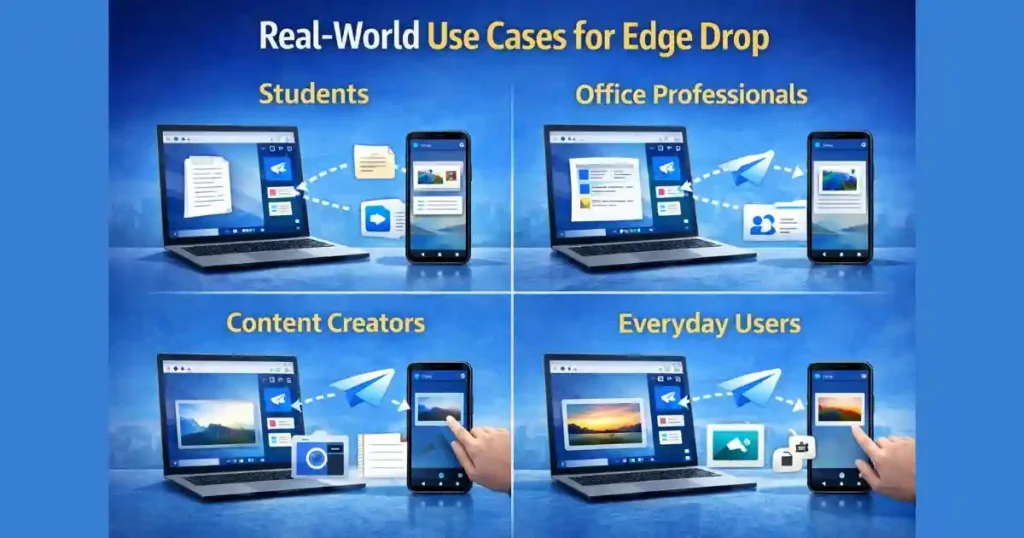
Understanding How to Use Edge Browser Drop Feature becomes easier when you see how people actually use it.
For Students
- Send PDFs from PC to phone
- Save lecture notes instantly
- Move screenshots for assignments
For Office Professionals
- Share meeting documents between devices
- Send links and drafts quickly
- Transfer scanned documents
For Content Creators
- Move photos and videos
- Save captions and scripts
- Sync ideas across devices
For Everyday Users
- Send photos without messaging apps
- Transfer downloads from phone to PC
- Keep personal notes synced
Edge Drop vs Other File Sharing Methods
Let’s compare Edge Drop with common alternatives.
Edge Drop vs Email Attachments
- Faster and simpler
- No file size confusion
- No inbox clutter
Edge Drop vs WhatsApp or Telegram
- No compression
- More privacy
- Not tied to phone numbers
Edge Drop vs AirDrop or Nearby Share
- Works across platforms
- No proximity required
- Cloud-based reliability
For users already inside the Microsoft ecosystem, Edge Drop often feels like the most balanced option.
Storage Limits and OneDrive Considerations

Because Edge Drop uses OneDrive, storage limits depend on your OneDrive plan.
Free Account
- 5 GB total storage
Microsoft 365 Plans
- 1 TB or more
Large files can fill storage quickly, so managing OneDrive space is important for heavy users.
Privacy and Security of Edge Drop
Microsoft Edge Drop is private by design.
- Files are visible only to your account
- No public sharing unless manually enabled
- Data encrypted during transfer
- Stored securely in OneDrive
As long as your Microsoft account is secure, Drop remains a safe way to transfer personal files.
Common Problems and How to Fix Them

Drop Not Showing on PC
- Ensure sidebar is enabled
- Update Edge browser
- Restart Edge
Files Not Syncing
- Check OneDrive storage space
- Confirm same Microsoft account
- Verify internet connection
Drop Missing on Mobile
- Update Edge app
- Re-sign into account
- Customize shortcuts
Most issues are account or sync related and easy to fix.
Tips to Get the Most Out of Edge Drop
- Use Drop for temporary files instead of cluttering downloads
- Delete old Drop files from OneDrive regularly
- Pin Drop to sidebar for quick access
- Use it as a clipboard alternative
These small habits make Edge Drop more powerful over time.
Future Potential of Edge Drop
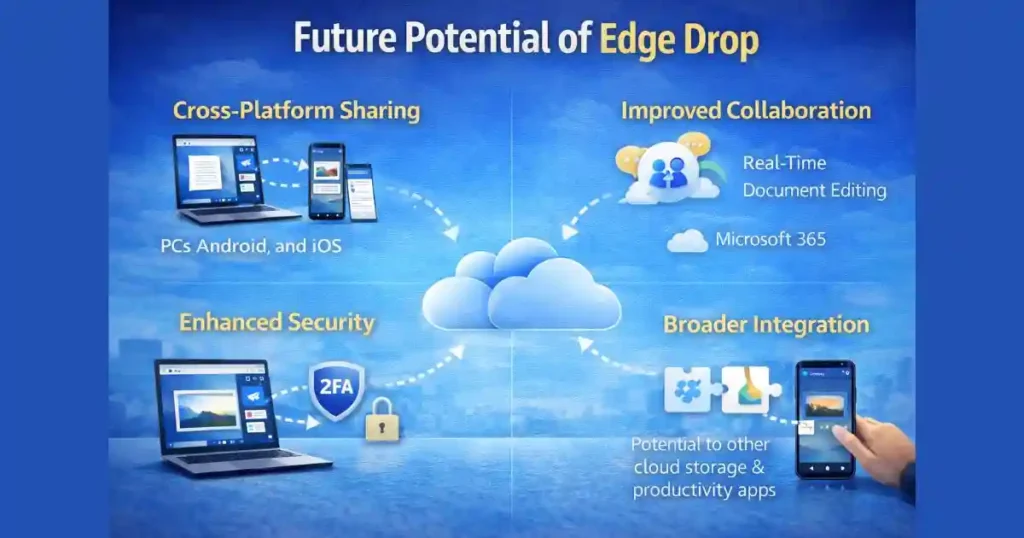
Microsoft continues to integrate Edge deeper into its ecosystem. In the future, Edge Drop may expand with:
- Larger file handling
- Better organization
- Integration with other Microsoft apps
- Offline support enhancements
As it evolves, learning How to Use Edge Browser Drop Feature early gives users a head start.
FAQs: How to Use Edge Browser Drop Feature
Is Edge Drop free to use?
Yes, Edge Drop is free. It only requires a Microsoft account. Storage depends on your OneDrive plan.
Can I use Edge Drop without OneDrive?
No. Edge Drop relies on OneDrive for file storage and synchronization.
Does Edge Drop work on macOS?
Yes. Microsoft Edge and Drop work on macOS as long as you are signed in.
Are files permanently stored in Drop?
Files remain stored in OneDrive until you delete them manually.
Is Edge Drop better than third-party apps?
For users already using Microsoft Edge and OneDrive, it is often faster, safer, and simpler.
Final Thoughts
Edge Drop quietly solves a problem most users deal with daily: moving files between devices. It does not try to replace full cloud storage or messaging apps. Instead, it focuses on speed, simplicity, and privacy.
Once you understand How to Use Edge Browser Drop Feature, it becomes one of those tools you start using without thinking. No cables. No apps. No extra steps.
If you already use Microsoft Edge, Edge Drop is not just an extra feature. It is a productivity upgrade hiding in plain sight.
Disclaimer: This article is for informational purposes only. Features, availability, and functionality of Microsoft Edge Drop may change over time based on updates from Microsoft. Always refer to official Microsoft documentation for the latest details.
Also Read: How to Use Smart App Control in Windows 11 to Block Unknown Apps

Raj Prajapati is a skilled content writer dedicated to creating clear, step-by-step guides on technology, Health, and everyday solutions. With a focus on user-friendly and SEO-optimized content, he simplifies complex topics, helping readers learn and solve problems effortlessly.