
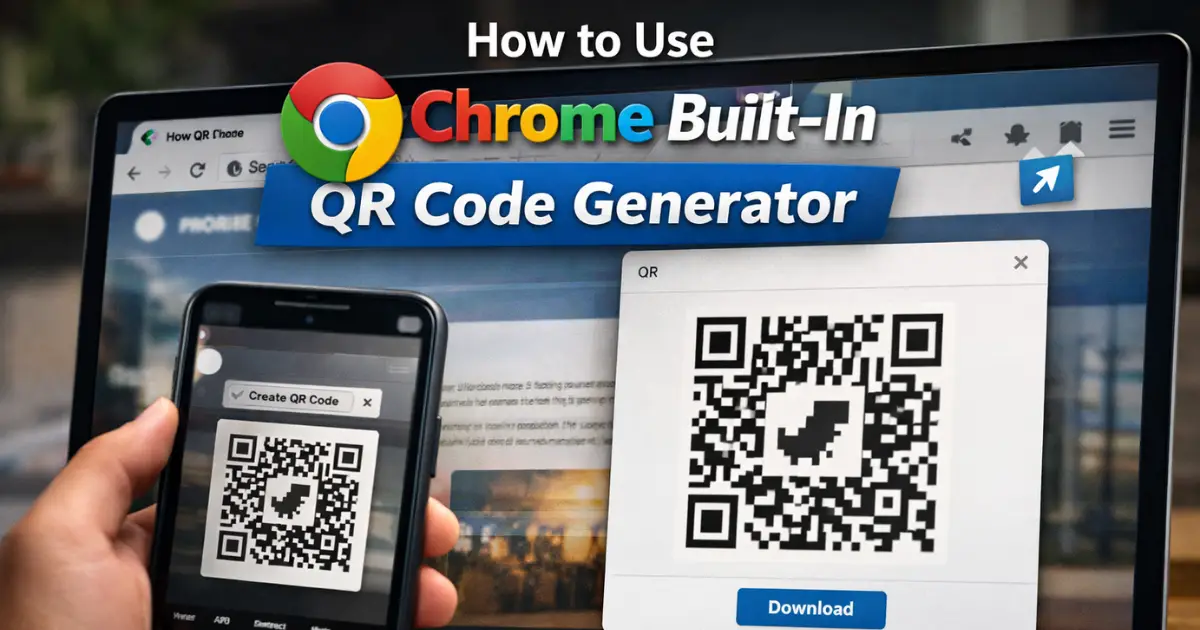
Sharing links should be easy. Yet for years, people relied on third-party websites, browser extensions, or messaging apps just to turn a URL into a QR code. That changed when Google added a native QR code generator directly into its Chrome browser.
If you have ever wondered How to Use Chrome Built In QR Code Generator, this guide walks you through everything in detail. You will learn how the feature works, how to use it on desktop and mobile, when it makes sense to use it, where its limits are, and how it compares with external QR tools. This article is written for regular users, bloggers, teachers, business owners, and anyone who wants to share links quickly without installing extra software.
This is a long, step-by-step, value-focused guide designed to be clear, practical, and safe for Google AdSense policies.
Also Read: How to Use Energy Saver Mode in Windows 11 for Longer Battery Life
Understanding What Chrome’s Built-In QR Code Generator Really Is
Chrome’s built-in QR code generator is a native browser feature that creates a scannable QR code for any webpage you currently have open. The key idea is simple. Instead of copying a link and pasting it somewhere else, Chrome turns that link into an image that can be scanned using a phone camera.
This feature works entirely inside the browser. There is no sign-up, no watermark, no ad overlay, and no requirement to visit an external website. The QR code is generated locally, which means your browsing data does not get sent to unknown third-party servers.
The generated QR code is static. That means it permanently points to the exact URL used at the time of creation. If the page URL changes later, the QR code will not update automatically.
Why Google Added a Native QR Code Generator to Chrome

Before this feature existed, most users followed one of three approaches:
- Use a random QR code website and paste the URL
- Install a Chrome extension
- Use a mobile app
Each option came with downsides. Websites often showed ads or injected tracking. Extensions increased browser bloat and sometimes raised privacy concerns. Mobile apps added friction for a simple task.
Google introduced the built-in QR code generator to solve these problems. The goal was speed, simplicity, and safety. By placing QR generation directly inside Chrome’s interface, users can share links instantly with fewer clicks and fewer risks.
This decision aligns with Google’s broader focus on reducing dependency on extensions and external tools for basic browser tasks.
Where the Chrome QR Code Generator Is Available
One common question is whether this feature works everywhere. The short answer is yes, with slight interface differences.
Chrome’s QR code generator works on:
- Windows
- macOS
- Linux
- Android
- iOS and iPadOS
The core function is the same across platforms. The only difference is how you access it through menus or share options.
How to Use Chrome Built In QR Code Generator on Desktop

Desktop Chrome offers the most flexible access to the QR code generator. You can open it in three different ways, depending on how you prefer to work.
Method 1: Using the Address Bar Share Icon
This is the fastest and most user-friendly method.
First, open Chrome and navigate to the webpage you want to share. Once the page loads, click inside the address bar. On the far right side, you will see a small “Share this page” icon. It usually looks like a square with an arrow.
Click that icon and select “Create QR code” from the menu. A pop-up window will instantly appear with a QR code for the current page.
From there, you can click the Download button to save the QR code as a PNG image on your computer.
Method 2: Using the Right-Click Context Menu
This method is useful if you already work heavily with right-click menus.
Open the webpage you want to share. Right-click on any blank area of the page. In the context menu, select “Create QR code for this page.”
The same QR code pop-up will appear, allowing you to download the image immediately.
Method 3: Using the Main Chrome Menu
This option is slightly hidden but still useful.
Open the webpage. Click the three-dot menu in the top-right corner of Chrome. From the menu, select “Cast, save, and share.” Inside that submenu, choose “Create QR code.”
Again, Chrome generates the QR code instantly.
What You Can Do Inside the QR Code Pop-Up
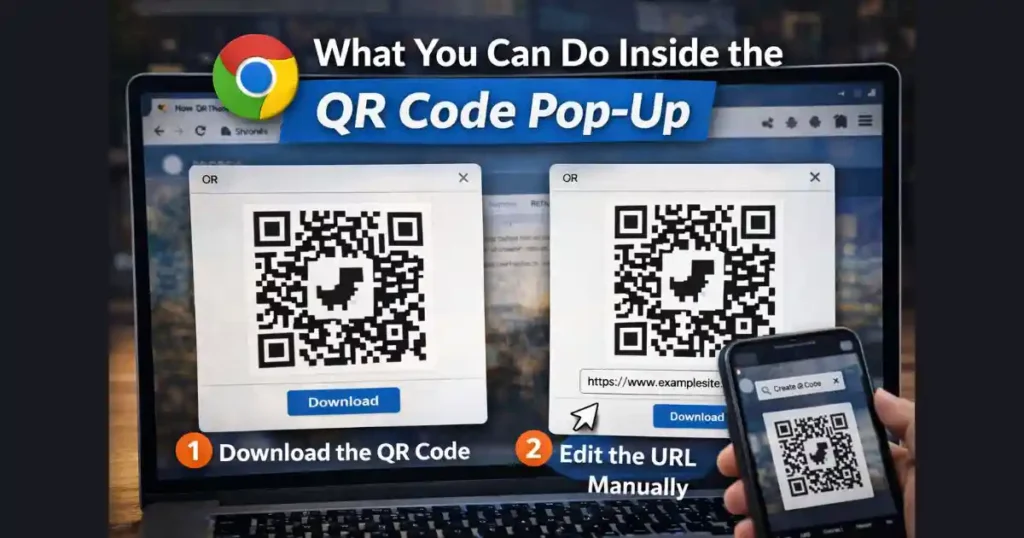
Once the QR code window opens, Chrome gives you a few simple options.
Download the QR Code
Clicking Download saves the QR code as a PNG image file. This format works well for:
- Printing on posters or flyers
- Adding to presentations
- Inserting into documents
- Sharing via email or chat
The image quality is clean and sharp, suitable for most professional use cases.
Edit the URL Manually
Chrome also allows limited editing. Inside the QR pop-up, you can modify the URL text field before downloading. This lets you generate a QR code for a slightly different link without navigating to that page first.
This editing option is basic and does not support URL shortening, tracking parameters, or redirects.
How to Use Chrome Built In QR Code Generator on Mobile Devices
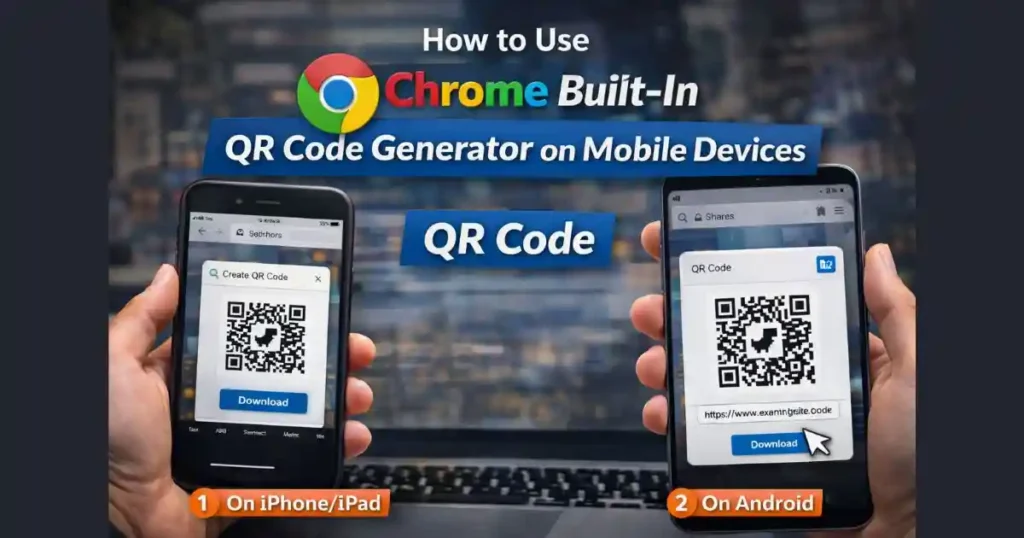
On mobile, Chrome integrates QR code generation into the system’s share menu rather than a separate pop-up.
On iPhone and iPad
Open Chrome and visit the webpage you want to share. Tap the Share icon in the address bar. Depending on your layout, this icon may appear at the top or bottom.
Scroll through the share options until you see “Create QR Code.” Tap it. Chrome will display a QR code on the screen. You can then save it to Photos or share it directly.
On Android
Open Chrome and navigate to the webpage. Tap the three-dot menu in the top-right corner and select “Share.”
From the sharing options, choose “QR Code.” Chrome will generate the QR code instantly. You can save it or share it through messaging apps.
Why the Chrome QR Code Generator Is Safer Than Third-Party Tools
Security is often overlooked when generating QR codes. Many free QR websites log URLs, show ads, or bundle tracking scripts.
Chrome’s built-in tool avoids these issues because:
- QR codes are generated locally
- No data is uploaded to external servers
- No ads or pop-ups appear
- No account or permissions are required
For privacy-focused users, this makes Chrome’s solution a safer default.
Also Read: How to Save Mobile Data Using Chrome Lite Mode Alternatives: Practical Guide
Understanding the Dinosaur Logo in Chrome QR Codes

One distinctive feature of Chrome’s QR codes is the small dinosaur icon in the center. This dinosaur is the same character used in Chrome’s offline game.
The icon does not interfere with scanning because QR codes include built-in error correction. However, some professional users prefer a cleaner look.
If you need branding consistency, you can open the downloaded QR image in an image editor and overlay your own logo on top of the dinosaur. Just make sure you do not block the surrounding QR patterns.
Static vs Dynamic QR Codes: What You Need to Know
Chrome generates static QR codes only. This is an important limitation to understand.
A static QR code points directly to a fixed URL. If that URL changes, the QR code becomes useless.
Dynamic QR codes, offered by paid services, allow you to update the destination link later without changing the QR image. Chrome does not support this feature.
For most everyday sharing, static QR codes are perfectly fine. For large marketing campaigns or printed materials that may need future updates, dynamic QR tools may be a better option.
Real-World Use Cases for Chrome’s QR Code Generator
This feature is surprisingly versatile when used thoughtfully.
Teachers can share reading links with students instantly. Bloggers can add QR codes to slides or PDFs. Small businesses can link menus or booking pages. Office teams can share internal documentation during meetings without emailing links.
Because the feature is fast and native, it reduces friction and keeps workflows simple.
Chrome QR Code Generator vs Third-Party QR Code Websites

Chrome’s tool focuses on simplicity. Third-party platforms offer advanced features like analytics, color customization, and dynamic redirects.
If your goal is quick sharing without complexity, Chrome wins. If your goal is campaign tracking or branding at scale, external tools may still be useful.
For most users, Chrome’s built-in generator covers 80 percent of common needs with 20 percent of the effort.
Common Problems and How to Fix Them
Sometimes users do not see the QR option. This usually happens when Chrome is outdated. Updating the browser fixes the issue.
On mobile, the option may be hidden under additional share menus. Scrolling usually reveals it.
If scanning fails, ensure the image is clear and not resized too aggressively. Poor print quality is the most common cause of scanning errors.
Best Practices for Using Chrome QR Codes Professionally
Always test the QR code before sharing or printing. Use high-resolution images when printing. Avoid placing QR codes on reflective surfaces. Keep enough contrast between the QR code and background.
These small steps ensure a smooth user experience.
Future of QR Code Sharing in Chrome
Chrome’s QR feature is likely to remain intentionally simple. Google has shown no signs of turning it into a marketing or analytics tool. This aligns with Chrome’s philosophy of offering lightweight, privacy-respecting utilities.
Future updates may improve accessibility or scanning accuracy, but the core idea will likely stay the same.
Final Thoughts
Learning How to Use Chrome Built In QR Code Generator is less about mastering a tool and more about simplifying everyday sharing. Chrome removes unnecessary steps, reduces privacy risks, and makes QR creation accessible to everyone.
If you already use Chrome daily, this feature is worth adding to your workflow. It saves time, avoids clutter, and works exactly as expected.
FAQs: How to Use Chrome Built In QR Code Generator
Is Chrome’s QR code generator free to use?
Yes, it is completely free and built into the browser.
Can I customize colors or shapes in Chrome QR codes?
No, Chrome keeps the design minimal and does not offer customization.
Do Chrome QR codes expire?
No, they remain valid as long as the linked URL exists.
Can I scan QR codes using Chrome?
Yes, Chrome on mobile can scan QR codes using the camera interface.
Is Chrome QR code generation available offline?
The page must load first, but QR generation itself does not require internet access afterward.
Disclaimer: This article is for informational purposes only. Browser features may change with updates. Always verify options in your current version of Chrome.
Also Read: How to Use Google Keep for Notes and To-Do Lists: Complete Beginner to Pro Guide

Raj Prajapati is a skilled content writer dedicated to creating clear, step-by-step guides on technology, Health, and everyday solutions. With a focus on user-friendly and SEO-optimized content, he simplifies complex topics, helping readers learn and solve problems effortlessly.