
In a world where we constantly switch between phones, laptops, tablets, and desktops, keeping notes in sync feels like a basic need. Ideas strike anywhere. A reminder written on your phone should be visible on your laptop. A draft saved on your desktop should open instantly on another device. Most people assume this requires installing a dedicated notes app, signing up for another service, or trusting a third-party tool with personal data.
That assumption is not entirely true.
It is absolutely possible to learn How to Synchronize Notes Across Devices Without Using Any App, or at least without installing any extra third-party note-taking applications. By using built-in system features, existing cloud accounts, browser-based tools, and simple file-based methods, you can keep your notes available everywhere with minimal setup and better control.
This guide explains all major approaches in detail. It covers Apple, Android, Windows, and cross-platform setups. It compares convenience, privacy, and limitations. It also helps you choose the right method based on how you actually use notes in real life.
Also Read: How to Use Chrome Built In QR Code Generator: A Practical Guide
Understanding What “Without Using Any App” Really Means

Before diving into methods, it is important to clarify the idea behind “without using any app.”
In most real-world scenarios, this does not mean avoiding software entirely. Instead, it means:
- Not installing a new, dedicated third-party note-taking app
- Relying on tools already built into your device or operating system
- Using web browsers instead of native apps
- Using cloud storage as plain file sync rather than specialized note software
For example, using the Notes feature already present on your phone or using a browser to access notes on the web still fits the spirit of How to Synchronize Notes Across Devices Without Using Any App.
Why People Want App-Free Note Synchronization
The demand for app-free note syncing has grown for several practical reasons.
Many users feel overwhelmed by app overload. Installing multiple apps for simple tasks adds clutter and increases maintenance. Others are concerned about privacy, data ownership, or subscription models. Some work environments restrict app installation, especially on office computers.
There is also a performance angle. Built-in tools are often faster and better optimized than third-party apps running in the background.
Understanding these motivations helps explain why the following methods are not just alternatives, but often better solutions.
Method 1: Apple Ecosystem Sync Using iCloud Notes
For users deeply invested in Apple hardware, this is the most seamless approach.
How iCloud Notes Sync Works
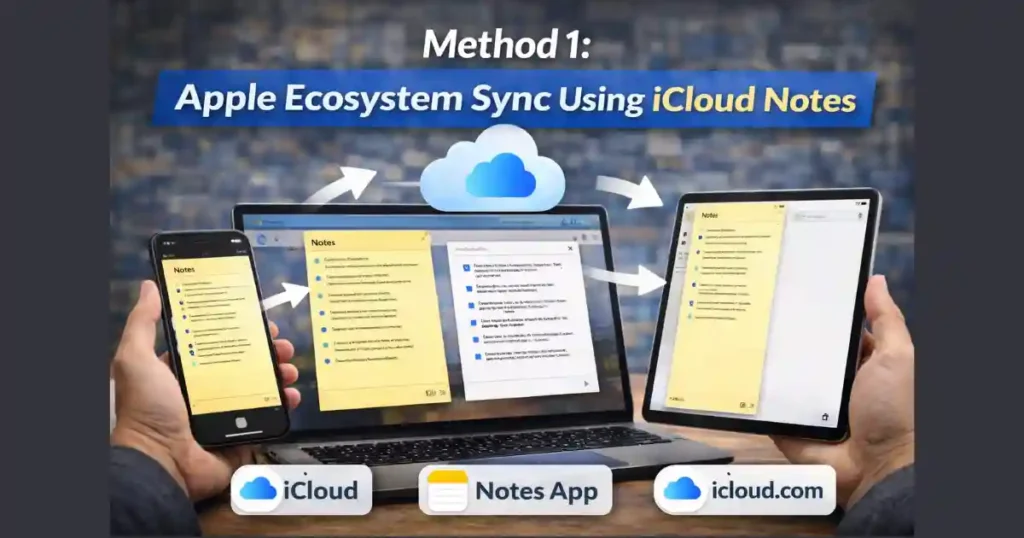
Apple devices come with a built-in Notes app that syncs automatically through iCloud. When enabled, every note you create or edit is uploaded to your iCloud account and mirrored across all devices signed in with the same Apple ID.
This works across:
- iPhone
- iPad
- Mac
- Any browser via iCloud web access
Setting It Up Correctly
To ensure proper syncing, sign in with the same Apple ID on all devices. On each device, open system settings, navigate to your Apple ID settings, open iCloud, and make sure Notes syncing is enabled.
Once active, any note created on one device appears almost instantly on others.
Accessing Notes Without Any App
Even if you are on a Windows PC or a borrowed device, you can open a browser and visit iCloud’s Notes section. This allows reading and editing notes without installing anything locally.
Strengths and Limitations
The strength of this method is reliability and tight system integration. Formatting, images, checklists, and scanned documents sync perfectly.
The main limitation is ecosystem lock-in. iCloud Notes works best if most of your devices are Apple products.
Method 2: Google Account-Based Sync with Google Keep

For Android users and cross-platform users, Google’s ecosystem offers a similar built-in experience.
What Makes Google Keep Different
Google Keep is tightly linked to your Google account. Notes created on an Android phone automatically sync with the same account and are accessible on the web through any browser.
No separate installation is required on desktop. The web version provides full access to your notes.
Ensuring Sync Is Enabled
On Android devices, ensure that Google account sync is active. In system settings, open account sync options and confirm that Keep Notes is enabled.
On desktop or other devices, simply sign in to your Google account in a browser and open the Keep web interface.
Why This Fits the “No App” Approach
While Google Keep exists as an app on Android, you do not need to install anything extra on other devices. The browser alone is enough.
This makes it a strong example of How to Synchronize Notes Across Devices Without Using Any App, especially in mixed Android, Windows, and macOS environments.
Pros and Cons
Google Keep is fast, simple, and reliable. However, it is best suited for short notes and reminders. It is not ideal for long-form writing or complex document structures.
Method 3: Cloud Storage as a Universal Notes Sync System

One of the most flexible and underestimated approaches is treating notes as files rather than app-based entries.
The Core Idea
Instead of using a note app, you store notes as plain text or markdown files inside a cloud-synced folder. Any device connected to that cloud service sees the same files.
This approach works with services like Dropbox, OneDrive, and Google Drive.
How to Set It Up
On your computer, install the official sync client for your chosen cloud service. Create a folder named something like “Notes.” Inside that folder, save notes as .txt or .md files.
On other devices, you can access the same folder through a browser or built-in file manager without installing a special notes app.
Why This Method Is Powerful
This approach is platform-agnostic. It works on Windows, macOS, Linux, Android, and iOS. It also gives you full control over your data.
Notes remain readable forever, even if you stop using the cloud service.
Trade-Offs to Consider
You lose advanced features like rich formatting, inline images, and quick search across all notes. However, for users who value simplicity and ownership, this method is hard to beat.
Method 4: Web-Based Note Services Without Installing Apps

Another practical way to synchronize notes across devices is by using web-only access to popular note services.
Google Keep Web Access
As mentioned earlier, Google Keep’s web version works in any modern browser. You can read, edit, and create notes without installing anything.
iCloud Notes in a Browser
Apple users can open their notes in any browser via iCloud. This includes Windows and Android devices.
Simplenote Web Interface
Simplenote offers a lightweight browser-based interface focused on plain text notes. It syncs instantly and avoids complex formatting.
When Web-Based Notes Make Sense
This approach is ideal if you frequently use shared or restricted computers where installing software is not possible. It also reduces system resource usage.
Method 5: Built-In System Cloud Sync on Android and Samsung Devices

Many Android users overlook system-level note syncing features.
Google Account Sync on Android
Android devices automatically sync certain data types with your Google account. If enabled, notes created in supported tools sync silently in the background.
Samsung Notes with Samsung Cloud
Samsung devices include Samsung Notes, which syncs through Samsung Cloud when enabled.
This allows notes to appear across Samsung phones, tablets, and even on the web through Samsung account access.
Strengths and Weaknesses
These solutions are deeply integrated and efficient. However, they tend to be brand-specific and less flexible outside their ecosystems.
Method 6: Browser-Based Sync and Clipboard Features

Some browsers offer native features for moving text between devices.
Opera Flow
Opera includes a feature called Flow that allows users to send text, links, and notes between devices connected through the same browser account.
This works without installing additional note apps.
Chrome Shared Clipboard
If you are signed into the same Google account on Chrome across devices, you can send selected text directly to another device using the browser’s context menu.
While not designed for long-term note storage, this feature is useful for quick transfers.
Method 7: Manual Transfer Methods Without Cloud Sync
For users who prefer complete control and zero cloud dependency, manual methods still exist.
Emailing Notes to Yourself
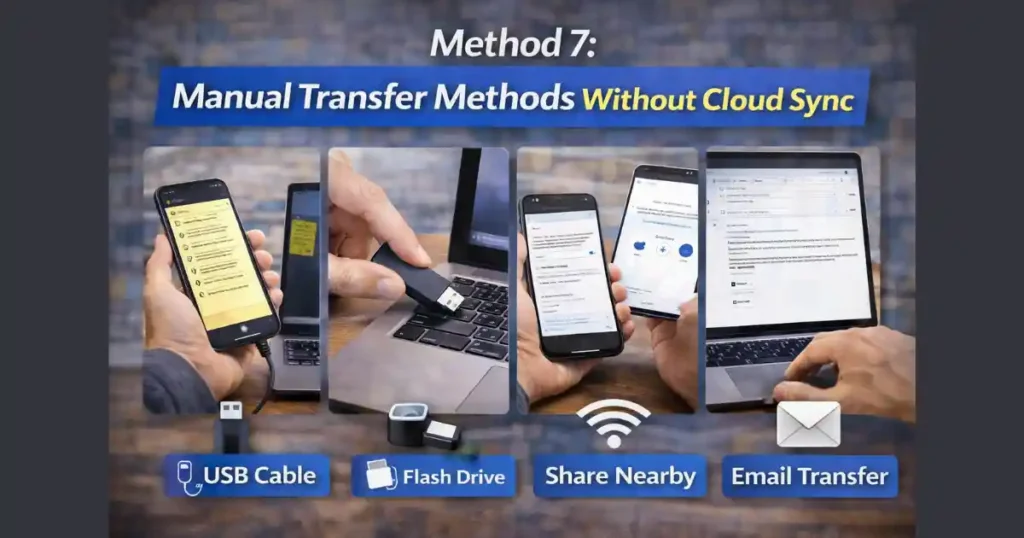
You can share a note via email and open it on another device. This method works everywhere and requires no setup.
The downside is that formatting may be lost, and it is not suitable for frequent syncing.
Local File Transfer
Saving notes as text files and transferring them via USB, Bluetooth, or external storage is another option. This works offline and avoids cloud services entirely.
Nearby and Quick Share Features
Modern Android devices support nearby wireless file sharing, making it easy to send notes between devices in close proximity.
Also Read: How to Use Energy Saver Mode in Windows 11 for Longer Battery Life
Advanced Use Case: Markdown Notes Without Dedicated Apps

For users who write extensively and prefer structured text, markdown files are an excellent choice.
How Markdown Fits the App-Free Model
Markdown files are plain text. They can be edited in any text editor and synced through cloud storage.
Some users rely on tools like Obsidian, but the core syncing still happens at the file level through cloud folders.
Benefits of This Approach
You retain complete ownership of your notes. Files remain readable forever. Syncing is transparent and reliable.
The trade-off is a steeper learning curve compared to traditional note apps.
Comparing All Methods Side by Side
Each method supports How to Synchronize Notes Across Devices Without Using Any App in a slightly different way.
Apple and Google ecosystems provide the smoothest experience. Cloud storage offers maximum flexibility. Web-based tools strike a balance between convenience and simplicity. Manual methods offer maximum control but require effort.
The right choice depends on how often you write notes, how sensitive your data is, and how many devices you use daily.
Common Mistakes to Avoid
Many users assume sync is broken when the real issue is account mismatch. Always ensure the same account is signed in everywhere.
Another common issue is disabling background sync to save battery, which can delay note updates.
Finally, mixing multiple methods without understanding where notes are stored often leads to confusion.
Practical Recommendations Based on User Type

If you are an Apple-only user, iCloud Notes is the easiest solution.
If you use Android and Windows, Google Keep web access is ideal.
If you want full control and long-term access, cloud-synced text files are the best option.
If you only need occasional transfers, browser features and email are sufficient.
Final Thoughts
Learning How to Synchronize Notes Across Devices Without Using Any App is less about avoiding technology and more about using existing tools intelligently. Modern operating systems and browsers already provide powerful syncing capabilities that many users overlook.
By choosing the right method for your workflow, you can reduce app clutter, improve privacy, and still keep your notes accessible everywhere.
FAQs: How to Synchronize Notes Across Devices
Can I sync notes without installing any new software at all?
Yes, by using built-in system features or web browsers, you can sync notes without installing additional apps.
Is cloud storage safe for syncing notes?
Major cloud providers use encryption, but sensitive notes should be protected with strong passwords and additional security measures.
Will formatting be preserved without note apps?
Basic text sync works reliably, but advanced formatting may be limited depending on the method used.
Which method works best across different platforms?
Cloud-synced text files and Google account-based tools work best across mixed devices.
Can I sync notes offline?
Offline access depends on the method. Local file sync and some cloud tools allow offline editing with later synchronization.
Disclaimer: This article is for informational purposes only. Features and sync behavior may change depending on operating system updates and service policies. Always verify settings on your own devices.
Also Read: How to Enable Passwordless Sign In on Microsoft Accounts: Step-by-Step Guide

Raj Prajapati is a skilled content writer dedicated to creating clear, step-by-step guides on technology, Health, and everyday solutions. With a focus on user-friendly and SEO-optimized content, he simplifies complex topics, helping readers learn and solve problems effortlessly.