

Modern Android devices offer layers of customization, app controls, default actions, notification settings, battery optimization rules, and permission management. These controls are helpful as long as everything stays aligned with how the system expects your device to behave.
But over time, users tweak settings, disable apps, block notifications, and change default apps for certain actions without realizing these decisions can pile up and lead to app errors, broken functions, missing features, and performance issues.
This is where knowing how to reset app preferences on Android becomes a practical troubleshooting step. It restores all app-level system behaviors to their original condition without deleting data or uninstalling apps. Think of it like a “fresh start” button for your app settings, not your phone.
This guide takes you through what resetting app preferences actually does, how it fixes issues, step-by-step reset instructions for different brands (Samsung, Xiaomi, Pixel, etc.), when you should use it, what changes afterward, what you must reconfigure manually, and what to avoid.
The goal here is to help you understand the process clearly, with context that matters to real-world users.
Also Read: How to Improve Android Battery Life Using Built-in Settings: 5 Proven Ways
What Does Resetting App Preferences Actually Do?
When you use the Reset App Preferences feature, Android removes your customized app control settings and returns them to system defaults. It does not delete photos, videos, messages, apps, documents, downloads, or internal data. Instead, it focuses only on the behavior layer of apps.
Here’s what gets restored:
- Disabled apps are re-enabled automatically.
- Blocked or muted notifications start working again.
- Default apps for tasks (browser, phone dialer, gallery, PDF viewer) are cleared.
- Background data usage restrictions are removed.
- Permission restrictions are revoked and apps ask again when needed.
- Battery optimization rules revert to standard system optimization.
When people search for how to reset app preferences on Android, they usually want to fix one of the following problems:
- App notifications not showing.
- Messages or WhatsApp not receiving alerts until opened.
- Links not opening in the correct app.
- Banking or government apps refusing to work due to permission blocks.
- Background tasks not syncing on time.
- Apps crashing or behaving in unstable ways.
Resetting app preferences targets these core issues without the heavy consequences of a full reset or system wipe.
Why Does This Fix App Problems?
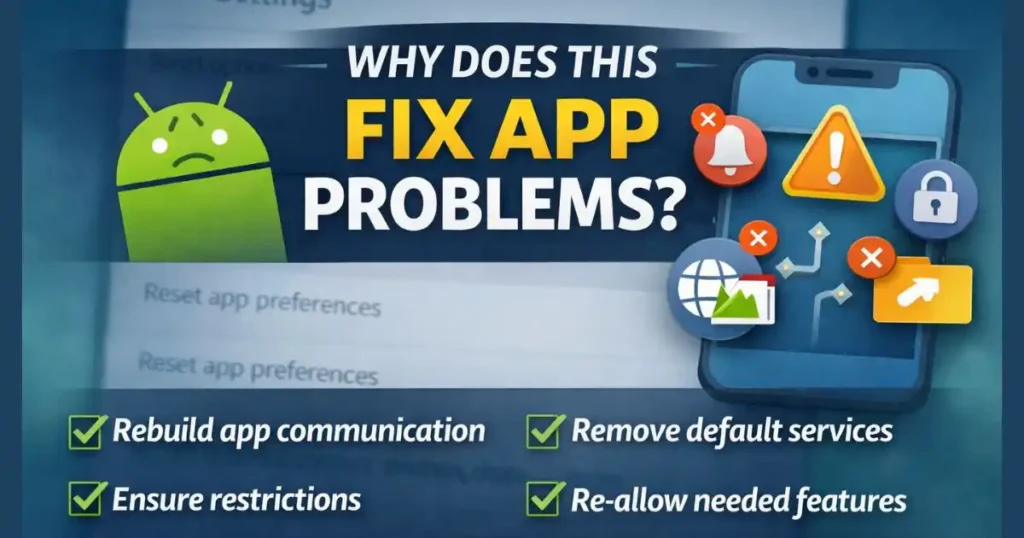
Over months (or years) of usage, users unknowingly create conflicts through custom permission changes, system restrictions, or disabling apps that other apps depend on. Something as simple as disabling a system app used for notifications can break alerts for your messaging apps across the board.
By resetting preferences, you are essentially asking Android to:
- Rebuild communication between apps.
- Ensure default services are assigned properly.
- Re-allow features essential for the OS to manage background processes.
- Remove wrongly applied restrictions that block normal app activity.
So instead of uninstalling apps, clearing storage, or factory resetting your device, learning how to reset app preferences on Android gives you a safer, targeted fix.
Before You Reset: Things You Should Know
This process is safe, but it is still a system-level action. It’s not destructive, but it does require a few moments of reconfiguration afterward. Here’s the practical breakdown:
What You Will Not Lose
- App data (chat history, accounts, saved files)
- Photos, videos, downloads, documents
- Phone storage content
- Installed apps
- Wi-Fi or hotspot credentials
What Changes That You Must Re-Configure Later
- Default app selections for browsing, calls, camera, SMS, file opening
- Notification access permissions
- Camera, microphone, and location permissions for apps
- Battery usage settings for high-performance apps like games or video editing tools
- Background data access for apps like Maps, WhatsApp, Gmail, Telegram, etc.
For most users, this trade-off is worth it because the system instantly becomes stable again.
Also Read: How to Create and Share a Google Form: Step-by-Step Guide
How to Reset App Preferences on Android (General Method)

The general steps remain similar across most brands. Here’s the simplest path:
- Open Settings
- Scroll down to System or General Management
- Tap Reset Options
- Select Reset App Preferences
- Confirm with Reset Apps / Reset Settings
Once this is done, the system immediately repairs the broken app configuration layer.
This is the most important section for SEO, so the keyword appears naturally:
Learning how to reset app preferences on Android is a quick way to restore your phone’s default behavior without affecting personal files or removing apps.
Brand-Specific Reset Instructions
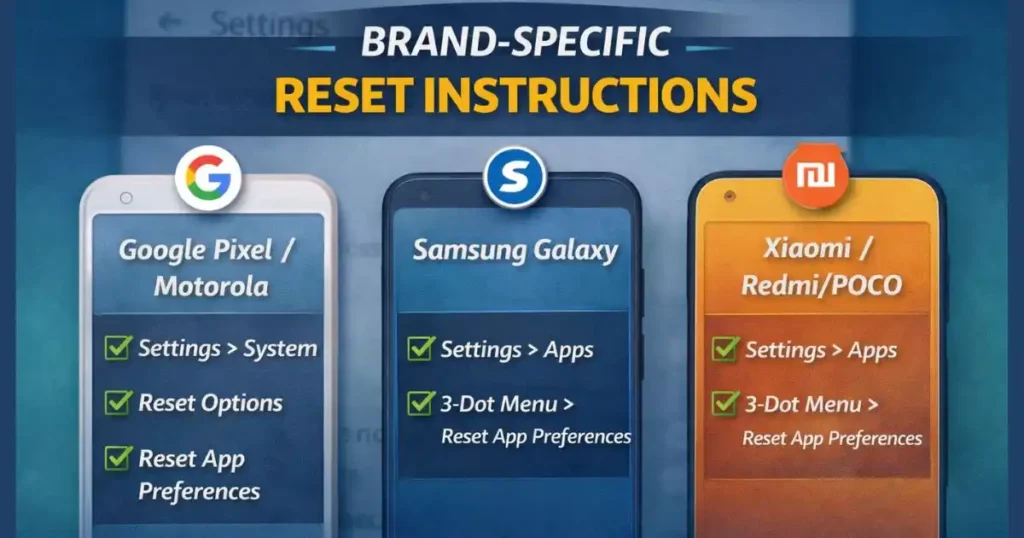
Not every manufacturer uses the same menu structure, so here are properly structured routes.
Google Pixel / Motorola / Nokia
- Settings
- System
- Reset Options
- Reset App Preferences
- Confirm Reset
Samsung Galaxy (One UI)
- Settings
- Apps
- Three-dot menu (top right)
- Reset App Preferences
- Confirm
Xiaomi / Redmi / POCO (MIUI / HyperOS)
- Settings
- Apps
- Manage Apps
- Three-dot menu
- Reset App Preferences
These variations matter because UI layers change where options are located.
When Should You Use This Reset?
Not every problem requires it, but this solution is appropriate when:
- Notifications are delayed or not coming at all.
- Default app selections went wrong and links open in random apps.
- Play Store shows app update or installation errors.
- Messaging apps stop syncing.
- Apps ask repeatedly for permissions even after granting them.
- Your phone feels like it’s working against your instructions instead of helping you.
If at least two of these symptoms exist on your phone, applying this reset is logical.
Who Should Avoid This Reset?
This reset might not be the best idea if:
- You rely on heavily customized notification settings.
- You use strict privacy controls that limit apps intentionally.
- You have enterprise-managed profiles with security policies.
In these edge cases, resetting may require you to repeat configuration work.
Also Read: How to Restore Closed Tabs After a Chrome Crash- Latest Method
What to Do After Resetting App Preferences
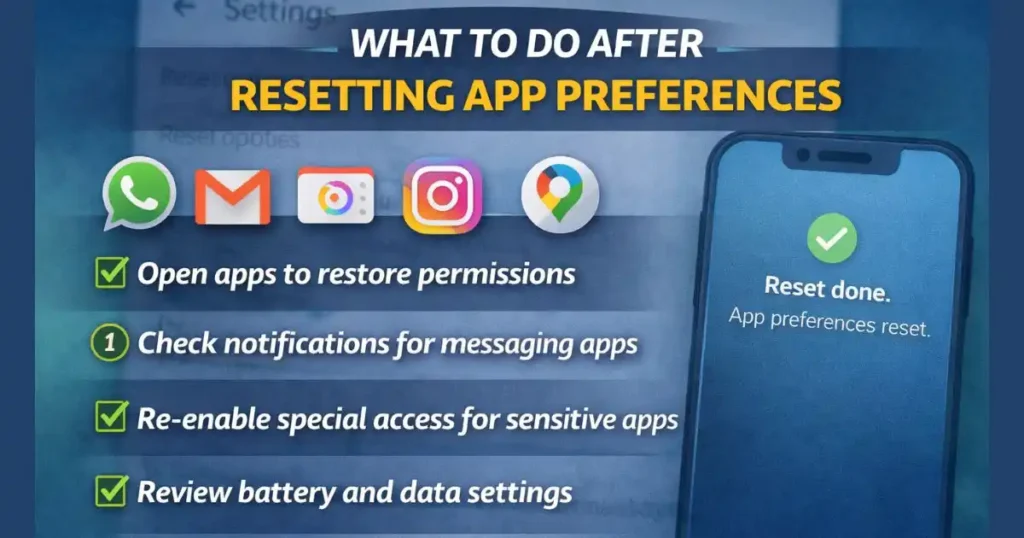
Once you complete the reset, a few apps may request permission prompts again. Treat this as a sign that the reset is working.
Do this to quickly rebuild your optimized environment:
- Open WhatsApp, Gmail, Instagram, and Maps once to restore permissions.
- Check notification access for messaging apps.
- Re-enable special access for banking or payment apps if required.
Within 10-15 minutes, your phone becomes noticeably smoother, and apps behave like fresh installs.
FAQs: How to Reset App Preferences on Android
1. Does resetting app preferences delete data?
No. It does not affect app data, photos, messages, saved accounts, or documents. It only resets system-level controls.
2. Will this fix app crashes and delayed notifications?
Yes, if the crashes are caused by disabled services, blocked notifications, or broken defaults.
3. Can this be undone?
There is no “undo” button. However, all settings can be manually reconfigured.
4. Is this the same as factory resetting the device?
No. A factory reset erases everything. This reset only changes app behavior settings.
5. Should I restart my phone after doing it?
It’s optional, but restarting helps the system reorganize background services faster.
Final Thoughts
If your phone feels inconsistent or apps aren’t behaving the way they used to, learning how to reset app preferences on Android is a smart, safe, and practical troubleshooting step. It brings the device back to a predictable state without affecting your personal world of files and memories.
This reset is not a punishment for your device. It is maintenance.
Disclaimer: This article is informational and written for general troubleshooting guidance. Features, menu structure, and settings may vary based on Android version, device manufacturer, and regional software updates.
Also Read: How to Create a Gmail Business Account – Complete Google Workspace Guide

Raj Prajapati is a skilled content writer dedicated to creating clear, step-by-step guides on technology, Health, and everyday solutions. With a focus on user-friendly and SEO-optimized content, he simplifies complex topics, helping readers learn and solve problems effortlessly.