
How to Clear Cache on Android Phone: You know that feeling when your phone starts acting like an old slow computer? Apps keep loading forever, Chrome gets stuck, or your phone just doesn’t feel as smooth as it used to.
Most of the time, one simple thing can help a lot: clearing the cache.
In this guide, I’ll walk you through how to clear cache on Android phone in a very simple, friendly way—no tech degree needed. Think of this as you and me sitting together, and I’m showing you exactly what to tap step-by-step.
Let’s start with the basics.
Also Read: How to Speed Up Windows 11 (2025) – 7 Easy Fixes
What Exactly Is Cache on Your Android Phone?
Before you delete anything, it’s better to understand what it is, right?
Think of Cache Like “Temporary Shortcuts”
When you open apps or websites, they don’t want to re-download the same stuff every single time. So they save some temporary data on your phone. That’s called cache.
For example:
- When you open Instagram, it saves images and thumbnails.
- When you open a website, it saves logos, design elements, and some code.
- When you use YouTube, it saves video thumbnails and parts of data.
All of this is meant to make things load faster the next time.
So, in simple words:
Cache = temporary files saved to speed things up.
What About Cookies?
Now, when you browse the internet, especially using a browser like Chrome:
- Cache stores images and page files.
- Cookies store things like:
- Logins
- Preferences (language, theme, etc.)
- Some tracking info (for ads and analytics)
Cookies are the reason some websites “remember” you without asking you to log in again.
If Cache Helps, Why Should You Clear It?

Great question. If cache is supposed to help, why bother clearing it?
Because over time, it can turn from “helpful” to “problematic.”
1. Your Phone Starts Feeling Heavy and Slow
When cache keeps building up:
- Apps may become slower instead of faster.
- Your phone storage gets filled with junk you don’t actually need.
- Some apps might take ages to open.
It’s like a room where you keep stuff “for later” and never clean it. Eventually, you can’t even walk properly inside it.
2. Websites and Apps Start Misbehaving
Old cached files can conflict with newer versions of apps or websites. That’s when you see issues like:
- A website not loading correctly
- “This site is not responding” messages
- Buttons not working
- Apps crashing again and again
- Content not refreshing
Just by clearing the cache, you’re telling the app or browser, “Bro, start fresh.”
3. You Get Better Privacy
Cookies and cache can reveal:
- Which websites you visited
- Some login sessions
- What you viewed recently
When you clear them:
- A lot of local browsing history is wiped from your phone
- Tracking cookies are removed
- Other people using your phone won’t easily see what you were browsing
No, it doesn’t turn you into a hacker or make you invisible online—but it does clean up your local data.
How to Clear Cache on Android Phone & Cookies (Chrome)

Let’s start with the most common case: Chrome.
This is usually where people see problems like:
- Pages not loading
- Weird layout
- Old content showing up
- Login problems
Here’s how you clear Chrome cache and cookies on Android step by step.
Step-by-Step: Clear Chrome Cache & Cookies on Android
- Open Chrome
Tap the Chrome app on your Android phone. - Open the Menu
In the top-right corner, tap the three dots (this is the menu button). - Go to History
From the dropdown, tap History. - Tap “Clear browsing data”
At the top of the History page, you’ll see Clear browsing data. Tap it. - Choose the Time Range
You’ll see options like:- Last hour
- Last 24 hours
- Last 7 days
- Last 4 weeks
- All time
If you just want to fix something that started recently, you can pick a shorter range. - Select What to Delete
Make sure these are checked:- Cookies and site data
- Cached images and files
- Clear the Data
Tap Clear data (or Clear browsing data).
Wait a few seconds while Chrome does the cleanup.
What Will Change After This?
- You may be logged out of some websites.
- Some websites might load a bit slowly the first time (they’re rebuilding cache).
- Many glitches or weird layout issues are usually fixed after this.
If someone tells you they want to know how to clear cache on Android phone just for browser problems, this is exactly what you show them.
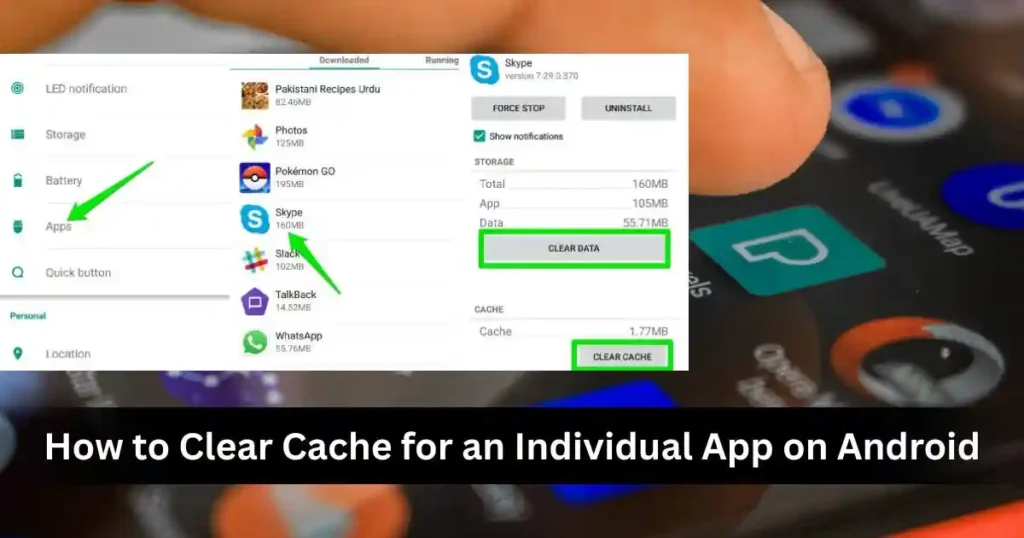
How to Clear Cache for an Individual App on Android
Now let’s talk about apps like:
- YouTube
- Games
If one specific app is giving you trouble:
- Crashing
- Freezing
- Taking too long to open
- Not loading images or videos
…then clearing that app’s cache is usually enough.
Important: Clearing cache for an app does not delete your account, chats, photos, or saved data. It only removes temporary files.
Step-by-Step: Clear Cache of a Single App
- Open Settings
Find and tap the Settings app on your phone. - Open Apps / Application Manager
Scroll down and tap Apps, Applications, or App management (name depends on your phone brand and Android version). - Find the App
From the list of apps, tap the app that’s causing trouble (e.g., Instagram, YouTube, Chrome, etc.). - Go to Storage / Storage & cache
On the app info screen, look for Storage or Storage & cache and tap it. - Tap Clear cache
You’ll see two buttons usually:- Clear cache
- Clear data or Clear storage
And that’s it. The app starts fresh with new temporary files when you use it next time.
When Should You Clear an App’s Cache?
You can consider doing it when:
- The app keeps closing or crashing
- It’s stuck at loading
- Content inside the app is not refreshing
- Your phone is running low on storage
- Your device in general feels laggy
This is one of the fastest, safest fixes you can try before uninstalling or resetting anything.
How to Clear System Cache on Android (Advanced Option)

For most people, clearing browser and app cache is enough. But if your whole phone is acting weird:
- Frequent lag everywhere
- Random glitches in the system
- Things are slow even after restarting and clearing app caches
Then some users try clearing the system cache partition.
Warning: This is a bit advanced. If you’re not comfortable, you can skip this or follow your device brand’s official guide.
This is usually done from Recovery Mode and doesn’t normally delete your personal data—just system temporary files.
General Steps: Wipe Cache Partition in Recovery Mode
The exact method depends on your phone brand, but here’s a general idea:
- Turn Off Your Phone
Press and hold the power button, then tap Power off. - Enter Recovery Mode
Common key combinations are:- Volume Up + Power button
- Sometimes: Volume Up + Power + Home button
- Navigate Using Volume Keys
In recovery mode:- Use Volume Up/Down to move through options.
- Use Power button to select.
- Select “Wipe cache partition”
Move to Wipe cache partition and select it with the Power button. - Confirm Wipe
If a confirmation screen appears, select Yes and confirm. - Reboot System
After it’s done, select Reboot system now.
After this, your phone starts again with a cleaned system cache. It often feels a bit smoother, especially if there were underlying system issues.
What Happens After You Clear Cache and Cookies?

A lot of people are nervous the first time they do this. So let’s be honest about what you’ll notice.
1. You May Have to Log In Again on Some Sites
If you cleared cookies in your browser:
- Some websites will ask you to log in again.
- Saved sessions may be gone (but your account is safe, of course).
Your apps usually stay logged in if you only cleared cache from Settings and not data.
2. Things Might Feel Slow for a Moment
Right after clearing cache:
- Websites might load their images and files fresh from the internet, so the first load can be slightly slower.
- Apps may take one extra second when you open them after cache clearing.
This is totally normal. After that, things should get smoother.
3. Overall, Your Phone Usually Feels Better
Once old or corrupted temporary files are removed:
- Apps behave more normally
- Browsers show the latest version of sites
- Your phone’s storage gets some breathing space
- The device often feels more responsive and less buggy
Think of it like a mini “spring cleaning” for your phone.
How Often Should You Clear Cache on Android?
You don’t need to do this every day. In fact, overdoing it can be unnecessary.
A good rough guideline:
- Browser cache & cookies: Every few weeks or whenever your browser misbehaves.
- App cache: Only when a specific app starts acting up or when you really need storage.
- System cache: Only if you’re facing constant, system-wide issues and simple methods didn’t help.
So instead of thinking “I must clear cache regularly,” think more like:
“I’ll clear cache when I see a problem or when things feel too slow.”
Related Queries:
Now let’s quickly answer some related queries that people often search along with how to clear cache on android phone.
1. How to Clear Cache on Android Phone Samsung
Samsung phones use Android with One UI, but the process is almost the same.
To clear app cache on Samsung:
- Open Settings.
- Tap Apps.
- Select the specific app (like Chrome, Instagram, YouTube).
- Tap Storage.
- Tap Clear cache.
To clear browser cache on Samsung:
- For Chrome: Follow the Chrome steps we discussed earlier.
- For Samsung Internet:
- Open Samsung Internet.
- Tap the menu icon (three lines) at the bottom or top.
- Go to Settings → Privacy → Delete browsing data.
- Select Cache and Cookies and site data.
- Tap Delete data.
2. How to Clear Cache on Android All at Once
On older Android versions, there used to be a direct option to clear “Cached data” for all apps at once. On most modern phones, this option is limited or hidden because it can affect performance if abused.
You still have some options:
- Use Storage / Device Care:
- On Samsung: Settings → Battery and device care, then use the optimization or clean-up options.
- On other phones: Settings → Storage and check if there’s a “Clean junk files” or similar option.
- Manually clear cache for the heaviest apps:
Sort apps by size in Settings → Apps (if your phone allows) and clear cache from the biggest ones first.
3. How to Clear Phone Cache All Apps
If your goal is to clean up as much cache as possible:
- Go to Settings → Apps.
- Look for a sorting option like Sort by size.
- Open each large app (social media, browsers, games).
- Go to Storage / Storage & cache.
- Tap Clear cache.
Yes, it’s a little manual, but it lets you control which apps you want to clean without breaking anything important.
4. How to Clear Cache on Phone (General)
If someone just asks “How to clear cache on phone” without saying Android or brand, the general approach is:
- For Android:
- Settings → Apps → [App] → Storage → Clear cache
- Browser → Settings/History → Clear browsing data
- For iPhone (just as a bonus note):
- Safari: Settings → Safari → Clear History and Website Data
- Other apps: Offload or reinstall apps from Settings → General → iPhone Storage
5. How to Clear Cookies on Android
If you only care about cookies (mainly for privacy or login issues), here’s the quick way in Chrome:
- Open Chrome.
- Tap the three dots → History → Clear browsing data.
- Choose a Time range (Last 7 days or All time).
- Check Cookies and site data.
- Tap Clear data.
This will log you out of many sites, but it can fix stubborn login problems and clear a lot of tracking data.
6. How to Clear Phone Cache iPhone
You might also see this query while researching. On iPhone, it’s a bit different:
- For Safari:
- Settings → Safari → Clear History and Website Data.
- For apps:
- Settings → General → iPhone Storage → Select an app → Offload App or Delete App and reinstall.
There’s no universal “clear cache” button like on Android, but the idea is similar—remove temporary data to refresh the app or browser.
7. Chrome Clear Cache Android (Quick Recap)
Since this is super common, here’s a quick recap:
- Open Chrome.
- Tap three dots → History.
- Tap Clear browsing data.
- Choose Time range.
- Check Cached images and files (and Cookies and site data if you want).
- Tap Clear data.
If someone tells you their browser is slow or broken, this is the first thing you should suggest.
Extra Tips to Keep Your Android Phone Smooth

Clearing cache helps a lot, but there are a few more things you can do:
- Uninstall apps you don’t use: They silently eat storage and sometimes run in background.
- Restart your phone once in a while: A simple reboot can fix many small glitches.
- Update your apps and system: New updates fix bugs and sometimes improve performance.
- Avoid installing random “cleaner” apps: Many of them show ads, run in the background, and don’t really help much.
- Use built-in tools: Most phones have options like Device care, Phone manager, or Storage cleaner.
FAQs on How to Clear Cache on Android Phone
1. Is it safe to clear cache on Android?
Yes, it’s absolutely safe.
Clearing cache only removes temporary files. Your:
photos
contacts
messages
app accounts
…remain safe. Apps will just recreate the cache as you use them again.
2. Does clearing cache delete my photos or chats?
No. Clearing cache does not delete:
Photos in your gallery
WhatsApp chats
Instagram posts
Files in storage
Just be careful not to tap Clear data—that’s different and can reset an app.
3. How often should I clear cache?
There’s no strict rule, but:
When your phone or apps feel slow
When a website or app is acting strange
When you’re running low on storage
Doing it once in a while more like “maintenance” is perfectly fine.
4. Will clearing cache make my phone faster?
In many cases, yes. It can:
Free storage space
Fix laggy apps
Make browsing smoother
It’s not a magic trick if your phone is very old or extremely low-end, but it’s one of the simplest and safest ways to get a quick improvement.
5. Do I need special apps to clear cache?
No, you don’t.
Android already gives you everything you need:
Settings → Apps → Clear cache
Browser’s own Clear browsing data option
Built-in storage or device care tools
Third-party cleaner apps are usually unnecessary and sometimes even harmful.
Final Thoughts
If your Android is starting to feel slow or buggy, learning how to clear cache on android phone is one of the easiest and safest things you can try.
You don’t have to be “techy” to do it—you just need to know where to tap:
- Clear browser cache and cookies for website issues
- Clear specific app cache when one app misbehaves
- Optionally clear system cache if things are really bad
Treat it like giving your phone a quick cleanup so it can breathe again.
Disclaimer: This guide is for informational purposes only. The exact menu names and steps may vary depending on your Android version and phone brand (Samsung, Xiaomi, OnePlus, etc.). Always double-check before using options like Clear data or Factory reset, as those can remove personal data. If you’re unsure, it’s a good idea to check your manufacturer’s official support guide or contact their customer support.

Raj Prajapati is a skilled content writer dedicated to creating clear, step-by-step guides on technology, Health, and everyday solutions. With a focus on user-friendly and SEO-optimized content, he simplifies complex topics, helping readers learn and solve problems effortlessly.