
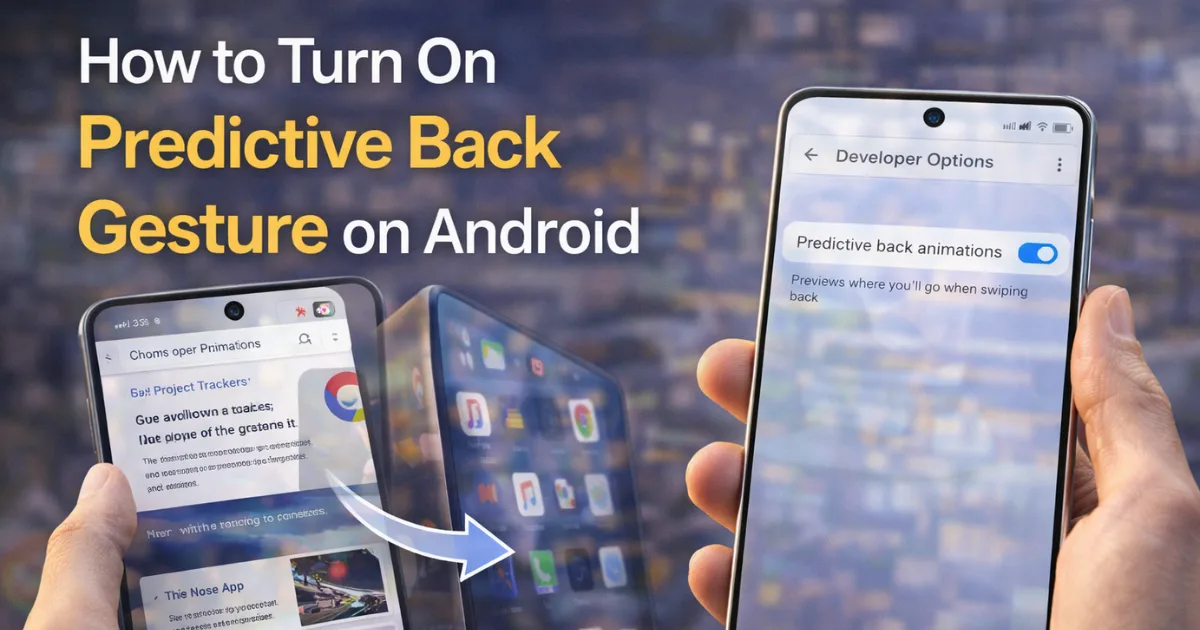
How to Turn On Predictive Back Gesture: Android navigation has evolved through several stages: physical buttons, on-screen buttons, gesture bars, and now smart gestures. The latest advancement in this journey is the Predictive Back Gesture, a feature designed to solve one of the most common user complaints: accidentally swiping back and closing the app.
If you’ve ever been reading something important, watching a video, or filling out a form and the back gesture threw you out to the home screen, this feature is built for you.
Instead of blindly performing a back action, the Predictive Back Gesture visually shows where the gesture will take you before it actually executes. You get a live preview of the destination: either the previous screen, a settings page, or the home screen. In plain terms, Android now gives you a chance to change your mind before the action completes. The more apps that adopt it, the smoother Android navigation feels.
In this complete tutorial, we’ll break down How to Turn On Predictive Back Gesture on Android, how it works, where to find the feature by Android version, differences on Samsung and Pixel, app compatibility, and practical use cases that make it feel genuinely helpful. The goal is to give you a clear understanding, not just steps to toggle a setting.
This is not a basic menu-pressing guide. It’s an explanation of why this feature matters for everyday navigation.
Also Read: How to Use Android Auto Archive Apps Feature to Save Storage Space
What Is the Predictive Back Gesture? A Beginner-Friendly Breakdown
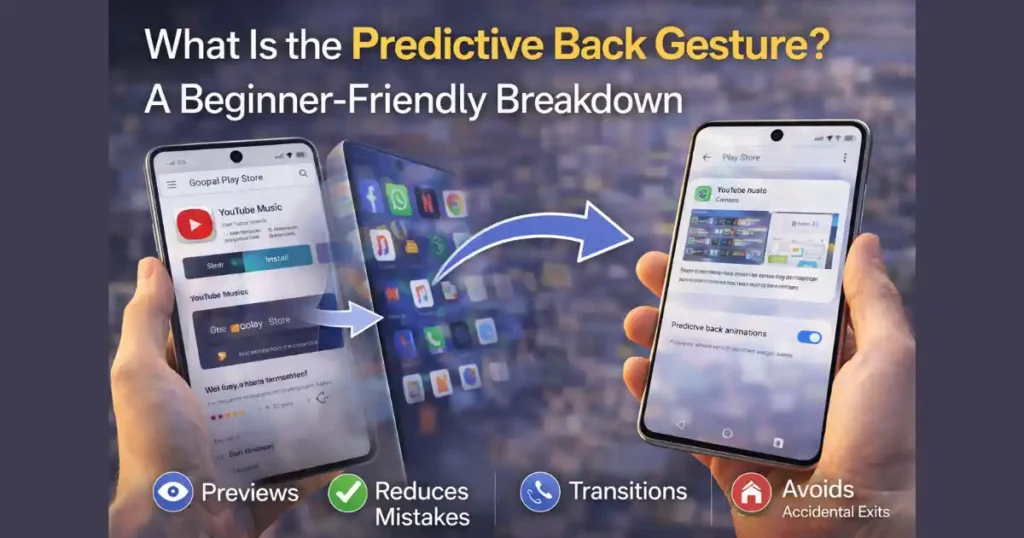
The Predictive Back Gesture is a system-level navigation upgrade that previews the screen you’re about to go back to before the gesture commits. It’s essentially a “transparent confirmation” of the back action. As you begin swiping from the left or right edge, the current screen starts shrinking, and behind it you see either:
- The previous app page
- The previous activity/screen
- Your home screen (if you’re exiting the app)
- The last app you were in
- A multi-tasking destination, depending on the context
This prevents the biggest frustration: accidental exits.
Why It Matters
Most users swipe instinctively. They don’t stop to think whether the back gesture will jump to home or just return to a previous page. With Predictive Back, you no longer have to guess. Android shows you the answer in real time.
Instead of feeling like you’re navigating blind, the UI becomes conversational—like Android and the user are making decisions together.
How the Feature Changes Navigation
Here’s a simple before-and-after comparison:
| Before Predictive Back | After Predictive Back |
|---|---|
| Swipe back feels unpredictable | You see exactly where the gesture goes |
| Accidental app exits | You can cancel before committing |
| Apps close suddenly | Screen previews reduce mistakes |
| No visual context | Transparent preview improves confidence |
| Only muscle memory | Visual guidance + gesture control |
The Predictive Back Gesture doesn’t add more features to Android; it improves the interaction experience.
How to Turn On Predictive Back Gesture on Android (By Version)
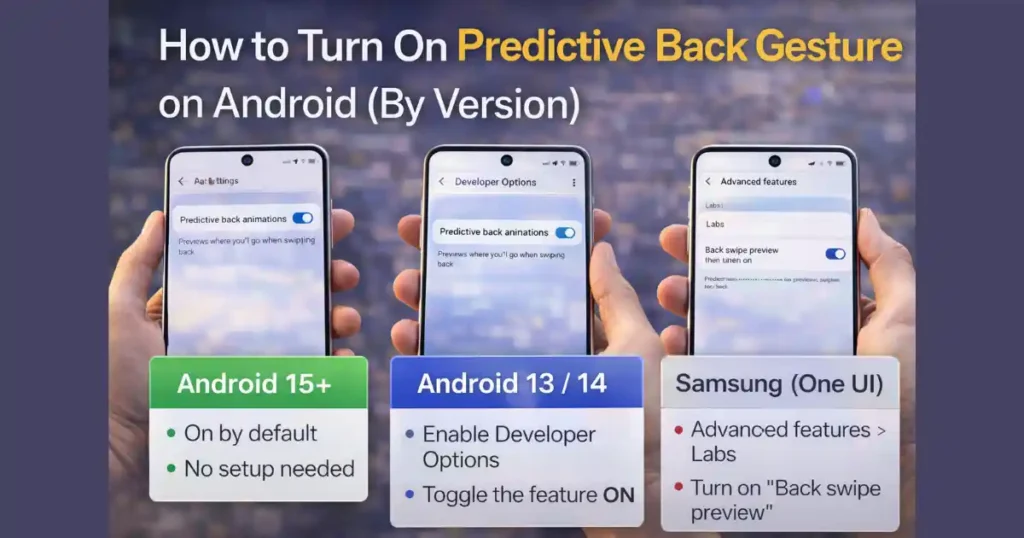
This is where most confusion happens. The steps changed across Android 13, Android 14, and Android 15. Below is the correct breakdown depending on your device.
Android 15 and Newer
- Status: Enabled by default
- No developer toggle required
- Works instantly as long as apps support it
Most Pixel devices and newer Android phones have it already on. You can test it in the Settings app or Chrome.
How to check if it’s active
- Swipe back slowly in an app
- If the screen preview appears, the feature is running
How to Turn On Predictive Back Gesture on Android 13 / Android 14
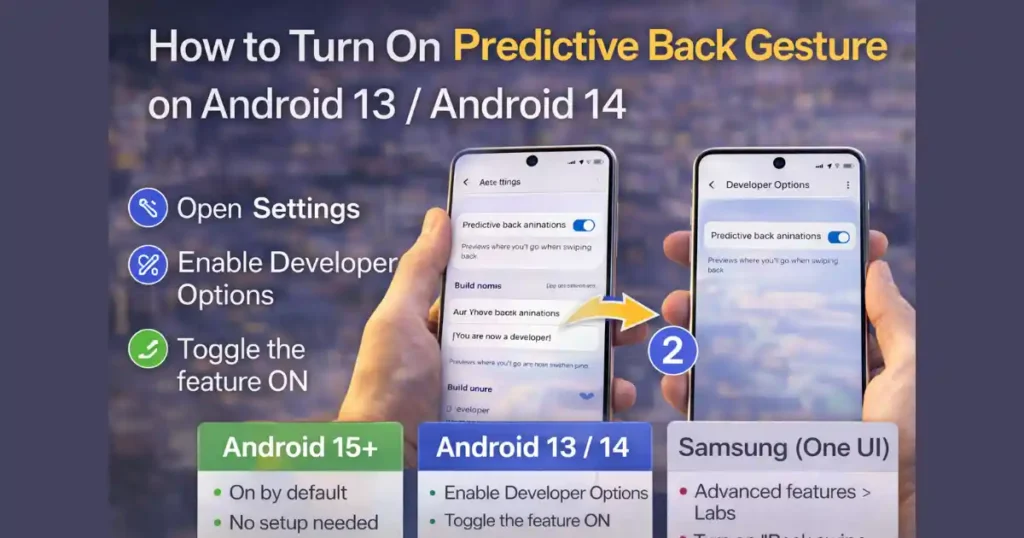
This is where manual activation is necessary because the feature still sits inside Developer Options.
Step 1: Enable Developer Mode
- Open Settings
- Scroll to About phone
- Tap Build number seven times
- Enter your PIN if prompted
You’ll see the message: “You are now a developer”
Step 2: Activate Predictive Back
- Go back to Settings
- Open System
- Tap Developer options
- Search or scroll for Predictive back animations
- Toggle it ON
You’re done. To test it, swipe back in apps like Settings, Chrome, YouTube, or Gmail.
How to Enable It on Samsung Devices (One UI)
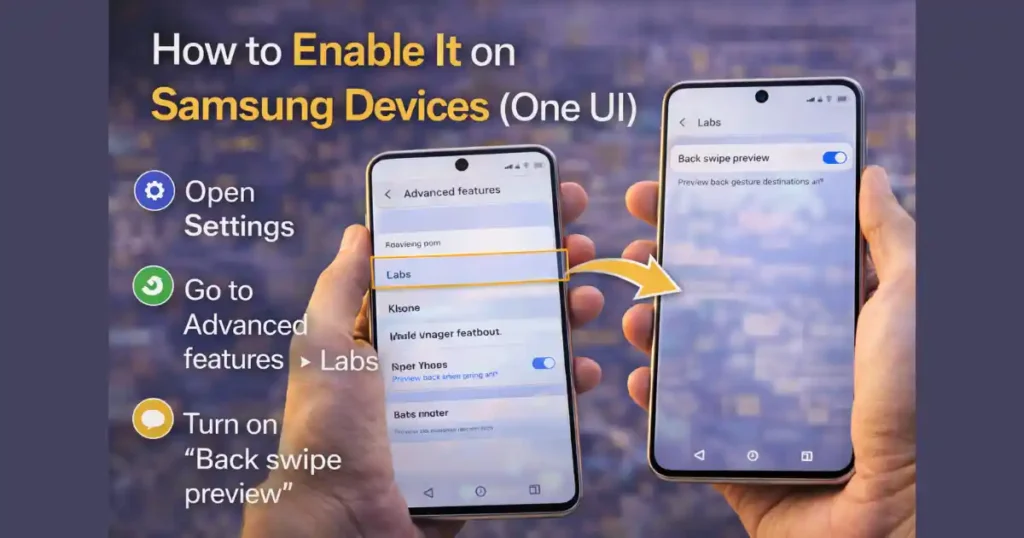
Samsung hides the toggle in a different menu.
- Open Settings
- Go to Advanced features
- Tap Labs
- Turn on Back swipe preview
- Make sure gesture navigation is active (not 3-button)
Samsung requires gesture navigation to be enabled first:
- Settings > Display > Navigation bar > Swipe gestures
Once active, the preview animation will appear.
What the Predictive Back Animation Actually Does
The feature isn’t just visual flair; it contains logic that improves decision-making during navigation. Here’s what happens behind the scenes:
1. Back-to-Home Preview
If swiping back would exit the app entirely, the current window shrinks and reveals the home screen underneath. This lets you choose to finish the swipe or let go to cancel.
2. Cross-Activity Preview
If navigating between app screens—for example, from product details back to a catalog—it previews the previous screen so you know exactly where you’ll land.
3. Cross-Task Preview
If two apps were opened one after another, the gesture may preview the previous app before switching you back.
4. Cancelable Gesture
Unlike old navigation, you can stop mid-swipe and return to the current screen.
This sounds small on paper, but in real use it feels like Android is respecting your intentions, not guessing them.
Also Read: How to Use Android Hidden Screen Pinning Feature for Privacy and Focus
Why Some Apps Don’t Show the Preview
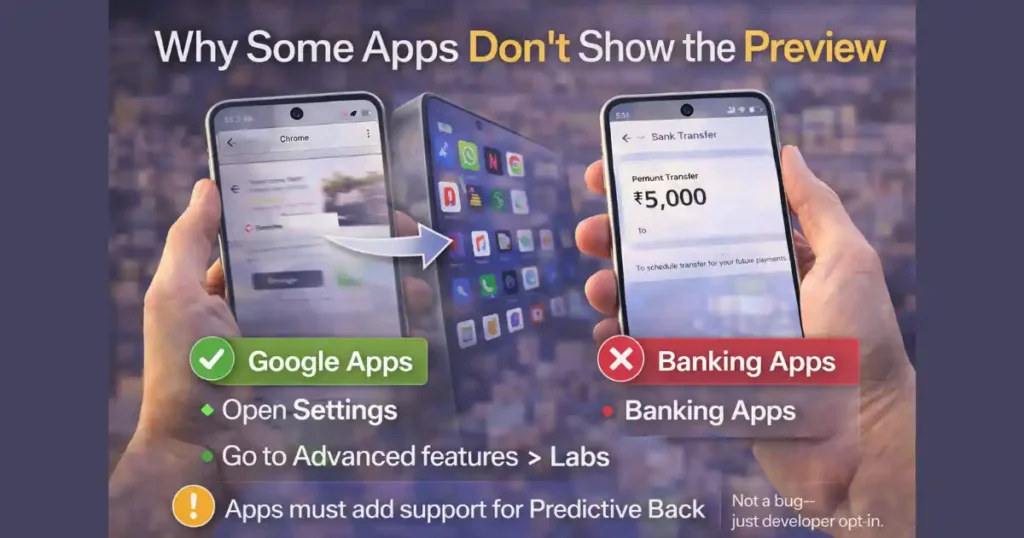
A common question users ask is: If the feature is enabled, why doesn’t it work everywhere?
Because it depends on developer opt-in.
Apps must update their navigation logic to support Predictive Back. Major Google apps already have support, but third-party apps may take time.
Apps that typically support it now:
- Google Chrome
- Google Search
- YouTube
- Gmail
- Play Store
- Android Settings
Apps that may not support it yet:
- Banking apps
- Some games
- Older apps not updated to modern API levels
This isn’t a bug—it’s a rollout phase. Over time, more apps will adopt it.
Who Benefits the Most from Predictive Back Gesture?
This feature might feel small, but it solves real user pain points.
- People who multitask constantly
- Students switching between study apps and browser tabs
- Professionals using multiple workplace apps
- Older users who often trigger wrong gestures
- Gamers who don’t want to exit during gameplay
- Beginners learning gesture navigation
For these users, accidental navigation was not just annoying—it was disruptive. Predictive Back works like a seatbelt: you only notice its importance when something goes wrong.
Pros and Cons of Predictive Back Gesture
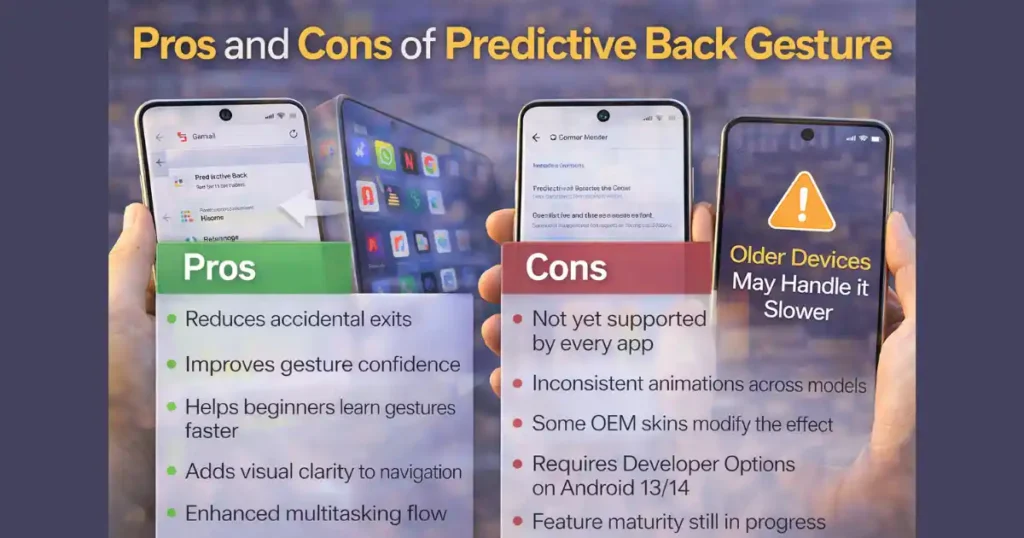
| Pros | Cons |
|---|---|
| Reduces accidental exits | Not yet supported by every app |
| Improves gesture confidence | Inconsistent animations across models |
| Helps beginners learn gestures faster | Some OEM skins modify the effect |
| Adds visual clarity to navigation | Requires Developer Options on Android 13/14 |
| Enhanced multitasking flow | Feature maturity still in progress |
Key Takeaway
Predictive Back Gesture isn’t just a toggle. It’s part of the future of Android navigation—one that relies on visibility, confirmation, and real-time context. Knowing How to Turn On Predictive Back Gesture on Android unlocks a smarter way to move through apps without hesitation.
FAQs: How to Turn On Predictive Back Gesture
1. Does Predictive Back work on all apps?
No. Apps must add support. Google apps lead the rollout; third-party developers are catching up.
2. Why can’t I find the setting on my phone?
If you’re on Android 15 or newer, it’s already enabled. On Android 13/14, you must activate it in Developer Options.
3. Do I need gesture navigation for this to work?
Yes. Button navigation does not support Predictive Back.
4. Is this available on Samsung, Oppo, Vivo, or Xiaomi?
Yes, but menu names differ. Samsung uses “Back swipe preview” under Labs.
5. Does it affect performance or battery life?
No. It’s an animation layer, not a background service.
Disclaimer: Features may differ depending on Android version, OEM skin, and app support. Availability and behavior can vary across brands like Samsung, Xiaomi, Vivo, Oppo, Realme, and Pixel.
Also Read: How to Free Up Disk Space on Windows: Complete Step-by-Step Guide

Raj Prajapati is a skilled content writer dedicated to creating clear, step-by-step guides on technology, Health, and everyday solutions. With a focus on user-friendly and SEO-optimized content, he simplifies complex topics, helping readers learn and solve problems effortlessly.