
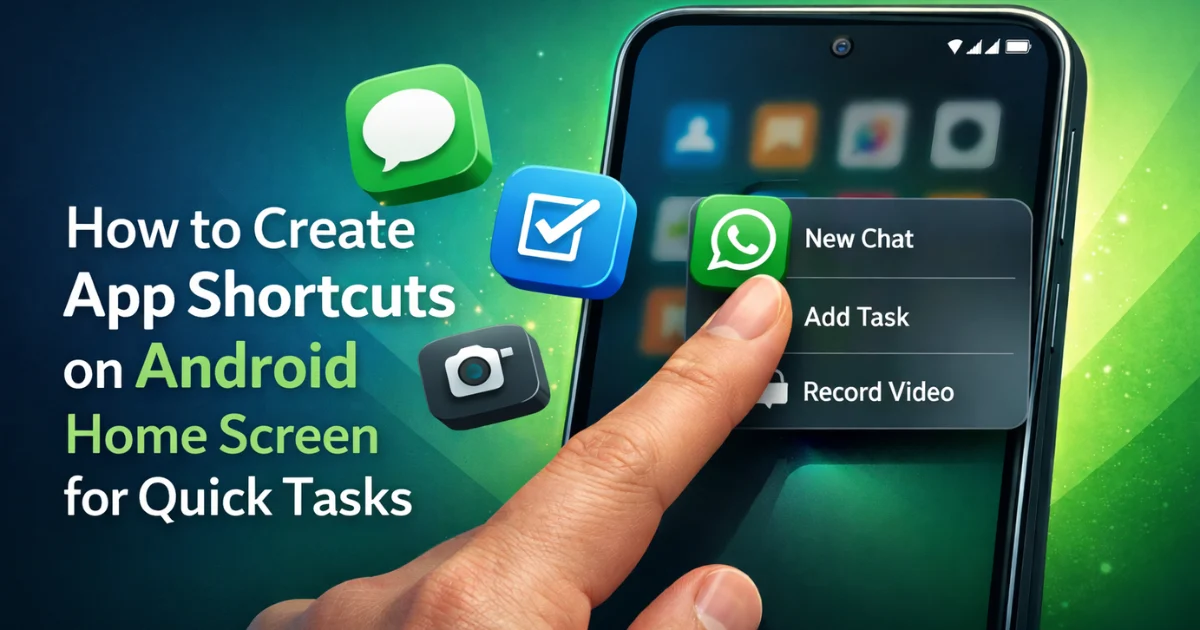
Smartphones are supposed to save time. Yet most of us still unlock our phones, open an app, wait for it to load, then tap through two or three screens just to do one small thing. Send a message. Start a new task. Record a quick video.
Android solves this problem quietly and powerfully through app shortcuts on the home screen. If you use them correctly, you can turn common actions into one-tap buttons that feel almost like physical keys.
This guide explains how to create app shortcuts on Android home screen in a clear, practical way. It covers basic methods, advanced options available in Android 14, 15, and Android 16, plus real-world examples so you actually use these shortcuts instead of forgetting them.
Everything here is written for everyday users, not developers. No jargon. No guesswork.
Also Read: How to Use WiFi Sharing via QR on Android Without Third-Party Apps
Why App Shortcuts Matter More Than Ever in 2026
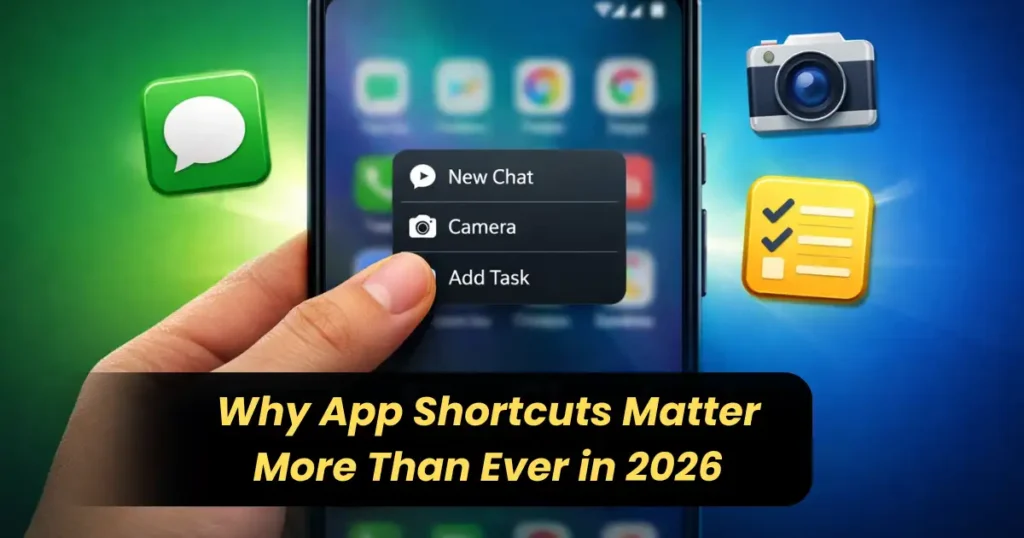
Android phones have become faster, but apps have become heavier. Even simple apps now open dashboards, feeds, or splash screens before letting you do what you want.
Home screen shortcuts flip that experience.
Instead of:
Unlock → App → Menu → Action
You get:
Unlock → Tap → Done
That difference sounds small, but over a day it adds up fast.
Real benefits of app shortcuts
- Save time on repeated actions
- Reduce unnecessary taps
- Make large phones easier to use one-handed
- Turn your home screen into a productivity dashboard
- Reduce distraction by skipping feeds and timelines
If you message the same people, open the same files, or perform the same actions daily, shortcuts are one of the most underrated Android features.
Understanding App Shortcuts on Android (Simple Explanation)
An app shortcut is a direct link to a specific action inside an app.
It is not the same as:
- A full app icon
- A widget (though widgets can act like shortcuts)
- A notification
Think of it as a deep link that opens the app exactly where you want.
Common examples
- “New chat” in WhatsApp
- “Add new task” in a to-do app
- “Take video” in the Camera app
- “Navigate home” in Maps
All of these can live directly on your home screen.
Method 1: Dragging the App Icon to the Home Screen (Basic but Essential)
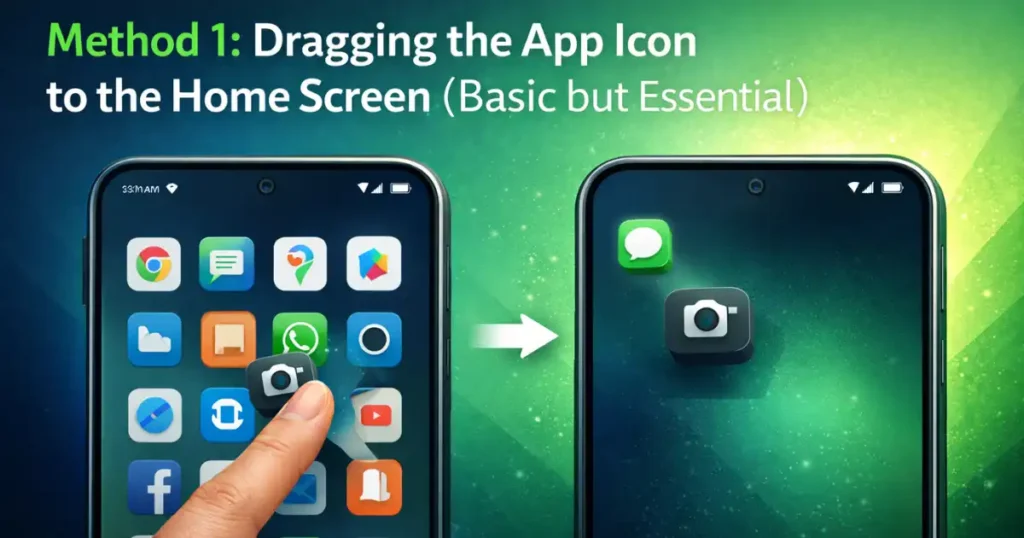
This is the most basic method, but it matters because many users still overlook it.
When to use this method
- When the app is not already on your home screen
- When you want quick access to the full app
- When setting up a new phone
Step-by-step
- Swipe up to open the app drawer
- Find the app you want
- Long-press the app icon
- Drag it to your home screen
- Release to place it
That’s it.
This does not create a task-level shortcut, but it is the foundation for everything else.
Method 2: Using App Shortcut Menus (The Real Power Feature)

This is where Android really shines.
Many apps support App Shortcuts, also called App Actions. These appear when you long-press an app icon.
What you’ll see
When you long-press an app icon on your home screen, a small menu pops up with quick actions.
Examples:
- WhatsApp: New chat, Camera
- Camera: Take photo, Take video
- Maps: Work, Home
- To-do apps: Add new task
How to pin a shortcut to your home screen
- Long-press the app icon
- Wait for the shortcut menu to appear
- Long-press the specific action you want
- Drag it to an empty spot on your home screen
- Release to pin it
Now that action works like its own app icon.
Why this method is so useful
- Skips the app’s home screen
- Opens directly into the action
- Works even on older Android versions
- Feels instant once you get used to it
If you remember only one thing from this article, remember this method.
Apps That Commonly Support Shortcut Menus
Not every app supports shortcuts, but many popular ones do.
Here are some common categories that usually work well:
Communication apps
- Phone and Contacts
- Messaging apps
Productivity apps
- Task managers
- Calendar apps
- Notes apps
Media apps
- YouTube (subscriptions or search)
- Music apps (playlists, recent albums)
System apps
- Camera
- Settings (specific sections on some phones)
Support depends on the app developer, not Android alone.
Method 3: Widgets That Act Like App Shortcuts

Widgets are often ignored because people think they are bulky or outdated. In reality, modern widgets are clean and powerful.
Many widgets act like interactive shortcuts.
How to add a widget
- Long-press an empty area on the home screen
- Tap “Widgets”
- Browse or search for the app
- Long-press the widget
- Drag it to your home screen
Good uses for widget-based shortcuts
- A task list widget with “Add task”
- A music widget with play controls
- A notes widget for quick capture
- A weather widget that opens forecasts
Widgets take more space but often replace multiple shortcuts.
Method 4: Create Custom One-Tap Buttons with Action Blocks

This method is for users who want automation without complexity.
Action Blocks is a Google app that lets you turn Assistant commands into home screen buttons.
What Action Blocks can do
- Send a predefined message
- Control smart home devices
- Start routines
- Play a specific playlist
- Trigger multi-step actions
Example use cases
- “Text Mom I’m home”
- “Play workout playlist”
- “Turn on bedroom lights”
How to set it up
- Install Action Blocks from the Play Store
- Open the app and tap “Create action block”
- Choose or type an Assistant command
- Select an icon or image
- Save and place it on the home screen
For non-technical users, this is one of the easiest ways to create powerful shortcuts.
Method 5: Add Website Shortcuts to the Home Screen

If you visit the same websites daily, you don’t need to open a browser every time.
Using Google Chrome, you can pin websites directly to your home screen.
How to do it
- Open the website in Chrome
- Tap the three-dot menu
- Select “Add to Home screen”
- Name the shortcut
- Tap Add
Some sites behave like full apps. Others open as clean web pages without browser clutter.
Method 6: Direct Shortcuts for Files and Folders
This method is perfect for work and study.
File shortcuts
Using file managers like Files by Google:
- Open the file manager
- Long-press a file or folder
- Tap the three-dot menu
- Select “Add to Home screen”
Now that file opens with one tap.
When this helps most
- PDFs you open daily
- Project folders
- ID documents
- Reference images
Method 7: Contact Shortcuts for Instant Calls or Messages

Instead of searching contacts every time, you can pin people directly.
How to add a contact shortcut
- Long-press the home screen
- Tap Widgets
- Find Contacts
- Choose “Individual Contact”
- Select the person
You can create multiple shortcuts for calls, messages, or video calls depending on your phone.
Also Read: How to Turn On Predictive Back Gesture on Android and What It Actually Does
Lock Screen and Quick Settings Shortcuts (Android 14–16)
Android has expanded shortcuts beyond the home screen.
Lock screen shortcuts (Android 16)
You can customize the two bottom corners of the lock screen to open:
- Camera
- Flashlight
- Specific apps or tools
This lets you access key functions without fully unlocking your phone.
Quick Settings tiles
Swipe down twice and tap Edit. You can add tiles for:
- Screen Recorder
- Calculator
- Home controls
- Wallet
- Accessibility features
These are not home screen shortcuts, but they serve the same purpose: speed.
Best Practices for Organizing App Shortcuts
Shortcuts are only useful if they stay usable.
Tips that actually help
- Group shortcuts by purpose
- Keep frequently used ones within thumb reach
- Avoid cluttering every screen
- Use folders for related actions
- Remove shortcuts you stop using
A clean setup beats a clever one.
Common Problems and How to Fix Them

Shortcut disappears after update
Some apps remove shortcuts after updates. Just recreate them.
Shortcut doesn’t work
The app may have removed support. Try widgets or Action Blocks instead.
Option not visible
Not all apps support shortcut menus. That’s normal.
Who Should Use App Shortcuts Most
- Professionals handling repeated tasks
- Students opening the same files daily
- Parents who message the same contacts
- Older users who want simpler navigation
- Anyone who values speed over aesthetics
If you use your phone daily, shortcuts are worth setting up.
Final Thoughts
Learning how to create app shortcuts on Android home screen is one of those small skills that pays off every single day.
Android gives you multiple ways to do it:
- App shortcut menus
- Widgets
- Custom action buttons
- Website links
- File and contact shortcuts
You don’t need all of them. Even two or three well-placed shortcuts can change how your phone feels.
Start small. Add one shortcut today. Then build from there.
FAQs: How to Create App Shortcuts on Android
1. Are app shortcuts safe to use?
Yes. They use built-in Android features and don’t bypass security.
2. Do app shortcuts drain battery?
No noticeable impact. They are just links, not background processes.
3. Why don’t all apps support shortcuts?
Support depends on the app developer, not Android itself.
4. Can I remove a shortcut without uninstalling the app?
Yes. Long-press the shortcut and remove it. The app stays installed.
5. Do shortcuts work after phone restart?
Yes. Properly created shortcuts persist after reboot.
Disclaimer: This article is for informational purposes only. Android features, options, and shortcut availability may vary depending on device manufacturer, Android version, and app updates. Always refer to official app or system documentation for the latest changes.
Also Read: How to Use Android Auto Archive Apps Feature to Save Storage Space

Raj Prajapati is a skilled content writer dedicated to creating clear, step-by-step guides on technology, Health, and everyday solutions. With a focus on user-friendly and SEO-optimized content, he simplifies complex topics, helping readers learn and solve problems effortlessly.