
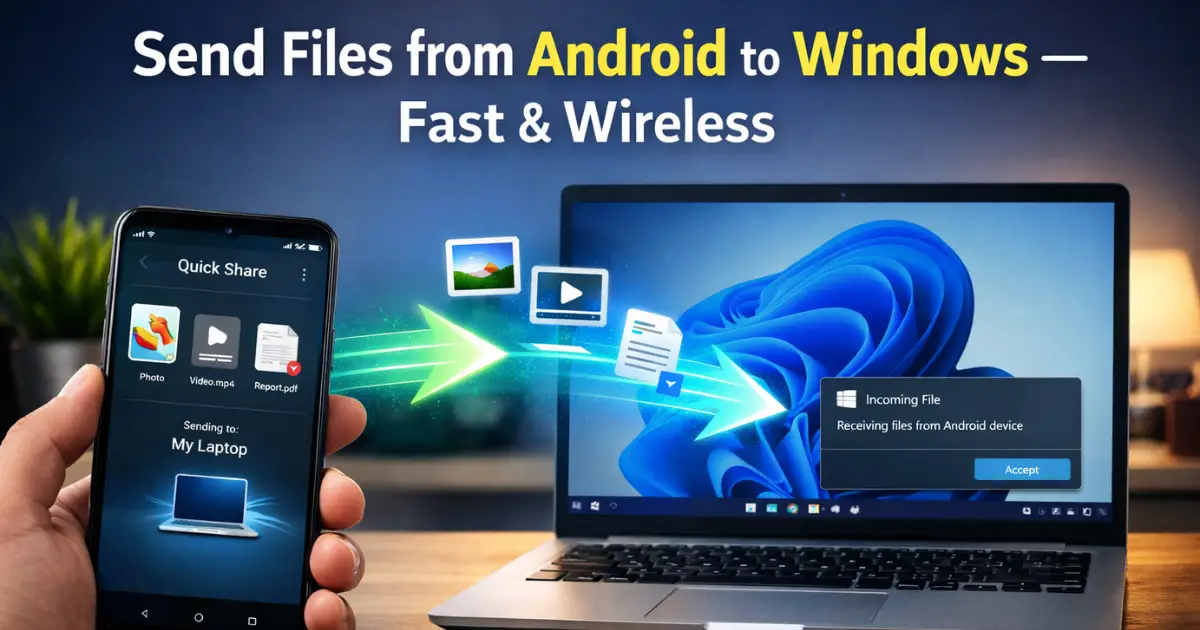
File sharing sounds simple, but when you move between Android and Windows, it often turns into a mess of cables, random apps, slow Bluetooth transfers, or cloud uploads you never wanted. That frustration is exactly why people keep searching for how to use Nearby Share to send files to Windows in a clean, fast, and reliable way.
Google’s Nearby Share, now rebranded as Quick Share, has changed how Android devices exchange files. On the Windows side, Microsoft already has its own built-in Nearby Sharing system. The confusion starts because these two systems sound similar but work very differently.
In this guide, we will break everything down in plain English. You will understand what Nearby Share and Quick Share really are, how Android and Windows handle file sharing differently, what works without installing extra apps, and where installing one official app actually makes sense. By the end, you will know the best method for your device, your situation, and your comfort level.
Also Read: How to Reset Network Settings on Android Without Losing SIM or eSIM Data
Understanding Nearby Share vs Quick Share: Why People Get Confused
Before jumping into steps, it is important to clear up the biggest misunderstanding.
On Android, Nearby Share was Google’s built-in file sharing feature. In early 2024, Google merged it with Samsung’s Quick Share and officially rebranded the feature as Quick Share on Android. Functionally, it still does the same thing: fast, local file sharing using Bluetooth, Wi-Fi, and peer-to-peer connections.
On Windows, Nearby Sharing is a completely different feature. It is built into Windows 10 and Windows 11 and is designed mainly for Windows-to-Windows sharing. Despite the similar name, it does not natively talk to Android’s Quick Share system.
This naming overlap is the root of most confusion when people search for how to use Nearby Share to send files to Windows.
How Android Quick Share Actually Works Behind the Scenes

Android Quick Share is not just Bluetooth sharing with a fancy name. It uses a combination of technologies depending on availability:
- Bluetooth is used to discover nearby devices
- Wi-Fi or Wi-Fi Direct is used for the actual file transfer
- In some cases, peer-to-peer networking creates a direct connection
This is why Quick Share is much faster than old-school Bluetooth sharing. A 1 GB video that would take ages over Bluetooth can be transferred in seconds using Wi-Fi Direct.
For Quick Share to work smoothly:
- Bluetooth must be on
- Wi-Fi must be on
- Devices should be physically close
Being on the same Wi-Fi network improves speed but is not always mandatory.
Can You Use Nearby Share to Send Files to Windows Without Any App?
This is the most important question, and the honest answer matters.
Short answer:
Android Quick Share and Windows Nearby Sharing do not natively work together.
If your goal is Android to Windows file sharing with zero installations on Windows, then Quick Share alone will not do it on most PCs.
However, there are three realistic scenarios where people say “without extra apps,” and each needs to be explained properly.
Scenario 1: Using the Official Google Quick Share App on Windows (Recommended)

This is the most reliable and closest experience to true Nearby Share between Android and Windows.
Even though it requires installing one official app, it is not a third-party tool, not bloatware, and not risky. It is built and maintained by Google specifically for this purpose.
Why This Method Exists
Windows Nearby Sharing and Android Quick Share were built by different companies with different protocols. Google created a Windows app to bridge that gap safely.
If you want a smooth experience and are serious about learning how to use Nearby Share to send files to Windows, this is the method most users should choose.
Step-by-Step: Android Side Setup
- Open Quick Settings by swiping down from the top of your phone
- Look for Quick Share (or Nearby Share on older versions)
- Tap and hold the icon to open settings
- Turn it on
- Set visibility to Everyone nearby
This visibility setting is important. If it is set to Contacts or Hidden, your PC may not appear.
Step-by-Step: Windows Side Setup
- Install the Google Quick Share for Windows app from the official source
- Open the app after installation
- Sign in with your Google account (optional but recommended)
- Set device visibility to Everyone or Contacts
- Keep the app running in the background
Once this is done, your Windows PC will appear as a nearby device on your Android phone.
Sending Files from Android to Windows
- Open any file, photo, or video on your Android phone
- Tap the Share icon
- Select Quick Share
- Choose your Windows PC from the device list
- Accept the transfer on your PC
By default, files are saved in the Downloads folder.
Why This Method Is Worth It
- Fast transfer speeds
- No cables
- No cloud uploads
- No file size limits like email
- Official and safe
For most users, this is the best answer to how to use Nearby Share to send files to Windows in real life.
Scenario 2: Using Built-In Windows Nearby Sharing (Windows to Windows Only)
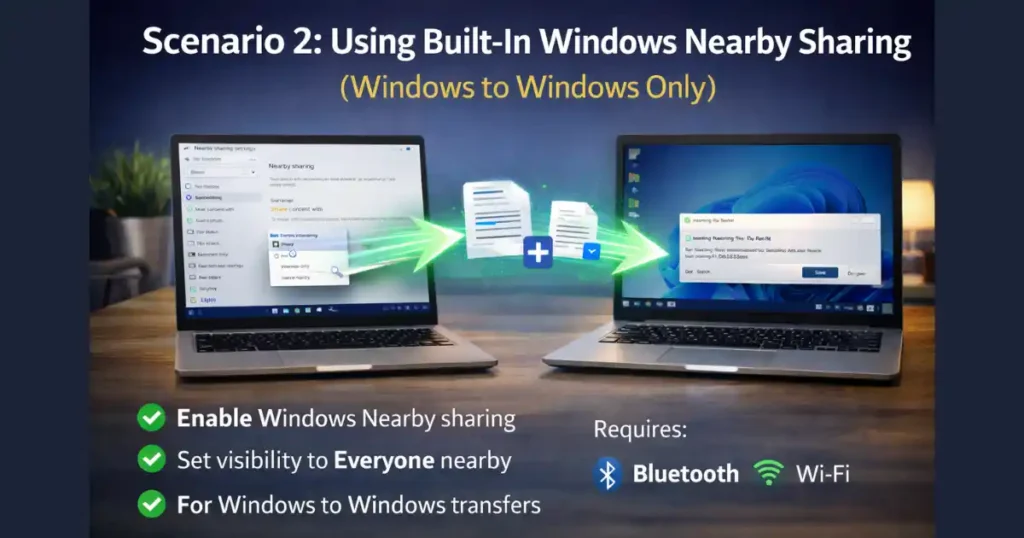
This method truly requires no installation, but it does not work with Android.
It is still important to explain because many users confuse it with Android Nearby Share.
How Windows Nearby Sharing Works
Windows Nearby Sharing is designed for:
- Laptop to laptop
- Desktop to laptop
- Windows device to Windows device
It uses Bluetooth for discovery and Wi-Fi for file transfer, similar to AirDrop on Apple devices.
How to Enable Nearby Sharing on Windows
On Windows 11:
- Go to Settings
- Open System
- Select Nearby sharing
On Windows 10:
- Go to Settings
- Open System
- Select Shared experiences
Turn it on and set visibility to Everyone nearby.
Sharing Files Between Windows PCs
- Right-click a file in File Explorer
- Click Share
- Select a nearby Windows PC
- Accept the transfer on the other device
This method works beautifully but does not solve Android to Windows sharing.
Scenario 3: Android to Windows Without Installing the Google Quick Share App
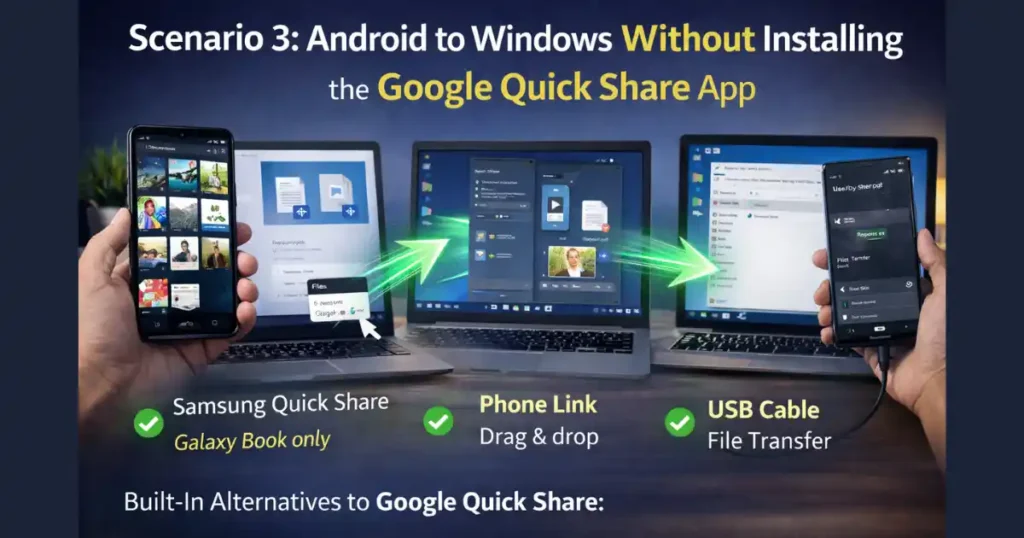
If you absolutely do not want to install Google’s app on Windows, you still have a few built-in alternatives. These do not use Quick Share directly, but they achieve the same end goal.
Option 1: Samsung Quick Share on Samsung Galaxy Book
If you use:
- A Samsung Galaxy phone
- A Samsung Galaxy Book laptop
Then Quick Share may already be pre-installed on both devices. In this rare case, Android to Windows sharing works seamlessly without installing anything new.
This is a hardware-specific advantage, not a universal solution.
Option 2: Phone Link (Pre-Installed on Most Windows PCs)
Phone Link is one of the most underrated tools for Android and Windows integration.
Once linked:
- You can drag and drop files
- Access recent photos
- Send text messages
- Mirror notifications
While it is not exactly the same as Nearby Share, it works without installing extra Windows apps because it is already built in.
Option 3: USB Cable File Transfer
This is old-school but still reliable.
- Connect your phone to your PC using a USB cable
- Select File Transfer on your phone
- Open File Explorer on Windows
- Access your phone storage
No wireless magic, but no apps either.
Performance Comparison: Quick Share vs Alternatives
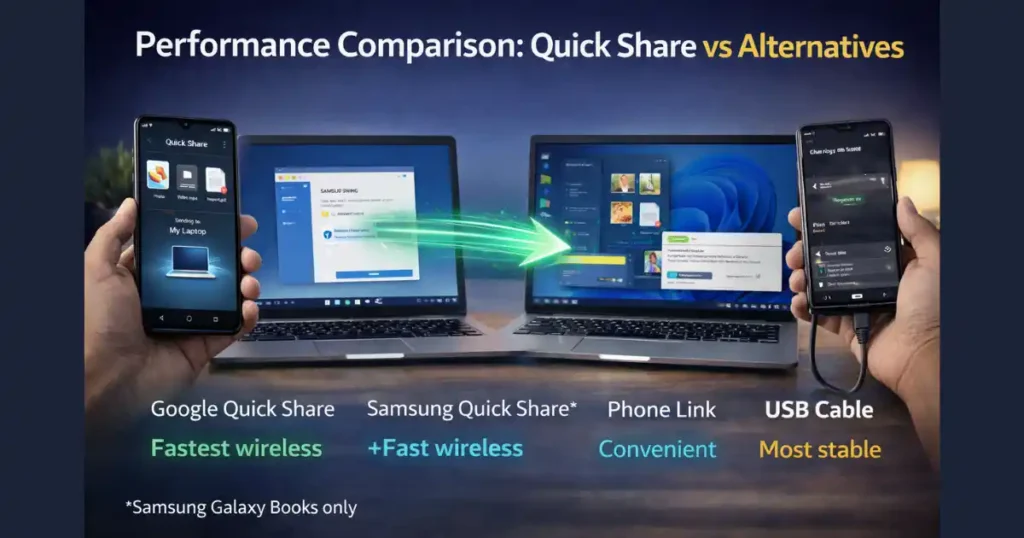
Understanding speed and reliability helps users choose the right method.
- Google Quick Share app: Fastest wireless option
- Phone Link: Convenient for small files and photos
- USB cable: Most stable for very large files
- Cloud storage: Slowest and depends on internet
For most people, Quick Share with the official Windows app offers the best balance.
Common Problems and How to Fix Them
Even when everything is set up correctly, issues can still happen.
PC Not Showing Up on Android
- Check visibility settings
- Ensure Bluetooth and Wi-Fi are on
- Keep devices within 5–10 meters
Transfer Stuck or Slow
- Connect both devices to the same Wi-Fi network
- Close VPNs temporarily
- Restart Quick Share on both devices
Files Not Appearing on PC
- Check the Downloads folder
- Look inside Quick Share app settings
- Confirm you accepted the transfer
Also Read: How to Enable System Wide High Contrast Text on Android for Better Readability
Security and Privacy Considerations

Many users worry about privacy when enabling “Everyone nearby.”
Important points:
- Transfers require manual approval
- Files are encrypted during transfer
- Visibility can be turned off anytime
For personal use, this is generally safe when used in trusted environments.
When Should You Avoid Nearby Share?
Despite its benefits, Quick Share is not ideal for:
- Sharing files over long distances
- Sending files when devices are offline
- Automatic background backups
In these cases, cloud storage or USB may be better.
Final Thoughts: Is Nearby Share Worth Using for Windows?
If you are tired of cables, email attachments, and random apps, learning how to use Nearby Share to send files to Windows is absolutely worth it.
While it is not perfectly “app-free” in every scenario, the official Google Quick Share app fills the gap cleanly and safely. For most users, it feels like a missing feature Windows should have had by default.
FAQs: How to Use Nearby Share to Send Files to Windows
1. Can I use Nearby Share from Android to Windows without any app at all?
No, Android Quick Share and Windows Nearby Sharing are not natively compatible. You need the official Google Quick Share app unless you use a Samsung Galaxy Book or Phone Link.
2. Is Google Quick Share for Windows safe to use?
Yes. It is an official Google app and does not contain ads, trackers, or hidden software.
3. Do both devices need to be on the same Wi-Fi network?
Not always, but being on the same network improves speed and reliability.
4. Where do received files go on Windows?
By default, files are saved in the Downloads folder. This can be changed in settings.
5. Is Nearby Share faster than Bluetooth?
Yes. Quick Share uses Wi-Fi Direct, making it much faster than traditional Bluetooth transfers.
Disclaimer: This article is for informational purposes only. Features, app availability, and system behavior may change with future Android or Windows updates. Always use official software sources and follow device security best practices.
Also Read: How to Use One Handed Mode on Android for Large Screen Phones

Raj Prajapati is a skilled content writer dedicated to creating clear, step-by-step guides on technology, Health, and everyday solutions. With a focus on user-friendly and SEO-optimized content, he simplifies complex topics, helping readers learn and solve problems effortlessly.