
Smartphone users often miss important notifications because the phone is on silent, they’re in a noisy environment, or the device is placed face-down on the table. In 2026, Android has introduced more refined visual alert features to solve this problem.
One of the most effective options is Notification Flash Alerts, where your camera flash or your screen lights up whenever a notification arrives. The best part is that you can enable this feature without installing any third-party apps.
This detailed guide explains How to Enable Notification Flash Alerts on Android, how the feature works on different manufacturers, common troubleshooting steps, hidden options, and advanced tips for better visibility.
Also Read: How to Use Android Repair Mode to Protect Your Data During Servicing
What Are Notification Flash Alerts on Android?
Notification Flash Alerts are visual cues that activate either your phone’s camera flash or your screen whenever you receive a notification. Instead of relying on sound or vibration, your phone gives a bright, easily noticeable signal.
This feature is especially useful when:
- Your phone is on silent or vibration mode.
- You are in a crowded or noisy place.
- You want a more accessible way to notice alerts.
- You often miss notifications due to work or multitasking.
- You want a physical visual cue instead of audio alerts.
Modern Android builds, particularly Android 14, Android 15, and the upcoming Android 16-based builds in 2026, integrate this feature into system settings, eliminating the need for external apps.
Why Android Added Built-In Flash Alerts in 2026
Android’s accessibility and notification features have become more user-centered. Many users rely on visual alerts due to hearing challenges or situations where sound is not suitable. With increasing demand and safety concerns, manufacturers realized that a system-level flash notification option is necessary.
Key reasons Android made this a default option:
- Accessibility support: Helps people with hearing impairments.
- Better visibility: Camera flash and screen colors are more attention-grabbing.
- Battery optimization: System-level implementation uses less power compared to third-party apps.
- Security and privacy: No external apps accessing your camera flash unnecessarily.
- Uniform experience: Same feature works across multiple Android brands.
How to Enable Notification Flash Alerts on Android (General Method)
Although different brands place the setting in slightly different menus, the core method remains the same. Here is the universal approach for most Android devices:
Step-by-Step Instructions
- Open Settings
Swipe down the notification shade and tap the gear icon. You can also launch Settings from your app drawer. - Go to Notifications
Scroll until you find Notifications or Apps & Notifications depending on your version. - Find Flash Notifications
Look for an option named:- Flash notifications
- Flash alerts
- Advanced settings
- Accessibility > Advanced settings > Flash notification
- Enable the Feature
You’ll see two options:- Camera Flash: Uses the rear LED light.
- Screen Flash: Highlights the display using a bright color.
- Customize Screen Flash Color (If Available)
Some phones let you pick from multiple colors like yellow, blue, green, or lavender.
Tip:
If you can’t find the setting manually, simply use the Search bar within Settings and type flash notification. It jumps directly to the feature.
This simple approach works for most Android phones. The next sections explain manufacturer-specific instructions to make setup easier.
How to Enable Notification Flash Alerts on Google Pixel (Android 14, 15, and 16)
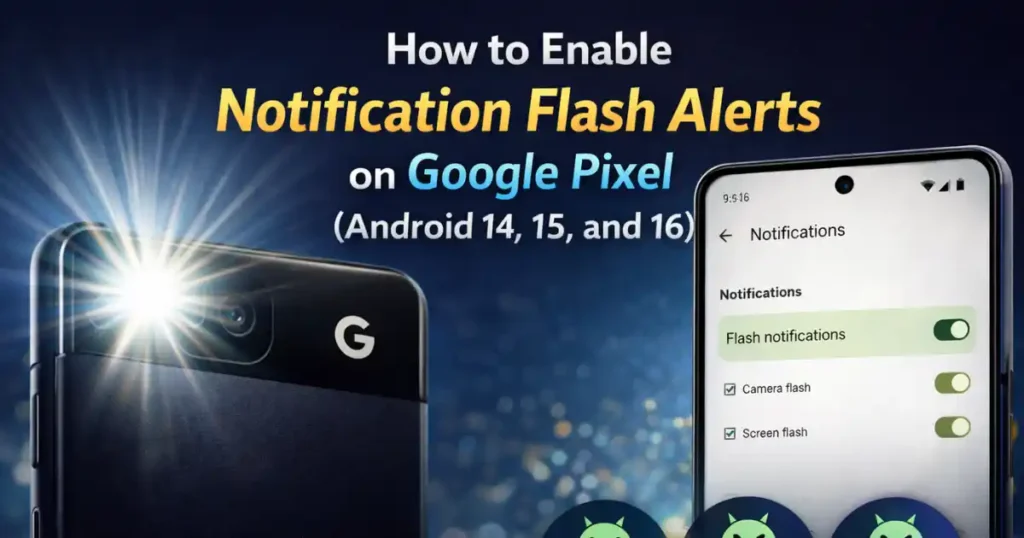
Google Pixel devices running Android 14 and above come with a clean, standardized method to activate flash alerts.
Steps:
- Open Settings.
- Tap Notifications.
- Scroll to General.
- Select Flash notifications.
- Enable:
- Camera flash, or
- Screen flash.
Bonus Tip for Pixels:
Pixels let you choose from 12 bright colors when using screen flash. Pick the one that catches your attention best.
Pixels are known for their minimalistic settings layout, so enabling How to Enable Notification Flash Alerts on Android is extremely straightforward on these devices.
How to Enable Notification Flash Alerts on Samsung Galaxy Phones
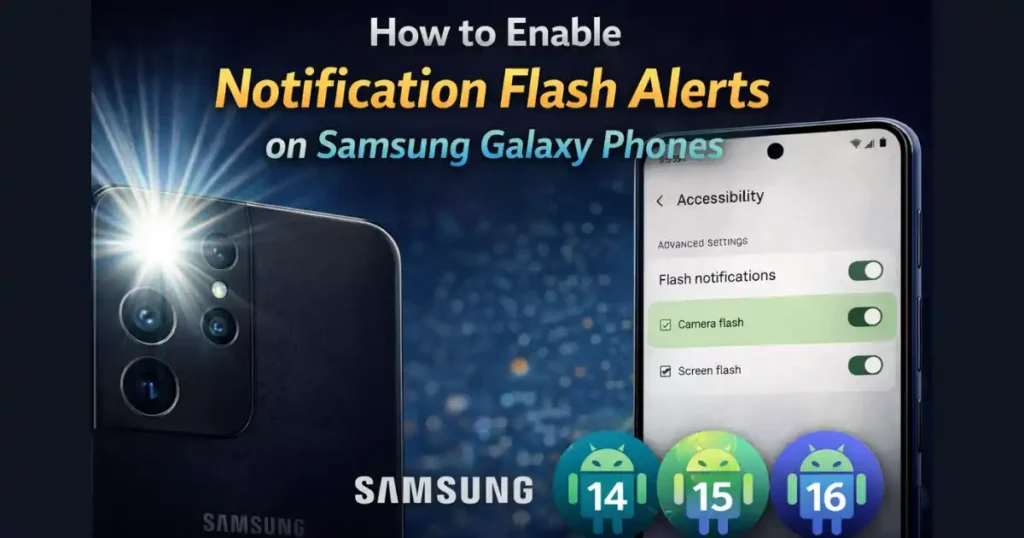
Samsung uses a slightly different settings structure, often placing flash alerts within accessibility settings.
Steps for Samsung Galaxy (One UI 6 & One UI 7):
- Open Settings.
- Select Accessibility.
- Tap Advanced settings.
- Choose Flash notification.
- Turn on:
- Camera flash notification, or
- Screen flash notification.
Why Samsung Users Prefer Screen Flash
Samsung’s AMOLED panels are bright, and screen flash colors stand out even in daylight. The color flash is more battery-friendly than the camera LED.
How to Enable Notification Fla2esh Alerts on Xiaomi, Redmi & POCO
Xiaomi’s MIUI and HyperOS place this feature in different places depending on the version.
Method 1: Use the Settings Search
- Open Settings.
- Tap the Search bar.
- Type flash notification or flash alerts.
Method 2: Manual Path
Some Xiaomi phones put this under calling settings:
- Settings
- System Apps
- Call Settings
- Incoming Call Settings
- Flash when ringing
Screen flash for notifications may appear under Accessibility on newer HyperOS versions.
Tip:
If you’re using an older Xiaomi device, the flash feature may only work for calls, not app notifications.
Important Considerations Before Using Flash Alerts in 2026
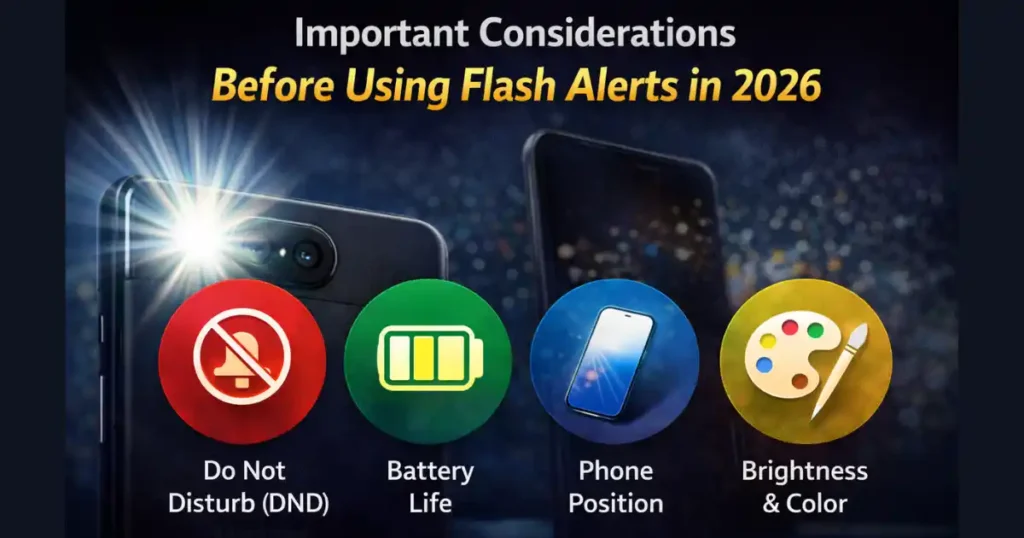
1. Do Not Disturb (DND) Compatibility
Flash notifications follow your existing DND rules.
If an app is not allowed to bypass DND:
- It won’t trigger flash alerts.
- You won’t receive visual signals either.
Ensure you whitelist important apps if needed.
2. Battery Life
The camera flash consumes more power compared to screen flash. If you’re receiving tons of notifications, the LED might drain your battery faster.
3. Phone Position
The flash alert only helps if:
- The camera LED is visible, or
- Your screen is facing up.
If your phone is face down, the screen flash becomes ineffective while the camera flash works better.
4. Brightness and Color Impact
Screen flash alerts with lighter colors offer better visibility. Darker tones are less useful outdoors.
5. Don’t Use Both Flashes Unnecessarily
Using both camera and screen flash together may create redundant alerts and impact battery health.
Advanced Tips to Improve Flash Notification Visibility
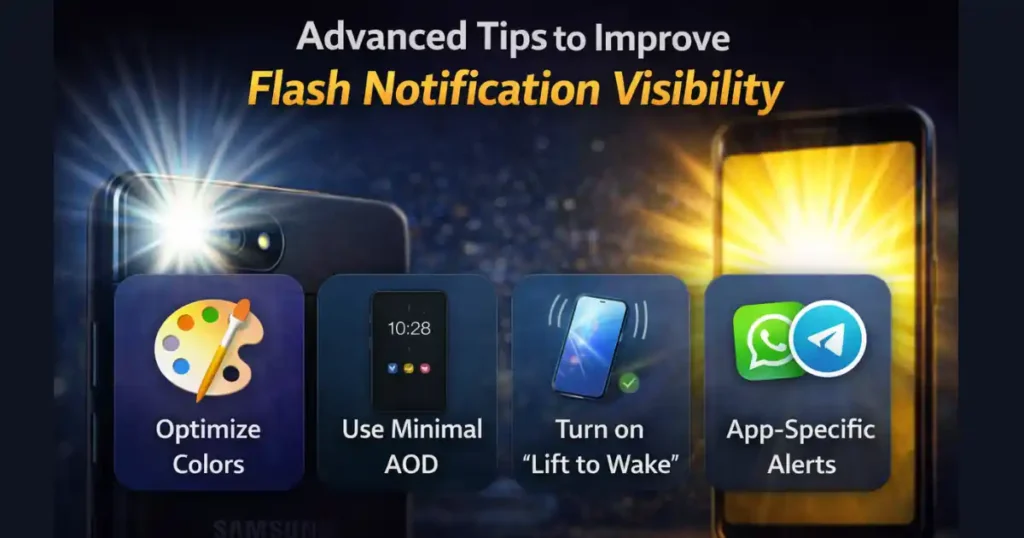
1. Optimize Colors
If your phone allows color customization, select a high-contrast color such as:
- Bright Yellow
- Neon Blue
- Pure White
These colors cut through ambient light better.
2. Use Minimal Always-On Display
If your device supports AOD, enable essential icons so you can notice alerts even before flash signals activate.
3. Turn On “Lift to Wake”
Combining flash alerts with motion gestures ensures you never miss important notifications again.
4. Combine With App-Specific Alerts
Apps like WhatsApp and Telegram allow custom notification patterns that complement screen flash signals well.
Troubleshooting: Flash Alerts Not Working? Try These Fixes
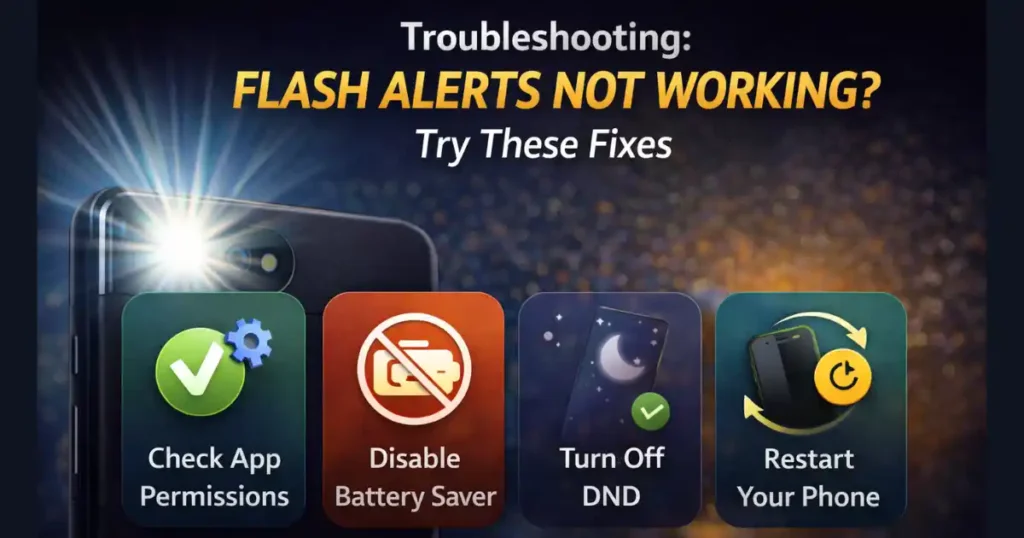
1. Check App Permissions
Make sure the app sending notifications has:
- Notification permission
- Lock screen display permission
2. Disable Battery Saver
Battery saver restricts flash usage by blocking certain background activities.
3. Turn Off Power-Saving Modes from OEM Skins
Samsung, Xiaomi, and OPPO devices have aggressive battery management that may disable flash alerts.
4. Turn Off DND or Configure Exceptions
Allow key apps to bypass DND rules.
5. Restart Your Phone
A simple reboot refreshes notification services and fixes most glitches.
Also Read: How to Turn Off App Tracking on Android for Better Privacy- 2026 Guide
People Also Search For
Below are long, detailed explanations for user queries that commonly appear alongside How to Enable Notification Flash Alerts on Android.
How to Turn On Flash Notification on Android
To turn on flash notification on Android, go to Settings > Notifications > Flash notifications. Some devices place it under Accessibility > Advanced settings. Enable the toggle for Camera flash or Screen flash. If you can’t locate it, use the Settings search bar and type flash notification. Modern Android versions like Android 14 and 15 make the option easy to access.
How to Turn On Flash Notification on iPhone 16
On iPhone 16 running iOS 17 or newer:
- Open Settings.
- Go to Accessibility.
- Tap Audio/Visual.
- Scroll to LED Flash for Alerts.
- Enable LED Flash for Alerts and Flash on Silent if needed.
Apple’s flash alert feature works similarly to Android but is integrated deeper into the accessibility framework for consistent output.
How to Turn On Flash Notification on iPhone 13
The process is identical to newer models:
- Settings
- Accessibility
- Audio/Visual
- LED Flash Alerts
- Toggle it ON
The iPhone 13 series has a strong LED flash, making visual alerts very effective even in bright indoor settings.
How to Turn On Flash Notification on iPhone 15
iPhone 15 models support both lock-screen alerts and silent-mode flash alerts. You can enable them from:
- Settings
- Accessibility
- Audio/Visual
- LED Flash for Alerts
If your phone is face down, you may rely on vibration patterns instead, as the LED becomes harder to notice.
How to Turn On Flash Notification on iPhone 17
The upcoming iPhone 17 lineup uses iOS 18 features that enhance visual alerts. The steps remain the same, but the LED is brighter and more battery-efficient:
- Settings
- Accessibility
- Audio/Visual
- LED Flash Alerts
Apple may introduce multi-color screen alerts, but this is still experimental.
How to Turn On Flash Notification on iPhone 11
On iPhone 11:
- Go to Settings
- Tap Accessibility
- Select Audio/Visual
- Enable LED Flash for Alerts
This model’s flash is slightly softer than newer devices but still noticeable, especially in dark environments.
Flash Notification for Android
Flash notification for Android refers to the system feature that lights up your phone’s LED or screen when a notification arrives. This helps when your phone is on silent mode or you’re in a noisy environment. Modern Android versions include it by default within Notifications or Accessibility settings.
How to Turn the Flash On When You Get a Notification iPhone
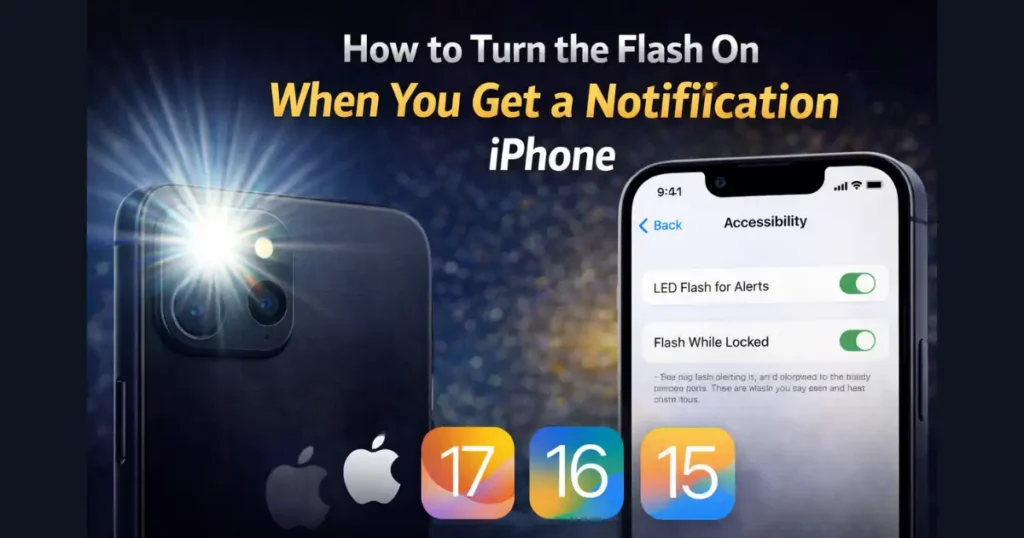
To make the flash blink when you get a notification on iPhone:
- Open Settings
- Go to Accessibility
- Open Audio/Visual
- Enable LED Flash for Alerts
- Toggle Flash on Silent if you want alerts even when silent mode is activated.
This method works across iPhone 11 to iPhone 17 series.
FAQs: How to Enable Notification Flash Alerts
1. Does flash notification drain the battery?
Camera flash consumes more battery than screen flash. If you receive many notifications, expect higher usage, but it’s usually manageable.
2. Can flash alerts work when the phone is locked?
Yes. Flash alerts work whether your device is locked or unlocked.
3. Do flash notifications work for all apps?
Yes, but only if the app has notification permissions enabled.
4. Can I use flash alerts during calls only?
Many phones allow flash alerts for calls, messages, and app notifications. You can enable specific triggers in the settings.
5. Why is my camera flash not blinking?
Check DND settings, battery saver restrictions, and app permissions. Restart your phone if needed.
Disclaimer: The information in this article is based on current Android and iOS features available as of 2026. Settings may vary slightly depending on manufacturer software versions like One UI, MIUI, HyperOS, and Pixel UI.
Also Read: How to Enable Notification History on Android and Recover Missed Alerts (2026 Guide)

Raj Prajapati is a skilled content writer dedicated to creating clear, step-by-step guides on technology, Health, and everyday solutions. With a focus on user-friendly and SEO-optimized content, he simplifies complex topics, helping readers learn and solve problems effortlessly.