

Modern smartphones keep getting faster, smarter, and more connected. But even with larger batteries, one issue never disappears: power drain. As mobile networks shift between 4G, 5G, and Wi-Fi, your device has to maintain strong, stable connections. That alone can consume a surprising amount of energy.
To solve this, Google introduced Adaptive Connectivity, a feature designed to balance speed and battery life without requiring any manual effort. It automatically adjusts your connection type depending on what you’re doing. If you need speed, it gives you speed. If you don’t, it conserves power.
This guide explains how to turn on Adaptive Connectivity on Android, what it actually does, why it matters in 2026, and how it compares to other battery-saving settings.
You’ll also find extra tips for better battery health and answers to popular user queries like how to stop apps from draining battery on Android and battery optimization should be on or off.
Let’s dive in.
Also Read: How to Enable Notification Flash Alerts on Android Without Third-Party Apps
What Adaptive Connectivity Actually Is (Explained in Simple Words)
Adaptive Connectivity is a smart Android feature that controls how your phone switches between network types. Instead of keeping a high-power connection active all the time, your phone makes intelligent decisions based on your real-time needs.
For example:
- If you’re scrolling social media, 5G isn’t necessary. 4G is enough, and it uses less power.
- If you’re downloading a large file or streaming in 4K, 5G kicks in to boost performance.
- If you’re in poor 5G coverage, the device avoids constantly searching for a weak signal.
This dynamic switching can save a meaningful amount of battery over the day, especially in areas with mixed network coverage.
The feature is mainly available on Google Pixel phones and select Android models running Android 14, 15, or 16.
How to Turn On Adaptive Connectivity on Android
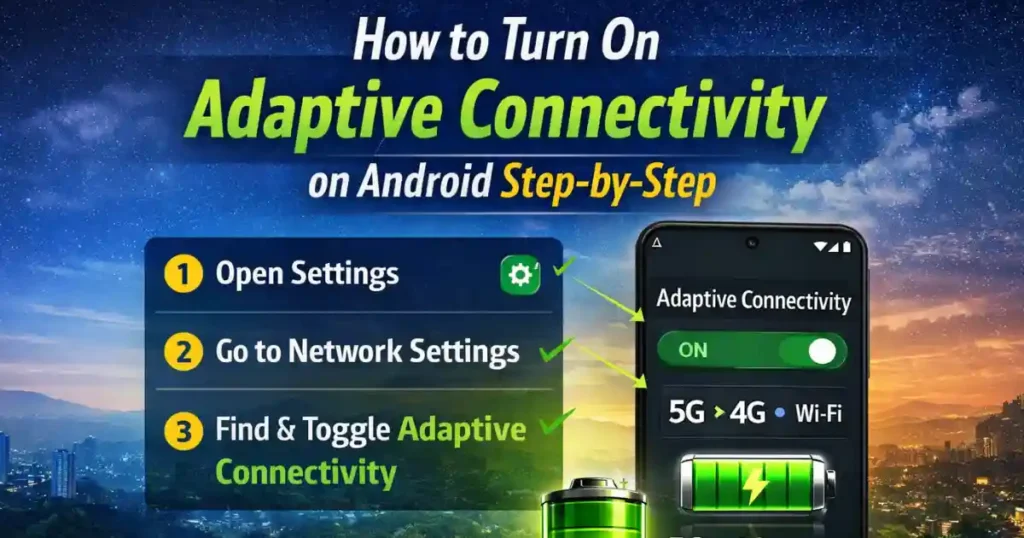
Step-by-Step Instructions (2026 Updated)
Even though the feature is simple, many users don’t know where to find it. Here’s the most reliable method on Pixel devices:
1. Open Settings
Swipe down from the top of your screen to open Quick Settings. Tap the gear icon.
Alternatively, open the Settings app from your app drawer.
2. Go to Network Settings
Scroll and tap Network & internet.
3. Find Adaptive Connectivity
Scroll down and select Adaptive connectivity.
4. Toggle It On
Turn on the switch next to Use Adaptive Connectivity.
Once enabled, your phone automatically manages mobile data modes and prioritizes efficiency without reducing your experience.
How Adaptive Connectivity Saves Battery (In Real-World Use)
Google designed Adaptive Connectivity to support the way people actually use their phones. It focuses on three key areas.
1. Intelligent Network Switching
Your device evaluates what you’re doing and switches between:
- 5G (High power, high speed)
- 4G/LTE (Moderate power, stable)
- Wi-Fi (Usually lowest power, depending on distance)
If you’re watching 4K videos or downloading large files, 5G remains active.
If you’re reading articles, chatting, or leaving the phone idle, it drops to 4G to save power.
This alone can save several percent of battery per hour in poor network areas.
2. Reduced Scanning for Signals
Phones regularly scan for the “best” signal, and this scanning process drains energy.
With Adaptive Connectivity switched on, Android reduces unnecessary searching, especially for unstable or distant 5G towers.
This is very helpful in:
- Rural areas
- Underground places
- Buildings with weak 5G reception
- Traveling between cities
Instead of hunting aggressively for fast networks, the phone maintains practical, stable connections.
3. Smarter Wi-Fi Management
Android prioritizes efficiency over raw speed. If your Wi-Fi network is strong and steady, the device stays connected and avoids switching back to mobile data unnecessarily.
This matters because Wi-Fi typically uses less power than cellular data when the signal strength is good.
How Adaptive Connectivity Differs From Adaptive Battery
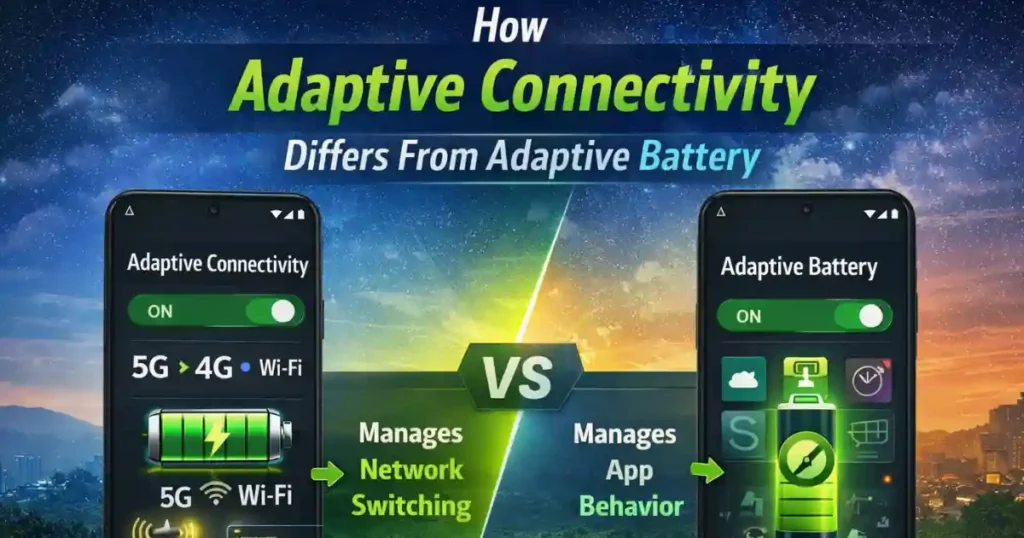
People often confuse these two features, but they do very different things:
Adaptive Connectivity:
Manages network switching to reduce battery drain from mobile connections.
Adaptive Battery:
Controls app behavior by limiting background activity for apps you rarely use.
How to Enable Adaptive Battery:
- Open Settings
- Tap Battery
- Select Adaptive Battery
- Turn on Use Adaptive Battery
If your goal is long-lasting battery performance, both features should stay ON.
Why Adaptive Connectivity Matters More in 2026
In 2026, Android phones rely heavily on 5G. Many mid-range and flagship devices now support:
- 5G Sub-6
- mmWave 5G
- Wi-Fi 7
These fast connections are impressive, but they also drain battery quickly.
As network infrastructure continues expanding in India, Europe, and the US, users experience more signal fluctuations. Adaptive Connectivity helps stabilize power usage during these transitions.
Additional Android Battery Optimization Features You Should Enable (2026)
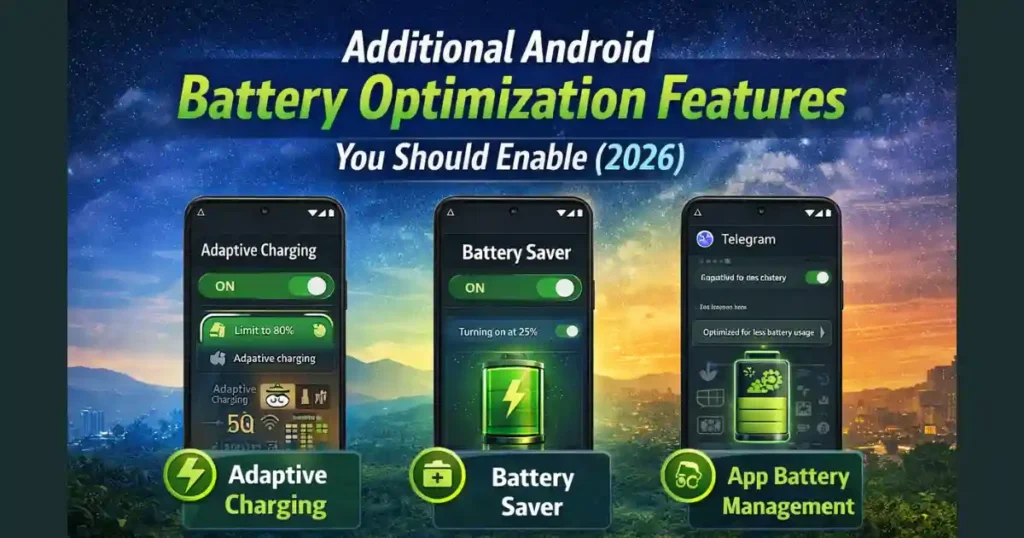
To get the best results, turn on these related settings too.
1. Adaptive Charging
Location:
Settings > Battery > Battery health > Charging optimization
Modes include:
- Adaptive Charging: Pauses charging at 80 percent and finishes before your wake-up time.
- Limit to 80%: Slows battery aging significantly.
This is especially important for people who charge overnight.
2. Battery Saver Mode
Battery Saver reduces background activity, animation speed, and sync frequency.
Enable it from:
Settings > Battery > Battery Saver
You can set it to turn on automatically at:
- 15%
- 20%
- Custom percentage
3. Battery Management for Apps
If certain apps drain battery unnecessarily:
- Go to Settings > Apps
- Choose an app
- Tap Battery
- Set to Restricted or Optimized
This helps stop apps from draining battery on Android even when the screen is off.
How to Save Battery on Android (Practical Tips That Actually Work)
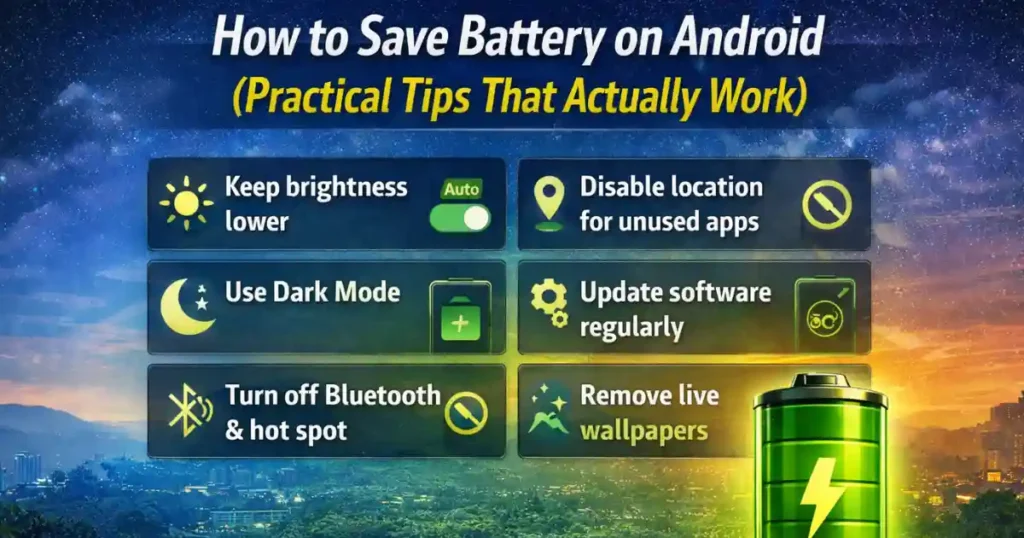
Even with Adaptive Connectivity, these habits help extend your battery life.
1. Keep your brightness lower
Auto-brightness is your friend.
2. Disable location permissions for unused apps
Location tracking is resource-heavy.
3. Use Dark Mode
Especially beneficial on AMOLED displays common in modern Android phones.
4. Update software regularly
Updates often include battery optimizations.
5. Turn off Bluetooth and hotspot when not using them
Idle connections can drain energy quietly.
6. Remove live wallpapers
They look great but consume more power.
Also Read: How to Use Android Repair Mode to Protect Your Data During Servicing
People Also Search For
How to save battery on Android?
To save battery on Android, start by reducing screen brightness, enabling Battery Saver, turning on Adaptive Battery, and switching on Adaptive Connectivity. Remove unnecessary background permissions and avoid keeping Bluetooth, hotspot, and GPS turned on all the time. These small steps can easily extend battery life by 20 to 30 percent.
Battery saver settings
Battery Saver settings help restrict background tasks, reduce animations, and slow down sync frequency. You can enable it manually or schedule it to activate at a custom battery percentage. On most Android phones, it is located under Settings > Battery > Battery Saver.
Settings to save battery on Android
The most important settings include:
- Adaptive Connectivity
- Adaptive Battery
- Adaptive Charging
- Battery Saver
- Screen timeout
- Location permissions
- Background app limits
Using these together gives consistent battery savings throughout the day.
Turn on Battery Saver Android
Go to Settings > Battery > Battery Saver and toggle it on. You can also use Quick Settings to enable it instantly with one tap.
How to stop apps from draining battery Android
To stop apps from draining battery:
- Go to Settings > Apps
- Select the app
- Tap Battery
- Choose Restricted
This limits background usage and prevents silent drain.
How to preserve battery health on iPhone
Even though this article focuses on Android, many users search this.
On iPhone, turn on Optimized Battery Charging, keep brightness low, avoid extreme temperatures, use original chargers, and avoid keeping your battery at 100 percent for long periods.
How to save battery on Android Samsung
Samsung devices include additional tools like:
- Adaptive Power Saving
- Sleeping Apps
- Deep Sleeping Apps
- Ultra Power Saving Mode
You’ll find these under Settings > Battery and device care.
Battery optimization should be on or off?
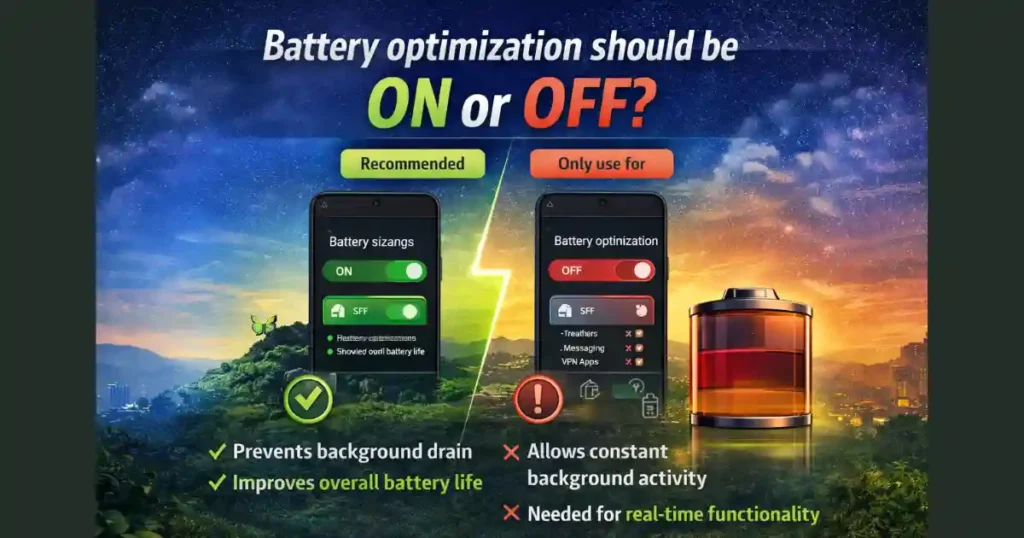
Battery Optimization should always stay ON for most apps.
It ensures apps don’t consume excessive resources in the background. Only turn it off for apps that require continuous activity like health trackers or messaging services.
Conclusion
Adaptive Connectivity is one of the smartest battery-saving features on modern Android phones. It quietly manages your network usage in the background and ensures you get the best balance of speed and endurance. When combined with Adaptive Battery, Adaptive Charging, and proper app management, it can noticeably improve your daily battery life.
If you’re using a Pixel device or any Android model that supports it, make sure you turn on Adaptive Connectivity today. It’s one of those features that instantly improves your experience without requiring ongoing maintenance.
Friends, in this post we have learned about ‘How to Turn On Adaptive Connectivity on Android‘ with complete step by step guide, i hope you find this post informative.
FAQs: How to Turn On Adaptive Connectivity on Android
1. Does Adaptive Connectivity really save battery on Android?
Yes. It reduces unnecessary switching between 5G, 4G, and Wi-Fi, which helps the phone avoid constant signal searching. This lowers power consumption, especially in areas with unstable 5G coverage. Most users notice better battery endurance when the feature is enabled.
2. Is Adaptive Connectivity available on all Android phones?
No. The feature is mainly available on Google Pixel phones and a few select Android models that follow Google’s network optimization framework. Some brands like Samsung use their own versions, such as Adaptive Power Saving.
3. Do I need Adaptive Battery if Adaptive Connectivity is already on?
Yes. Both features handle different things. Adaptive Connectivity manages network switching, while Adaptive Battery manages how apps consume power. Using both together gives the best overall battery performance.
4. Will enabling Adaptive Connectivity slow down my internet?
Only during low-demand tasks. If you’re browsing, texting, or reading, your phone may use 4G to save power. But when you need speed, like during downloads or streaming, the phone instantly switches to 5G. So performance isn’t affected in real use.
5. Should Battery Optimization be on or off for apps?
It should stay on for most apps. Battery Optimization reduces background drain without affecting usability. Turn it off only for apps that must stay active in the background, such as fitness trackers, VPN apps, or messaging services that require real-time updates.
Disclaimer: This article is based on available information, user testing, and publicly referenced Android features as of early 2026. Android settings may vary depending on model, region, and OEM customization.
Also Read: How to Turn Off App Tracking on Android for Better Privacy- 2026 Guide

Raj Prajapati is a skilled content writer dedicated to creating clear, step-by-step guides on technology, Health, and everyday solutions. With a focus on user-friendly and SEO-optimized content, he simplifies complex topics, helping readers learn and solve problems effortlessly.