
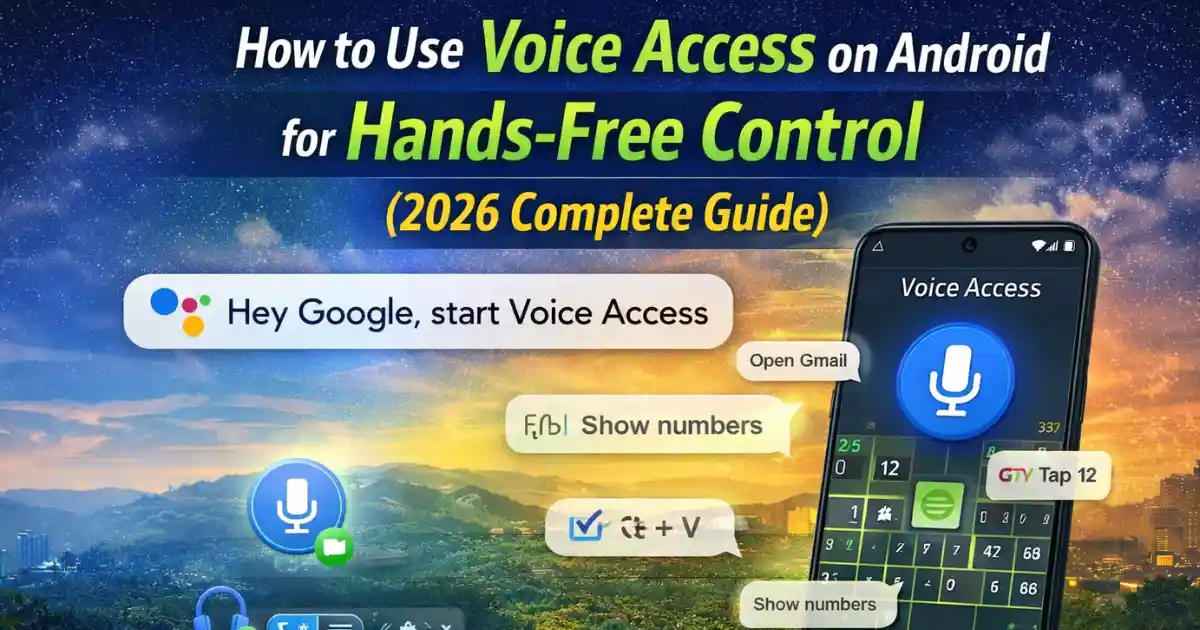
How to Use Voice Access on Android: Smartphones have become more powerful each year, but not everyone interacts with them the same way. Some people prefer touch control, others rely on gestures, and a growing number of users now want true hands-free operation.
That’s exactly where Voice Access comes in. It turns your Android phone into a device you can fully control with your voice—no tapping, swiping, or touching required.
This feature is especially helpful while cooking, driving, working out, or when your hands are busy. But it’s also an essential accessibility tool for people with mobility limitations. Google has been improving Voice Access every year, and in 2026 it’s more accurate, responsive, and easier to use than ever.
In this guide, you’ll learn everything about how to use Voice Access on Android, including setup steps, activation methods, essential commands, advanced functions, and how it compares to other hands-free features. The goal is to help you master complete hands-free control.
Also Read: How to Turn On Adaptive Connectivity on Android to Save Battery Automatically
What Is Voice Access on Android? (Simple Explanation)
Voice Access is an accessibility feature that lets you control your entire device using spoken commands. Instead of tapping icons or scrolling manually, you can say commands like:
- “Open Gmail”
- “Go home”
- “Scroll down”
- “Show numbers”
- “Tap 12”
- “Type hello”
Your phone listens to your command, interprets it, and performs the action instantly.
The feature uses Google’s speech recognition engine, which means accuracy improves over time based on your usage patterns and device language settings.
Unlike Google Assistant, which focuses on tasks, Voice Access focuses on screen control, giving you complete hands-free navigation.
How to Use Voice Access on Android (Step-by-Step Setup Guide)
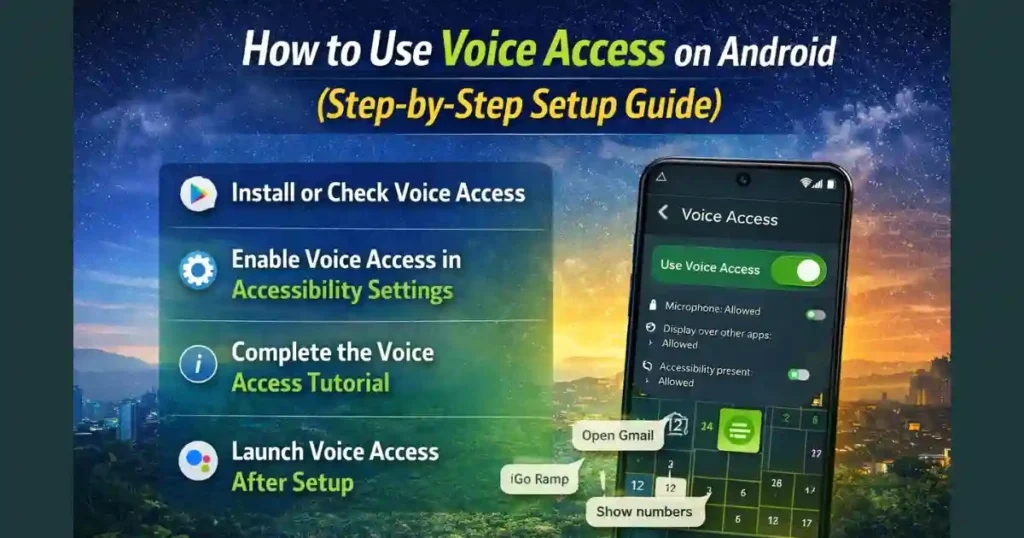
Below is the most reliable process to enable and configure Voice Access in 2026.
1. Install or Check Voice Access on Your Device
Most modern Android phones already include Voice Access as a built-in feature. If yours doesn’t:
- Open the Google Play Store
- Search Voice Access
- Install the official Google app
This ensures you get the latest features and command updates.
2. Enable Voice Access in Accessibility Settings
Now you’re ready to turn on the feature from the system settings:
Step-by-step:
- Open the Settings app.
- Scroll down to Accessibility.
- Under Interaction controls or Interaction and dexterity, tap Voice Access.
- Turn on Use Voice Access.
- Grant the required permissions (microphone, overlay, text recognition).
These permissions allow the feature to understand your speech, overlay numbers, and interact with on-screen items.
3. Complete the Voice Access Tutorial
The first time you activate Voice Access, Android launches a small interactive tutorial.
During the demo, you’ll learn:
- How to say voice commands
- How to select items on-screen
- How to scroll using only your voice
- How to use numbers and grid overlays
- How to pause or stop listening
This tutorial helps new users feel comfortable before using Voice Access in daily life.
How to Launch Voice Access After Setup

Once everything is configured, you can start Voice Access any time. Android gives you multiple options depending on what’s most convenient for you.
1. Use a Voice Command
You can say:
- “Hey Google, start Voice Access”
- “Okay Google, Voice Access”
This activates hands-free control instantly.
2. Tap the Floating Activation Button
Voice Access offers an optional floating button that stays on your screen. You can drag it anywhere—top corner, bottom edge, or near your preferred position.
Tap it once and Voice Access begins listening.
This is useful when Google Assistant isn’t responding well or when your environment is too noisy.
3. Use a Physical Shortcut
Android provides a hardware shortcut for quick activation:
- Press and hold both volume keys at the same time
- Or set a custom physical key from accessibility shortcuts
You can turn this on in:
Settings > Accessibility > Voice Access > Shortcut
This option is great while driving or when your screen is off.
4. Use the Notification Toggle
After enabling Voice Access, a notification tile appears in your notification shade. Swipe down and tap Touch to start.
This method works even when you have Do Not Disturb enabled.
How Voice Access Works: Commands You Can Use
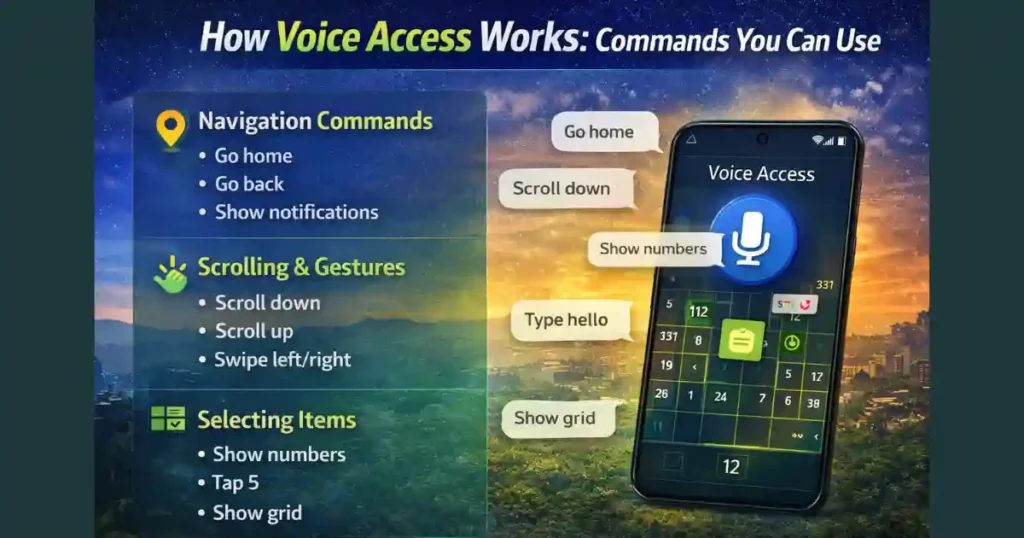
Voice Access is extremely powerful because it goes beyond simple app launching. It provides deep control of your screen, gestures, controls, and even text editing.
Here are the major categories:
Navigation Commands
These commands help you move around the phone easily:
- “Go home”
- “Go back”
- “Show notifications”
- “Open recent apps”
- “Open settings”
Voice Access handles navigation more smoothly in Android 14, 15, and 16 because gesture navigation is now built-in.
Scrolling and Gesture Commands
You can browse long pages or social feeds effortlessly:
- “Scroll down”
- “Scroll up”
- “Swipe left”
- “Swipe right”
- “Long press [item name]”
This is especially helpful in apps like Chrome, Instagram, YouTube, or messaging apps.
Commands for Selecting Items
Voice Access gives you two methods to select items:
1. Show Numbers
This places numbers next to every clickable item on the screen.
Say:
- “Show numbers”
- Then say “Tap 5”, “Tap 12”, etc.
This is the fastest method when icons have no labels.
2. Show Grid
This overlays a grid with numbered squares.
Say:
- “Show grid”
- Then “Tap 34” to select an area
Useful for precise touches when elements are not clearly visible.
Text Editing Commands
Voice Access allows hands-free typing and editing with impressive accuracy:
- “Type hello”
- “Delete all”
- “Select [word or phrase]”
- “Replace [old word] with [new word]”
- “Move cursor to end”
Perfect for replying to messages without lifting your hands.
System Control Commands
You can adjust system settings with your voice:
- “Turn up volume”
- “Mute”
- “Turn on Bluetooth”
- “Turn on Wi-Fi”
- “Enable Airplane mode”
Stop or Pause Voice Access
When you’re done using it:
- Say “Stop listening”
- Turn off the screen
- Or tap the floating icon to pause
Android automatically stops Voice Access when the display sleeps to save battery.
Why Voice Access Is Useful in Daily Life (Real-World Examples)

Voice Access is not just an accessibility tool anymore—it has become a mainstream convenience feature.
Here’s how people use it:
While Cooking
Your hands may be messy, so you can say:
- “Open YouTube” to follow recipes
- “Scroll down” to check ingredients
- “Set timer for 10 minutes”
While Driving
Hands must stay on the steering wheel:
- “Open Maps”
- “Start navigation to home”
- “Show notifications”
While Working or Studying
Your hands may be busy typing or holding tools:
- “Open Gmail”
- “Read notifications”
- “Reply ‘I’ll send it today’”
For Accessibility Needs
Voice Access is essential for users with:
- Limited finger mobility
- Hand injuries
- Parkinson’s
- Muscle weakness
It enables complete phone control without touch.
Also Read: How to Enable Notification Flash Alerts on Android Without Third-Party Apps
Advanced Settings You Should Explore in Voice Access
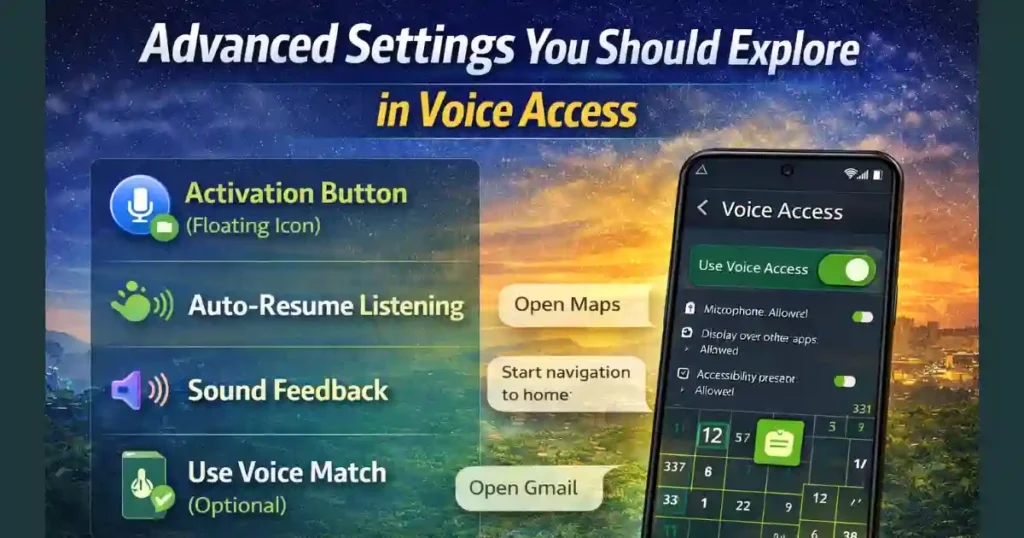
To get the most out of Voice Access, enable these settings:
1. Activation Button (Floating Icon)
Makes activation easier anytime.
2. Auto-Resume Listening
Voice Access continues listening after completing a command.
3. Cancel on Touch
Touching the screen stops Voice Access automatically.
4. Sound Feedback
Plays a sound when Voice Access recognizes your command.
5. Use Voice Match
Allows activation even when the phone is locked (optional for security).
People Also Ask
How do I turn on hands-free voice control?
You can turn on hands-free voice control by enabling Voice Access. Go to Settings > Accessibility > Voice Access, toggle it on, and allow permissions. After setup, say “Hey Google, start Voice Access” to activate hands-free mode instantly.
How to control your phone without touching it on Android?
You can control your phone without touching it by using Voice Access. It allows you to open apps, scroll, tap items, edit text, and perform system actions with voice commands only. Simply activate Voice Access through Google Assistant or the floating activation button.
How to activate handsfree on Android phone?
Activate hands-free mode by enabling Voice Access or Google Assistant. For Voice Access, go to Settings > Accessibility > Voice Access and turn it on. For Google Assistant, enable “Hey Google” voice match in Settings > Google > Assistant.
How to activate Voice Access on Android?
Go to Settings > Accessibility > Voice Access, toggle it on, grant permissions, and complete the tutorial. After that, use any activation method such as “Hey Google, start Voice Access,” the floating icon, or the volume key shortcut.
FAQs: How to Use Voice Access on Android
1. Does Voice Access work offline?
Most commands require an internet connection because speech recognition uses Google’s servers. Some basic commands may work offline, but accuracy is limited.
2. Is Voice Access the same as Google Assistant?
No. Google Assistant performs tasks like setting alarms or searching the web, while Voice Access controls the screen, taps buttons, scrolls, and navigates apps.
3. Does Voice Access drain battery?
It uses some power because the microphone stays active, but Android automatically pauses Voice Access when the screen is off to save battery.
4. Can I use Voice Access with Bluetooth devices?
Yes, you can use it through Bluetooth headsets, car audio, or earbuds.
5. Is Voice Access safe to use?
Yes. All voice data is processed under Google’s privacy standards. However, be cautious with voice match on lock screens, as it may allow unauthorized activation.
Conclusion
Voice Access is one of the most powerful tools Android offers for hands-free control. Whether you’re multitasking, driving, cooking, or relying on accessibility features, it transforms your smartphone into a fully voice-operated device.
Once you understand its setup, activation options, and command system, you can navigate any app and perform almost any action without touching your screen.
As Android continues to improve speech recognition and AI-based interactions, Voice Access will only get more accurate and more capable in the years ahead.
Also Read: How to Use Android Repair Mode to Protect Your Data During Servicing

Raj Prajapati is a skilled content writer dedicated to creating clear, step-by-step guides on technology, Health, and everyday solutions. With a focus on user-friendly and SEO-optimized content, he simplifies complex topics, helping readers learn and solve problems effortlessly.