
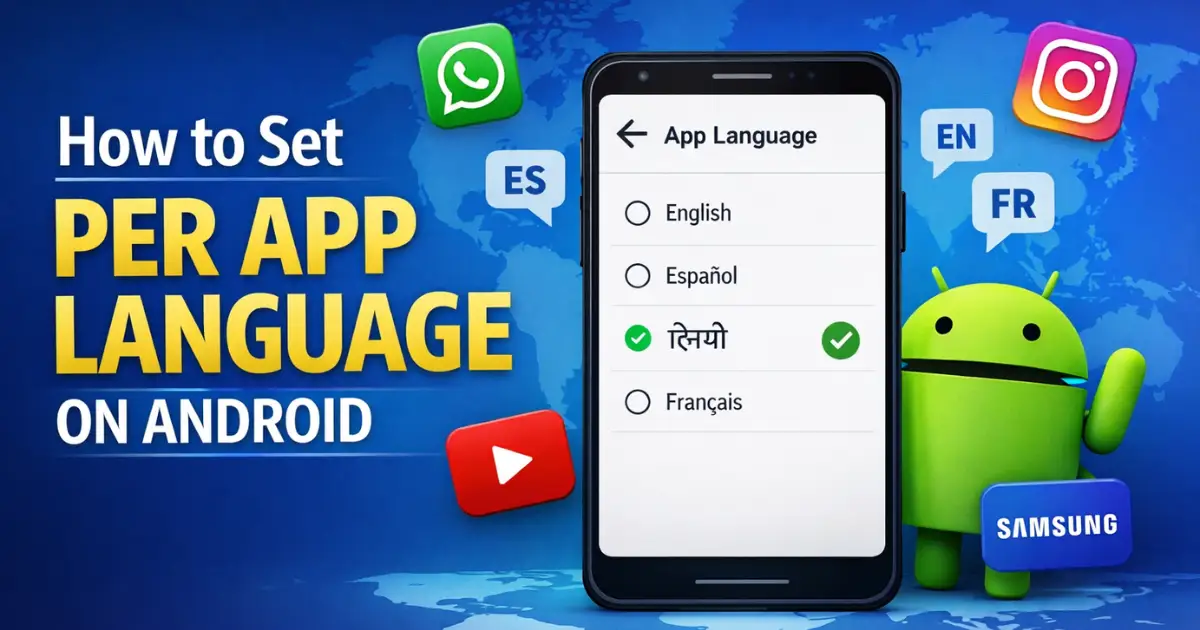
Smartphones today are deeply personal devices. From wallpapers to notification sounds, users expect full control over how their phones behave. Language preferences are no exception. Yet for years, Android users had to change the entire system language just to use a single app in a different language.
That limitation is finally gone.
With Android 13 and newer versions, Google introduced per-app language settings, allowing users to choose different languages for different apps without touching the phone’s default language. This feature may sound small, but for multilingual users, students, professionals, and global audiences, it is a huge quality-of-life improvement.
In this detailed guide, we will break down how to set per app language on Android, explain why some apps do not show up, cover Samsung and Xiaomi differences, compare Android versions, and answer common search questions users ask online.
Also Read: How to Use Android Private Compute Core Features: Privacy-First Android Guide
What Does “Per-App Language” Mean on Android?
Per-app language settings allow you to run individual apps in a language that is different from your phone’s system language.
For example:
- Your phone system stays in English
- WhatsApp runs in Hindi
- Instagram uses Spanish
- A banking app stays in your local language
Earlier, Android treated language as a system-wide setting. Starting with Android 13 (API level 33), Google introduced a standardized way for apps to declare supported languages, making per-app language preferences possible.
This feature is officially known as Android per-app language preferences, and it works only when:
- Your device is running Android 13 or later
- The app developer has enabled language support correctly
Why Google Introduced Per-App Language Settings
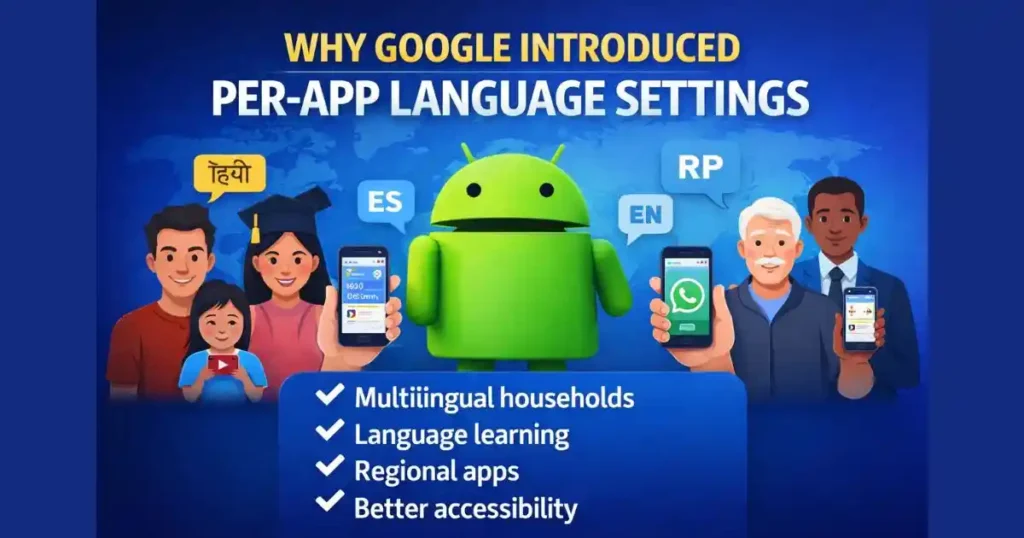
Google did not add this feature randomly. It solves real-world problems faced by millions of users.
Key Reasons Behind This Feature
- Multilingual households where different family members prefer different languages
- Students and learners who want to practice a foreign language inside specific apps
- Professionals using regional apps alongside global tools
- Accessibility and comfort, especially for senior users
Earlier workarounds involved cloning apps, using modded APKs, or changing phone language repeatedly. None of those were ideal. Per-app language settings make Android more flexible and user-focused.
Android Versions That Support Per-App Language
Before diving into steps, it is important to understand version compatibility.
Supported Android Versions
- Android 13
- Android 14
- Android 15 (and newer builds)
Not Supported
- Android 12 and below do not officially support per-app language at system level
- Some brands may offer limited alternatives, but they are not standard
If you are searching for change app language Android 12, the honest answer is that it is not natively supported. Any workaround depends on the manufacturer or the app itself.
How to Set Per App Language on Android (System Settings Method)
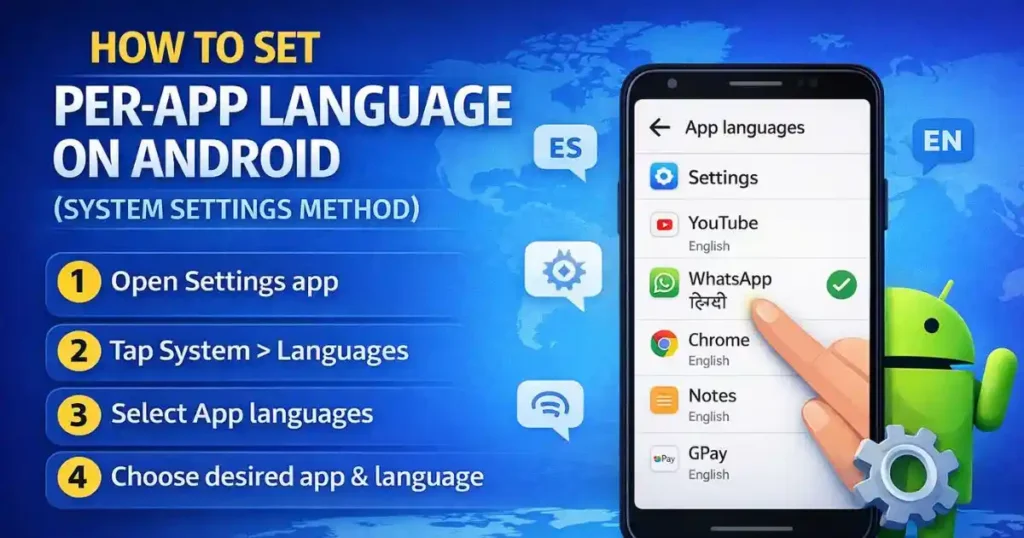
This is the recommended and most reliable method, especially if you want to see all supported apps in one place.
Method 1: Using System Settings (Centralized Method)
This approach gives you a full list of apps that support per-app language preferences.
Step-by-Step Instructions
- Open the Settings app on your Android phone
- Scroll down and tap System
- Go to Languages or Languages & input
- Tap App languages
- You will see a list of apps that support per-app language
- Select the app you want to modify
- Choose your preferred language from the list
The selected app will now use the chosen language while the rest of the phone remains unchanged.
Why This Method Is Recommended
- Shows all compatible apps in one screen
- Easier to manage multiple apps
- Works consistently across Android 13 and Android 14
- Ideal for first-time users
How to Change App Language Using App Info Screen
If you want a quicker way to change language for a single app, Android also allows you to do it directly from the app’s info page.
Method 2: Via App Info (Individual Method)
This method is useful when you are already interacting with a specific app.
Step-by-Step Instructions
- Long-press the app icon on your home screen or app drawer
- Tap the App info icon (usually an “i” symbol)
- Scroll down and select Language
- Pick the language you want
Once selected, reopen the app to see the language change.
When This Method Makes Sense
- You want to change language for just one app quickly
- You do not want to browse through system menus
- You already know which app you want to modify
Samsung Galaxy Phones: Per-App Language Settings Explained
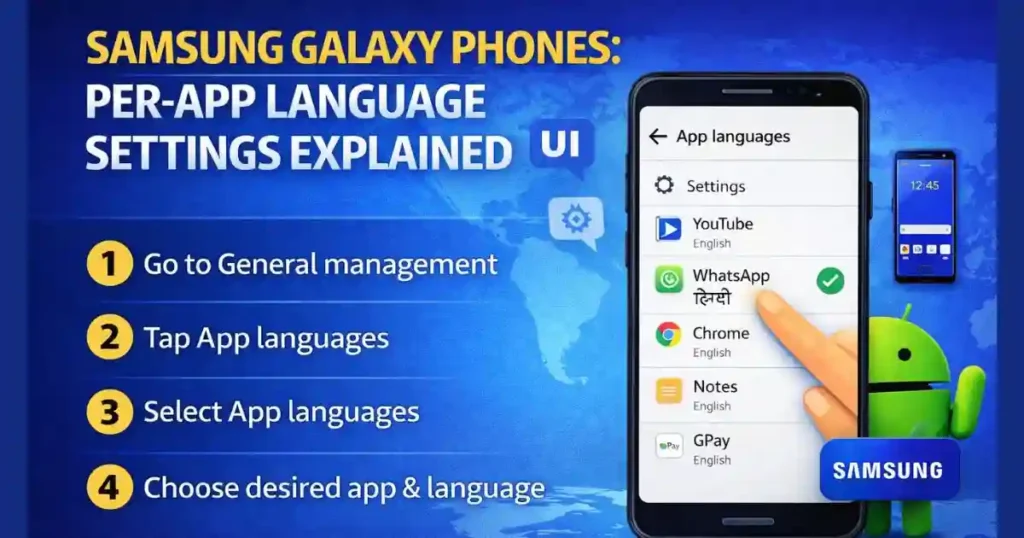
Samsung Galaxy devices run One UI, which slightly modifies Android menus. The feature exists, but the path is different.
How to Set Per App Language on Samsung Galaxy
- Open Settings
- Tap General management
- Select App languages
- Choose the app
- Select the desired language
Samsung’s implementation is clean and user-friendly, especially on One UI 5 and newer versions.
Samsung-Specific Notes
- Available on Galaxy phones running Android 13 or later
- Works well with Samsung system apps and popular third-party apps
- Some pre-installed regional apps may not support all languages
Why Some Apps Do Not Appear in App Language Settings
This is one of the most common user complaints and search queries.
Main Reasons Explained
1. App Developer Has Not Enabled Support
For per-app language to work, developers must include a locale configuration file in the app. If they do not, Android cannot force a language change.
This is the most common reason.
2. App Supports Only One Language
Some apps are designed for a specific region and do not offer multiple languages at all.
3. Android Version Limitation
Per-app language settings require Android 13 or newer. Older versions will not show this option.
What to Do If Language Does Not Change Immediately
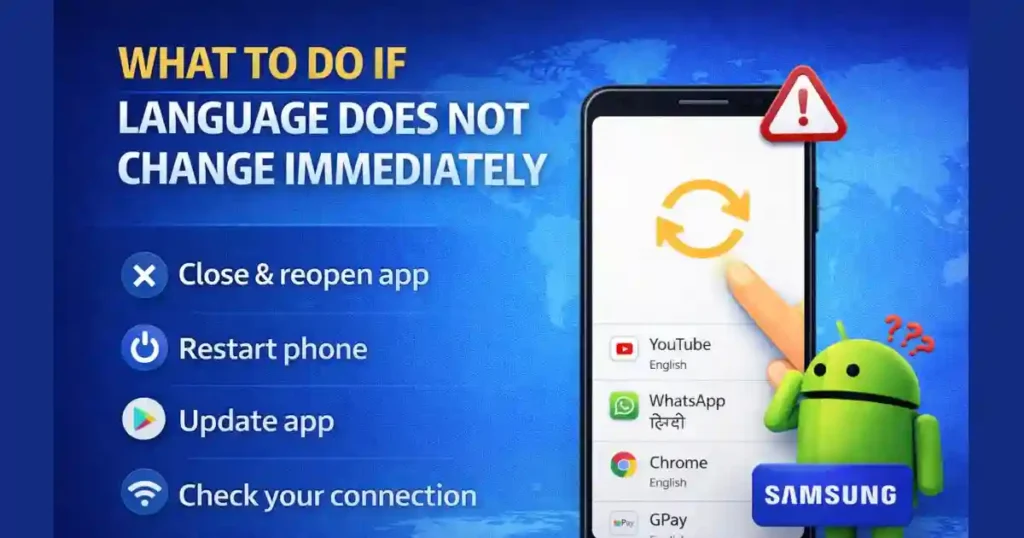
Sometimes the language selection is correct, but the app still shows the old language.
Quick Troubleshooting Checklist
- Close the app completely and reopen it
- Remove the app from recent apps and relaunch
- Restart the phone if needed
- Make sure the app is updated from Play Store
- Check network connection for cloud-based apps
In most cases, restarting the app solves the issue.
Per-App Language vs System Language: Key Differences
Understanding this difference helps avoid confusion.
System Language
- Applies to the entire phone
- Affects all apps by default
- Changing it can disrupt user experience
Per-App Language
- Applies only to selected apps
- System language remains unchanged
- Ideal for multilingual users
Per-app language preferences override system language only for supported apps.
Regional Preferences in Android 14 and Above
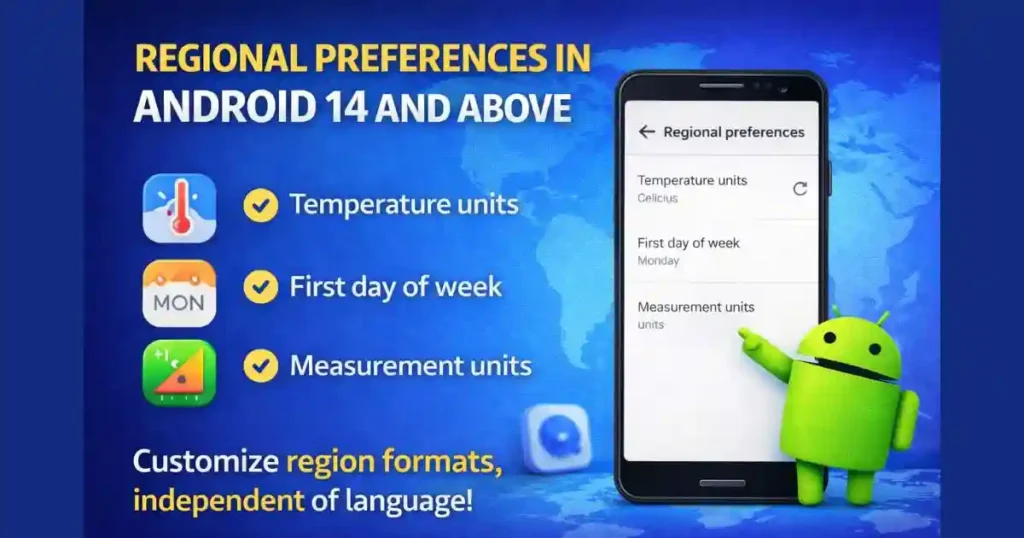
Android 14 added another useful layer: regional preferences.
What Are Regional Preferences?
Apart from language, you can customize:
- Temperature units (Celsius or Fahrenheit)
- First day of the week
- Measurement formats
How to Access Regional Preferences
Settings > System > Languages > Regional preferences
This is especially helpful for users who want English language but local formats.
Real-World Use Cases for Per-App Language on Android
This feature is not just technical. It has real-life impact.
Common Scenarios
- Parents using English system language but local-language apps
- Students learning Spanish through social media apps
- Professionals using English tools and regional banking apps
- Content creators managing multilingual platforms
Per-app language settings make Android more inclusive and practical.
Also Read: How to Enable Heads Up Notifications Manually on Android: 2026 Guide
Common Queries Explained
Per-App Language Android
Per-app language on Android allows users to select different languages for individual apps instead of changing the system language. This feature is officially supported on Android 13 and newer versions.
How to Change App Language Without Changing Phone Language
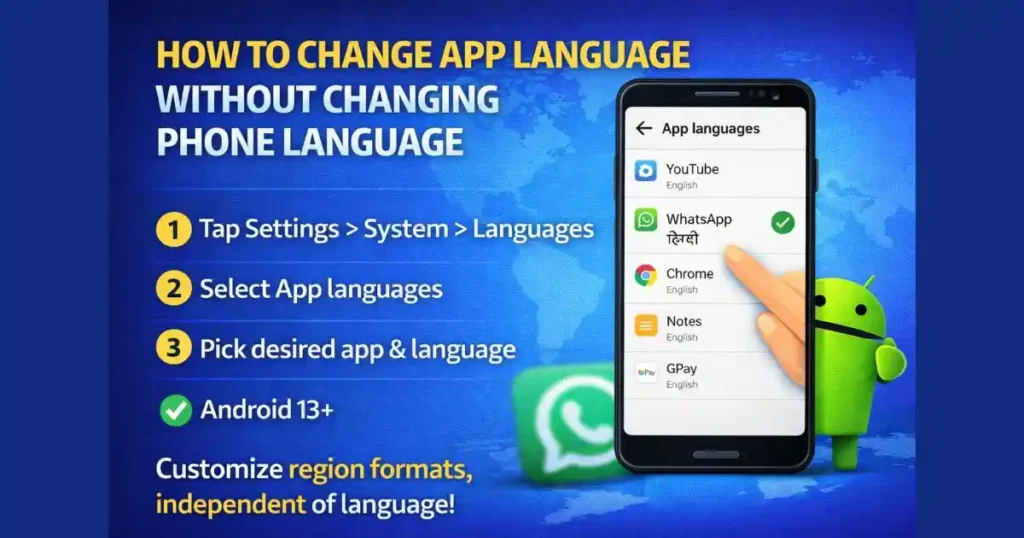
You can change app language without changing phone language by going to Settings > System > Languages > App languages, selecting the app, and choosing a language. This works only on Android 13+ and supported apps.
How to Change Language in Android App Programmatically
From a developer perspective, apps must define supported locales using a locale configuration file. Without this, Android cannot apply per-app language preferences.
Android Change Language Per-App
Android allows per-app language changes starting from Android 13. Users can manage this through system settings or app info pages.
Per-App Language Preferences
Per-app language preferences override system language only for selected apps. Apps must support multiple languages and enable this feature.
Change App Language Android 12
Android 12 does not natively support per-app language settings. Any such option depends on manufacturer customizations or app-level settings.
HyperOS Per App Language
On HyperOS-based Xiaomi devices running Android 13 or newer, per-app language may be available under system language settings. Availability varies by model and region.
Xiaomi Change App Language
Xiaomi phones on newer Android versions may show per-app language options under language settings. If not visible, the app likely does not support it.
Limitations of Per-App Language on Android
Despite being useful, the feature has limitations.
Current Drawbacks
- Depends heavily on developer implementation
- Not available on older Android versions
- Some apps partially translate content
- Inconsistent behavior in rare cases
Google is actively improving this, and app adoption is increasing.
Future of Per-App Language Settings on Android
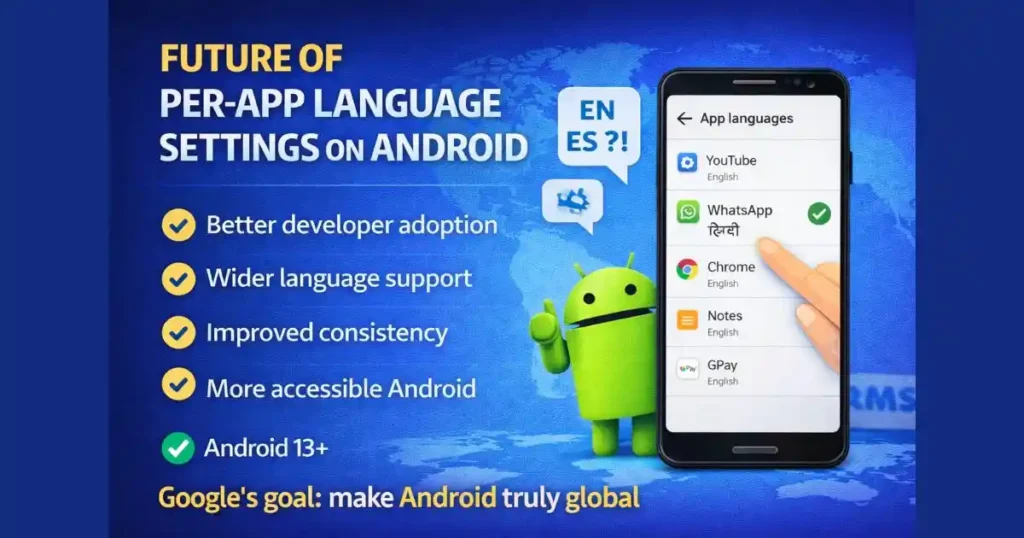
As Android expands globally, per-app language control is becoming essential.
What to Expect
- Better developer adoption
- Wider language support
- Improved consistency across devices
- Deeper integration with accessibility features
This feature aligns with Google’s goal of making Android truly global.
FAQs: How to Set Per App Language on Android
Is per-app language available on all Android phones?
No. It requires Android 13 or newer and app-level support.
Why does WhatsApp not show in app languages?
If WhatsApp does not appear, ensure it is updated and your phone runs Android 13+. Otherwise, language control may be inside the app itself.
Does changing app language affect notifications?
Yes, notifications from that app usually follow the selected app language.
Can I use per-app language for system apps?
Only if the system app supports multiple languages and is listed under app languages.
Disclaimer: This article is for informational purposes only. Android features, menus, and availability may vary by device manufacturer, Android version, region, and app updates. Always refer to official Android documentation or your device manufacturer for the latest information.
Also Read: How to Use Clipboard Access Alerts on Android for Better Privacy

Raj Prajapati is a skilled content writer dedicated to creating clear, step-by-step guides on technology, Health, and everyday solutions. With a focus on user-friendly and SEO-optimized content, he simplifies complex topics, helping readers learn and solve problems effortlessly.