
Almost every Android user has done it at least once. An app freezes, drains battery, refuses to close, or keeps crashing. You open Settings → Apps → Force Stop and tap the button without thinking twice.
But what really happens when you force stop an app on Android?
Is it safe?
Does it delete data?
Can it damage your phone?
And why does Android even hide this option inside App Info instead of making it obvious?
This article explains the real, technical, and practical effects of force stopping an app. No myths, no fear-mongering, and no vague advice. Just how Android actually works in real life.
Also Read: How Android Handles Background Apps When RAM Is Full (Android 14 Guide)
Force Stop vs Closing an App: The First Big Difference

Before we go deep, it is important to understand one thing clearly.
Closing an app from the Recent Apps screen is not the same as force stopping it.
What Happens When You Just Swipe an App Away
When you swipe an app from Recents:
- The app UI closes
- The main activity is removed from memory
- Some background services may still run
- Notifications can continue
- Sync tasks can still happen
Android decides whether the app stays alive in the background based on system needs.
What Happens When You Force Stop an App on Android
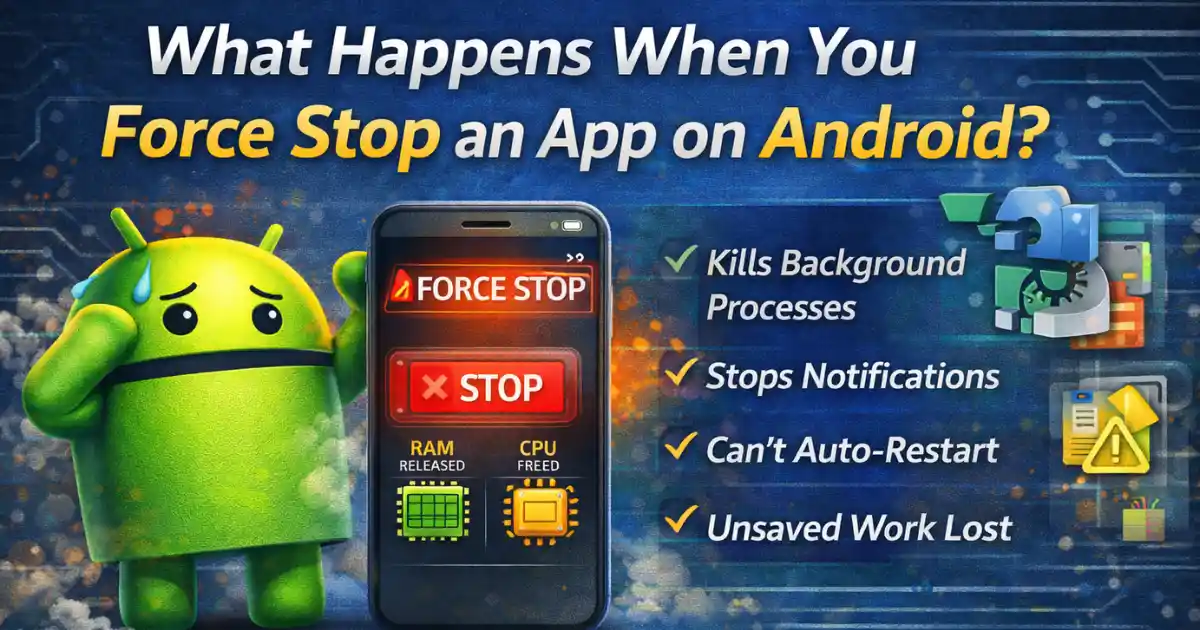
When you force stop an app:
- All processes are killed immediately
- All background services are halted
- The app cannot restart itself
- Notifications stop completely
- The app stays “dead” until you manually open it again
Force stop is a hard stop, not a polite request.
What Does “Force Stop” Actually Mean Inside Android
Android runs on a Linux-based kernel. Every app is treated as a separate process with its own memory space.
When you tap Force Stop, Android sends a direct instruction to the system to terminate that process instantly.
There is no grace period.
There is no background cleanup.
There is no retry.
This is why force stop an app on Android is considered a troubleshooting action, not a daily habit.
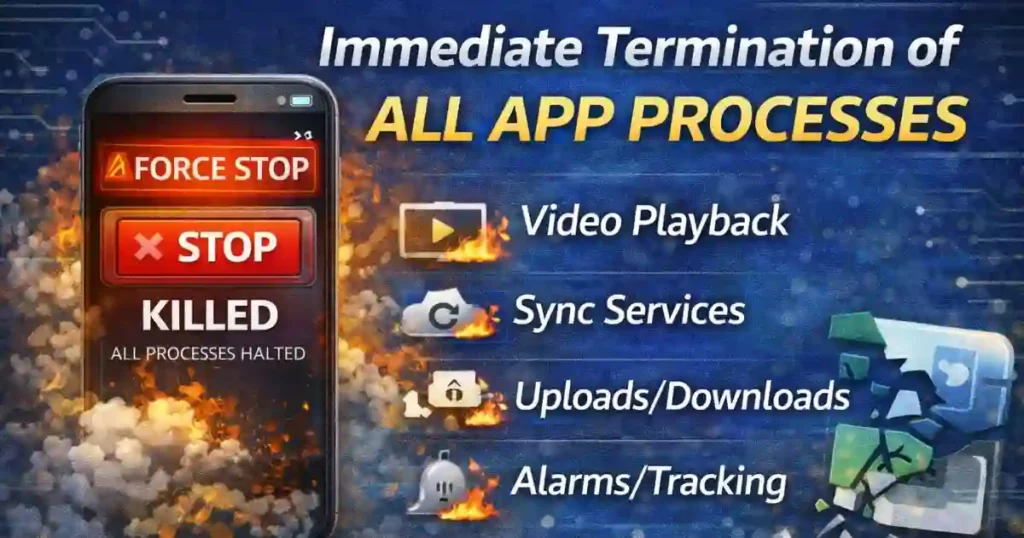
Immediate Termination of All App Processes
Foreground Tasks End Instantly
If the app was open on your screen:
- Video playback stops
- Games freeze and close
- Forms or drafts are abandoned
- Uploads or downloads stop
Anything that was happening inside the app is cut off at that moment.
Background Services Are Also Killed
This is the key difference most users do not realize.
Force stopping also ends:
- Sync services
- Background downloads
- Alarm triggers
- Location tracking
- Media playback
Apps like messaging tools, cloud backups, fitness trackers, or music players are completely silenced.
Force Stop Prevents Automatic App Restart
One of the most powerful effects of force stop is that the app cannot restart itself.
Normally, Android allows apps to:
- Restart background services
- Wake up on system events
- Run scheduled tasks
- Resume after reboot
But once you force stop an app on Android:
- It cannot auto-launch
- It cannot wake itself up
- It cannot send notifications
- It stays inactive even after reboot
Only one action revives it: you tapping the app icon manually.
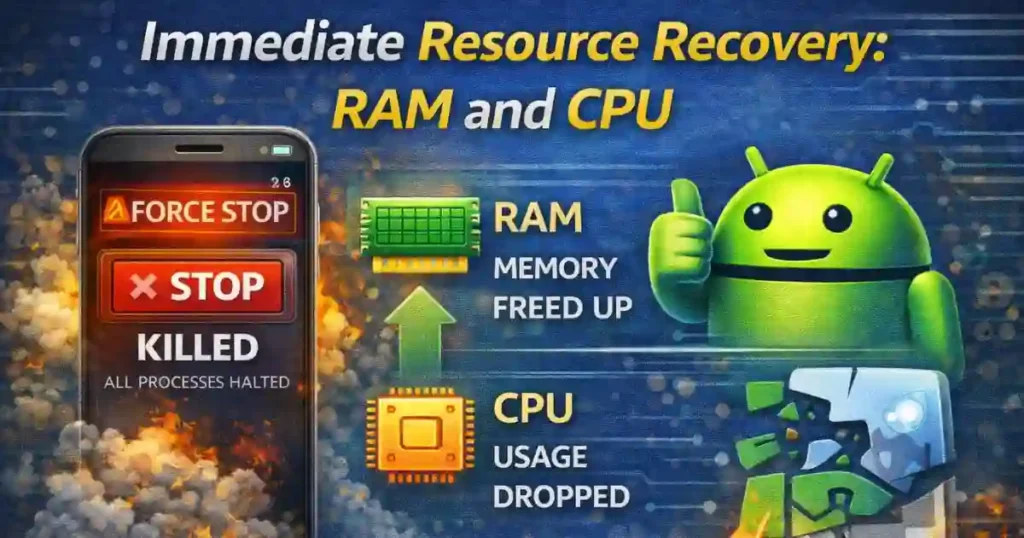
Immediate Resource Recovery: RAM and CPU
RAM Is Freed Instantly
When an app is force stopped:
- Its allocated RAM is released
- Cached objects are cleared
- Memory becomes available to other apps
This can temporarily make your phone feel smoother, especially if the app was poorly optimized.
CPU Usage Drops
If the app was:
- Running background loops
- Syncing constantly
- Misbehaving due to a bug
Force stop immediately removes its CPU load. This can reduce heating and battery drain in the short term.
However, this improvement is temporary, not permanent.
Does Force Stop Delete App Data?
This is one of the most common fears.
The Simple Answer
No.
Force stopping an app does not delete:
- App data
- Login details
- Settings
- Saved files
- Databases
All of this information is stored in internal storage, not RAM.
What Force Stop Does NOT Do
It does not:
- Clear cache
- Reset the app
- Log you out
- Remove permissions
Force stop is very different from Clear Data or Uninstall.
The Real Risk: Unsaved Work Loss
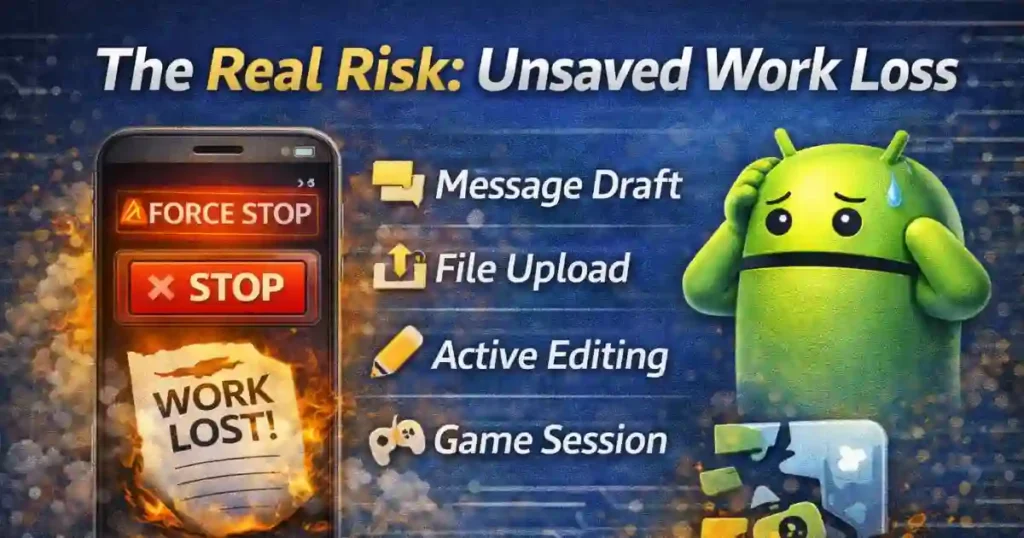
While permanent data is safe, unsaved work is not.
If you force stop an app while:
- Writing a message
- Editing a document
- Exporting a video
- Uploading files
- Playing a game without auto-save
That progress is lost.
Android does not give apps time to save state during a force stop. That is why it should not be used casually.
Rare but Possible: File or Data Corruption
In rare situations, force stopping an app during active disk operations can cause issues.
Examples include:
- App writing to a database
- File being saved at that exact moment
- Encryption or compression tasks running
This is uncommon but technically possible, especially on older devices or poorly coded apps.
What Happens When You Reopen a Force-Stopped App
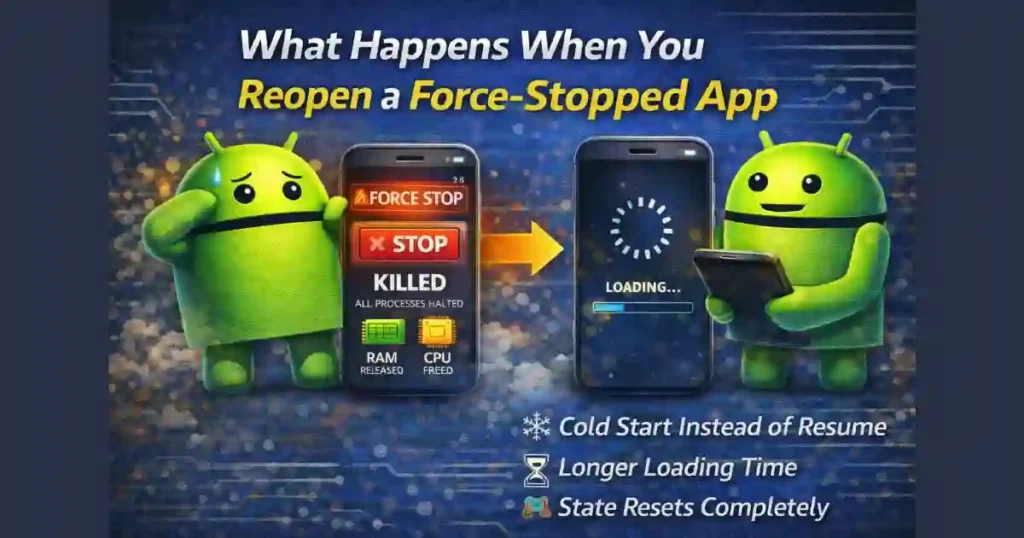
Cold Start Instead of Warm Resume
When you reopen the app:
- It launches from scratch
- No previous state is restored
- Loading time may be longer
- Login checks may repeat
This is called a cold start, not a resume.
Why Force Stop Fixes Bugs
Many app issues happen due to:
- Memory leaks
- Locked threads
- Corrupted runtime states
Force stopping clears all of this and starts fresh. That is why it often fixes freezing or crashing problems.
When Should You Force Stop an App on Android
Force stop is best used as a targeted fix, not routine maintenance.
App Is Frozen or Unresponsive
If the app:
- Does not respond to touches
- Cannot be closed normally
- Stays stuck on loading
Force stop works as a quick reset.
App Keeps Crashing Repeatedly
Sometimes apps enter a bad loop where they crash on launch.
Force stopping clears the faulty runtime state and gives a clean start.
Excessive Battery or Data Drain
If an app is:
- Draining battery rapidly
- Using data in background
- Heating your phone
Force stop shuts it down immediately.
Also Read: How to Set Per App Language on Android: App-By-App Language Settings Guide
When You Should NOT Use Force Stop
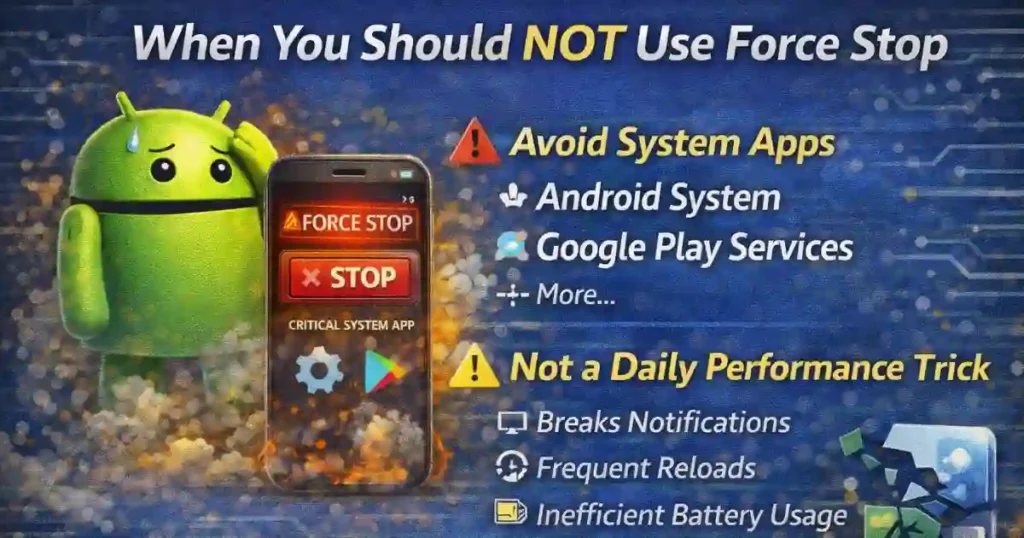
Avoid System Apps
Never force stop:
- Android System
- Google Play Services
- System UI
- Phone Services
Doing so can cause:
- App crashes
- Missing notifications
- Temporary instability
- Forced reboot
Android hides force stop warnings for system apps for a reason.
Not a Daily Performance Trick
Force stopping all apps daily:
- Breaks notifications
- Causes frequent reloads
- Increases CPU usage
- Reduces battery efficiency
Android already manages apps intelligently.
Force Stop vs Disable: Important Difference
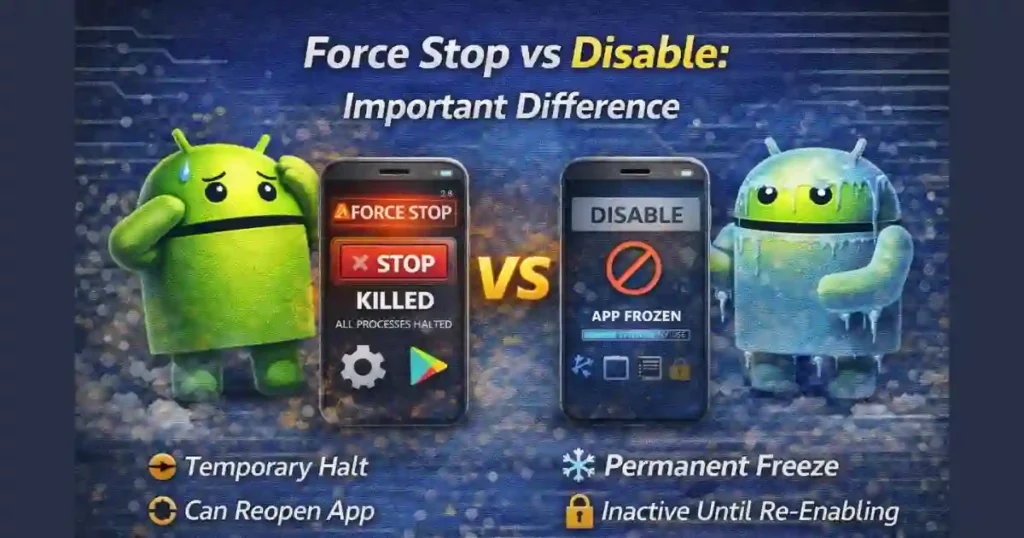
Force stop:
- Temporary
- App stays installed
- App returns when opened
Disable:
- App is turned off completely
- App disappears from launcher
- App cannot run at all
Disable is for bloatware.
Force stop is for troubleshooting.
People Also Ask
What Happens If We Do Force Stop an App?
All active and background processes are killed immediately. The app stops completely and cannot restart until you open it again manually.
Is Force Stopping an App Bad for Android?
No, when used occasionally. It is safe for troubleshooting. Using it daily for every app is unnecessary and can disrupt normal app behavior.
What Does Force Stop Actually Do?
It sends a command to Android to terminate the app process at system level, halting all activities, services, and background tasks instantly.
What Happens If I Force Stop the Android System?
Force stopping system apps can cause crashes, UI glitches, or immediate instability. It is not recommended unless you know exactly what you are doing.
Common Myths About Force Stop on Android
Myth: Force Stop Improves Performance Permanently
Reality: Any performance gain is temporary.
Myth: Force Stop Clears App Bugs Forever
Reality: Bugs may return if the app itself is faulty.
Myth: Force Stop Saves Battery Long-Term
Reality: Android restarts apps when needed.
User Perspective: How Regular Users Should Treat Force Stop
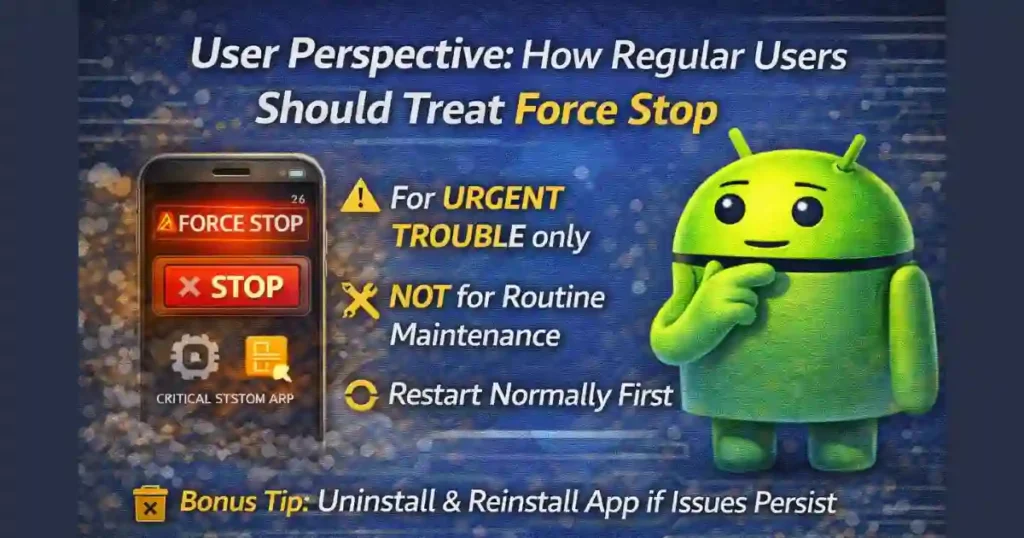
For most users:
- Use force stop only when needed
- Do not treat it as a cleaner
- Avoid system apps
- Let Android manage background apps
Understanding Force Stop an App on Android helps you use it wisely instead of blindly.
Final Thoughts
Force stopping an app is not dangerous, but it is powerful.
It is a hard reset for misbehaving apps, not a daily maintenance tool. Used correctly, it can fix freezes, crashes, and battery drain instantly. Used carelessly, it can break normal app behavior.
Now that you know exactly what happens when you force stop an app on Android, you can use it confidently and correctly.
FAQs: Force Stop an App on Android
Does force stop delete app data?
No. Saved data remains intact.
Will notifications stop after force stop?
Yes, until you reopen the app.
Can force stop damage my phone?
No, unless used on critical system apps.
Is force stop better than clearing cache?
They serve different purposes.
Disclaimer: This article is for informational purposes only. Android behavior may vary depending on device manufacturer, Android version, and system updates. Always use system-level options responsibly.
Also Read: How to Use Android Private Compute Core Features: Privacy-First Android Guide

Raj Prajapati is a skilled content writer dedicated to creating clear, step-by-step guides on technology, Health, and everyday solutions. With a focus on user-friendly and SEO-optimized content, he simplifies complex topics, helping readers learn and solve problems effortlessly.