
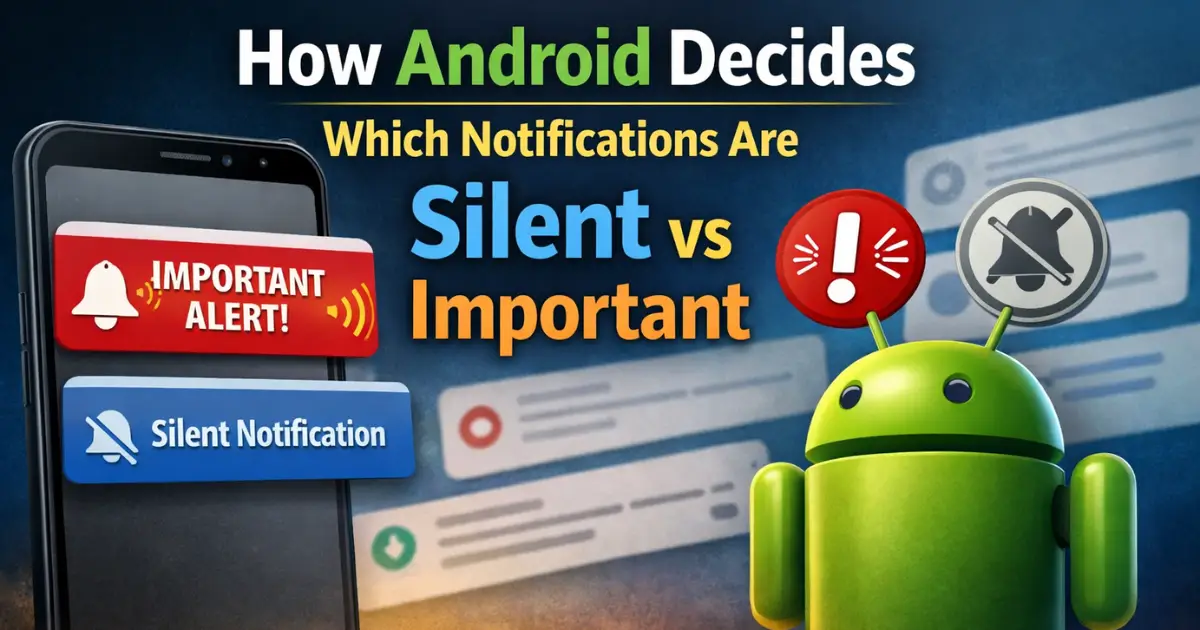
How Android Decides Which Notifications Are Silent or Important: Notifications are one of the most powerful features of Android. They keep users informed, alert them about urgent messages, remind them of tasks, and sometimes… honestly, annoy them. Ever noticed how some notifications pop up loudly with sound and vibration, while others quietly sit at the bottom of your notification panel?
This behavior is not random.
Android follows a well-defined system to decide which notifications are important and which ones should remain silent. Over the years, Google has refined this system to balance urgency, user attention, battery efficiency, and overall experience.
In this in-depth guide, we will break down exactly how Android decides notification importance, what role apps, users, and the system play, and how you can fully control notifications on your Android phone.
Whether you want to stop unwanted notifications on Android or understand why some alerts bypass silence, this article covers everything.
Also Read: What Happens When You Force Stop an App on Android? Real Effects Explained
What Are Notifications on an Android Phone?
Before diving into silent vs important alerts, let’s understand what notifications actually are.
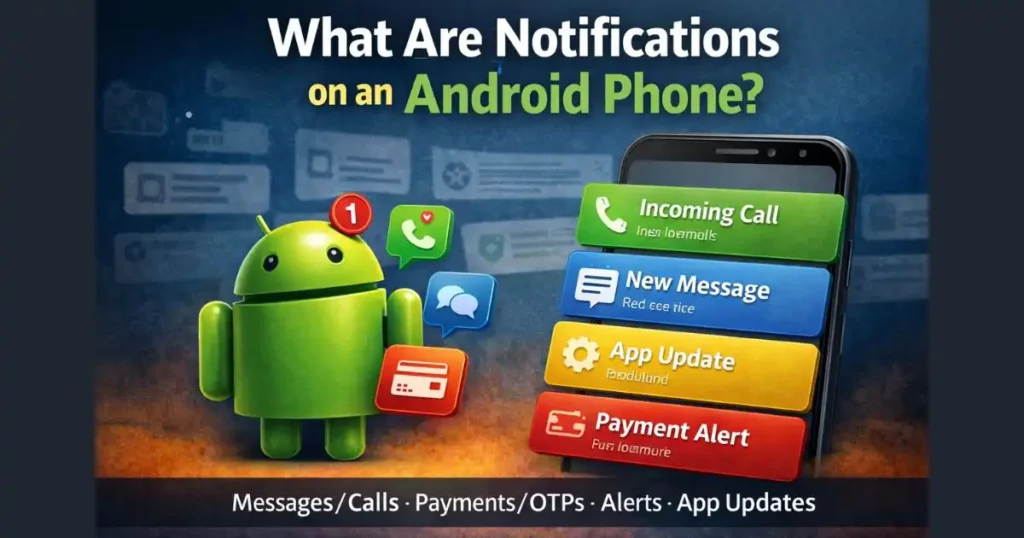
Notifications on Android are short messages sent by apps or the system to inform users about events, updates, or actions that may need attention. These can include:
- Incoming messages or calls
- App updates and downloads
- Payment alerts and OTPs
- System warnings
- Promotions and reminders
Not all notifications are created equal. A WhatsApp message and a weather update should not interrupt you the same way. Android recognizes this difference through a structured importance system.
The Core System Behind Android Notifications
Android decides notification importance using three major pillars:
- Developer-defined rules
- User overrides and preferences
- System-level intelligence and modes
At the center of this system are Notification Channels, introduced in Android 8.0 (Oreo).
Notification Channels and Importance Levels (Android 8.0+)
What Are Notification Channels?
Notification Channels are categories created by app developers to group similar notifications together.
For example:
- A messaging app may have separate channels for:
- Direct messages
- Group messages
- Calls
- Promotions
Each channel has an importance level that tells Android how that notification should behave.
Android Notification Importance Levels Explained
Android uses multiple importance levels to decide how visible or intrusive a notification should be.
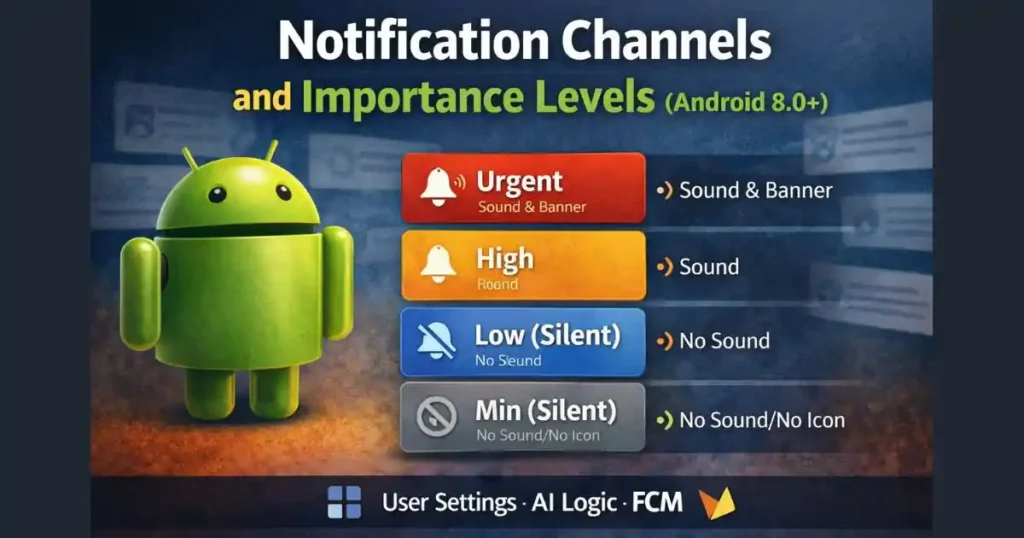
1. Urgent or High Importance (Heads-Up Notifications)
These notifications:
- Make sound and vibration
- Appear as heads-up banners
- Show in the status bar
Used for:
- Incoming calls
- Alarms
- Critical messages
- Time-sensitive alerts
These are considered important notifications on Android.
2. High Importance (Alerting Without Pop-Up)
These notifications:
- Make sound
- Do not appear as banners
- Show in the notification tray
Used for:
- Normal messages
- App alerts that need attention but are not urgent
3. Low Importance (Silent Notifications)
These notifications:
- Make no sound or vibration
- Appear quietly in the notification shade
- Still show a status bar icon
Used for:
- Background updates
- Informational alerts
- Non-urgent reminders
4. Min Importance (Fully Silent)
These notifications:
- No sound
- No vibration
- Usually no status bar icon
- Appear at the bottom of the notification panel
Used for:
- Weather info
- Promotions
- Non-essential updates
This is where most silent notifications on Android live.
Summary Table: Notification Importance Levels
| Importance Level | Sound/Vibration | Heads-Up Banner | Status Bar Icon |
|---|---|---|---|
| Urgent | Yes | Yes | Yes |
| High | Yes | No | Yes |
| Low (Silent) | No | No | Yes |
| Min (Silent) | No | No | No (usually) |
User Control: You Have the Final Say
One of Android’s biggest strengths is user control. Even if an app marks a notification as important, you can override it.
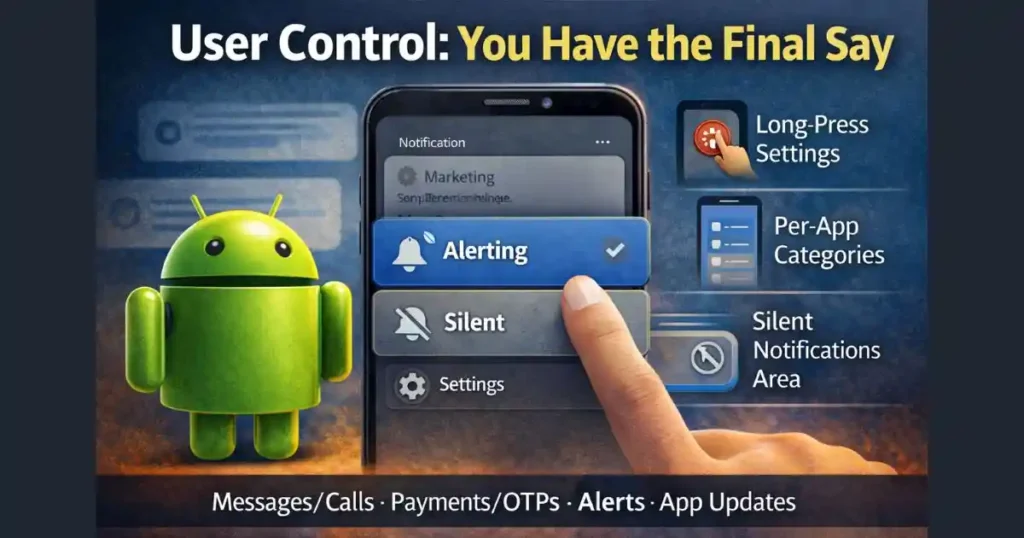
Long-Press to Change Notification Importance
When you receive a notification:
- Long-press on it
- Choose between Alerting or Silent
- Android instantly updates that channel’s behavior
This is the fastest way to stop unwanted notifications on Android.
App Notification Settings (Per-Channel Control)
For deeper control:
- Go to Settings
- Open Notifications
- Tap App notification settings
- Select the app
- Choose a specific notification category
Here, you can:
- Silence marketing notifications
- Keep messages alerting
- Disable entire channels
This is far more powerful than just turning notifications off completely.
Silent Notifications Area
Android automatically groups low-priority alerts into a silent notifications section. This keeps your notification shade clean and focused on what matters.
System Intelligence: Android Thinks for You
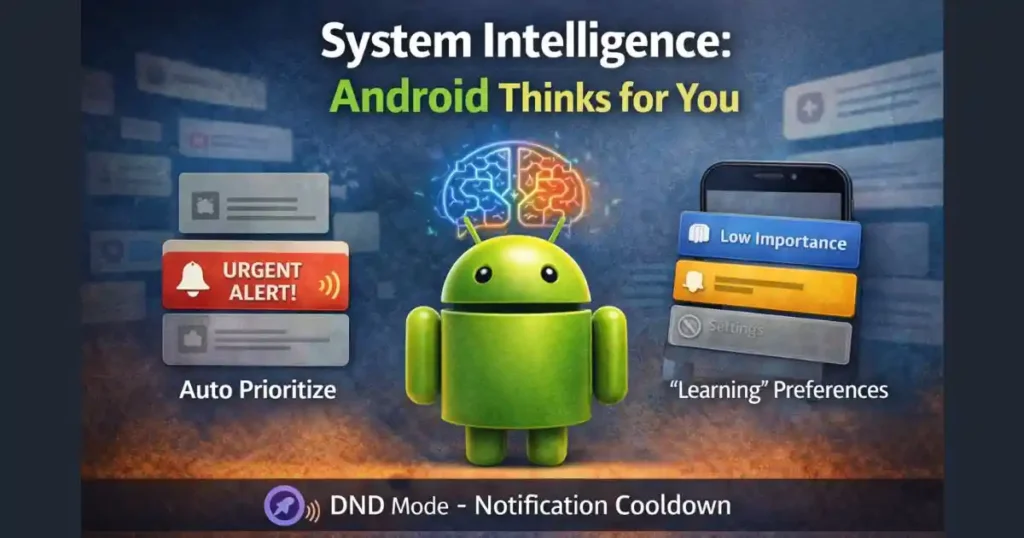
Starting from Android 12, notifications became smarter.
Notification Assistant (Android 12+)
Android can automatically adjust notification importance based on your behavior.
If you:
- Frequently open notifications from an app → priority increases
- Ignore or dismiss them → priority decreases
This machine-learning system helps reduce notification noise without manual effort.
Notification Cooldown (Android 15+)
Android 15 introduces a cooldown system.
If an app sends:
- Too many notifications in a short time
Android will:
- Reduce sound volume
- Lower vibration intensity
- Minimize visual interruptions
This protects users from notification spam.
Do Not Disturb (DND) Mode
Do Not Disturb overrides all notification importance levels.
When DND is on:
- All notifications are silenced
- Except those marked as:
- Priority alerts
- Alarms
- Calls from allowed contacts
This is useful when you want zero interruptions.
Technical Factors That Affect Notification Importance

Some notifications are treated differently due to technical reasons.
Foreground Service Notifications
Apps actively running tasks, like:
- Music players
- Fitness trackers
- Navigation apps
Show persistent notifications. These:
- Cannot be easily dismissed
- Are treated as important for transparency
Message and Conversation Prioritization
Messaging apps can mark conversations as:
- Priority
- Default
- Silent
Priority conversations:
- Appear at the top
- Can bypass DND
- Show profile icons
This ensures important chats are never missed.
Firebase Cloud Messaging (FCM) Priority
Behind the scenes, many apps use Firebase Cloud Messaging.
Developers can set:
- Normal priority
- High priority
However, Android may downgrade delivery if:
- Users consistently ignore those notifications
- The app abuses high priority
This protects battery life and user attention.
Also Read: How Android Handles Background Apps When RAM Is Full (Android 14 Guide)
People Also Search For
How to Stop Unwanted Notifications on Android
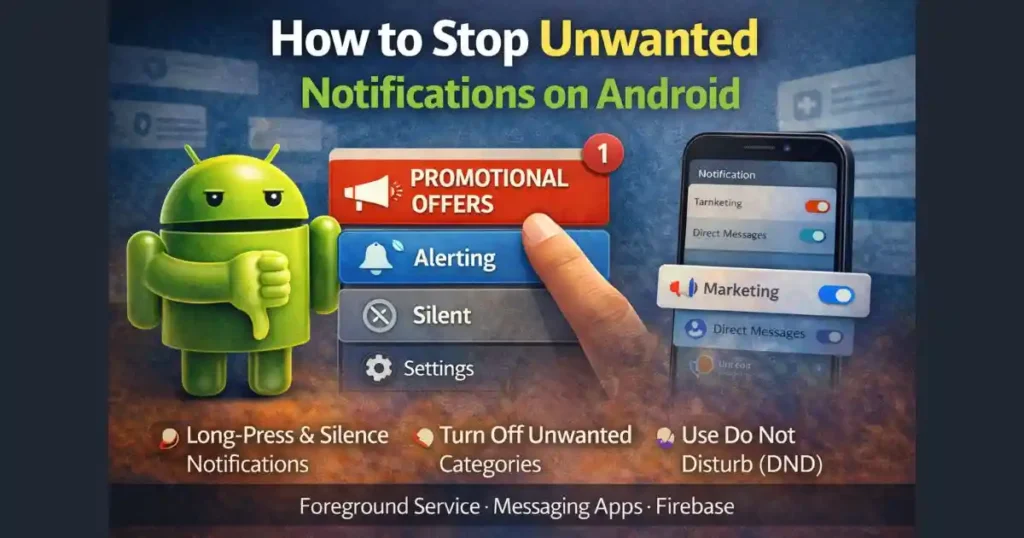
- Long-press the notification and mark it silent
- Disable specific notification categories
- Use DND for temporary silence
- Turn off promotional channels
What Is Notification History on Android?
Notification history lets you view dismissed notifications.
Path:
Settings > Notifications > Notification history
Useful if you accidentally clear important alerts.
How to Open My Notifications on Android
- Swipe down from the top of the screen
- Swipe again for full notification panel
App Notification Settings Explained
App notification settings allow:
- Per-app control
- Per-category customization
- Sound, vibration, and visibility changes
This is the most effective way to manage notifications.
Turn Off Notifications on Lock Screen Android
Steps:
Settings > Notifications > Lock screen notifications
Choose:
- Don’t show notifications
- Hide sensitive content
Notifications on My iPhone vs Android
While iPhone uses Focus modes and app-level controls, Android offers:
- Notification channels
- Granular per-category control
- Deeper system intelligence
Android provides more flexibility overall.
Turn Off Notifications on iPhone
On iPhone:
Settings > Notifications > App name > Allow notifications (off)
Android allows finer control without disabling everything.
Why Android’s Notification System Matters
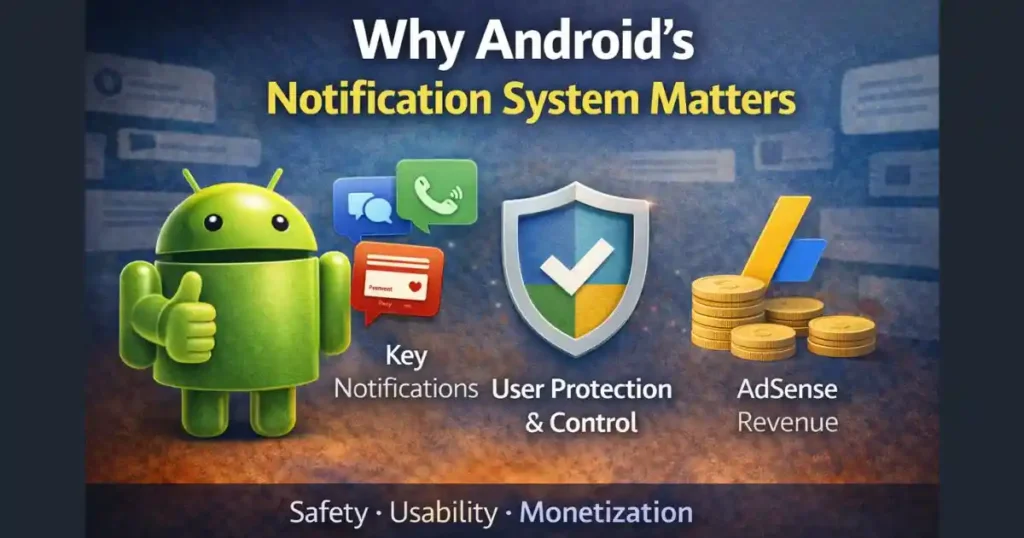
Android’s approach ensures:
- Urgent alerts reach you instantly
- Non-essential info stays quiet
- Users remain in control
- Battery life is protected
This balance is crucial in an era where apps constantly compete for attention.
Final Thoughts
Android does not randomly decide which notifications are silent or important. It follows a structured system based on notification channels, importance levels, user behavior, and intelligent automation.
Once you understand this system, managing notifications becomes effortless. Instead of disabling apps entirely, you can fine-tune alerts to match your lifestyle.
In short, Android gives you control. You just need to use it.
FAQs: How Android Decides Which Notifications Are Silent or Important
Q1. Why are some notifications silent by default on Android?
Because the app developer marked that notification channel as low or min importance.
Q2. Can I make silent notifications important?
Yes. Go to app notification settings and change the channel importance to alerting.
Q3. Does Android automatically silence notifications?
Yes. Android 12+ uses machine learning to adjust importance based on usage.
Q4. Do silent notifications save battery?
Yes. Fewer wakeups, sounds, and vibrations help improve battery life.
Q5. Can I see missed silent notifications?
Yes. They appear in the silent section or notification history.
Disclaimer: This article is based on publicly available Android documentation, system behavior observations, and recent Android version features. Notification behavior may vary depending on device manufacturer, Android version, and custom UI layers.
Also Read: How to Set Per App Language on Android: App-By-App Language Settings Guide

Raj Prajapati is a skilled content writer dedicated to creating clear, step-by-step guides on technology, Health, and everyday solutions. With a focus on user-friendly and SEO-optimized content, he simplifies complex topics, helping readers learn and solve problems effortlessly.