

If you have used Android for a few years, you have probably heard this advice at least once:
“Clear background apps to free RAM and make your phone faster.”
Sounds logical, right? But here is the truth most users do not realize. Android is designed to keep RAM full. A phone with empty RAM is actually wasting performance potential.
Understanding how Android handles background apps when RAM is full helps you stop worrying about multitasking, avoid useless “RAM booster” apps, and get the best real-world performance from your device.
In this detailed guide, we will break down what really happens behind the scenes when Android runs out of RAM, how background apps are managed, and why Android’s approach is very different from desktop operating systems.
Also Read: How to Set Per App Language on Android: App-By-App Language Settings Guide
Why Android Keeps RAM Full on Purpose

Before diving into technical systems like LMK or zRAM, let’s clear the biggest confusion first.
Android treats RAM as working memory, not storage. Free RAM is considered wasted RAM.
Why Full RAM Is a Good Thing
Android loads frequently used apps and data into RAM so that:
- Apps reopen instantly
- Animations remain smooth
- Switching between apps feels seamless
- Battery drain stays optimized
If Android constantly emptied RAM, every app launch would feel like a cold start. That would slow down your phone, not speed it up.
This philosophy is the foundation of how Android handles background apps across all modern versions, including Android 14 and upcoming Android 15 builds.
What Happens When Android RAM Is Actually Full
When RAM pressure increases and reaches a critical level, Android does not panic. It follows a multi-layered memory management strategy designed to protect system stability first, not background apps.
The system attempts memory recovery in stages:
- Ask apps to free unused resources
- Compress memory instead of killing apps
- Restrict idle background execution
- Kill only the least important processes
This structured approach ensures your foreground app always stays responsive.
The Low Memory Killer (LMK) Daemon Explained

What Is LMK in Android?
The Low Memory Killer daemon (lmkd) is a kernel-level process that acts only when RAM reaches dangerous thresholds. It is not aggressive and does not randomly kill apps.
Its primary job is to prevent system freezes or crashes.
How LMK Decides Which Apps to Kill
Android assigns every process an oom_adj_score (Out-Of-Memory adjustment score).
Lower score means higher importance.
Here is how LMK evaluates apps:
- Is the app visible on screen?
- Is the app playing music or downloading data?
- Was the app used recently?
- How much RAM is the app consuming?
Termination Priority Order
LMK always kills apps in this sequence:
- Cached background apps not doing anything
- Least recently used apps
- Apps consuming unusually high memory
- Idle services with no user awareness
Your foreground app is never targeted unless the system is about to crash.
This intelligent ranking system is a core part of how Android handles background apps safely.
onTrimMemory(): Android’s Polite Warning System

Before killing any app, Android gives it a chance to cooperate.
What Is onTrimMemory?
onTrimMemory() is a callback that informs apps about current memory pressure.
Instead of force-closing, Android politely says:
“Hey, memory is tight. Clean up what you can.”
What Apps Do After Receiving onTrimMemory
Well-optimized apps respond by:
- Clearing image caches
- Releasing unused bitmaps
- Closing idle threads
- Reducing background objects
If the app handles this correctly, it often survives without being killed.
Why Some Apps Die Faster Than Others
Apps that ignore memory callbacks or poorly manage resources are more likely to be terminated. This is not Android’s fault. It is poor app optimization.
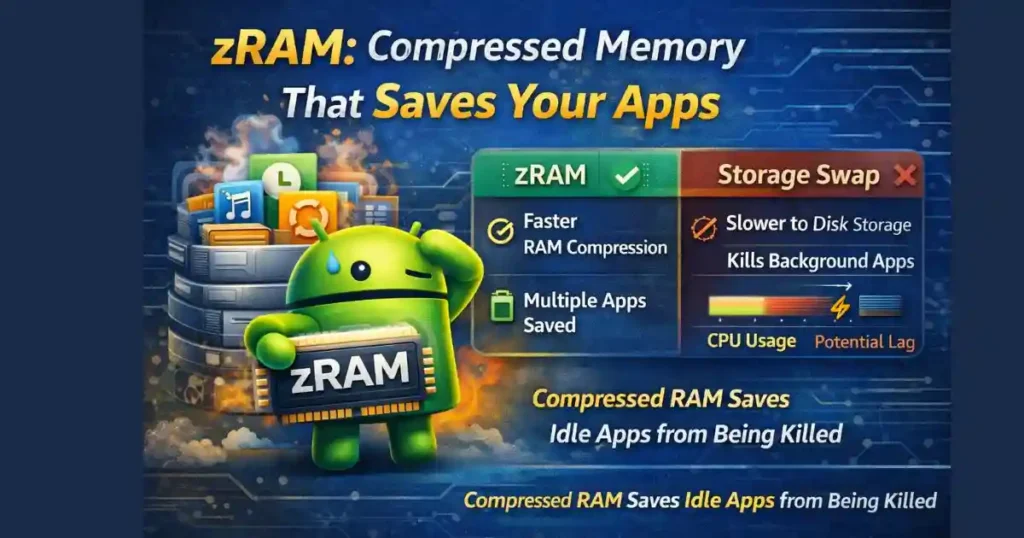
zRAM: Compressed Memory That Saves Your Apps
What Is zRAM in Android?
Instead of killing background apps immediately, Android uses zRAM, a compressed portion of RAM.
Less-used memory pages are compressed and stored inside RAM itself, not on storage.
Why Android Prefers zRAM First
- Faster than swapping to storage
- Saves multiple apps from being killed
- Improves multitasking on low-RAM devices
The Trade-Off
Compression uses CPU power. On budget devices, reopening a heavily compressed app may cause a brief delay.
Still, zRAM is far more efficient than aggressive app killing and plays a major role in how Android handles background apps gracefully.
Background Execution Limits Since Android 8.0
Starting with Android 8.0 (API 26), Google introduced strict background controls.
Why Background Limits Were Needed
Before these limits, apps abused background services for:
- Continuous tracking
- Unnecessary sync
- Battery drain
- Hidden CPU usage
Idle Background Services
If an app stays idle in the background:
- Its services are stopped
- Wake locks are restricted
- Network access is limited
This ensures that inactive apps do not compete for RAM or CPU.
App Standby Buckets: Smart App Categorization
Android categorizes apps based on how often you use them.
App Standby Buckets Explained
- Active – Currently in use
- Working Set – Used frequently
- Frequent – Used occasionally
- Rare – Hardly used
- Never – Installed but untouched
Apps in lower buckets face severe background limits.
This system allows Android to manage RAM intelligently without breaking user experience.
“Don’t Keep Activities” Developer Option

What This Setting Actually Does
When enabled, Android destroys every app activity the moment you leave it.
Who Should Use It
- Developers testing lifecycle behavior
- Debugging memory leaks
Who Should Avoid It
- Regular users
- Performance testing for real-world usage
Using this option daily will make Android feel slower, not faster.
How Android Handles Background Apps: Priority Summary
From lowest to highest priority:
- Cached background apps
- Previously used apps
- Background services
- Perceptible apps (music, downloads)
- Foreground app
Android always protects what you can see and hear.
People Also Search For
How to Reduce RAM Usage in Android 14
You do not need third-party cleaners.
Instead:
- Disable unused apps
- Avoid auto-start heavy apps
- Update apps regularly
- Reduce live wallpapers
Android 14 already manages RAM efficiently on its own.
How to Know Which Apps Are Using RAM on Android
Steps:
- Open Settings
- Go to Developer Options
- Tap Memory
- View average RAM usage per app
This shows real usage, not misleading instant snapshots.
Should I Enable Memory Usage Profiling Android?
Memory profiling is useful only for:
- Developers
- Advanced debugging
- App testing
For normal users, it has no performance benefit.
Enable Memory Usage Profiling Android Meaning
It records memory allocation patterns of apps to help identify leaks or inefficiencies.
It does not optimize RAM automatically.
Background Process Limit Best Settings
Default is best.
Reducing background processes can:
- Break notifications
- Kill essential services
- Increase app reloads
Android already handles background apps optimally.
How to Check RAM Usage in Android 14
- Settings → About Phone
- Tap Build Number 7 times
- Open Developer Options
- Go to Memory
This gives accurate system-level RAM stats.
Android onTrimMemory Explained Simply
It is a warning signal sent to apps during memory pressure.
Apps that respond survive longer.
Apps that ignore it get killed first.
Android 14 Background Apps Behavior
Android 14 improves:
- Background execution control
- Standby bucket accuracy
- Memory compression efficiency
Overall, Android 14 handles background apps better than previous versions.
Also Read: How to Use Android Private Compute Core Features: Privacy-First Android Guide
Common Myths About Android RAM Management
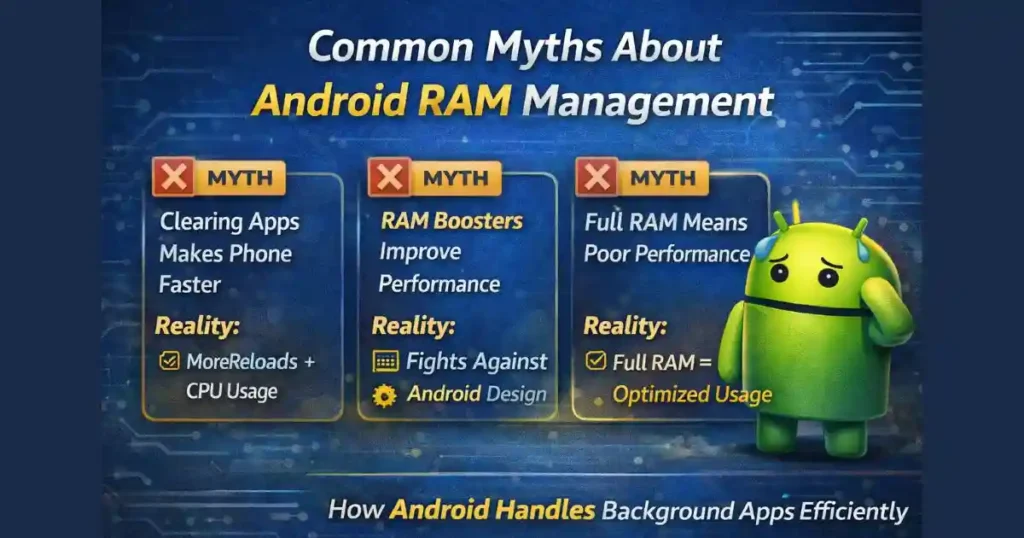
Myth 1: Clearing Apps Makes Phone Faster
Reality: It causes more reloads and CPU usage.
Myth 2: RAM Boosters Improve Performance
Reality: They fight against Android’s design.
Myth 3: Full RAM Means Poor Performance
Reality: Full RAM means optimized usage.
User Perspective: What You Should Actually Do
As a regular Android user:
- Stop force-closing apps
- Avoid task killers
- Trust Android memory management
- Focus on storage and battery health
Understanding how Android handles background apps saves time, battery, and frustration.
Future of Android Memory Management

Google is improving:
- Smarter compression
- Better predictive app loading
- AI-driven app standby ranking
Upcoming Android versions will rely even less on aggressive app killing.
Final Thoughts
Android’s RAM management is not broken. It is misunderstood.
By prioritizing system stability, intelligent app ranking, memory compression, and background execution limits, Android ensures smooth multitasking without sacrificing battery life.
Once you understand how Android handles background apps, you realize that most performance “fixes” suggested online are unnecessary or harmful.
FAQs: How Android Handles Background Apps
Q1. Does Android kill background apps automatically?
Yes, but only when memory pressure becomes critical.
Q2. Is it bad to keep many apps in background?
No. Android manages them efficiently.
Q3. Do RAM cleaner apps help?
No. They usually reduce performance.
Q4. Why does my app reload sometimes?
Because Android reclaimed memory for higher-priority tasks.
Q5. Is Android 14 better at RAM management?
Yes, especially in background execution and compression.
Disclaimer: This article is based on publicly available Android system behavior and developer documentation. Features and behavior may vary depending on device manufacturer, Android version, and system updates. This content is for informational purposes only.
Also Read: How to Enable Heads Up Notifications Manually on Android: 2026 Guide

Raj Prajapati is a skilled content writer dedicated to creating clear, step-by-step guides on technology, Health, and everyday solutions. With a focus on user-friendly and SEO-optimized content, he simplifies complex topics, helping readers learn and solve problems effortlessly.