
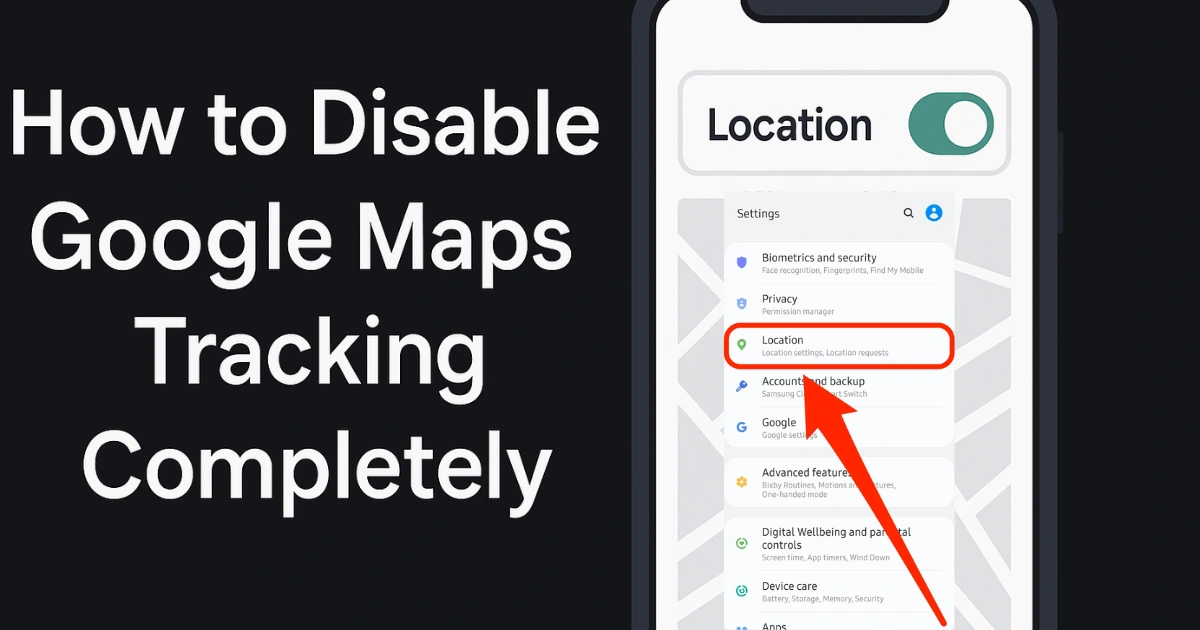
Google Maps is one of the most useful navigation tools in the world, but many users do not realize how much personal information it collects in the background. Your device’s location, your Google Account activity, your movement timeline, and even your search habits can be used to build an extensive picture of where you go and what you do. For some people this is convenient, but for others it raises serious questions about privacy.
If you are looking for a clear, detailed, and practical guide on how to disable Google Maps tracking completely, this article walks you through every step. The process is not limited to turning off one setting. Google uses multiple layers of tracking that must be disabled individually. You need to adjust both your device-level location settings and your Google Account’s privacy controls. Only then can you significantly limit the data Google Maps collects about you.
This guide covers everything in depth, including how these settings work, why turning off a single switch is not enough, and what additional tools can improve your privacy. Each section includes explanations that help you understand what happens behind the scenes so you can make informed decisions about your digital footprint.
Also Read: How to Lock Your Facebook Profile for More Privacy: Step-by-Step Guide
Why Google Maps Tracks You
Before learning how to disable Google Maps tracking completely, it helps to understand why tracking exists in the first place. Google Maps is designed to provide accurate navigation, real-time traffic updates, nearby recommendations, and personalized suggestions. To deliver those features, Google needs access to your device’s sensors, your search history, your route history, and your movement patterns.
Even when you are not using Maps actively, your phone may send periodic location signals to Google’s servers. These signals help maintain a detailed timeline of your visits, the time you spent at each place, and the routes you took. This data is then used to refine Google’s services and improve location accuracy for millions of users.
However, if you do not want this data stored or shared, disabling multiple tracking sources becomes necessary. Google uses three main mechanisms to track your movements:
1. Device-Level Location Services
This is controlled by your smartphone’s operating system. When location services are turned on, your device uses GPS, Wi-Fi, Bluetooth, and mobile networks to determine your position. Apps like Google Maps can access this data when given permission.
2. Location History
This is connected to your Google Account. It records everywhere you go and adds the data to your Maps timeline. Even if your device location is turned off, Google may still log certain locations through Wi-Fi or network estimates if this setting is enabled.
3. Web & App Activity
This feature collects your online activity across Google services. It can record the approximate location based on your IP address and your searches. Many users mistakenly believe turning off Location History is enough, but Google can still infer your location through Web & App Activity.
To fully protect your privacy, you need to disable all these layers.
How to Disable Google Maps Tracking Completely
The process involves two major steps:
1. Turning off device-level location services
2. Disabling account-level tracking (Location History + Web & App Activity)
Completing both ensures Google Maps cannot track you in real time or store your past movement patterns.
Part 1: Turn Off Location Services on Your Device
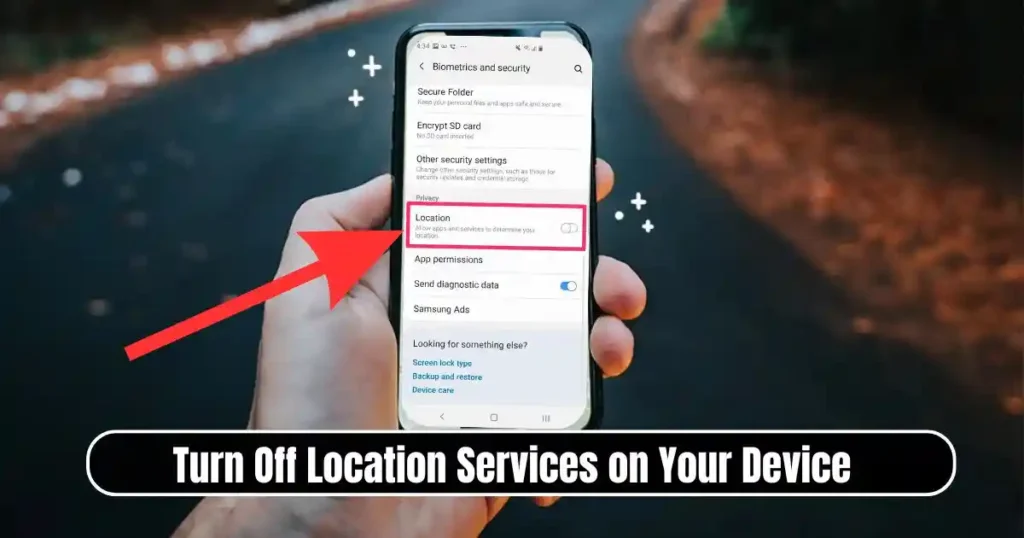
Device-level location services are the foundation of all real-time tracking. If you turn this off, apps will not be able to access GPS or network-based location signals. This is the fastest way to stop Google Maps from tracking your live movements.
Below are the detailed steps for Android and iPhone users.
How to Turn Off Location Services on Android
Android devices give you direct control over how apps use your location. If your goal is to limit tracking completely, turning off the main location switch is the most effective method.
Step-by-Step Guide
- Open the Settings app on your Android device.
- Scroll until you find Location or Security & Location depending on your phone model.
- Tap Location.
- Locate the main Use location toggle and turn it Off.
Once disabled, all apps lose access to your device’s location. Google Maps will not be able to pinpoint your position, provide directions, or update traffic in real time.
Granular Control (Optional)
If you prefer keeping your device’s location on while restricting individual apps:
- Go to Settings
- Tap Location
- Select App permissions
- Find Google Maps
- Choose Deny
This gives you control without completely shutting down the location system. However, for full privacy, the global toggle is more reliable.
What Happens When You Turn Off Location on Android
Turning off Android’s location services affects several features:
- Navigation apps lose GPS accuracy.
- Weather apps may not detect your current area.
- Some emergency features may use cellular location but remain limited.
- Background services cannot update location periodically.
This step is essential for anyone serious about stopping Google Maps from tracking movements.
How to Turn Off Location Services on iPhone or iPad
iOS offers clear location controls and allows you to turn off location services entirely or restrict specific apps like Google Maps.
Step-by-Step Guide
- Open Settings on your iPhone.
- Navigate to Privacy & Security.
- Tap Location Services.
- Turn the main Location Services switch Off.
This disables location access for every app, including Google Maps.
Restricting Only Google Maps (Optional)
If you do not want to disable location for all apps:
- Go to Settings
- Open Privacy & Security
- Tap Location Services
- Scroll to Google Maps
- Select Never
Choosing “Never” ensures Google Maps cannot access your location data under any circumstance.
Effects of Turning Off Location on iOS
When location is disabled:
- Maps cannot provide turn-by-turn directions
- Apps that rely on location stop updating
- Location-based reminders may not work
- Apple’s system services have limited functionality
This is an important step if your objective is to reduce all tracking signals.
Part 2: Disable Google Account Location History and Web & App Activity
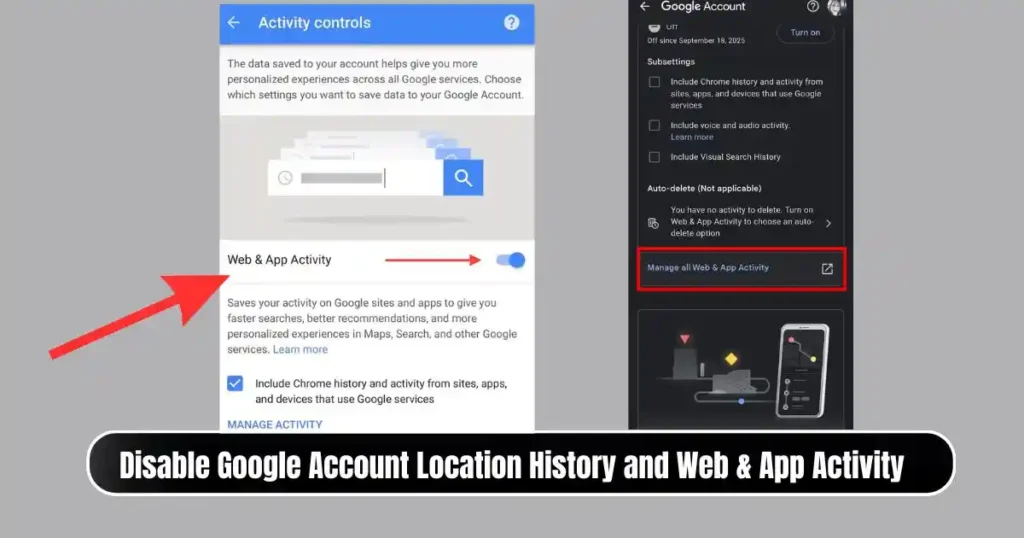
Turning off device location alone does not prevent Google from collecting position estimates indirectly. To fully disable Google Maps tracking completely, you must adjust your Google Account settings as well.
Google stores location-related information in two key places:
- Location History
- Web & App Activity
Both must be turned off to cut down all tracking.
How to Disable Location History
Location History records the places you visit when you are signed in to your Google Account. It also builds a timeline of where you have been on any device linked to that account.
Steps to Turn It Off
- Open a web browser and go to myaccount.google.com.
- Sign in to your Google Account.
- Navigate to Data & Privacy or Personal Info & Privacy depending on your interface.
- Select My Activity.
- In the left-side panel, click Activity Controls.
- Under Location History, toggle the switch to Off.
- Confirm your choice when prompted.
Once disabled, Google will stop automatically logging your movement patterns.
How to Disable Web & App Activity
Web & App Activity tracks your interactions across Google Search, Google Maps, YouTube, and other Google products. It can record your approximate location through your IP address. Turning this off is essential if you want to stop Google from estimating your general location.
Steps to Turn It Off
- Visit the Activity Controls section of your Google Account.
- Look for Web & App Activity.
- Turn the toggle Off or choose Pause.
- Confirm the action.
Turning this off stops Google from saving search activity that includes location markers or inferred positions.
Why Turning Off Only Location History Is Not Enough
Many users believe that once Location History is off, Google no longer tracks them. However, Location History affects only the timeline feature. Google can still estimate your location using:
- IP address from your internet connection
- App usage data
- Search queries
- Device signals when allowed
Disabling Web & App Activity ensures Google cannot correlate your searches with your location.
Doing both together is what stops Google Maps tracking almost entirely.
Part 3: Delete Past Google Maps Location Data
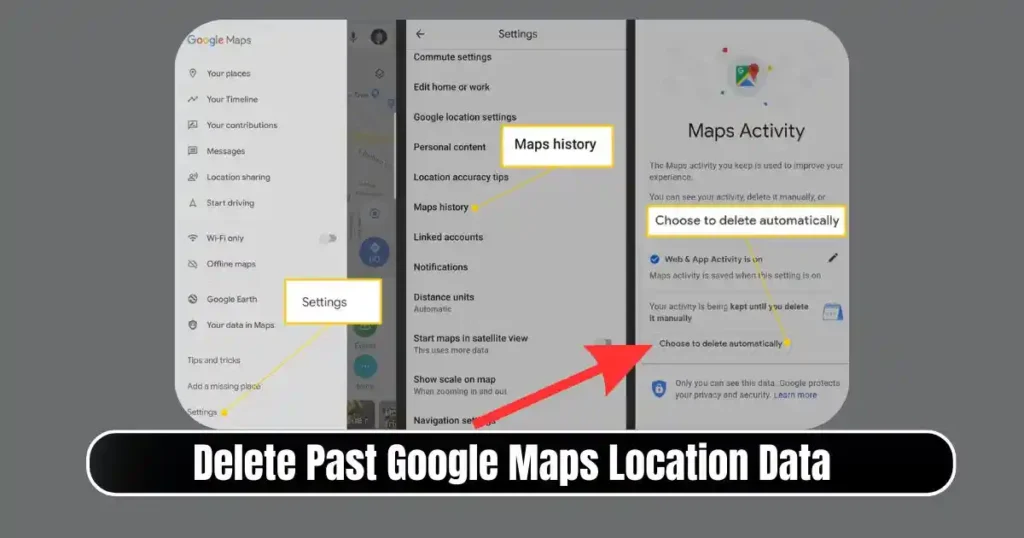
Even after disabling tracking, your past location data may still exist on Google servers. You need to delete the existing Timeline entries to fully clean your history.
How to Delete Your Past Location History
- Go to myaccount.google.com/activitycontrols.
- Find Location History.
- Click Manage History.
- Open the Timeline interface.
- Choose Delete all time or select a custom date range.
- Confirm your deletion.
This permanently removes previous location data from your account.
You can also enable auto-delete for future safety:
- Auto-delete every 3 months
- Auto-delete every 18 months
- Auto-delete every 36 months
If privacy is your priority, the shortest window is recommended.
Part 4: Turn Off Google Maps Location Sharing
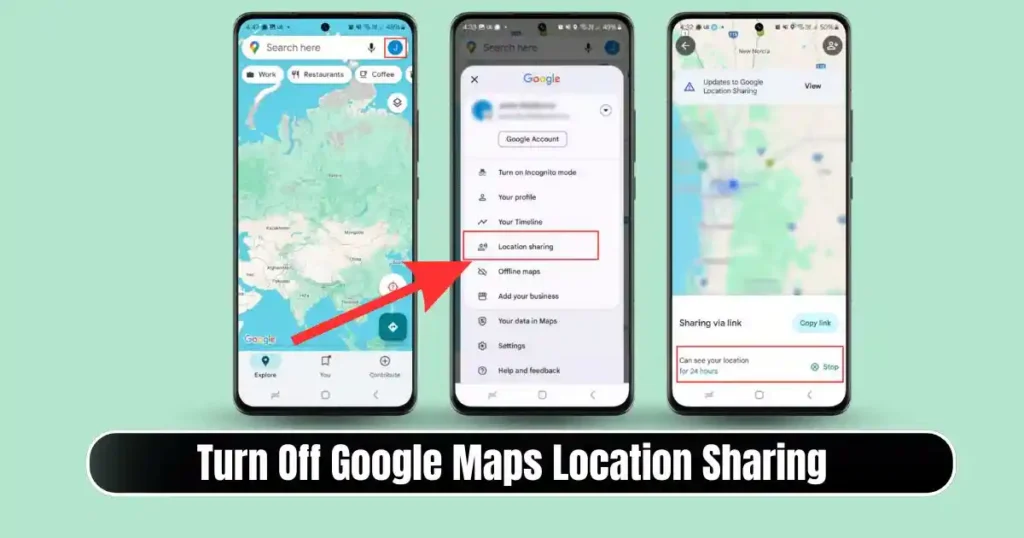
Google Maps includes a location-sharing feature that allows real-time sharing with friends or family. If enabled accidentally, it can send your location to others even if you have turned off some settings.
Steps to Disable Location Sharing
- Open Google Maps on your device.
- Tap your profile icon.
- Select Location Sharing.
- Look for active sharing entries.
- Turn off sharing for each contact.
Do this on all devices linked to your Google Account.
Part 5: Additional Privacy Measures
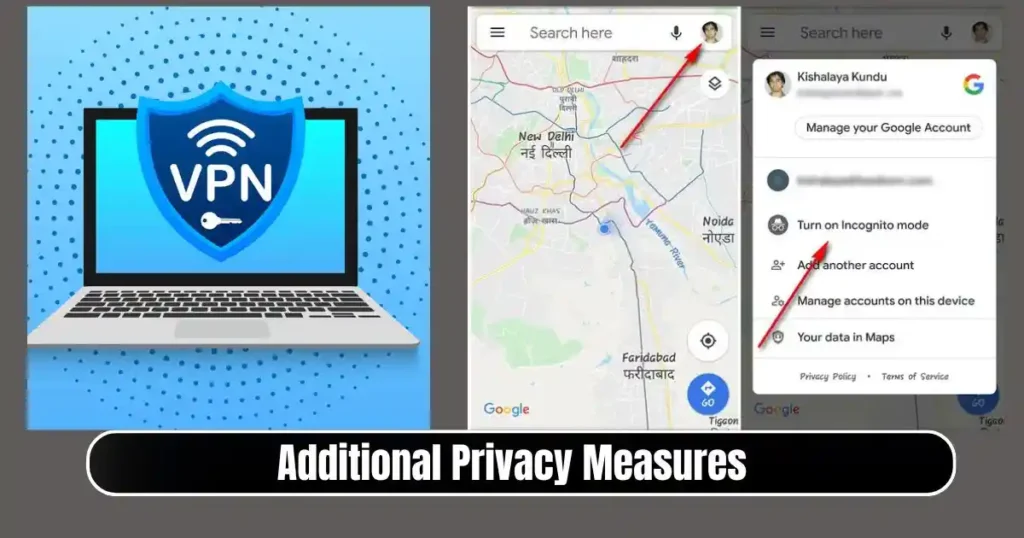
Disabling Google Maps tracking is the most important step, but you can strengthen your privacy even more with the measures below.
1. Use a VPN
A VPN masks your IP address, which is often used to estimate your approximate location. Even if tracking is disabled, Google may still infer your city-level location through your network.
A VPN helps protect against this by routing your internet traffic through a remote server.
2. Use Incognito Mode in Google Maps
Google Maps provides an Incognito mode that prevents local activity from being stored on your device. While it does not stop Google from receiving some data, it ensures your session is not added to your search or Maps history.
To activate it:
- Open Google Maps
- Tap your profile photo
- Select Turn on Incognito mode
This is useful when you want temporary privacy.
3. Disable Wi-Fi and Bluetooth Scanning
Even with location services turned off, Android and iOS devices can use Wi-Fi and Bluetooth scanning to refine location accuracy.
Turn this off to reduce background tracking signals.
Android
- Open Settings
- Go to Location
- Tap Wi-Fi and Bluetooth scanning
- Disable both options
iOS
These options appear under system services in the Location Services menu.
4. Review App Permissions Regularly
Apps can request location access without your knowledge. Reviewing permissions ensures no unwanted app has access to your GPS or network signals.
Understanding the Limitations of Disabling Tracking
Even after learning how to disable Google Maps tracking completely, it is important to understand certain limitations:
- Websites can estimate your location using your IP address
- Mobile carriers track phone towers for connectivity
- Emergency services may still receive approximate location data
- Some apps require location to function correctly
Stopping Google Maps tracking significantly increases your privacy, but it does not erase all forms of location detection.
Is It Safe to Disable Tracking Completely?
Most users can safely disable tracking without affecting daily usage except for navigation or apps that depend on location. If you rely heavily on real-time directions, ride-sharing apps, or food delivery services, keep in mind that these apps may not work properly without location access.
However, for users concerned about privacy, identity protection, or digital footprint control, these steps provide strong protection.
Conclusion
Disabling location tracking takes time because Google uses multiple channels to record your data. To fully protect your privacy, you need to adjust both device-level and account-level settings. Turning off Location Services, disabling Web & App Activity, pausing Location History, deleting past data, and reviewing app permissions together create a strong privacy shield.
This complete guide on how to disable Google Maps tracking completely ensures that you understand every step clearly and make informed decisions about your digital privacy. Taking these actions gives you more control over how your personal data is collected and used across Google’s ecosystem.
FAQs on How to Disable Google Maps Tracking Completely
1. Does turning off Location History stop Google from tracking me?
No. Google can still estimate your approximate location through Web & App Activity and your IP address. You must disable both features to reduce tracking significantly.
2. Can I use Google Maps without enabling location services?
You can browse maps or search for places, but real-time navigation and accurate positioning will not work without device location enabled.
3. Does Google Maps Incognito Mode stop all tracking?
Incognito mode only prevents your activity from being saved locally. Google may still receive certain information during your session.
4. Can Google still track my phone if it is turned off?
No app-based tracking works when the device is powered off, but your mobile carrier may still have tower-level logs.
5. Should I delete my existing location data?
Yes, if privacy is important to you. Deleting history removes old data that Google stored before you disabled tracking.
Also Read: How to Use Pivot Tables in Excel: A Complete Step-by-Step Guide

Raj Prajapati is a skilled content writer dedicated to creating clear, step-by-step guides on technology, Health, and everyday solutions. With a focus on user-friendly and SEO-optimized content, he simplifies complex topics, helping readers learn and solve problems effortlessly.