
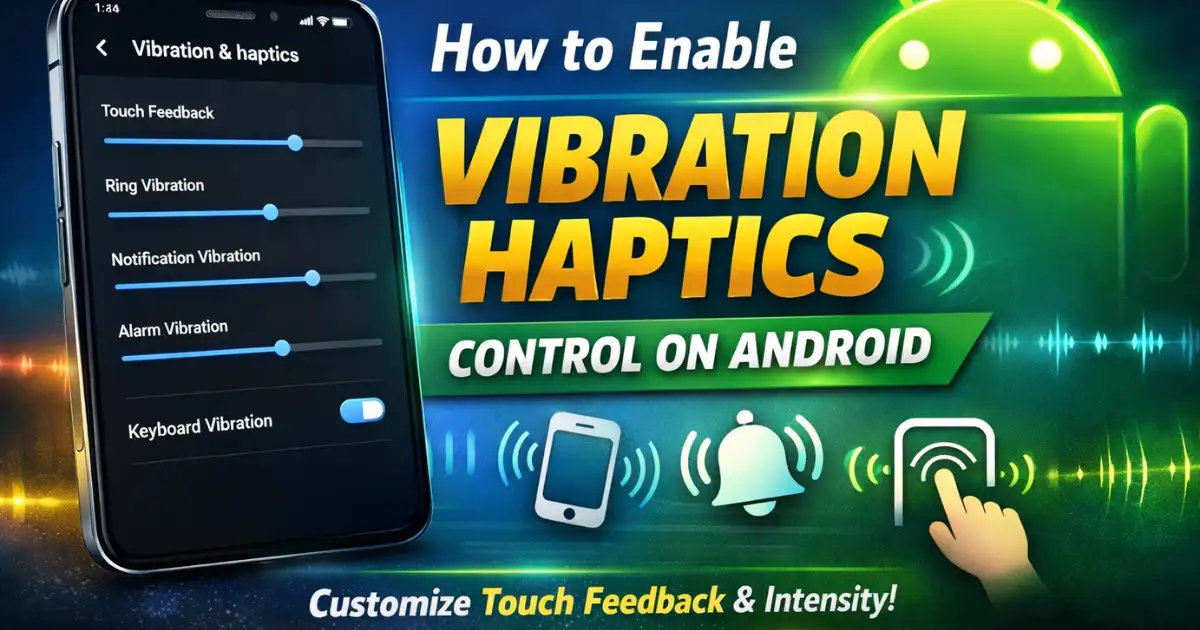
How to Enable Vibration Haptics Control: Android phones have evolved a lot in how they respond to touch. One of the biggest improvements over the years has been the rise of vibration haptics, a feature that lets your phone give tiny, precise feedback every time you tap, type, swipe, or receive alerts.
These subtle vibrations help your phone feel more alive and easier to use. If you’ve ever experienced the crisp haptic feedback on a Pixel or the refined vibration engine on Samsung devices, you already know how big a difference it makes.
In this guide, you’ll learn How to Enable Vibration Haptics Control on Android, how the feature works, how to customize it deeply, and how different brands implement their own versions.
This isn’t just a quick settings tutorial. You’ll also understand why haptics matter, which settings you should explore, and how to tailor the phone’s feel to match your personal preferences.
Let’s dive in.
Also Read: How to Use Voice Access on Android for Hands-Free Control (2026 Guide)
What Is Vibration Haptics on Android?
Haptics are small mechanical vibrations created by a motor inside your device. They are designed to simulate touch sensations, giving you physical confirmation of your actions.
Android uses these vibrations for:
- Keypresses while typing
- Navigation gestures
- Screen touches
- Incoming calls
- Notifications
- Charging feedback
- Gaming interactions
- System alerts
On modern devices, haptics are incredibly precise. Instead of the loud buzzing you’d find on older phones, today’s devices create short, localized pulses that feel sharp and controlled.
Why Android’s Haptics Matter in 2026
As Android has evolved, the system started to rely more and more on gesture navigation, touch interactions, and subtle UI animations. Strong and controlled haptics make all of these feel more natural.
Here are a few reasons why haptics have become important:
- Better typing accuracy: Slight feedback helps reduce typos.
- More immersive UI: Gestures, swipes, and long presses feel more intuitive.
- Accessibility support: Users with visual impairments rely on tactile confirmation.
- Quiet environments: A vibration alert is more discreet than a ringtone.
- Adaptive vibration: Phones can now auto-adjust vibration strength depending on your surroundings.
Overall, haptics help create a more responsive and personalized phone experience.
How to Enable Vibration Haptics Control on Android
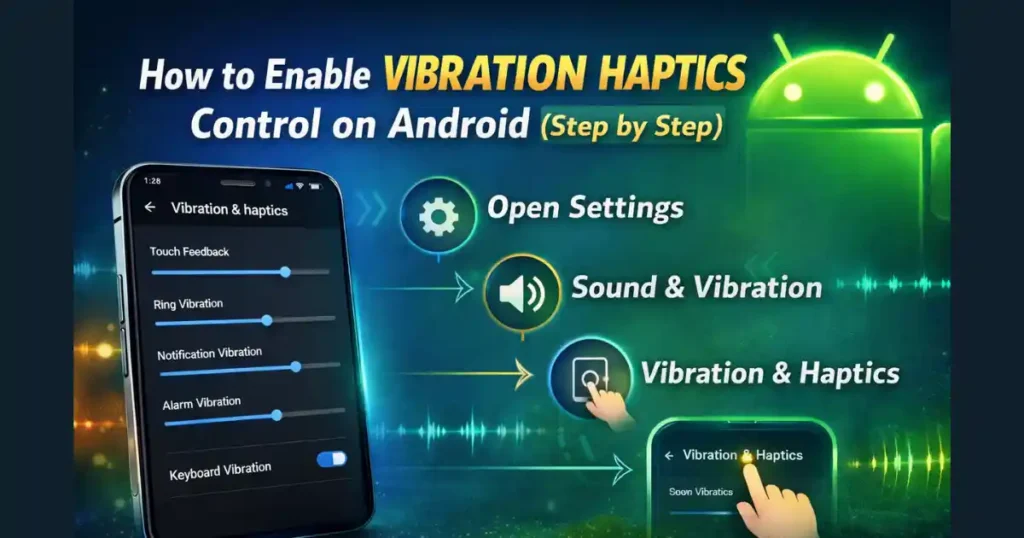
The exact menu names vary across brands, but the core steps remain the same. Here’s the general method (How to Enable Vibration Haptics Control) used on most Android devices in 2026.
1. Go to Settings
Open the Settings app from your app drawer or quick settings panel. The gear icon is easy to spot.
2. Tap “Sound & Vibration”
This menu handles everything related to audio and tactile feedback, including:
- Ringtones
- Notification sounds
- Volume levels
- Haptics controls
Some devices simply call it “Sound”.
3. Open “Vibration & Haptics”
Inside the Sound section, you’ll see an option labeled:
- Vibration & haptics
- Haptics
- Vibration
This is the main dashboard for controlling all forms of vibration feedback.
4. Enable System-Wide Haptics
Toggle on:
- Use vibration & haptics
- System haptics
- Vibration feedback
This activates vibration for:
- Touch inputs
- Calls
- Notifications
- Alarms
- Gestures
5. Customize Intensity (Optional but Recommended)
Most Android phones now offer separate sliders for different vibration categories:
Touch Feedback
Controls vibration when:
- Typing
- Tapping buttons
- Using gestures
- Scrolling or selecting UI elements
Ring Vibration
Adjusts how strongly your phone vibrates during incoming calls.
Notification Vibration
Controls alerts from apps like WhatsApp, Instagram, Gmail, etc.
Alarm Vibration
Helps you wake up using haptics without loud sounds.
General Intensity
Some brands offer:
- Low
- Medium
- High
- Custom slider-based intensity
Pick the level that feels comfortable in your hand.
6. Enable Keyboard Vibration
Typing feels much more natural with haptics enabled.
You can turn it on directly from Android settings:
- Settings → Sound & vibration → Vibration & haptics → Keyboard vibration
Or from your keyboard app:
- Gboard: Preferences → Haptic feedback on keypress
- Samsung Keyboard: Settings → Swipe, touch & feedback → Touch feedback
- SwiftKey: Settings → Sound & vibration
Brand-Specific Haptics Settings (Samsung, Pixel, Xiaomi, Realme)
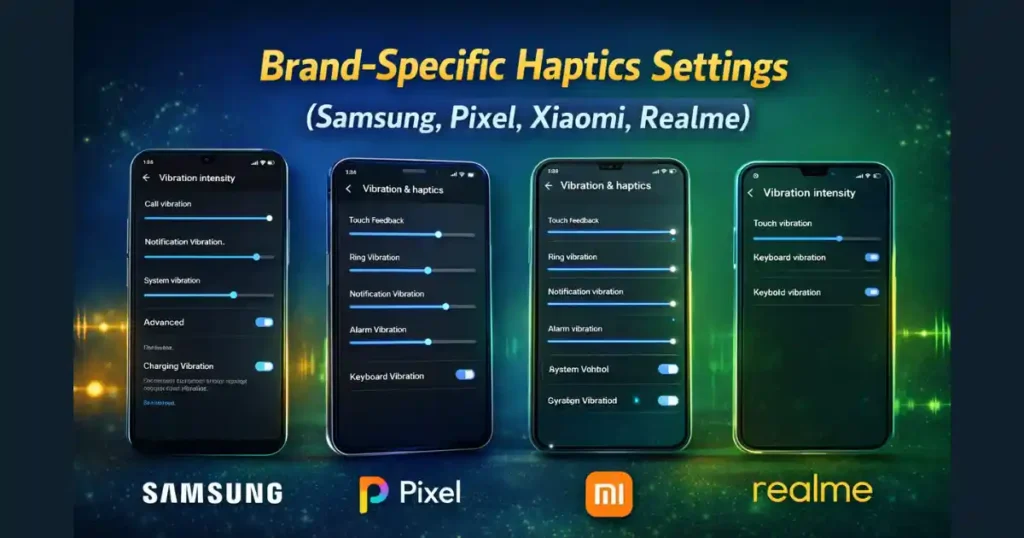
Each manufacturer tunes its haptic motor differently. Some offer deeper controls, while others keep the layout simple.
Samsung Galaxy Devices
Samsung offers one of the most detailed haptic systems.
Menu Path
Settings → Sounds and vibration → Vibration intensity
Features You’ll Find
- Sliders for call, notification, and touch feedback
- System vibration for gestures and interactions
- Charging vibration toggle
- Keyboard feedback via Samsung Keyboard
- Customized patterns for calls and notifications
Samsung phones tend to have strong but well-balanced haptics.
Google Pixel Devices
Pixels focus on accuracy and crisp, sharp interactions.
Menu Path
Settings → Vibration & haptics
Or via Accessibility:
Settings → Accessibility → Vibration & haptics
Special Features
- Sliders for each vibration type
- Clean, precise feedback tuned for gesture navigation
- One of the best vibration motors on Android
If you want a premium haptic experience, Pixel phones stand out.
Realme / Oppo Devices
Realme UI has slightly different menu layouts depending on the version.
Common Path
Settings → Sound & vibration → Haptics and tones
What You Can Control
- Touch vibration strength
- Call vibration patterns
- Charging vibration
- Customizable sliders (on newer devices)
Haptics vary between models, but flagships usually offer strong feedback.
Xiaomi / Redmi Devices
Xiaomi phones are known for their powerful Z-axis linear motors.
Menu Path
Settings → Sound & vibration
Scroll to the bottom to find:
- Haptic feedback
- Vibration intensity
- Tap feedback
These phones often include enhanced vibration effects during animations.
Quick Access Through Volume Buttons
You don’t always need to open Settings.
When you press a volume button, the overlay includes:
- Sound mode
- Vibrate mode
- Silent mode
- A settings icon (three dots)
Tapping this usually opens the sound panel where you can toggle vibration instantly.
Also Read: How to Turn On Adaptive Connectivity on Android to Save Battery Automatically
Advanced Haptic Features on Android (2026)
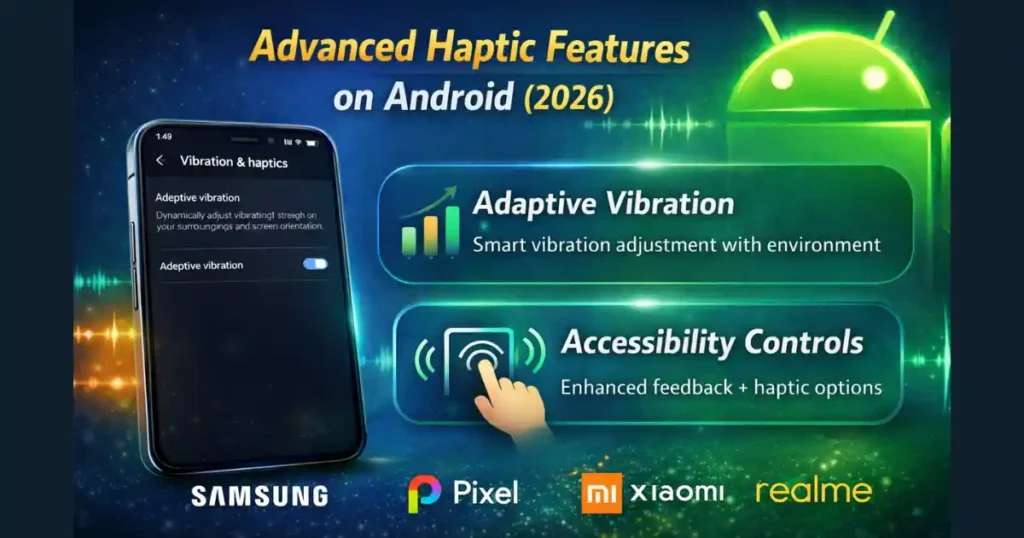
Android 15+ devices include more intelligent haptic controls.
Adaptive Vibration
Available on compatible Pixel and flagship models.
This feature:
- Boosts vibration strength in noisy environments
- Softens it in quiet places
- Adjusts based on how you hold the phone
It uses sensors like:
- Accelerometer
- Microphone
- Proximity sensor
This makes your vibration alerts more consistent and easier to notice.
Accessibility-Based Vibration Controls
If you need stronger feedback due to physical or sensory limitations:
Go to:
Settings → Accessibility → Vibration & haptics
Here, you can:
- Increase overall intensity
- Adjust touch sensitivity
- Enable long-press vibrations
- Fine-tune feedback for UI interactions
Why Customizing Haptics Helps
Users often underestimate how powerful haptic customization can be. Once you personalize vibration strength, the phone feels more natural and responsive.
Custom settings help:
- Save battery (weaker haptics use less power)
- Avoid missing calls in noisy areas
- Improve gaming feel
- Reduce unwanted buzzing during touch interactions
- Create a premium experience that matches your usage style
Once you tune it, you won’t go back to default.
Troubleshooting: When Vibration Haptics Don’t Work
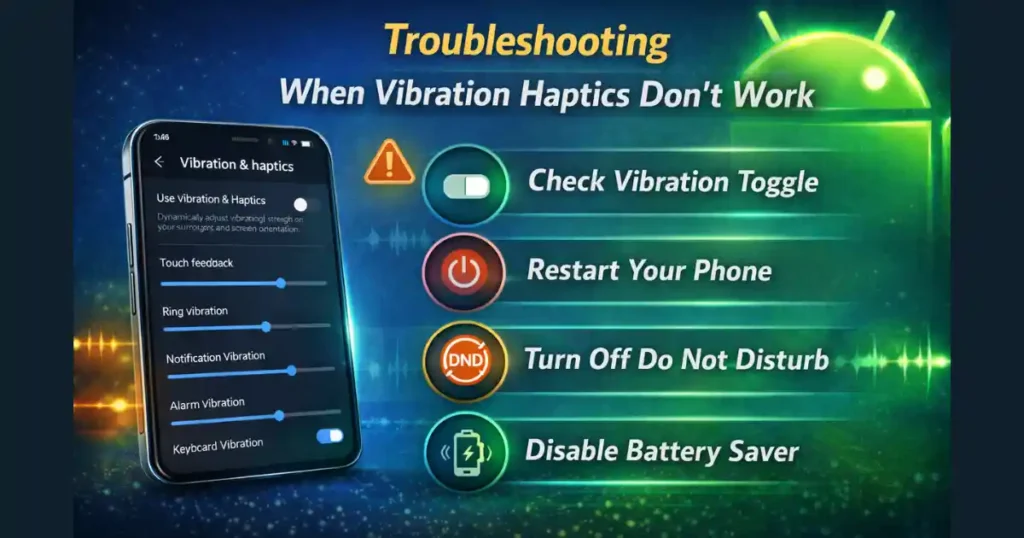
If haptics stop working, try these steps:
1. Check “Use Vibration & Haptics” toggle
Sometimes it gets turned off accidentally.
2. Restart your phone
A simple reboot often fixes vibration motor glitches.
3. Check “Do Not Disturb” settings
DND may disable call or notification vibration.
4. Turn off Battery Saver
Power-saving modes reduce vibration strength.
5. Test the vibration motor
Use diagnostic apps (on supported brands) to verify.
6. Update software
Bug fixes often improve haptic performance.
People Also Search For
How to Turn Off Vibrations on Android
If you prefer a quieter or more minimal experience, turning off vibration is easy. Go to Settings → Sound & vibration → Vibration & haptics and disable the main toggle. You can also turn off individual categories like touch feedback or keypress vibration.
Many users disable haptics during work hours to avoid distractions, and Android lets you fine-tune exactly what you want to turn off instead of removing everything at once.
Sound and Vibration Settings on Android
This menu is the central hub for everything related to audio and tactile feedback. Inside, you can adjust ringtone volume, alarm tones, call vibration patterns, touch feedback, media volume, and system sounds.
Since most users interact with these settings often, Android keeps them simple and organized. It’s also where you’ll find options like Do Not Disturb and adaptive vibration.
Vibrate My Phone for 5 Minutes
People often search this when they want to test vibration strength or when they need continuous vibration for accessibility purposes. Android doesn’t allow long vibration sessions directly through settings, but some apps offer extended vibration testing.
Be cautious, though, as long vibrations heat the motor and drain battery quickly. If the vibration feels weak during long tests, your device may activate thermal throttling to protect hardware.
How to Stop Touch Vibration in Samsung
Samsung gives very granular control over its vibration system. To stop touch vibration, go to Settings → Sounds and vibration → System vibration and turn off Touch vibration.
This disables the buzzing you feel during typing, navigation gestures, and screen taps. Users who find Samsung’s default vibration too punchy usually prefer turning this off or lowering intensity.
How to Turn Off Phone Vibration on iPhone
iPhones also offer a complete vibration control menu. Go to Settings → Sounds & Haptics and turn off Haptic Alerts to disable system-wide feedback. You can also toggle off Vibration under Accessibility to completely disable all vibration, including emergency alerts.
iOS haptics are considered top-tier, but not everyone prefers them, especially if they’re sensitive to constant tactile feedback.
Touch Vibration Settings
This refers specifically to the light pulses you feel when tapping the screen. On Android, these settings are usually found under Vibration & haptics.
Users often tweak these settings to make typing more accurate or to reduce distraction. Some devices let you choose between soft, medium, and strong feedback levels, while others use slider-based precision.
Haptic Vibration Android
This refers to the overall haptic ecosystem on Android. Modern devices use linear motors that produce sharper and more controlled vibrations. Android lets you adjust intensity for calls, notifications, gestures, and typing. With Android 15 and newer, adaptive haptics and environment-based vibration control make the experience even smarter and tailored.
How to Change Vibration Intensity on iPhone
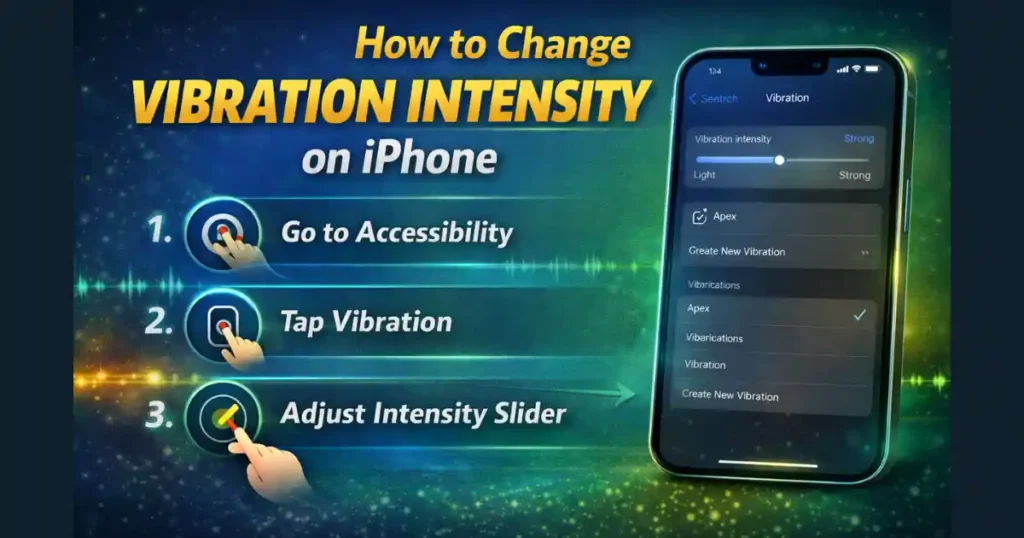
iPhones allow detailed vibration customization. Under Settings → Accessibility → Touch → Vibration, you can adjust the strength for alerts and system interactions. You can also create custom vibration patterns in the Ringtone menu. Apple uses a Taptic Engine, which delivers some of the smoothest haptics in smartphones today.
FAQs: How to Enable Vibration Haptics Control
1. Why does my Android phone vibrate too lightly even when intensity is high?
Some models reduce vibration strength to save battery, especially during battery saver mode or high temperature. Turn off power saving or let the device cool down.
2. Does vibration drain battery faster?
Yes, but only slightly. Stronger haptics use more energy, so lowering intensity helps extend battery life.
3. Why can I feel vibration during typing but not notifications?
Notification vibration may be disabled separately. Check Sound & vibration → Notification vibration.
4. Can I improve vibration strength using apps?
Apps cannot increase hardware power, but they can test the motor. Only system settings affect actual vibration strength.
5. Do all Android devices support adaptive vibration?
No. It’s mostly available on newer Pixel, Samsung, and premium models.
Disclaimer: This article is based on general Android behavior and brand-specific implementations. Actual menu names, options, and features may vary depending on device model, region, and Android version.
Also Read: How to Enable Notification Flash Alerts on Android Without Third-Party Apps

Raj Prajapati is a skilled content writer dedicated to creating clear, step-by-step guides on technology, Health, and everyday solutions. With a focus on user-friendly and SEO-optimized content, he simplifies complex topics, helping readers learn and solve problems effortlessly.