
Running out of storage in Windows is a familiar problem. The PC starts slowing down, apps take longer to launch, files crash while saving, and updates fail because there isn’t enough space. The good news is that modern versions of Windows come with several built-in tools that make cleaning storage easier than ever. These options don’t require extra software, and they’re safe for beginners when used correctly.
This guide explains how to free up disk space on Windows using built-in tools like Disk Cleanup, Storage Sense, Cleanup Recommendations, and manual maintenance settings. Each section adds context, explains why the feature matters, and clarifies what users should delete or avoid touching. The goal is to help you recover storage, improve performance, and keep Windows running smoothly.
By the end of this article, you’ll have multiple cleanup strategies, from quick fixes to deeper optimizations. You’ll also see long-term settings that prevent the disk from filling up again.
Also Read: How to Reset App Preferences on Android: Full Guide, Benefits, and Steps
Why Windows Devices Lose Storage Over Time
Most users don’t realize how much background data Windows stores. It’s not just personal files or installed programs. Windows constantly generates logs, caches, update leftovers, thumbnails, browser data, and recovery files that silently pile up in the system drive. Over weeks or months, this can consume several gigabytes.
Common reasons storage disappears:
- Temporary data from Windows updates
- Cached browser and application data
- Old installation files (Windows.old after updates)
- App leftovers from uninstalled programs
- Recycle Bin acting like a second storage container
- Hibernation and page files reserving space equal to RAM
- Cloud sync apps storing offline copies of files
- System restore points and hidden recovery partitions
Understanding where the data comes from is important because cleaning the wrong files (like system folders or program directories) can break apps or cause boot issues. That’s why this guide focuses only on safe, built-in options.
How to Free Up Disk Space on Windows: Using Built-In Tools
1. Disk Cleanup: The Classic Tool That Still Works

Disk Cleanup has been part of Windows since the earlier versions, and even though it’s a legacy tool, it remains a powerful storage cleaner. Most users only run the basic cleanup, but the real value comes from the advanced options.
How to Use Disk Cleanup
- Search for Disk Cleanup from the Start Menu
- Select the system drive (usually C:) and click OK
- Wait for the scan to finish
- Choose the file categories you want to delete
Important Categories Worth Cleaning
- Temporary Internet Files
- Temporary Files
- Windows Update Cleanup
- Downloaded Program Files
- Thumbnails
- Recycle Bin content
Advanced Cleanup (Clean Up System Files)
This step unlocks a deeper cleaning layer. After clicking Clean up system files, Windows scans protected update files and old installations. These often take up gigabytes of space.
What you can delete safely:
- Previous Windows installations (Windows.old)
- Windows upgrade log files
- System error memory dump files
- Delivery Optimization files
- Device driver packages
Disk Cleanup won’t remove personal files unless you select them manually. So it’s a safe option even for beginners.
2. Storage Sense: Automatic Storage Cleanup
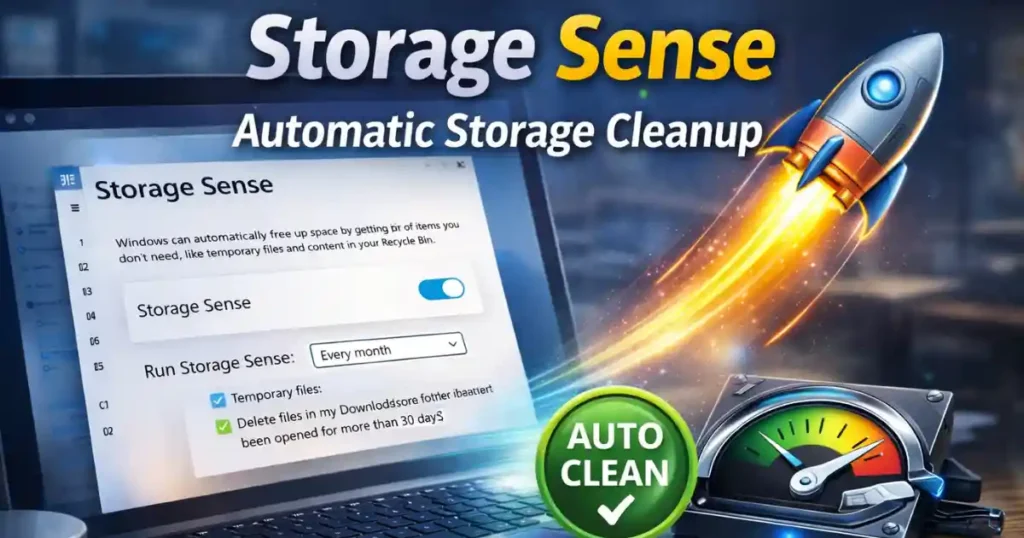
Storage Sense is Microsoft’s modern replacement for Disk Cleanup. While Disk Cleanup is manual, Storage Sense automates the entire process so you don’t have to remember to run cleanup tasks. If your storage fills up regularly, enabling Storage Sense is one of the best long-term solutions.
How to Enable Storage Sense
- Go to Settings
- Open System > Storage
- Toggle Storage Sense to ON
- Click on Storage Sense to configure how it works
What Storage Sense Can Delete Automatically
- Temporary files from apps
- System cache
- Old Windows update leftovers
- Recycle Bin files after X days
- Downloads older than 30+ days (optional)
You can schedule how often it runs:
- Every day
- Weekly
- Monthly
- When disk space is low
Storage Sense keeps Windows light and prevents storage emergencies in the future.
3. Cleanup Recommendations (Windows 11 Exclusive)

Windows 11 introduced a smart cleanup panel that recommends items based on usage patterns. It’s one of the safest cleanup tools because Microsoft highlights files that are no longer needed.
How to Use Cleanup Recommendations
- Open Settings
- Go to System > Storage
- Select Cleanup recommendations
Categories You’ll See
- Temporary files
- Large and unused files
- Apps not used recently
- Cloud-backed files that are safe to remove locally
This feature is ideal for people who are scared to delete the wrong thing. The system gives guidance before you click anything.
4. Uninstall Unused Apps and Bloatware

Programs that are no longer used can take gigabytes of storage and slow the computer. Windows now provides sorting options that show which programs are the heaviest.
Steps
- Go to Settings > Apps > Installed apps
- Sort by Size
- Remove apps that are unnecessary or outdated
Examples of apps safe to remove:
- Trialware or bundled manufacturer apps
- Old games no longer played
- Duplicate or outdated editing tools
- Unused screen recorders, utilities, or installers
Avoid removing:
- Drivers
- Microsoft Visual C++ Redistributables
- System tools you don’t recognize
- GPU control panels (NVIDIA, AMD, Intel)
5. Empty the Recycle Bin

Many people assume that deleting a file removes it permanently. But for most Windows users, deleted files simply move into the Recycle Bin. They continue taking up disk space until manually cleared.
Quick Cleanup
Right-click Recycle Bin > Empty Recycle Bin
If you want automatic cleanup:
- Enable Storage Sense auto-delete after 30 days
6. Optimize Drives (HDD Defrag / SSD Trim)

This tool doesn’t directly delete files, but it improves system performance by restructuring the way data is stored.
- On HDDs: It defragments files for faster load times and smoother performance.
- On SSDs: It performs a TRIM command, helping the drive manage free space internally and prolonging lifespan.
How to Use
- Search Defragment and Optimize Drives
- Select your drive
- Click Optimize
Also Read: How to Improve Android Battery Life Using Built-in Settings: 5 Proven Ways
Advanced Methods for Extra Space
Disable Hibernation
If you don’t use hibernation mode, turning it off can free up storage equal to your RAM size. On an 8 GB system, this means recovering 8 GB instantly.
Run this command in an Administrator Command Prompt:
powercfg /hibernate off
WinSxS Cleanup
The WinSxS folder stores system update backup files. It can grow to tens of gigabytes.
Run this command in PowerShell (Admin):
DISM /Online /Cleanup-Image /StartComponentCleanup
OneDrive Files On-Demand
Instead of storing every cloud file locally, Windows keeps them online while still visible as icons. Files download only when opened.
Steps:
- Right-click OneDrive icon
- Open Settings
- Enable Files On-Demand
This instantly frees up offline space.
Manual Storage Management Tips

- Change download location to another drive
- Move large files to an external HDD or SSD
- Store videos and photos in cloud services
- Back up old data to Google Drive or OneDrive
- Move installed apps to another drive if supported
How to Free Up Disk Space on Windows: Quick Checklist
| Task | Space Saved |
|---|---|
| Disk Cleanup | 2-10 GB |
| Clean Up System Files | 5-20 GB |
| Remove Old Windows Installations | 10-30 GB |
| Disable Hibernation | Equal to RAM (4-16 GB) |
| OneDrive Files On-Demand | Variable |
| Delete unused apps | 2-20 GB |
When Should You Consider Upgrading Storage?
If cleanup isn’t solving the issue, consider upgrading:
- Add a secondary HDD for media files
- Replace HDD with SSD for faster performance
- Use an external SSD as expandable storage
FAQs: How to Free Up Disk Space on Windows
1. What is the fastest method to free space in Windows?
Running Disk Cleanup with “Clean up system files” and removing the Windows.old folder often recovers the most space quickly.
2. Is it safe to delete Windows.old?
Yes. It only contains leftover installation files from system updates. Once you’re sure everything works, it can be deleted.
3. Should I disable hibernation?
If you never use the hibernate feature, turning it off is safe and recovers significant space.
4. Why does storage fill up automatically?
Background files, caches, and updates keep adding data over time. Tools like Storage Sense prevent this.
5. Can I clean system files without affecting performance?
Yes, as long as you stick to built-in cleanup tools rather than deleting random folders manually.
Disclaimer: This article is informational and based on general system behavior. Settings and features may differ depending on your Windows version. Always check what you are deleting before confirming.
Also Read: How to Create and Share a Google Form: Step-by-Step Guide

Raj Prajapati is a skilled content writer dedicated to creating clear, step-by-step guides on technology, Health, and everyday solutions. With a focus on user-friendly and SEO-optimized content, he simplifies complex topics, helping readers learn and solve problems effortlessly.