
How to Free Up Space in Google Drive: If you’ve been using Google Drive, Gmail, and Google Photos for a few years, there’s a good chance you’ve seen that dreaded warning:
“You’re running out of storage space.”
By default, Google gives you 15GB of free storage, shared across all three services. Some users also have a bit extra from old promo offers or security checkup bonuses—but sooner or later, that space starts to fill up.
The tricky part?
You don’t always know what is eating your storage. Maybe it’s a pile of old videos in Drive, years of unread email in Gmail, or thousands of photos auto-backed-up from your phone.
In this guide, we’ll walk through (How to Free Up Space in Google Drive) practical, step-by-step methods to:
- Identify what’s using your storage
- Clean up Google Drive, Gmail, and Google Photos
- Use automatic tools like Google One’s Storage Manager
- Avoid losing important files and memories
- Decide whether you really need a paid Google One plan
This won’t just be a quick “delete some files” tutorial. You’ll learn how to think about storage management, so you can keep your account clean for years.
Also Read: How to Use Google Drive for Backup and File Sharing- Step by Step Guide
Understanding Google’s Shared Storage System
Before you start deleting stuff, it helps to know how Google’s shared storage works.
Your free or paid storage is shared between:
- Google Drive – files, folders, PDFs, zips, images, videos, backups
- Gmail – emails and attachments (including items in Spam and Trash)
- Google Photos – photos and videos stored in certain quality modes
A single storage bar (visible in Google One or at the bottom of Gmail/Drive/Photos) shows how much of your total space is used.
For example:
- Total storage: 15GB
- Current usage: 12.6GB (84%)
- Free space: 2.4GB
If you don’t manage it, that 84% can quietly turn into 100%—and then:
- New emails may bounce
- File uploads to Drive may fail
- Photos might stop backing up from your phone
So the goal isn’t just to react when storage is full; it’s to proactively clean up the biggest space hogs.
Step 1: Check Your Storage Overview in Google One
Instead of guessing what’s taking up space, start with a big-picture view.
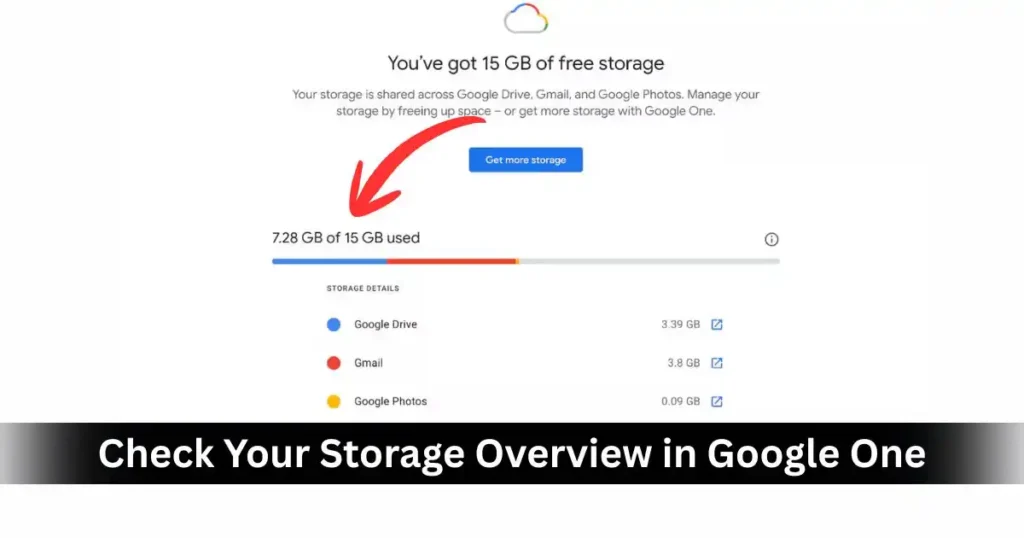
- Go to Google One (one.google.com) and sign in.
- On the home or storage section, you’ll see a breakdown like:
- Google Drive – e.g., 9GB
- Gmail – e.g., 1.3GB
- Google Photos – e.g., 5GB
This tells you exactly where to focus first.
- If Drive takes most space → Start with Drive
- If Photos is huge → Start with Photos
- If Gmail is more than expected → Clean up emails and attachments
Think of this as your storage dashboard—you’ll refer back to it after each cleanup step to see how much you’ve freed.
Step 2: Use Google One’s Storage Manager (The Easiest Shortcut)
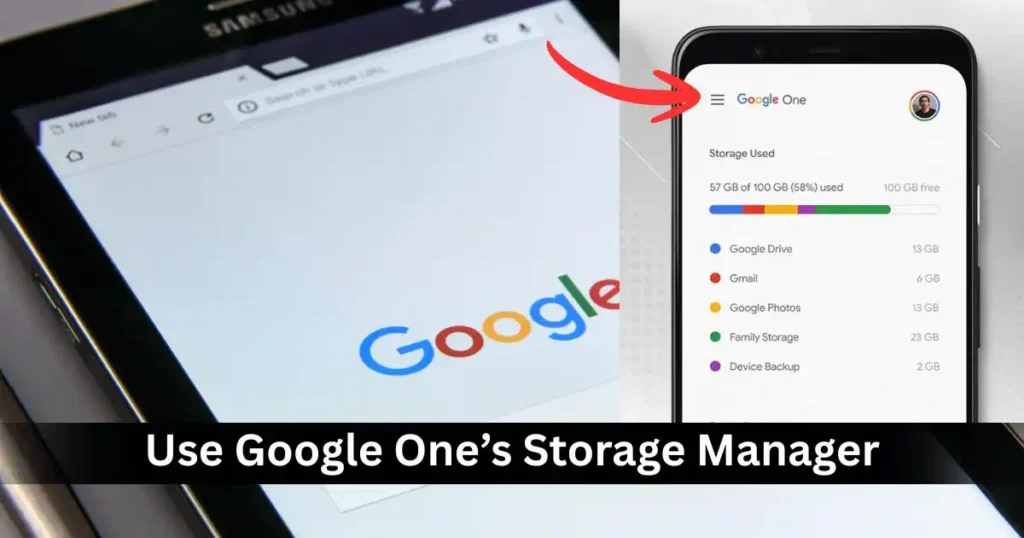
Google actually gives you a central tool to clean things up quickly: Google One Storage Manager.
This tool:
- Scans Drive, Gmail, and Photos
- Groups items into categories like:
- Large files
- Emails with large attachments
- Deleted items in Trash
- Spam mail
- Old backups
- Lets you review and delete them from a single interface
How to Use Google One Storage Manager
- Open Google One.
- Click on Storage and then “Free up account storage” or similar option.
- You’ll see categories like:
- Large items in Drive
- Large photos and videos
- Emails with large attachments
- Spam and Trash
- Go through each category:
- Select files that are clearly unnecessary.
- Review carefully before deleting sensitive documents or memories.
- Confirm deletion.
This is the fastest way to clear big chunks of space without hunting manually. However, it’s still worth doing a deeper manual cleanup for long-term control.
Step 3: Manually Free Up Space in Google Drive
For many users, Google Drive is the biggest storage consumer—especially if you’ve ever uploaded videos, raw photos, or big project files.
We’ll attack Drive in three ways:
- Delete large files
- Delete unneeded folders and projects
- Empty the Trash (very important)
Find and Remove Large Files in Google Drive
Most large files are the low-hanging fruit: a few huge items you don’t need anymore can free up gigabytes.
Steps:
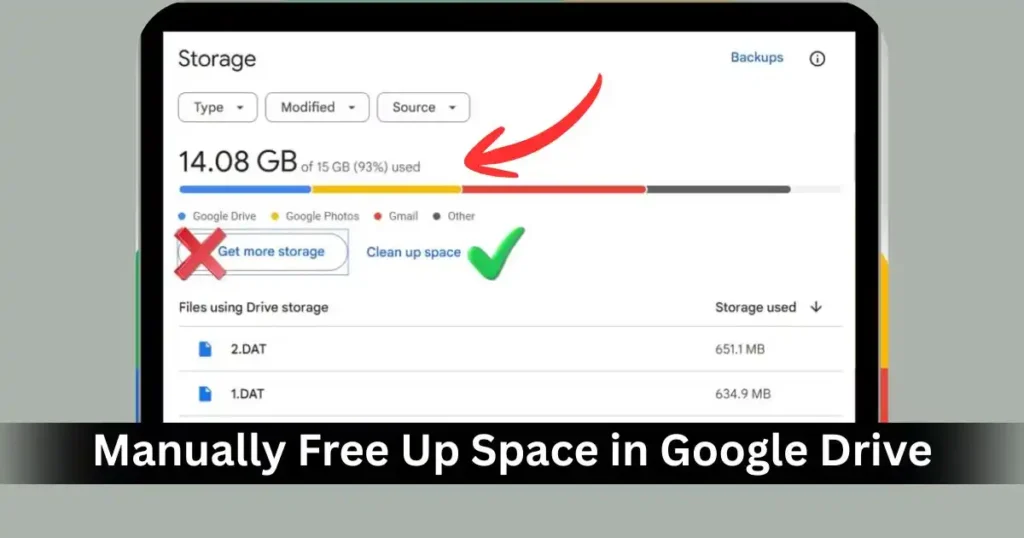
- Open Google Drive in your browser.
- Go to the Storage section (or use the storage quota view).
- Sort by “Storage used” so largest files appear on top.
You may see:
- Old video files (MP4, MOV, MKV)
- 3D renders or design files (.psd, .ai, .zip)
- Old backups or exported archives
Now:
- Right-click on a file you don’t need.
- Choose “Remove” (or “Move to Trash”).
Repeat this for all big files you’re sure you no longer need.
Tip: Be extra careful with shared work documents or business files. If in doubt, back them up to an external drive before deleting.
Get a Deeper View of What’s Using Space (Advanced Users)
If you use Google Drive Desktop and sync to your PC/Mac, you can analyze your local Drive folder with disk analysis tools, for example:
- WinDirStat (Windows)
- Disk Inventory X / GrandPerspective (macOS)
These tools show:
- Which folders and subfolders use the most space
- Which file types are heaviest (e.g., videos vs. images vs. archives)
- A visual map of file sizes—bigger blocks = bigger files
This is especially useful if:
- You’re a designer, developer, or creator with complex folder structures
- You’ve used Drive as a dumping ground for projects over many years
- You want to identify entire folders that can be archived or deleted
Once you find heavy folders locally:
- Delete them from your Drive folder
- Let the changes sync to the cloud
- Remember to empty Google Drive Trash afterward (more on that next)
Empty the Google Drive Trash (Critical Step)
Here’s the part many people miss:
Files you delete in Google Drive stay in the Trash indefinitely.
They continue to count toward your storage until permanently removed.
So you might think:
“I deleted a 500MB video years ago, why is my storage still full?”
Answer: It’s likely sitting in the Trash, quietly taking up space.
How to Empty Drive Trash:
- Open Google Drive.
- In the left sidebar, click Trash (or Bin, depending on your region).
- At the top, click “Empty Trash” / “Empty bin”.
- Confirm the action.
If your account is old, and you’ve been casually deleting files for years, this step alone can free several gigabytes.
Note: If there are thousands of files, it may look like nothing is happening, but the system is processing deletions in the background. You can keep checking storage in Google One to see the number slowly drop.
Also Read: How to Clear Cache on Android Phone: Easy Step-by-Step Guide
Step 4: Free Up Space in Gmail
Gmail often quietly builds up thousands of old messages, many with attachments you no longer need.
While each email is small, the total can become significant—especially attachments.
We’ll clean up Gmail by:
- Finding and deleting large emails
- Cleaning massive notification/junk categories
- Emptying Spam and Trash
Find Large Emails with Attachments
Gmail’s search operators are powerful and perfect for this.
In the Gmail search bar, type:
has:attachment larger:10M
This will show emails with attachments larger than 10MB. If you want to be stricter, try:
has:attachment larger:20M
Now:
- Select the emails you no longer need.
- Click the trash icon to delete them.
- Repeat with adjusted sizes if necessary.
You will often find:
- Old presentations sent back and forth
- Big PDFs you downloaded long ago
- Video or audio attachments
- Large zip files or archives
If any attachment is important but you don’t want it in Gmail, you can:
- Download and store it locally
- Upload it to another backup service
- Then remove the email to free space
Clean Social, Promotions, Updates, and Forums Tabs
Over time, Gmail can accumulate:
- Promotional emails from brands
- Social network notifications
- App updates and system alerts
- Forum digests and newsletters
Individually, these are tiny. In bulk, they become a huge pile of noise.
If you’re using Gmail’s category tabs:
- Social
- Promotions
- Updates
- Forums
You can clean them in bulk.
Steps:
- Click one of the category tabs (e.g., Promotions).
- At the top, click the checkbox to select all visible emails.
- You’ll see a message like:
“Select all X conversations in Promotions” – click that. - Click the Trash icon.
Repeat for the other categories you don’t care to archive.
This won’t usually clear gigabytes, but it can drastically reduce clutter and free some space.
Caution: Don’t blindly do this in the Primary tab—there may be important messages there.
Empty Spam and Trash in Gmail
Like Drive, Gmail doesn’t immediately remove deleted emails from your storage:
- Emails in Trash are auto-deleted after 30 days, but until then, they count toward storage.
- Emails in Spam also count.
You can clean them instantly.
How to Empty Trash:
- In Gmail’s left sidebar, scroll and click More if needed.
- Click Trash.
- At the top, click “Empty Trash now”.
- Confirm.
How to Empty Spam:
- Click Spam in the left sidebar.
- Click “Delete all spam messages now” if available.
After this, your Gmail storage usage will typically drop noticeably, especially if you’ve been using Gmail for many years.
Step 5: Optimize and Clean Google Photos
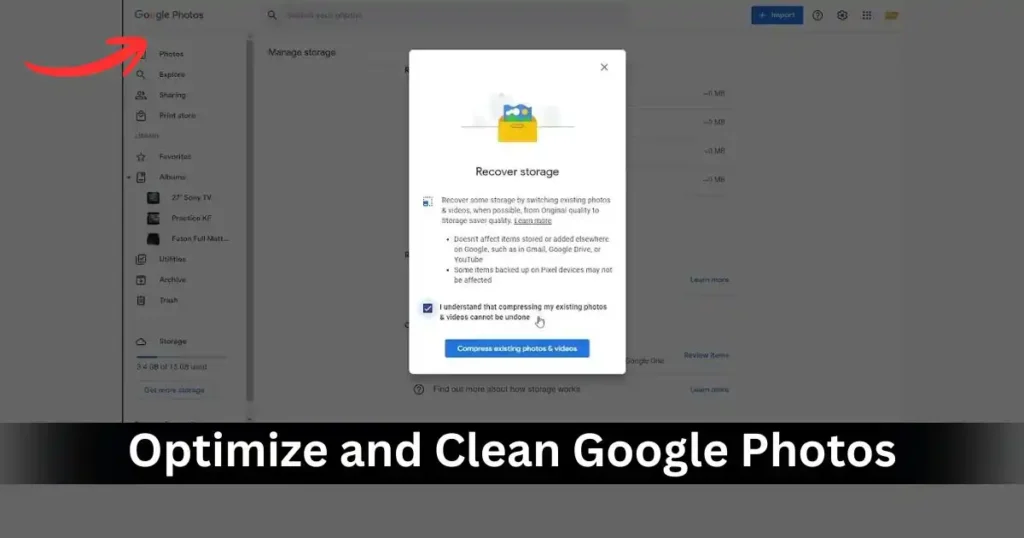
Google Photos can quietly become a major space hog, especially if:
- You take lots of photos and videos
- You’ve been backing up in Original quality
- You’ve never reviewed old media
Depending on your settings, photos and videos may or may not count toward your storage.
Understand Which Photos Count Toward Storage
As a general rule:
- Original quality photos and videos → Always count against storage.
- Storage saver / High quality (compressed) photos and videos:
- Older policy allowed unlimited “High quality” without counting.
- For newer uploads, many now do count once a certain policy date passed (varies by account and Google’s changes).
Bottom line: If you’re backing up everything in Original quality, space will vanish quickly.
Review and Delete Large Photos and Videos
Google provides tools in Google Photos and via Google One Storage Manager to find large items.
You can:
- Open Google Photos → go to Settings or Manage storage.
- Review large photos and videos, like:
- 4K videos
- Long-duration clips
- Burst shots and duplicates
- Screenshots and random downloads
Delete anything that doesn’t matter:
- Accidental videos
- Multiple takes of the same scene
- Old random downloads (WhatsApp statuses, memes, etc.)
Remember: After deleting from Photos, you still need to empty the Photos Trash to free space right away.
Change Backup Quality to Storage Saver (Optional but Powerful)
If you’re okay with slightly compressed photos, switching to a more efficient backup mode can save tons of space going forward.
Steps:
- Open Google Photos.
- Click on Settings (gear icon).
- Look for Backup quality / Upload size.
- Change from Original to Storage saver (or similar term in your region).
This setting:
- Compresses photos to a lower but still decent resolution
- Compresses videos to save space
- Reduces the size of future uploads so they consume less storage
For most users, especially casual photographers, Storage saver quality is more than enough for:
- Social sharing
- Mobile viewing
- Basic prints
If you’re a professional photographer or want full-resolution archives, you might prefer Original quality, but then you should plan on buying more storage.
Empty Trash in Google Photos
Just like Drive and Gmail, Google Photos also has a Trash (or Bin) where deleted items live temporarily.
- Items in Photos Trash are usually auto-deleted after 60 days,
but until then, they still take up space.
To force immediate cleanup:
- Open Google Photos.
- In the sidebar, click Trash / Bin.
- Click “Empty Trash”.
- Confirm.
This finalizes deletion and frees storage.
Step 6: Wait for Storage to Recalculate
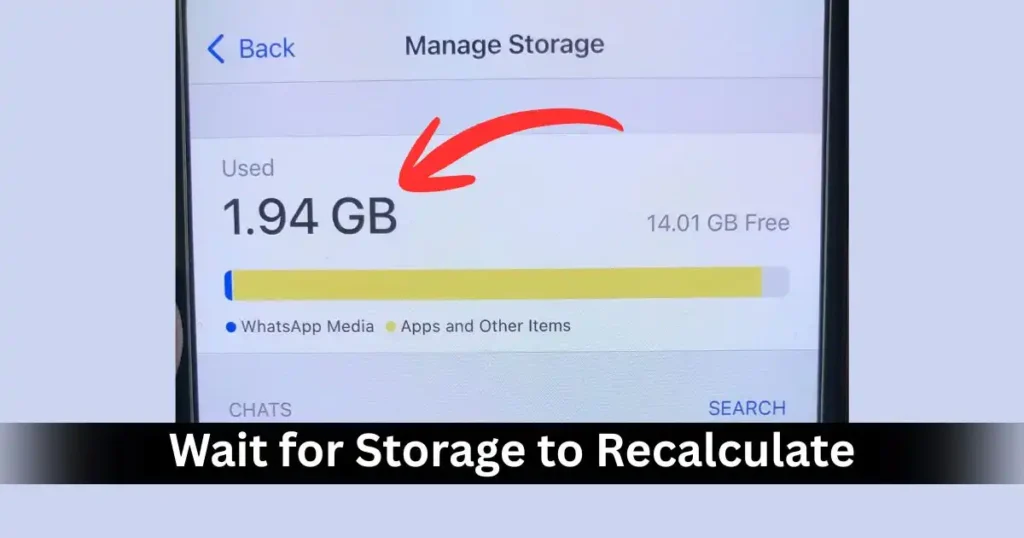
After a major cleanup—especially when deleting thousands of files—Google’s systems need some time to catch up.
- It can take up to 24–72 hours for your total available storage to refresh across all services.
So don’t panic if:
- You emptied Drive Trash, cleaned Gmail, and removed Photos…
- But the storage bar still looks almost full.
Check back later in Google One or Gmail/Drive/Photos, and you should see the numbers adjust.
Step 7: When to Consider a Paid Google One Plan
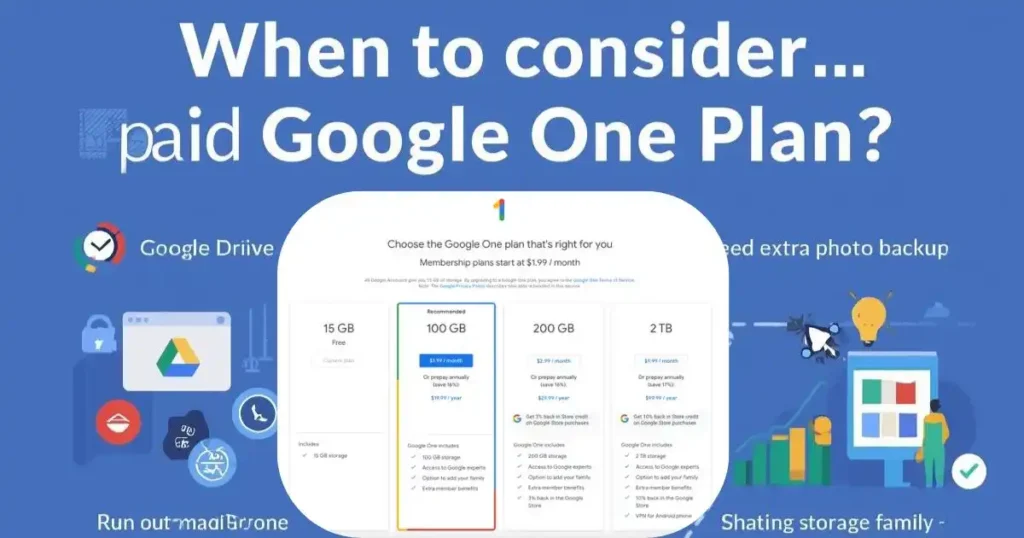
Sometimes, no matter how much you clean, your usage pattern simply requires more space:
- You store lots of high-res photos or videos
- You keep long-term backups and important documents
- You use Google heavily for work and collaboration
In that case, upgrading to a paid Google One plan may be more practical than constantly micromanaging storage.
Typical paid options include:
- 100GB
- 200GB
- 2TB
- And higher tiers (up to multiple TBs)
Advantages of upgrading:
- More space across Drive, Gmail, and Photos
- Family sharing options in many regions
- Extra features like extended support or VPN (depending on plan and region)
- Seamless integration with apps you already use daily
Compared to other providers:
- Some competitors like Dropbox focus heavily on large 2TB+ plans.
- Google’s plans are often competitively priced and work better if you’re already invested in the Google ecosystem (Android, Gmail, Photos, Docs, etc.).
The simplest rule:
If you’re regularly hitting 80–90% even after cleanup,
and your data is genuinely important → A paid plan is worth it.
Practical Example: From 84% Used to Just 6%
Let’s quickly visualize what systematic cleanup can do.
Imagine:
- Total storage: 19GB (15GB default + 4GB from past bonuses)
- Starting usage: 84%, around 16GB used
You follow these steps:
- Empty Drive Trash
- 6 years of “deleted” files (videos, assets, zips) are actually still there
- You permanently remove them → Free several GB
- Delete large and unused files in Drive
- Remove old projects, test exports, large archives
- Free another chunk of space
- Clean Gmail
- Remove large attachments via
has:attachment larger:20M - Delete thousands of social/promo/update emails
- Empty Spam and Trash
- Remove large attachments via
- Optimize Google Photos
- Switch backup mode to Storage saver
- Clean unnecessary videos and duplicates
- Empty Photos Trash
After everything recalculates:
- Used storage drops from 16GB (84%) to about 1.1GB (6%)
- Suddenly, you have years of breathing room again.
This is not an unrealistic scenario—especially if you’ve never cleaned your account before.
Best Practices to Keep Storage Under Control Long-Term
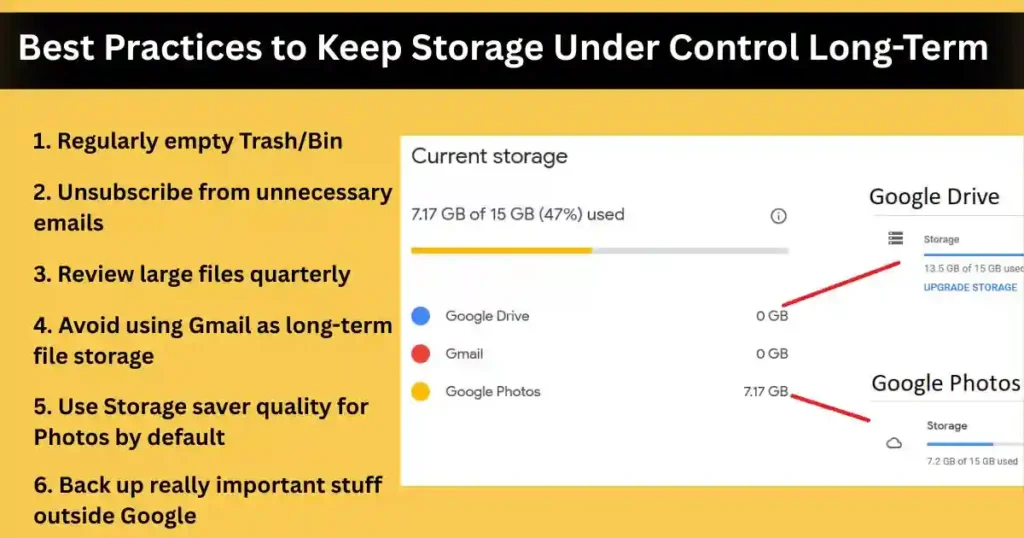
Once you’ve done the big cleanup, follow these habits to avoid hitting the limit again:
- Regularly empty Trash/Bin
– especially in Google Drive, which doesn’t auto-purge as aggressively as Gmail. - Unsubscribe from unnecessary emails
– rather than just deleting newsletters and promos, unsubscribe so fewer arrive. - Review large files quarterly
– once every few months, check Drive’s storage view and remove new large junk. - Avoid using Gmail as long-term file storage
– download important attachments and store them in Drive or on your local disk, then clear the emails. - Use Storage saver quality for Photos by default
– unless you truly need full resolution, this keeps growth manageable. - Back up really important stuff outside Google
– for photos or documents you absolutely can’t lose, also back up to an external drive or another cloud provider.
FAQs: How to Free Up Space in Google Drive
1. Why is my Google storage still full even after I deleted files?
Because deleted items are likely still in Trash/Bin:
Drive Trash
Gmail Trash + Spam
Google Photos Trash
In tino ko manually empty karo, aur storage update hone me thoda time lag sakta hai (up to 72 hours).
2. Do photos in Google Photos count toward my storage?
Haan, kaafi photos/videos storage use karte hain, especially:
Original quality uploads → always count
Storage saver/High quality → compressed, lekin naya data aksar count hota hai
Storage kam karne ke liye:
Storage saver mode use karo + unwanted photos/videos delete karo.
3. How do I find large emails in Gmail?
Gmail search bar me likho:
has:attachment larger:10M
Ya 20M etc.
Phir:
Unneeded mails select karo
Trash me bhejo
Trash folder empty karo taaki space free ho jaye.
4. If I delete files from Google Drive, will they also be deleted from my computer?
Agar Google Drive for desktop sync/mirror on hai, to cloud se delete karne par local copy bhi delete ho sakti hai.
Agar file sirf manually download karke alag folder me rakhi hai, to Drive se delete karne se local file nahi hategi.
Important cheezein pehle backup kar lena safe hai.
5. Should I clean storage or just buy more with Google One?
Pehle ek achha cleanup try karo:
Trash/Bin empty
Large files & attachments delete
Photos ko Storage saver pe daalo
Agar uske baad bhi bar-bar limit hit ho rahi hai, to Google One paid plan lena practical option hai.
Disclaimer: This article is based on general information and user experience with Google Drive, Gmail, Google Photos, and Google One. Google’s storage rules, features, and plans may change over time and can differ by region. Always check official Google documentation and your own account settings for the latest details before deleting data or buying storage.

Raj Prajapati is a skilled content writer dedicated to creating clear, step-by-step guides on technology, Health, and everyday solutions. With a focus on user-friendly and SEO-optimized content, he simplifies complex topics, helping readers learn and solve problems effortlessly.