Privacy has become one of the most important concerns for social media users today. With millions of Facebook accounts publicly visible by default, people increasingly want more control over what others can see about them. Whether you use Facebook for personal connections, professional networking, or staying updated with trends, protecting your personal information is essential.
This is why many users search for How to Lock Your Facebook Profile for More Privacy, a feature specifically designed to enhance control over who can view your activities, photos, posts, and personal details.
Profile Locking is one of Facebook’s strongest privacy features, giving you a simplified, one-tap method to restrict your content to friends only. While not available in all regions, it is widely used in countries like India, Pakistan, Bangladesh, Nepal, Egypt, Saudi Arabia, and several others. If the feature doesn’t appear on your account, Facebook also provides manual privacy settings that offer similar protection.
In this comprehensive guide, you will learn How to Lock Your Facebook Profile for More Privacy using different methods—through your profile page, through the Settings menu, on mobile apps, and on desktop browsers. You will also understand what changes Facebook applies once the profile is locked, alternative privacy adjustments you can use, and what to do if the option is missing from your account.
This extensive explanation ensures you fully understand Facebook’s privacy mechanisms, not just the steps but also the logic behind them, and how they enhance your overall digital safety.
Also Read: How to Use Pivot Tables in Excel: A Complete Step-by-Step Guide
Understanding the Purpose of Facebook Profile Locking
Before learning How to Lock Your Facebook Profile for More Privacy, it is important to understand what this feature actually does. Facebook introduced Profile Locking to give users a quick way to convert an open or partially private account into a heavily restricted one.
When your profile is locked:
- People who are not on your friends list cannot view your full-size profile picture or cover photo.
- Only friends can see posts, stories, photos, albums, and tagged content.
- Public posts automatically become friends-only.
- Your About info, such as hometown, education, and workplace, becomes restricted.
- Timeline and tagging vulnerabilities are reduced because outsiders cannot interact with your content.
- A lock symbol appears on your profile picture, indicating the privacy protection.
This feature is extremely useful for users who want more security without going through every privacy setting manually. Instead of changing dozens of settings individually, Facebook applies a consolidated privacy structure with one click.
How to Lock Your Facebook Profile for More Privacy
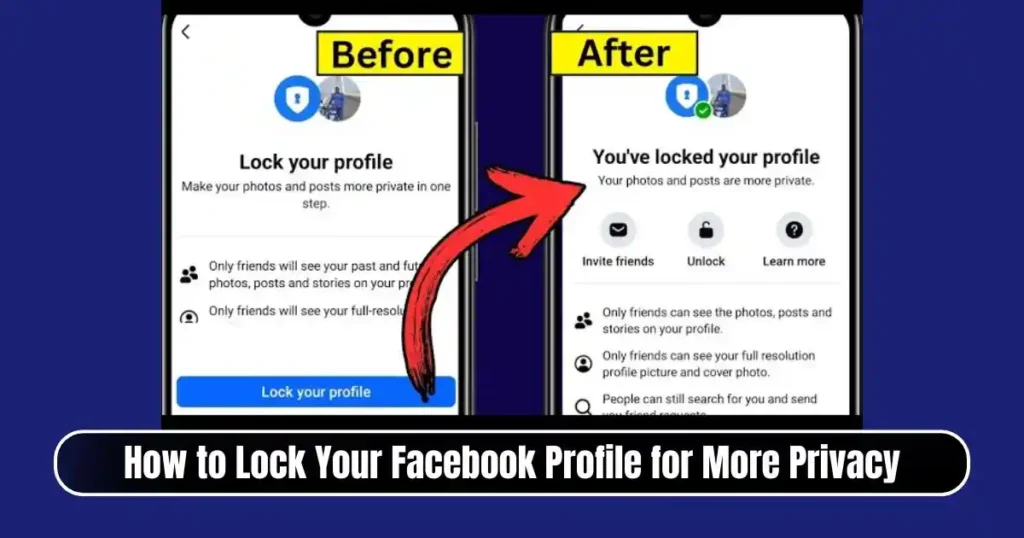
Facebook provides two primary methods for locking your profile:
- From your profile page directly (fastest method).
- Through the Settings menu (useful when the option doesn’t appear on the profile).
Both methods work on mobile and desktop platforms, although the interface looks slightly different.
Method 1: Lock Your Facebook Profile Directly from the Profile Page
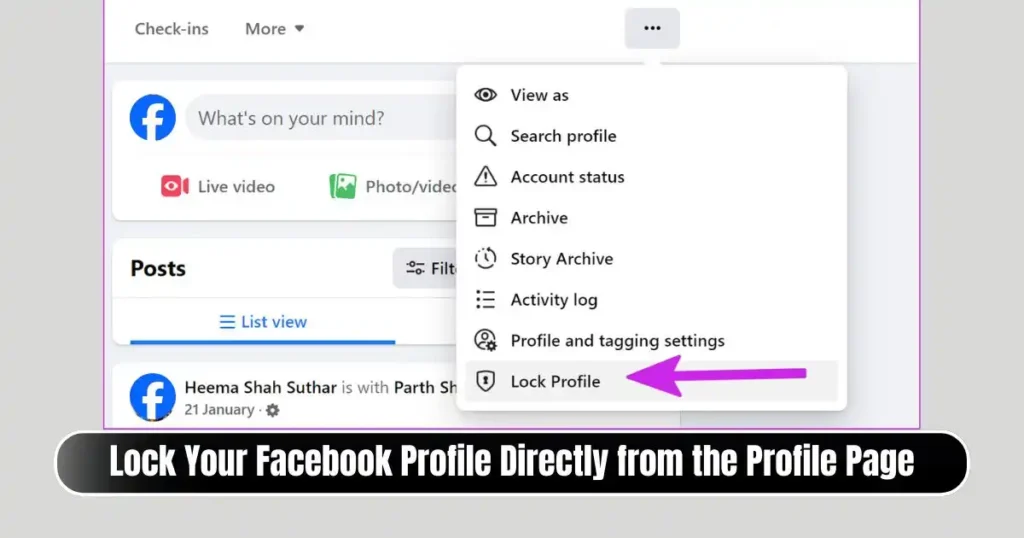
This is the most common method people use when learning How to Lock Your Facebook Profile for More Privacy. It is quick, accessible, and clearly visible to most users.
Locking Your Profile from the Facebook Mobile App (Android & iOS)
- Open the Facebook app and make sure you’re logged in.
- Tap your profile photo or your name to go to your profile page.
- Under your profile picture, locate the three-dot menu (More Options).
- Tap on Lock Profile from the menu.
- A detailed explanation screen appears describing what will change.
- Tap Lock Your Profile to confirm.
After locking, Facebook will show a confirmation message, and your profile picture will display a small lock icon.
Locking Your Profile on Facebook Desktop (Web Browser)
- Log in to Facebook.com and open your profile.
- Click the three dots under the “Edit Profile” button.
- From the dropdown menu, select Lock Profile.
- A pop-up appears describing the privacy changes.
- Click Lock Your Profile to finalize the settings.
The steps are almost identical to the mobile version, though the interface layout differs slightly.
Method 2: Lock Your Facebook Profile Through Settings

Sometimes users search for How to Lock Your Facebook Profile for More Privacy because the direct Lock Profile option is missing. It may not always appear due to regional limitations or Professional Mode being enabled. In such cases, Facebook allows profile privacy adjustments through the Settings menu.
Steps to Find the Profile Lock Option in Settings
- Open Facebook and tap the three-line menu (often at the top right on Android or bottom right on iOS).
- Scroll down and select Settings & Privacy.
- Tap Settings.
- Navigate to the Audience and visibility section.
- Tap Profile Locking.
- Tap Lock Your Profile and confirm.
This method is useful when Facebook hides the direct option or when updates temporarily modify the menu structure.
Why the Lock Profile Option Might Not Appear
Many users worry when they don’t see the feature and often wonder why How to Lock Your Facebook Profile for More Privacy is not as straightforward for them. There are several reasons behind this:
1. Regional Availability
Profile Locking is not available worldwide. If Facebook has not rolled out the feature in your country, you will not see it anywhere in your menus.
2. Professional Mode Enabled
If you enabled Professional Mode to earn money through Facebook Reels or insights-based features, Profile Locking may disappear. Professional Mode prioritizes public visibility, so locking your profile contradicts the intended functionality.
3. Older App Version
Outdated versions of the Facebook app may hide or remove certain privacy options.
4. Facebook Account Type or Restrictions
Some older accounts or test accounts may behave differently, and certain privacy features may not roll out equally.
If the option is unavailable, the next section explains how to secure your account manually.
Also Read: How to Set Up Auto HDR on Windows 11 for Gaming: Complete Step-by-Step Guide
Manual Privacy Settings: The Best Alternative to Profile Lock
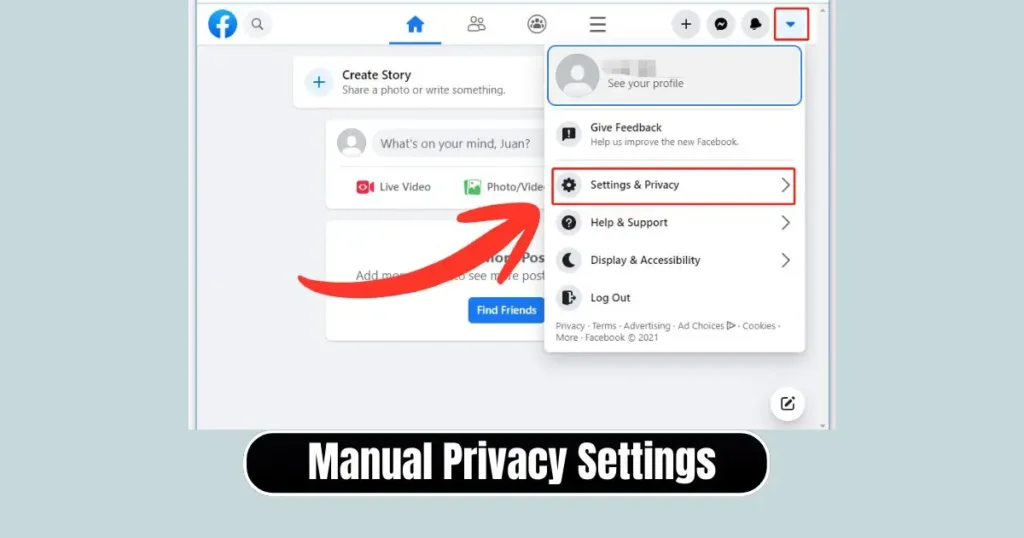
Even if the Lock Profile feature is missing, learning How to Lock Your Facebook Profile for More Privacy also means understanding how to manually replicate the effect. Facebook provides a wide range of settings that allow you to restrict your content almost completely.
A. Limit Past Posts
This option changes all your previous public posts to “Friends” in one click.
Steps:
- Go to Settings & Privacy > Settings.
- Open the Posts section under Audience and Visibility.
- Tap Limit who can see past posts.
- Confirm the action.
This ensures that no old content remains publicly visible.
B. Control Future Posts and Stories
Once you understand How to Lock Your Facebook Profile for More Privacy, you also need to set future privacy preferences.
- Set Who can see your future posts? to Friends.
- For stories, change the sharing audience to Friends or Custom.
C. Review Tags and Timeline Activity
People often tag you in posts, which can expose content unintentionally. To control this:
- Go to Profile and Tagging settings.
- Enable:
- Review posts you’re tagged in
- Review tags people add to your posts
This prevents unwanted posts from appearing on your timeline.
D. Lock Personal Information (“About” Section)
Your About info contains sensitive details. You can manually change the audience for each category:
- Hometown
- City
- Relationship status
- Work and education
- Contact details
Set each one to Friends or Only Me depending on preference.
E. Enable Profile Picture Guard (Region-Specific)
In some areas, Facebook allows users to turn on a Profile Picture Guard, which adds:
- A shield icon
- No download option
- Restricted sharing
This is a powerful protection for users who want complete control over their identity visibility.
What Happens After You Lock Your Profile?
Learning How to Lock Your Facebook Profile for More Privacy also means understanding what changes occur after enabling it.
- Only friends can view your full-size profile and cover photos.
- Only friends can see posts, stories, and albums.
- Non-friends see a very limited version of your profile.
- Timeline Review and Tag Review are automatically tightened.
- Your About information becomes restricted.
- Public posts become visible only to friends.
- Outsiders cannot zoom into your profile or cover photos.
This creates a secure boundary that prevents strangers from collecting your personal details.
Why You Should Consider Locking Your Facebook Profile

The internet has changed dramatically in the last decade, and so has online privacy. Before searching for How to Lock Your Facebook Profile for More Privacy, many people experience concerns such as:
- Receiving unknown friend requests
- Personal photos being misused
- Strangers viewing profile information
- Security threats from data scraping
- Fake accounts cloning your identity
Locking your profile reduces these risks drastically and protects your digital presence.
Practical Tips for Maximizing Facebook Privacy
Even after learning How to Lock Your Facebook Profile for More Privacy, consider these additional steps:
1. Avoid Accepting Unknown Friend Requests
Locked profile protects you, but accepting strangers reopens the risks.
2. Regularly Review App Permissions
Some apps connected to your Facebook account may access your information unnecessarily.
3. Turn Off Location Services
Many users forget that posts and photos might embed location metadata.
4. Avoid Public Comments on Sensitive Topics
Even with a locked profile, your comments on public posts remain public.
5. Use Strong Security Features
Such as:
- Two-factor authentication
- Login alerts
- Device monitoring
These are essential parts of Facebook safety.
Conclusion
Learning How to Lock Your Facebook Profile for More Privacy is essential in today’s digital environment where personal information can easily be misused. Whether you lock your profile directly through the profile menu, use the Settings method, or manually adjust privacy controls, the goal remains the same—protecting your identity and controlling who sees your content.
Facebook’s privacy system is flexible, giving you the power to manage everything from posts to tags, personal details, and profile visibility. Once you understand how each setting works, you can manage your account confidently, ensuring your online presence remains safe, private, and under your control.
FAQs on How to Lock Your Facebook Profile
1. Why don’t I see the Lock Profile option on my Facebook account?
The feature may not be available in your region, or you may have Professional Mode enabled, which temporarily hides the option.
2. Is locking my Facebook profile permanent?
No. You can unlock your profile anytime by revisiting the Profile Locking section.
3. Does locking the profile hide my old posts?
Yes. Most past posts become visible only to friends, but you can also limit them manually.
4. Can strangers still see my profile picture after locking the profile?
They can see a small version of it but cannot open or download it in high resolution.
5. Does profile locking affect my friend list visibility?
Not always. You can separately set your friend list to “Only Me” for complete privacy.
Disclaimer: This article is for informational purposes only. Facebook features vary by region and may change over time.
Also Read: How to Use Windows 11 Focus Sessions to Improve Productivity- Complete Guide

Raj Prajapati is a skilled content writer dedicated to creating clear, step-by-step guides on technology, Health, and everyday solutions. With a focus on user-friendly and SEO-optimized content, he simplifies complex topics, helping readers learn and solve problems effortlessly.