

If your Android phone suddenly stops connecting to Wi-Fi, mobile data behaves unpredictably, Bluetooth devices refuse to pair, or calls keep dropping without reason, chances are high that the issue is network-related, not hardware-related. In such situations, one of the most reliable and widely recommended fixes is How to Reset Network Settings on Android.
This solution is often misunderstood. Many users hesitate because they fear losing their SIM card, eSIM profile, phone number, or personal data. The good news is simple and reassuring: resetting network settings does not delete your SIM or eSIM data when done correctly. It only clears saved network configurations that may be causing conflicts.
This in-depth guide explains everything you need to know. We will break down what a network reset really does, why it works so well, how to perform it safely on different Android devices, and what to expect afterward. The goal is clarity, confidence, and zero data loss.
Also Read: How to Enable System Wide High Contrast Text on Android for Better Readability
What Does “Reset Network Settings” Actually Mean on Android?
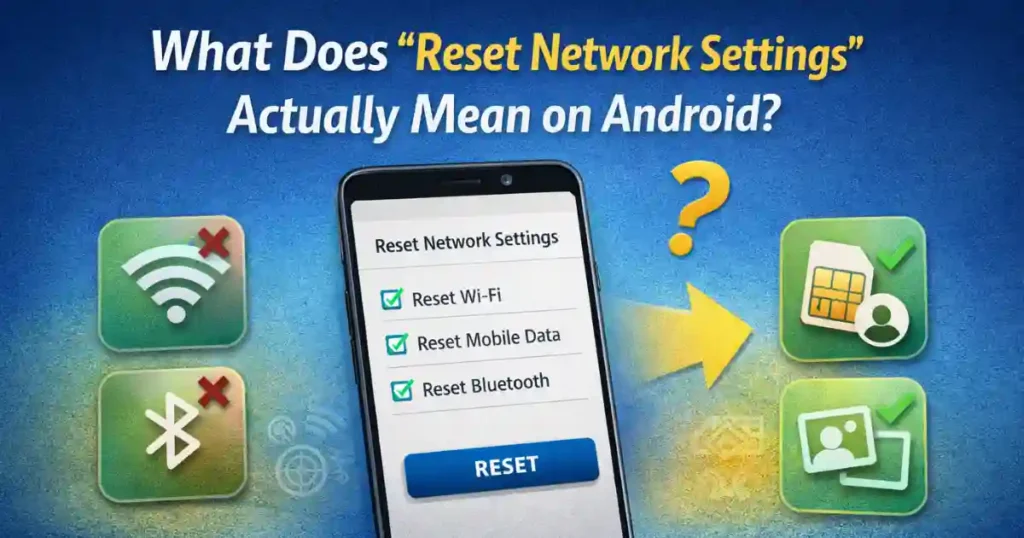
Before jumping into steps, it is important to understand what Android considers “network settings.”
Network settings are not your personal files or apps. They are configuration layers that control how your phone communicates with Wi-Fi routers, cellular towers, Bluetooth accessories, and VPN services. Over time, these settings can become cluttered, outdated, or corrupted.
When you perform How to Reset Network Settings on Android, the system wipes only those configuration layers and rebuilds them from scratch.
Network settings include:
- Saved Wi-Fi networks and passwords
- Bluetooth pairings and permissions
- Mobile data configurations
- APN (Access Point Name) settings
- VPN profiles
Network settings do not include:
- Your SIM card or eSIM profile
- Phone number or carrier plan
- Contacts, messages, photos, or apps
- Google account or device data
This distinction is critical. A network reset is not a factory reset. It is a targeted troubleshooting action designed to fix connectivity problems without touching your personal information.
Why Resetting Network Settings Fixes So Many Android Issues
Android phones interact with hundreds of network variables every day. Wi-Fi routers update firmware, carriers push new APN profiles, Bluetooth devices change protocols, and VPNs modify routing tables. Over time, conflicts can develop.
Resetting network settings works because it:
- Removes corrupted Wi-Fi profiles that block authentication
- Clears outdated APN settings after carrier updates
- Fixes Bluetooth pairing loops and handshake failures
- Resolves VPN conflicts that block internet access
- Rebuilds clean cellular configurations
Many connectivity issues look complex on the surface but are actually caused by simple configuration mismatches. That is why How to Reset Network Settings on Android is one of the first steps recommended by support teams and service centers worldwide.
When You Should Reset Network Settings on Android
You do not need to reset network settings every time your internet slows down. But there are clear signs when this step is appropriate.
Common situations where a network reset helps:
- Wi-Fi connects but shows “No Internet”
- Mobile data works inconsistently or not at all
- Calls drop despite strong signal strength
- Bluetooth headphones keep disconnecting
- Android Auto or car Bluetooth fails repeatedly
- VPN blocks all internet traffic
- Switching carriers causes data issues
If basic steps like toggling airplane mode or restarting your phone do not help, resetting network settings is the next logical move.
How to Reset Network Settings on Android (General Method)
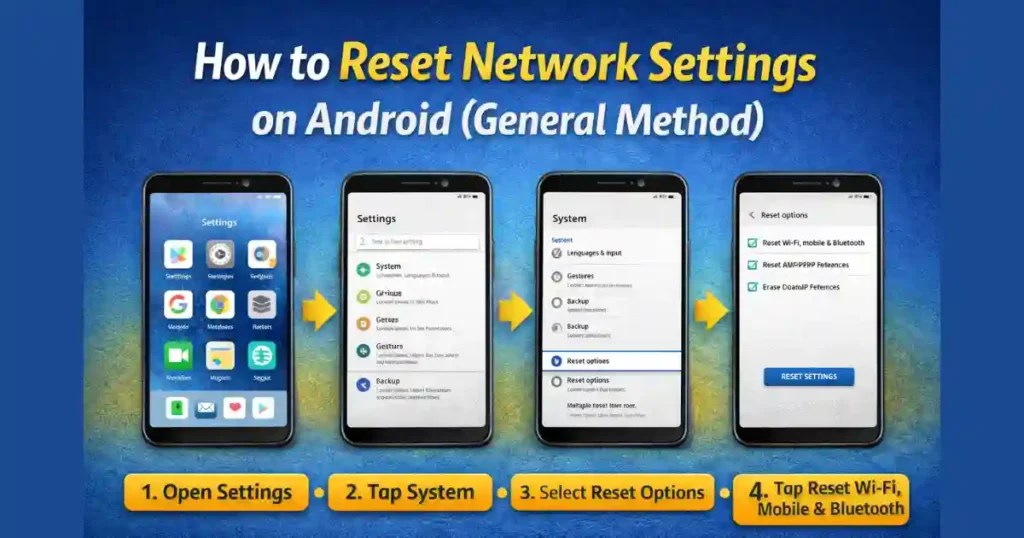
The exact wording may vary slightly depending on Android version, but the core process remains the same across stock Android devices such as Google Pixel, Motorola and similar brands.
Step-by-step instructions:
- Open the Settings app on your Android phone
- Scroll down and tap System
- Tap Reset options
- Select Reset Wi-Fi, mobile & Bluetooth
- Some devices may call this Reset mobile network settings
- Tap Reset settings
- Enter your PIN, password, or pattern to confirm
Your phone will take a few seconds to complete the reset. No reboot is usually required, but some devices may restart automatically.
Important safety check for eSIM users:
If you see an option labeled Erase eSIMs or Erase downloaded SIMs, make sure it is unchecked. This ensures your eSIM profile remains intact.
How to Reset Network Settings on Samsung Galaxy Phones
Samsung uses One UI, which organizes settings differently from stock Android. However, the process is still straightforward.
Samsung Galaxy steps:
- Open Settings
- Scroll down and tap General management
- Tap Reset
- Select Reset network settings
- If you use multiple SIMs, choose the SIM you want to reset
- Tap Reset settings to confirm
Samsung’s network reset option does not delete eSIM profiles. That functionality is reserved for Factory data reset, which is a completely different process.
What Gets Reset During a Network Settings Reset
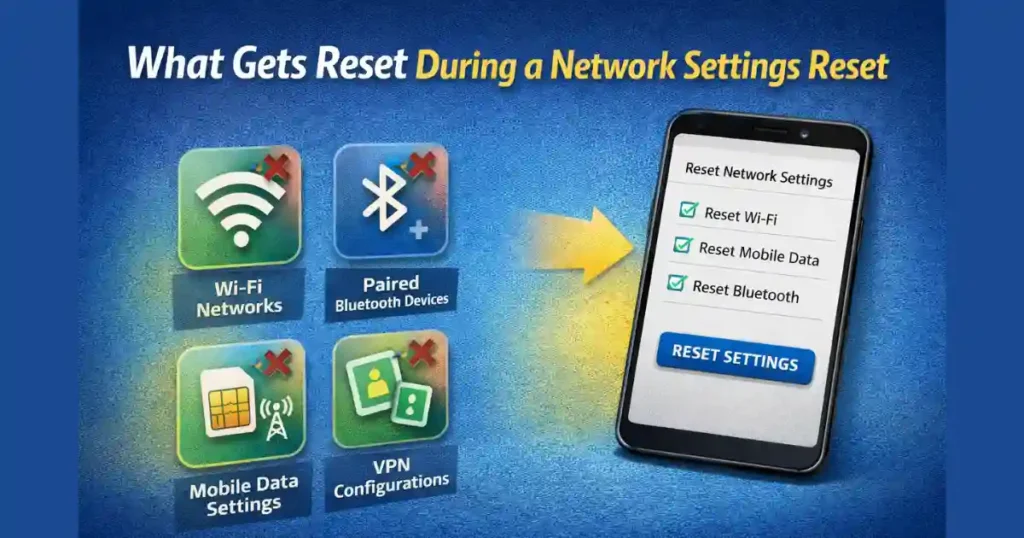
Understanding the impact beforehand helps you prepare and avoid surprises.
These items are removed:
- All saved Wi-Fi networks and passwords
- Bluetooth pairings with accessories
- Mobile data settings and APNs
- VPN profiles and configurations
These items remain untouched:
- Physical SIM card
- eSIM profile and carrier plan
- Phone number and network registration
- Contacts, messages, photos, and apps
This is why How to Reset Network Settings on Android is considered a safe troubleshooting step even for non-technical users.
What Happens After the Reset
Once the reset is complete, your Android phone behaves as if it is connecting to networks for the first time.
What you need to do next:
- Reconnect to Wi-Fi networks by entering passwords
- Re-pair Bluetooth devices like earbuds and car systems
- Reconfigure VPN apps if you use them
What happens automatically:
- Cellular signal reconnects within seconds
- Your SIM or eSIM plan remains active
- Calls, SMS, and mobile data resume normally
Most users notice immediate improvements in signal stability, internet speed consistency, and Bluetooth reliability after performing a network reset.
Reset Network Settings vs Factory Reset: Know the Difference
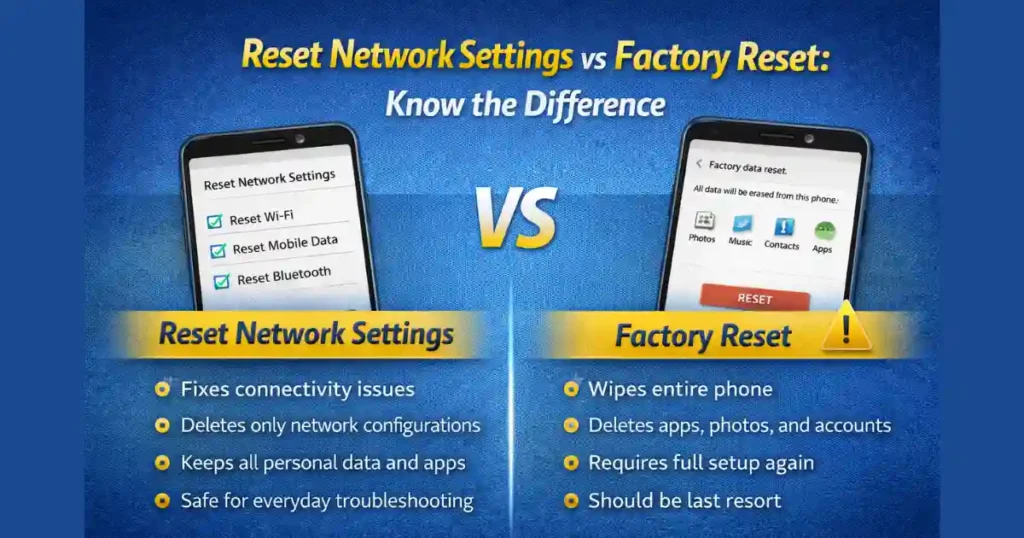
Many users confuse these two options, and that confusion can lead to unnecessary data loss.
Network reset:
- Fixes connectivity issues
- Deletes only network configurations
- Keeps all personal data and apps
- Safe for everyday troubleshooting
Factory reset:
- Wipes entire phone
- Deletes apps, photos, and accounts
- Requires full setup again
- Should be last resort
If your goal is to fix Wi-Fi, mobile data, or Bluetooth problems, How to Reset Network Settings on Android is almost always the better first choice.
eSIM Safety: What You Should Double-Check
eSIM users often worry more than necessary. Android handles eSIM profiles securely, but it is still wise to pay attention.
Best practices for eSIM users:
- Avoid factory reset unless absolutely required
- Read confirmation screens carefully
- Ensure “Erase eSIM” options are unchecked
- Keep carrier QR codes or activation details backed up
A standard network reset does not remove eSIM profiles on modern Android devices when done correctly.
Also Read: How to Use One Handed Mode on Android for Large Screen Phones
Common Myths About Resetting Network Settings
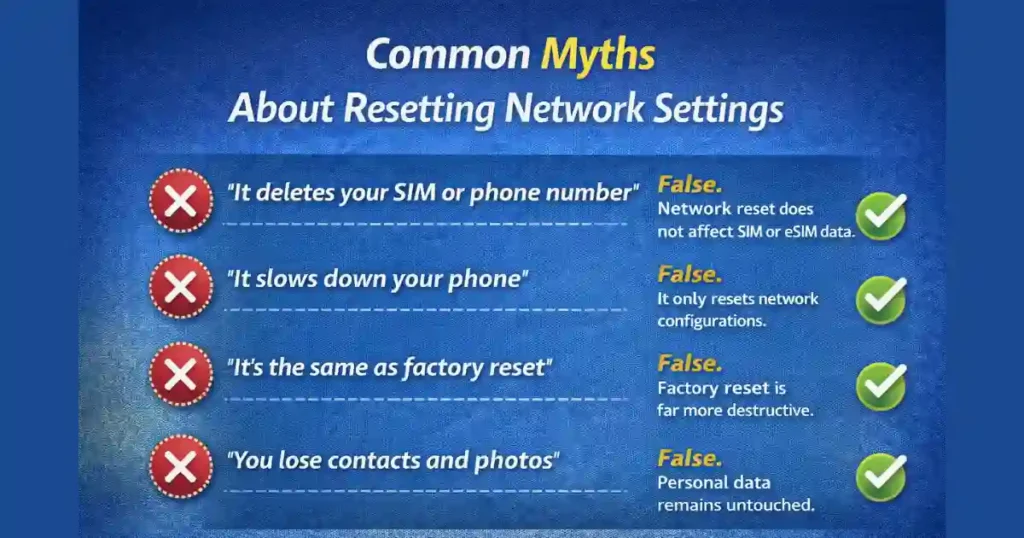
Myth 1: It deletes your SIM or phone number
False. Network reset does not affect SIM or eSIM data.
Myth 2: It slows down your phone
False. It only resets network configurations.
Myth 3: It is the same as factory reset
False. Factory reset is far more destructive.
Myth 4: You lose contacts and photos
False. Personal data remains untouched.
Clearing these myths helps users feel confident when performing this essential troubleshooting step.
Advanced Troubleshooting Tips After Network Reset
If issues persist even after resetting network settings, consider these steps:
- Update your Android system software
- Check carrier APN settings manually
- Remove and reinsert physical SIM
- Contact your carrier for network provisioning refresh
- Test SIM in another phone
In most cases, however, How to Reset Network Settings on Android alone resolves the problem.
FAQs
1. Will resetting network settings delete my eSIM?
No. A standard network reset keeps your eSIM profile intact as long as you do not select erase eSIM options.
2. Do I need to back up my phone before a network reset?
A backup is not required because personal data is not affected.
3. How often should I reset network settings on Android?
Only when you experience persistent network issues. It is not a routine maintenance step.
4. Does network reset improve internet speed?
It can improve stability and connectivity if outdated or corrupted settings were slowing things down.
5. Is reset network settings safe for dual SIM phones?
Yes. You may be asked to choose which SIM to reset, but neither SIM is deleted.
Final Thoughts
Understanding How to Reset Network Settings on Android gives you a powerful, safe tool to fix connectivity problems without panic or data loss. It is one of those rare fixes that is both simple and highly effective.
Instead of jumping straight to extreme measures like factory resets or service center visits, start here. In most cases, this single step restores stable Wi-Fi, reliable mobile data, and smooth Bluetooth performance within minutes.
Disclaimer: This article is for informational purposes only. Android menus and options may vary slightly by device model, Android version, and manufacturer. Always review on-screen prompts carefully before confirming any reset action.
Also Read: How to Create App Shortcuts on Android Home Screen for Quick Tasks

Raj Prajapati is a skilled content writer dedicated to creating clear, step-by-step guides on technology, Health, and everyday solutions. With a focus on user-friendly and SEO-optimized content, he simplifies complex topics, helping readers learn and solve problems effortlessly.