

Modern printers rely heavily on wireless connectivity. They sync with phones, laptops, smart home systems, and cloud services. This makes printing easier, but it also means one weak Wi-Fi signal or a small network glitch can bring everything to a halt. If your printer keeps disconnecting, refuses to stay online, or won’t show up during setup, the most reliable fix is a network reset.
In this comprehensive guide, you’ll learn How to Reset Printer Network Settings for major brands like HP, Epson, Canon, Brother, Lexmark, Zebra, and Ricoh. You’ll also understand how reset modes differ between touchscreen and button-only printers, what happens after a reset, how to reconnect Wi-Fi, and how to fix issues that show up afterward.
Whether you’re switching to a new router, troubleshooting a stubborn printer, solving configuration errors, or preparing a device for resale, this guide will take you through everything step-by-step.
Also Read: How to Enable Notification History on Android and Recover Missed Alerts (2026 Guide)
Why You May Need to Reset Printer Network Settings
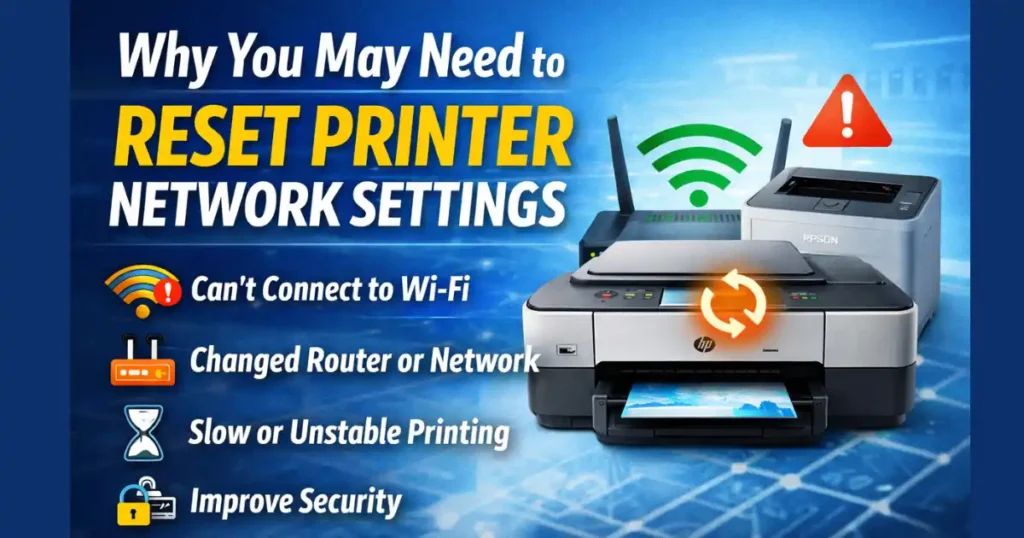
Before we get into the actual reset methods, it helps to understand why this fix works so well. Many users try reinstalling drivers or rebooting laptops, but printers store their own network details separately. When those details conflict with your current Wi-Fi setup, nothing connects properly.
Here are the most common reasons people look up How to Reset Printer Network Settings:
1. When the Printer Won’t Connect to Wi-Fi
A printer may refuse to join your wireless network if:
- The saved Wi-Fi password is old
- The router has changed security types (WPA2 → WPA3)
- Network names (SSIDs) were updated
- DHCP assigned conflicting IP addresses
Resetting network settings clears the old profile, giving the printer a fresh start.
2. When You Change Your Router or Internet Provider
Anytime you switch:
- Internet provider
- Router
- Wi-Fi name
- Wi-Fi password
The printer may continue searching for your old network. A reset allows the printer to forget the old credentials.
3. Fixing Slow, Unstable, or Delayed Printing
If print jobs hang in the queue or the printer randomly goes offline, this often signals:
- Weak wireless signal
- Printer holding outdated network cache
- Network timeouts between device and router
Resetting network settings clears corrupted Wi-Fi memory.
4. When You Want to Improve Security
If the printer is being sold, shared, or reset for office use:
- Clearing saved networks
- Removing old users
- Resetting access points
helps maintain security and privacy.
5. General Troubleshooting
Sometimes the cause is unclear. A network reset is one of the simplest, most effective fixes before you try advanced diagnostics.
What Exactly Happens When You Reset Printer Network Settings?
A network reset does not wipe the entire printer. It only clears:
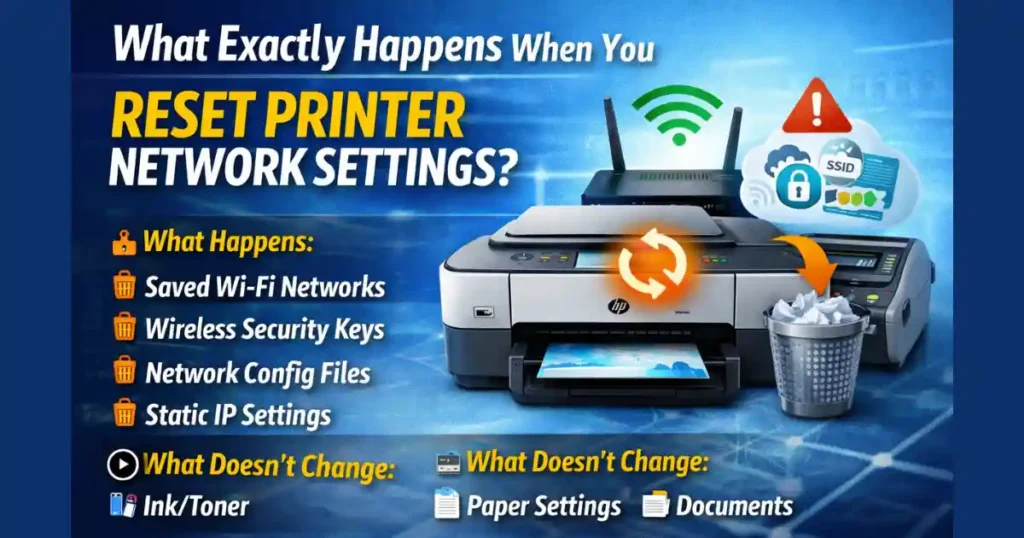
- Saved Wi-Fi networks
- Wireless security keys
- Network configuration files
- Static IP settings (if configured)
- Bluetooth pairing on some models
After the reset, printers automatically enter something called Setup Mode or Wi-Fi Setup Mode, which usually stays active for about two hours. During this mode, phones and computers can easily detect the printer and begin the new configuration.
What doesn’t change:
- Ink or toner levels
- Paper settings
- Language/region
- Installed drivers
- Queued documents
This makes the reset safe and non-destructive.
How to Reset Printer Network Settings (General Methods)

Different printers use different menu layouts and button combinations, but all fall into three broad categories:
1. Reset Using Printer Control Panel (Touchscreen Models)
If your printer has a touchscreen or LCD display, this is the easiest method. Works for most:
- HP OfficeJet
- HP LaserJet with display
- Canon PIXMA
- Epson EcoTank
- Brother touchscreen series
Steps (Touchscreen Printers):
- Turn on the printer and keep it close to your router.
- On the main interface, open Menu or Setup.
- Go to Network, Wireless, or Wi-Fi Settings.
- Look for Restore Network Settings, Reset Network Settings, or Restore Wireless Defaults.
- Confirm with Yes.
- The printer will restart or blink to indicate the reset is complete.
After this, reconnect to Wi-Fi using:
- Wireless Setup Wizard
- WPS push button
- Manufacturer’s mobile app
2. Reset Using Button Shortcut (Printers Without a Screen)
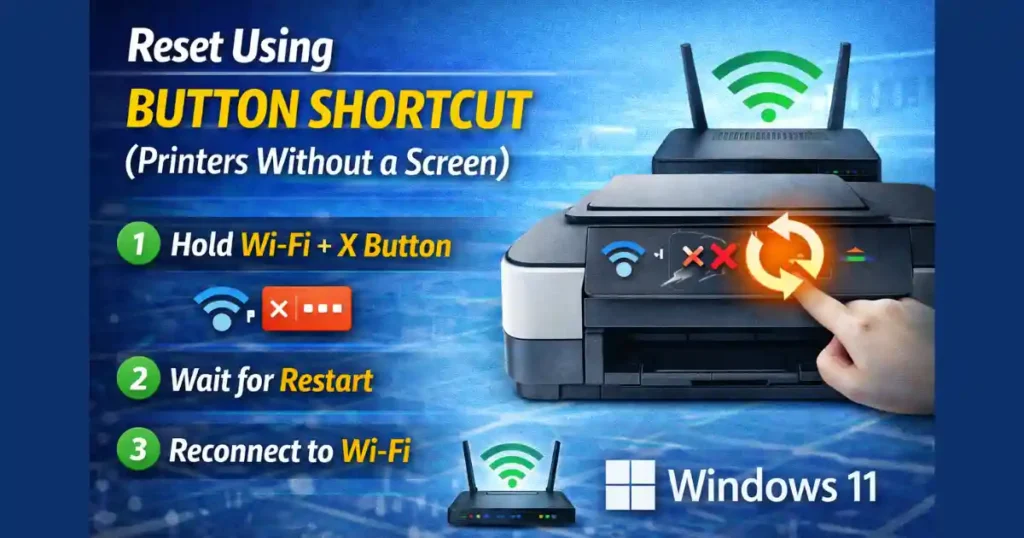
Many budget printers don’t include touchscreens, especially:
- HP DeskJet series
- HP Envy series
- Canon PIXMA entry models
- Epson EcoTank button-only versions
- Zebra label printers
These rely on button combinations the manufacturer builds into the hardware.
Common Button-Based Reset Methods
HP DeskJet / Envy (No Display)
- Hold Wireless + Cancel (X) together.
- Keep holding until the Power or Wireless light starts blinking.
- Release the buttons.
- Printer enters Wireless Setup Mode.
Epson EcoTank (Button-Only Models)
- Turn the printer off.
- Press and hold the Network Status button.
- While holding, press the Power button.
- Keep both pressed until the Wi-Fi lights flash.
- Release the buttons.
Canon PIXMA (Non-Touchscreen)
- Press and hold Resume/Cancel.
- Watch the power indicator closely.
- Release when it flashes 9 times.
This resets the wireless configuration.
Zebra (Label Printers)
- Turn the printer off.
- Press and hold Pause + Cancel.
- Turn on the printer while still holding them.
- Release when only the Status indicator remains on.
These shortcuts are built for quick resets when there’s no display.
3. Soft Reset / Power Cycle
If the issue is small, like temporary glitches or minor conflicts, a soft reset sometimes avoids the need for a full network reset.
Soft Reset Steps:
- Turn off the printer.
- Unplug the power cable.
- Wait exactly 60 seconds.
- Plug the cable back in.
- Turn on the device.
This clears temporary memory, though it won’t remove saved Wi-Fi credentials.
4. Full Factory Reset (If Network Reset Isn’t Enough)
A factory reset is the nuclear option. It clears:
- User settings
- Network profiles
- Fax settings
- Custom configurations
General Factory Reset Method:
- Power off the printer.
- Press and hold Pause + Cancel.
- Turn the printer on while holding both buttons.
- Release when the printer’s main LED stabilizes.
Different brands have their own factory reset combinations, but this general principle applies to most models.
Use factory reset only if:
- Network reset doesn’t fix the problem
- Printer behaves unpredictably
- You’re preparing the device for resale
Brand-Specific Guides: How to Reset Printer Network Settings

Now let’s go manufacturer by manufacturer. These steps reflect the most common settings layouts and button combinations for 2026 models.
1. HP Printers
HP printers remain some of the most common in homes and offices. HP also provides the easiest reset paths.
HP Touchscreen Models
- On the home screen, tap Wireless or Setup.
- Open Network Setup or Settings.
- Select Restore Network Settings.
- Confirm the reset.
HP DeskJet / Envy Without Screen
- Press and hold Wireless + Cancel.
- Release when the lights flash.
- The printer enters Wi-Fi setup mode.
HP LaserJet Without Display
- Press and hold the Wireless button.
- Wait until the Attention light blinks.
- Release to complete the reset.
Resetting Wi-Fi Password on HP Printers
HP printers don’t store passwords separately. When you reset the network settings, the saved Wi-Fi password is automatically cleared. You only need to reconnect using the new password.
Factory Reset for HP Printers
- Open Setup.
- Navigate to Printer Maintenance.
- Tap Restore Factory Defaults.
- Confirm.
This wipes all personalized settings.
Changing Wi-Fi on HP DeskJet 2700
Since the 2700 doesn’t have a screen:
- Hold Wireless + Cancel until the Power light blinks.
- Open the HP Smart App.
- Reconnect to your new Wi-Fi.
2. Canon Printers
Canon printers include clear reset options through both hardware buttons and software utilities.
Canon Touchscreen Models
- Open Setup (gear icon).
- Go to Device Settings.
- Select Reset Settings.
- Tap Reset All or Network Settings.
Canon PIXMA (Button-Only Models)
- Hold Resume/Cancel button.
- Release when the power lamp flashes 9 times.
Canon IJ Network Tool (Windows Utility)
If you prefer resetting through Windows:
- Install the Canon IJ Network Tool
- Connect the printer via USB
- Use the Initialize Network Settings option
This is helpful for complicated Wi-Fi setups.
3. Brother Printers
Brother printers have some of the most straightforward network reset paths.
Brother Touchscreen Models
- Tap Settings.
- Open All Settings.
- Go to Network.
- Tap Network Reset.
- Confirm.
Brother Standard Models
- Press Menu.
- Go to Initial Setup.
- Select Reset.
- Choose Network Reset.
- Press Yes.
After reboot, reconnect to Wi-Fi normally.
4. Epson Printers
Epson EcoTank and WorkForce printers use different steps depending on whether they include displays.
Epson Touchscreen Models
- Press Home.
- Open Setup.
- Select Restore Default Settings.
- Choose Network Settings.
Epson Button-Only Models
- Switch off the printer.
- Hold the Network Status button.
- Press the Power button while holding it.
- Release when lights flash alternately.
Epson uses this shortcut across many popular budget printers.
Other Major Printer Brands
Zebra Printers
- Turn printer off.
- Hold Pause + Cancel.
- Turn printer on.
- Release when only the Status indicator stays on.
Lexmark
- Navigate to Menu.
- Open Utilities or Settings.
- Select Factory Defaults.
- Tap Restore.
Ricoh
- Hold ./* and # keys for ten seconds.
- Release when the printer restarts.
How to Reset Printer Network Settings Through Windows 11

If your printer connects indirectly through your PC’s network, the issue may be coming from your computer, not the printer.
Windows 11 Network Reset
- Open Settings.
- Select Network & Internet.
- Scroll down to Advanced Network Settings.
- Click Network Reset.
- Restart your PC.
After restart, add the printer again using:
- Wi-Fi
- USB
- IP address
This solves conflicts with drivers, firewall settings, and old network profiles.
Also Read: How to Use Nearby Share to Send Files to Windows Without Installing Extra Apps
Reconnecting Your Printer After a Network Reset
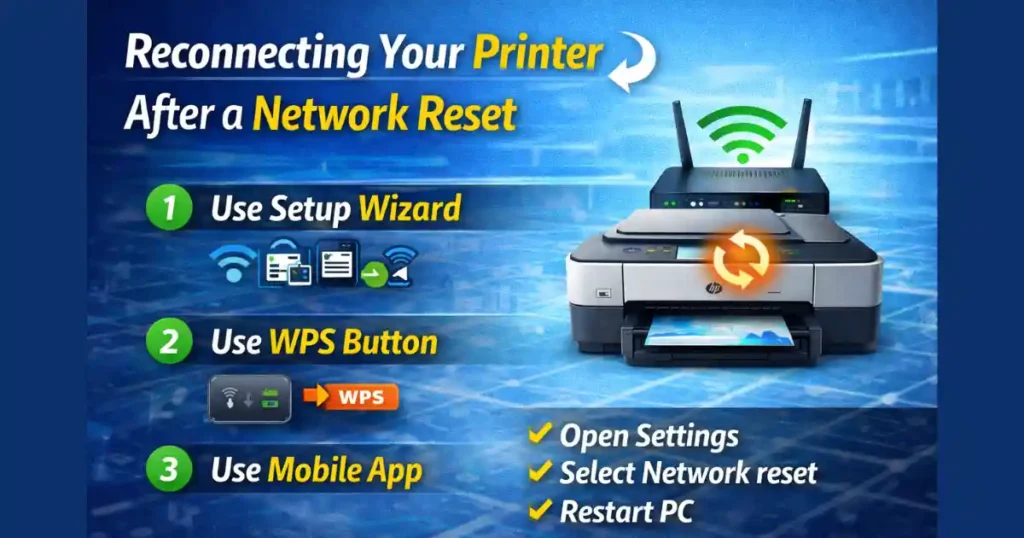
Once you reset printer network settings, the device is no longer connected to your Wi-Fi. You need to reconnect it.
Use Setup Wizard (Touchscreen Printers)
- Open Wireless Setup Wizard.
- Select your Wi-Fi network.
- Enter password.
Use WPS (If Router Supports It)
- Press WPS on your router.
- Press the Wireless button on your printer.
- Wait for solid connection indicator.
Use Mobile Apps
- HP Smart
- Epson iPrint
- Canon PRINT
- Brother iPrint&Scan
These detect printers automatically during setup mode.
Using Wi-Fi Direct (If No Router Access)
Some printers broadcast their own Wi-Fi signal.
You can join directly and configure wirelessly.
Troubleshooting After Reset
Even after successfully performing How to Reset Printer Network Settings, some issues may persist. Here is how to sort them out.
1. Printer Not Detecting Wi-Fi
Try:
- Restart router
- Move printer closer
- Turn off 5 GHz temporarily (older models prefer 2.4 GHz)
2. Printer Still Offline
Check:
- Firewall settings
- Driver updates
- Whether the printer is in sleep mode
3. Setup App Not Finding Printer
Try connecting via:
- Wi-Fi Direct
- USB cable for initial pairing
4. Slow Printing After Reset
Update firmware through your printer settings or mobile app.
Tips Before You Reset Printer Network Settings

To avoid setup delays afterward:
1. Note Down Wi-Fi Details
Keep SSID and password handy.
2. Make Sure the Router Is Close
Weak signal during setup is the number one cause of failure.
3. Update Firmware
New models often fix connectivity bugs through firmware updates.
4. Avoid Guest Networks
Printers should always use your main Wi-Fi.
5. For Office Networks, Talk to IT
Enterprise routers may require admin approval.
FAQs About How to Reset Printer Network Settings
1. Does resetting the printer network delete files or documents?
No. Resetting only clears wireless settings. All files, print queues, and documents stay safe.
2. How long does a network reset take?
Usually less than two minutes. Some printers reboot automatically afterward.
3. Should I reset the router too?
Not unless all devices are having Wi-Fi issues. Printer problems are normally isolated.
4. Can I reset printer network settings remotely?
Some high-end models allow resets through web admin dashboards, but home printers usually don’t support remote resets.
5. Is factory reset better than network reset?
Only if you want to wipe everything. Otherwise, the network reset is enough for Wi-Fi issues.
Disclaimer: This article is for educational and troubleshooting purposes. Steps may vary depending on model, firmware version, or region. Always check your printer’s official manual or brand support website for the most accurate instructions.
Also Read: How to Reset Network Settings on Android Without Losing SIM or eSIM Data

Raj Prajapati is a skilled content writer dedicated to creating clear, step-by-step guides on technology, Health, and everyday solutions. With a focus on user-friendly and SEO-optimized content, he simplifies complex topics, helping readers learn and solve problems effortlessly.