

Google Chrome has become the default browser for millions of users because of its speed, simplicity, and deep integration with modern web services. But even the most stable browser can crash. A sudden system restart, a power cut, a heavy extension, or a memory spike can instantly close dozens of important tabs.
If you have ever stared at a fresh Chrome window after a crash, wondering where all your work went, you are not alone.
This detailed guide explains How to Restore Closed Tabs After a Chrome Crash using the latest, reliable methods available in 2025. It is written for everyday users, professionals, students, and anyone who works with multiple tabs daily.
The focus is not just on quick fixes, but also on understanding why Chrome behaves the way it does, how session recovery really works behind the scenes, and how to prevent tab loss in the future.
Also Read: How to Create a Gmail Business Account – Complete Google Workspace Guide
Why Chrome Crashes Happen More Often Than You Think
Before jumping into recovery steps, it helps to understand why Chrome crashes at all. Chrome uses a multi-process architecture. Each tab, extension, and plugin often runs in its own process. This design improves security and stability, but it also means that if system resources are stretched, Chrome can abruptly shut down to protect data integrity.
Common causes include heavy RAM usage, unstable extensions, outdated browser versions, graphics driver conflicts, and forced system restarts. The good news is that Chrome is designed to anticipate crashes. In most cases, your tabs are not actually lost. They are simply not visible until you restore them correctly.
What Happens to Your Tabs After a Chrome Crash

When Chrome crashes, it stores session data locally on your device. This data includes the URLs of open tabs, window layouts, and sometimes scroll positions. On the next launch, Chrome checks whether the last shutdown was unexpected. If it detects a crash, it often triggers automatic recovery mechanisms.
This is why Chrome sometimes shows a restore prompt. However, that prompt does not always appear. Knowing multiple recovery methods ensures you can restore tabs even if Chrome does not offer help automatically.
Method 1: The Automatic Restore Prompt (Fastest Recovery)

This is the most reliable and least complicated method.
When Chrome detects a crash, it often displays a message bar at the top of the browser window saying something like “Chrome didn’t shut down correctly” with a Restore button.
What to do
Open Chrome immediately after the crash.
Look carefully near the top of the window.
Click the Restore button as soon as you see it.
This restores your entire browsing session, including all windows and tabs, exactly as they were before the crash. Many users miss this prompt because it appears briefly or blends into the interface. Always pause for a second when Chrome opens after a crash and scan the top area before clicking anything else.
Method 2: Keyboard Shortcut Recovery (Most Trusted Method)

If the restore prompt does not appear, the keyboard shortcut is your best friend. It works immediately after a crash and even hours later in many cases.
Shortcut keys
On Windows, Linux, and Chrome OS, press Ctrl + Shift + T.
On macOS, press Cmd + Shift + T.
Each time you press this shortcut, Chrome reopens the most recently closed tab or window. Repeating the shortcut brings back tabs in reverse order of closure. This method is incredibly effective and is often the fastest way to recover work.
For users asking how to restore closed tabs after a Chrome crash quickly, this shortcut alone solves the problem in most real-world situations.
Method 3: Restore Tabs Using Chrome Menu (Best for Full Windows)
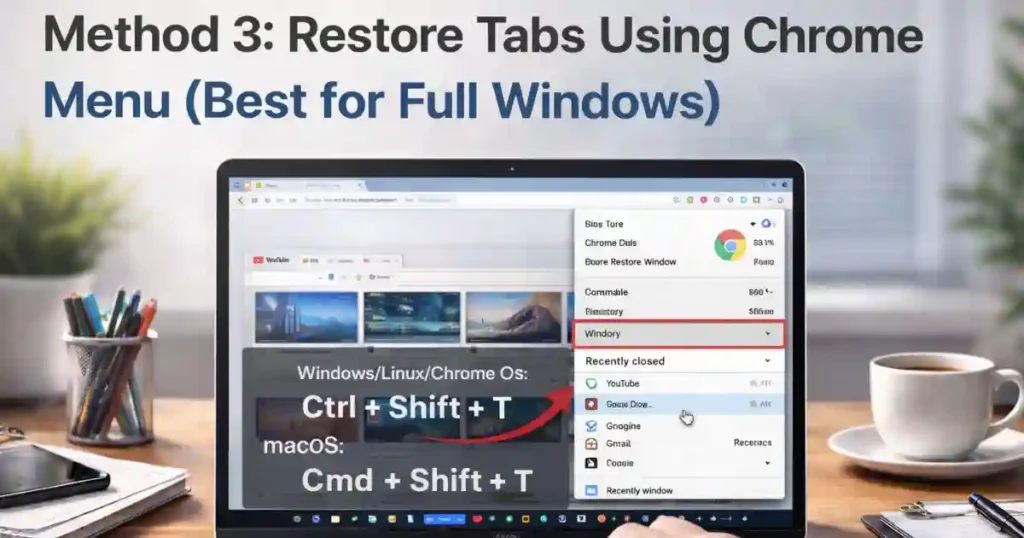
Sometimes the shortcut only restores a single tab instead of the entire window. In that case, the menu-based method is more useful.
Steps
Open Chrome.
Click the three-dot menu in the top-right corner.
Hover over History.
Look under the “Recently closed” section.
Here you may see entries labeled with numbers like “12 Tabs” or “Window.” Clicking one of these restores the entire window and all tabs inside it at once.
This method is especially useful if Chrome was reopened, closed again, or left idle after the crash. It gives you visual confirmation of what you are restoring.
Method 4: Using the Full History Page for Manual Recovery
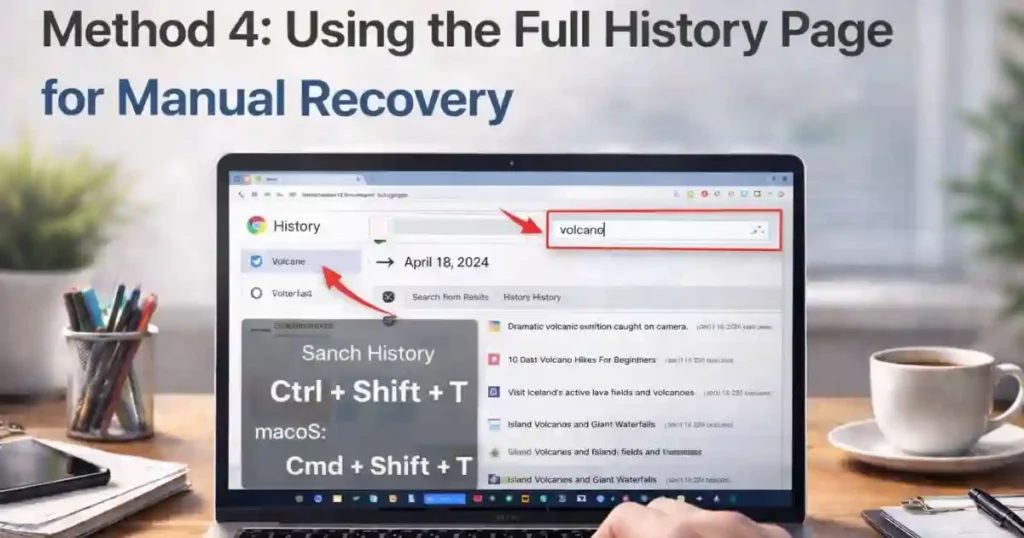
If some time has passed since the crash or Chrome has been restarted multiple times, the quick restore options may no longer show your session. In such cases, manual reconstruction using history is the safest fallback.
Steps
Press Ctrl + H on Windows or Cmd + Y on macOS.
Use the search bar or scroll by date.
Identify pages you had open before the crash.
You can hold Ctrl or Cmd while clicking links to open multiple tabs without losing your place. While this method takes more time, it ensures that important pages are not permanently lost.
Method 5: Restore Tabs from Other Devices Using Sync
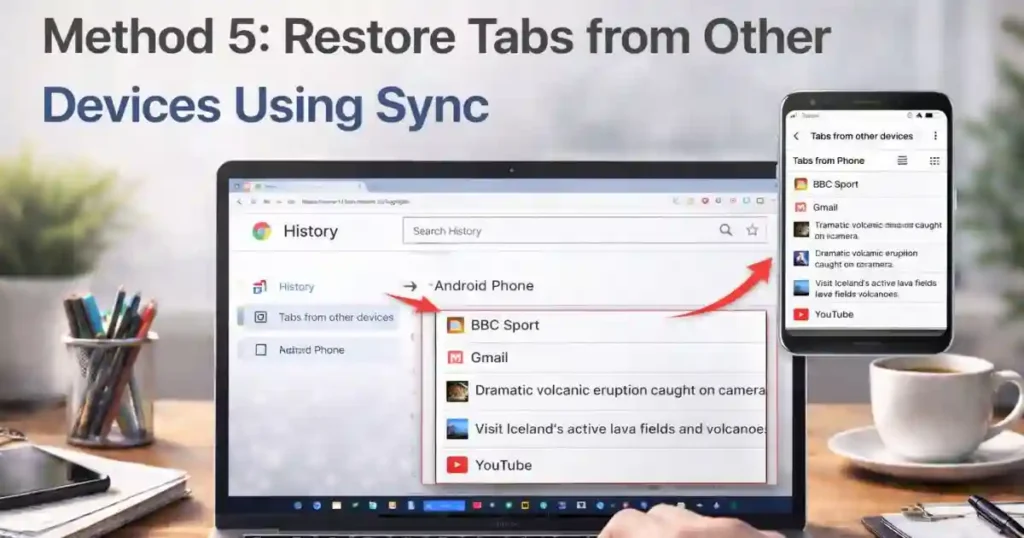
If Chrome Sync is enabled, your browsing activity is linked across devices. This means you can recover tabs from your phone, laptop, or another computer.
How it helps
Open Chrome.
Go to History.
Select Tabs from other devices.
You may see open sessions from your other logged-in devices. This is particularly useful if your main system crashed severely or your local session files were corrupted.
Also Read: How to Synchronize Notes Across Devices Without Using Any App
How to Restore Closed Tabs After a Chrome Crash on Mobile Devices

Chrome on Android and iOS behaves differently from desktop versions, but recovery is still possible.
On Android, tap the three-dot menu and open Recent tabs. If sync is enabled, desktop tabs may appear here. On iOS, open the tab switcher and look for recently closed tabs under history.
While mobile recovery is more limited, syncing your Google account greatly improves success rates.
Preventing Future Tab Loss with Chrome Settings
Knowing how to restore closed tabs after a Chrome crash is important, but preventing future loss is even better.
Enable automatic session restoration
Open Chrome settings.
Go to On startup.
Select Continue where you left off.
This setting forces Chrome to reload your previous session every time it starts, whether the shutdown was planned or accidental. For users who keep dozens of tabs open daily, this is a must-enable option.
Extensions That Help With Tab Recovery
Chrome extensions can add an extra safety layer. Tab session managers automatically save open tabs and let you restore them later with one click.
These tools are especially helpful for professionals who research extensively or writers who work with multiple sources simultaneously. While Chrome’s built-in tools are usually enough, extensions provide peace of mind.
Common Mistakes That Prevent Tab Restoration
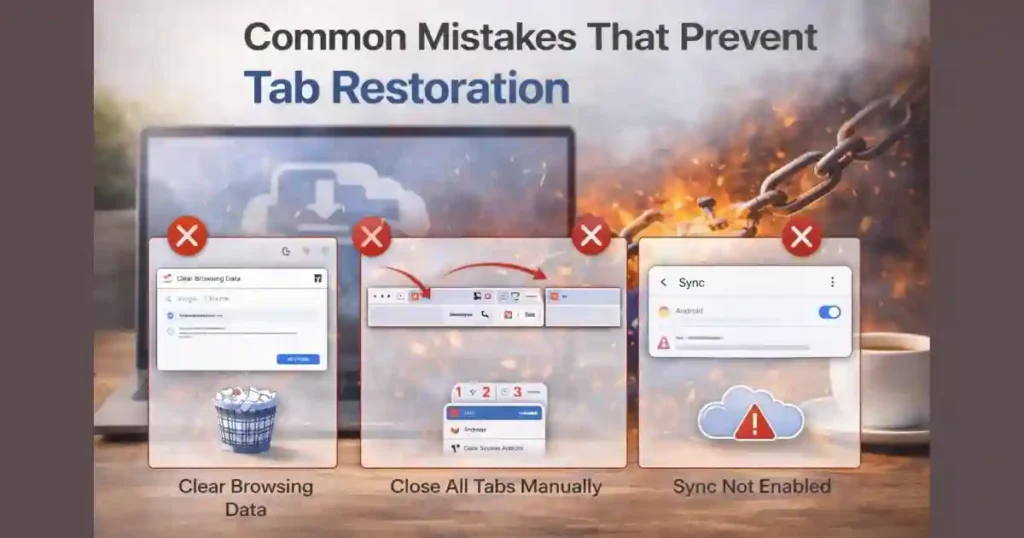
Many users accidentally make recovery harder without realizing it.
Closing Chrome immediately after reopening can overwrite session data. Opening a new window and browsing for long periods can push older sessions out of memory. Disabling sync removes backup options across devices.
Understanding these behaviors helps ensure that recovery methods remain effective when you need them most.
Why Chrome Sometimes Fails to Restore Tabs
In rare cases, Chrome cannot restore tabs. This usually happens when profile data becomes corrupted, system storage is full, or Chrome crashes repeatedly during startup. Updating Chrome, clearing cache carefully, or creating a fresh profile can resolve persistent issues.
Professional Use Case: Why Tab Recovery Matters for Productivity
For students, developers, researchers, and content creators, browser tabs represent active work. Losing them means lost time, broken workflows, and stress. Knowing how to restore closed tabs after a Chrome crash is not just a convenience. It is a productivity skill.
When you treat Chrome sessions as part of your workspace, using recovery shortcuts and preventive settings becomes second nature.
Best Practices for Heavy Chrome Users
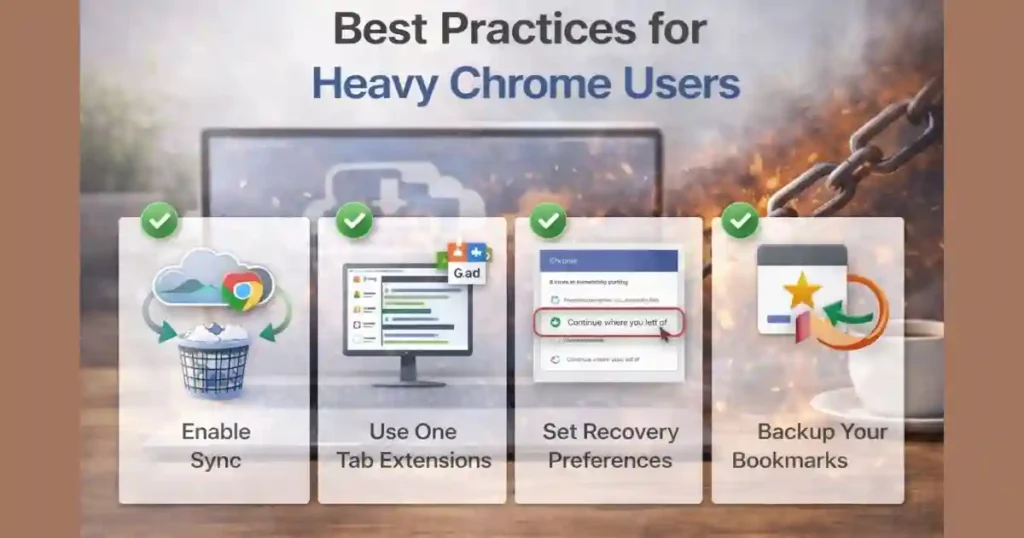
Keep extensions minimal and updated. Restart Chrome periodically instead of leaving it open for weeks. Enable sync across devices. Use session restore settings consistently. These habits reduce crash frequency and improve recovery success.
FAQs: How to Restore Closed Tabs After a Chrome Crash
Does Chrome automatically save tabs after every crash?
Chrome attempts to save session data automatically, but success depends on how the browser was closed and system stability at the time.
Can I restore tabs if Chrome was force-closed from Task Manager?
Yes, in many cases the Ctrl + Shift + T shortcut or History menu still works.
How far back can Chrome restore closed tabs?
Chrome can restore multiple recently closed sessions, but older sessions may disappear after repeated restarts.
Is there a limit to how many tabs Chrome can restore?
There is no fixed limit, but very large sessions may restore more slowly or partially.
Does incognito mode support tab restoration after a crash?
No, incognito sessions are not saved and cannot be restored once closed.
Final Thoughts
Crashes are frustrating, but they do not have to be disastrous. Chrome includes multiple layers of protection designed to help users recover quickly. By learning how to restore closed tabs after a Chrome crash and enabling the right settings, you can turn a stressful moment into a minor inconvenience.
Whether you are working on an assignment, managing research, or handling professional tasks, these methods ensure your browsing sessions are never truly lost.
Disclaimer: This article is for informational purposes only. Browser behavior may vary depending on system configuration, Chrome version, and updates released after publication.
Also Read: How to Use Chrome Built In QR Code Generator: A Practical Guide

Raj Prajapati is a skilled content writer dedicated to creating clear, step-by-step guides on technology, Health, and everyday solutions. With a focus on user-friendly and SEO-optimized content, he simplifies complex topics, helping readers learn and solve problems effortlessly.