How to Save Mobile Data Using Chrome Lite Mode Alternatives: Mobile internet has become an everyday necessity rather than a luxury. From navigation and messaging to entertainment, work, and payments, almost every smartphone task depends on data connectivity.
Yet, mobile data remains expensive, limited, and inconsistent in many parts of the world. This is why Google’s Chrome Lite Mode once became so popular. It helped millions of users browse the web using significantly less mobile data by compressing web pages before loading them.
However, Chrome Lite Mode was officially discontinued in March 2022. While Chrome still offers a basic “Data Saver” option, it does not deliver the same aggressive data compression or consistent results users once relied on. This sudden change left many people searching for answers on How to Save Mobile Data Using Chrome Lite Mode Alternatives that genuinely reduce data usage in real-world scenarios.
The good news is that saving mobile data today is still very much possible. In fact, with the right combination of system-level settings, alternative browsers, app optimizations, and smarter usage habits, users can often save more data than Chrome Lite Mode ever did.
This in-depth guide explores how to save mobile data using Chrome Lite Mode alternatives, explains why Chrome Lite Mode was discontinued, and breaks down the most effective tools and strategies available in 2025. Whether you are on a limited data plan, live in an area with slow mobile internet, or simply want to avoid unnecessary data waste, this article gives you everything you need.
Also Read: How to Use Windows 11 Clipboard History Like a Pro: A Complete Guide
What Happened to Chrome Lite Mode and Why It Was Discontinued
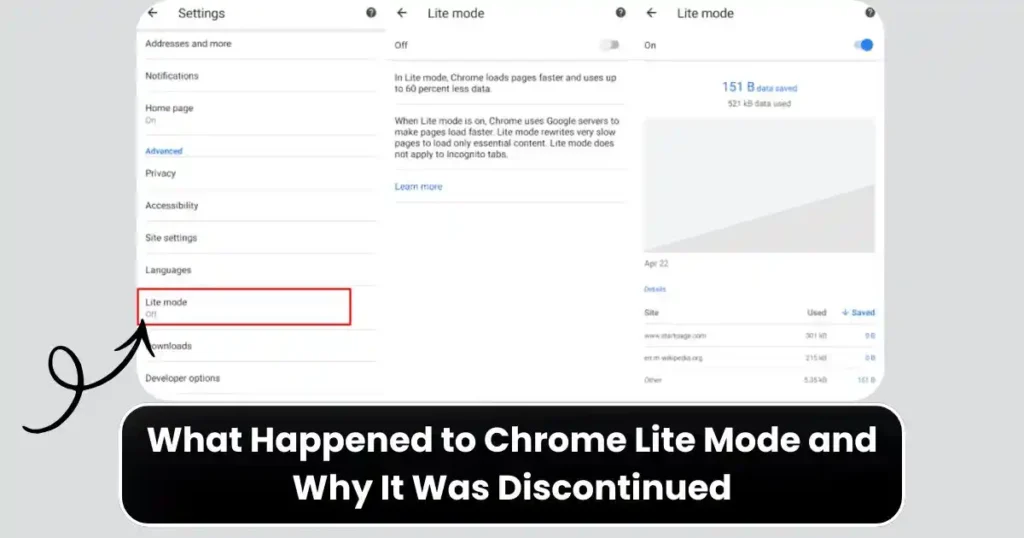
Chrome Lite Mode was built around Google’s server-side compression technology. When enabled, web traffic passed through Google’s servers where pages were compressed, images resized, and non-essential components stripped before loading on the device. This significantly reduced data usage, especially on heavy websites filled with images and ads.
Google officially discontinued Lite Mode in March 2022, citing changes in how modern websites function. Today’s web relies heavily on encryption, interactive scripts, and advanced frameworks that limit how much content can be safely compressed without breaking site functionality.
Google also noted improvements in network infrastructure worldwide, though many users would argue that mobile internet is still far from affordable or reliable in many regions.
While Chrome’s built-in “Data Saver” still reduces data usage in limited ways, it does not compress websites at the same level as Lite Mode. This is why users who search for how to save mobile data using Chrome Lite are often disappointed with Chrome alone and start looking for alternatives.
The Reality of Mobile Data Usage in 2025
Before diving into tools and techniques, it is important to understand how mobile data is typically consumed today. Websites are heavier than ever, filled with autoplay videos, tracking scripts, high-resolution images, and ads. Social media apps aggressively preload content in the background. Cloud backups and app updates quietly consume data without user awareness.
What makes the situation worse is that many users assume browsing only happens inside a browser like Chrome. In reality, most mobile data is consumed by apps running in the background, media-heavy platforms like YouTube and Instagram, and system services syncing data constantly.
Saving data effectively now requires a multi-layered strategy, not a single toggle. That is exactly where Chrome Lite Mode alternatives combined with Android system settings come into play.
How to Save Mobile Data Using Chrome Lite Mode Alternatives
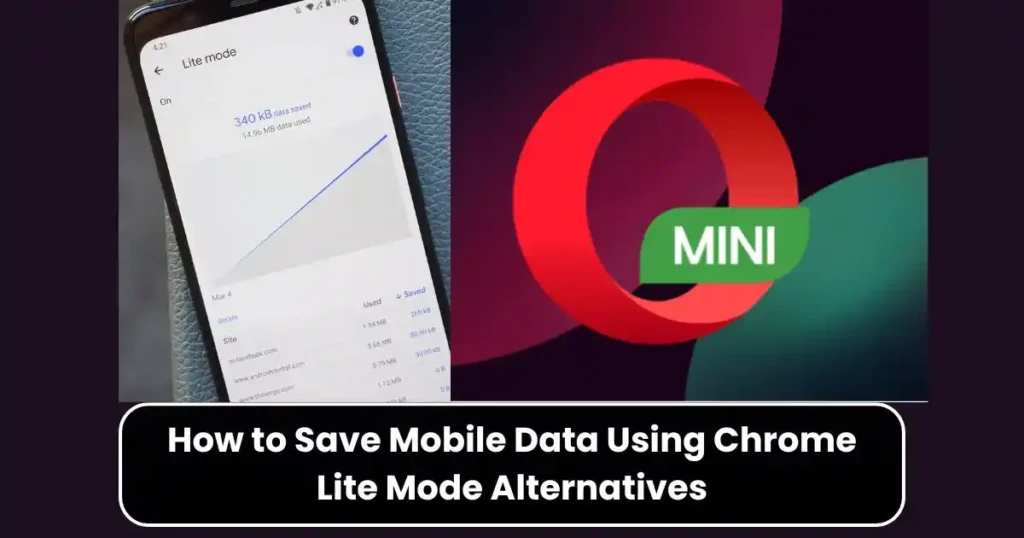
Replacing Chrome Lite Mode means thinking beyond Chrome itself. Instead of relying on one browser setting, users should combine powerful data-saving browsers, Android’s system-level data controls, app-specific optimizations, and mindful usage habits.
Below, we break down the most effective options step by step.
Browser-Based Alternatives That Save Mobile Data Effectively
Choosing the right browser plays a major role in reducing everyday data usage. Some browsers are built specifically for slow networks and low data consumption, while others save data by blocking unnecessary resources like ads and trackers.
Opera Mini and Opera Browser: The Most Aggressive Data Compression
Opera Mini is widely regarded as the closest replacement to Chrome Lite Mode. Unlike Chrome’s current Data Saver, Opera Mini routes web traffic through Opera’s servers, where pages are compressed before reaching your phone. This compression can reduce data usage by up to 90 percent in many cases.
By default, Opera Mini shrinks images, simplifies page layouts, blocks ads, and removes unnecessary scripts. It is especially effective on news websites, blogs, and informational pages. Even on slower 2G or 3G networks, pages load quickly because less data is transmitted.
The standard Opera Browser also includes a built-in data-saving mode for users who want a balance between performance and appearance. While it does not compress pages as aggressively as Opera Mini, it still saves significant mobile data compared to Chrome.
For users who want a browser-based answer to how to save mobile data using Chrome Lite Mode alternatives, Opera Mini remains one of the strongest choices.
Brave Browser: Data Saving Through Ad and Tracker Blocking
Brave takes a different approach. Instead of compressing web pages, it saves data by blocking ads, trackers, autoplay videos, and scripts that consume bandwidth silently. Since advertising and tracking systems can account for a large percentage of page size, blocking them can dramatically reduce data usage.
Brave works particularly well for users who browse modern websites, social platforms, and content-heavy sites. It also improves page loading speed and privacy without requiring any extensions or technical configuration.
While Brave may not compress images as aggressively as Opera Mini, many users find that it saves comparable amounts of data because so much web content today is dominated by ads.
Firefox and Firefox Focus: Lightweight Browsing with Full Control
Firefox Focus is designed as a privacy-first browser that automatically blocks ads and trackers. This reduces data usage while keeping browsing fast and minimal. Firefox Focus is ideal for users who want quick searches or temporary browsing sessions without background activity eating data.
Standard Firefox also supports add-ons like uBlock Origin, which further enhance data savings. When properly configured, Firefox becomes one of the most flexible Chrome Lite Mode alternatives, especially for users who want customization and control over what loads and what does not.
Comparing Browser-Based Chrome Lite Mode Alternatives

While all these browsers save data, their methods differ:
- Opera Mini focuses on heavy compression and minimal page versions.
- Brave focuses on blocking ads and trackers without altering page structure.
- Firefox Focus emphasizes privacy and simplicity with reduced background activity.
Choosing the right one depends on how you browse. Users who read a lot of articles and news may prefer Opera Mini. Users who spend time on modern websites with ads may prefer Brave. Privacy-focused users often choose Firefox Focus.
Android System-Wide Data Saver: The Most Powerful Hidden Tool
Many users underestimate Android’s built-in Data Saver feature, even though it can reduce data usage across almost all apps on the device.
How Android Data Saver Works
When enabled, Data Saver restricts background data usage for most apps. This means apps cannot refresh content, sync data, or preload media unless you open them manually. This single change can save enormous amounts of data, especially for social media, email, and cloud apps.
Unlike Chrome Lite Mode, which only affected browsing, Android Data Saver works system-wide.
How to Enable Android Data Saver Step by Step
- Open the Settings app on your phone.
- Navigate to Network & Internet or Mobile Network.
- Tap on Data Saver or Data usage.
- Toggle “Use Data Saver” to ON.
Once enabled, a small icon appears in the status bar, indicating that background data is restricted.
Allowing Essential Apps Unrestricted Data
Android allows you to whitelist important apps like WhatsApp or phone calls. This ensures messages still arrive instantly, even when Data Saver is enabled, without allowing unnecessary background activity for every app.
Also Read: How to Use Microsoft Authenticator Without Phone Number: Step-by-Step Guide
In-App Data Saving Features You Should Always Enable
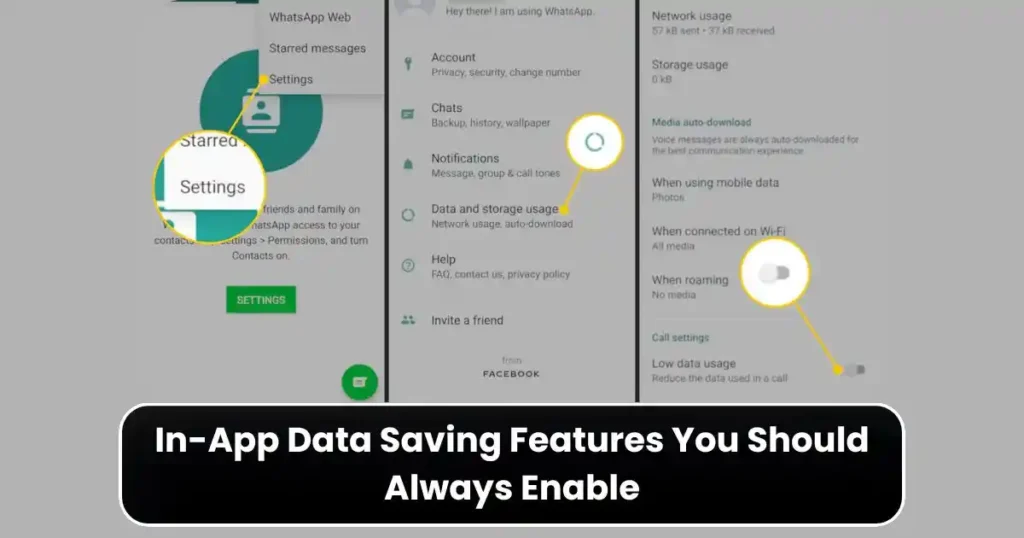
Most major apps now include their own data-saving options. These settings often go unnoticed but can significantly reduce consumption.
YouTube Data Saving Settings
YouTube is one of the biggest data consumers on any phone. Enabling “Limit mobile data usage” forces YouTube to stream at lower resolutions on mobile data. This can reduce data usage while still allowing smooth playback.
Google Play Store Auto-Update Control
Automatic updates can silently consume hundreds of megabytes. Setting app updates to occur only on Wi-Fi ensures that mobile data is not wasted without your knowledge.
Google Photos and Drive Backup Settings
Photo and video backups use massive amounts of data if allowed over mobile networks. Disabling cellular backups for Google Photos and Google Drive is one of the easiest ways to save data long-term.
Using Lite Versions of Apps for Maximum Savings
Lite apps are specifically designed for low data usage and low-end devices. Even on modern smartphones, they can significantly reduce data consumption.
Facebook Lite and Messenger Lite load fewer images, avoid autoplay videos by default, and use simple layouts. They work reliably even on slow networks, making them an excellent alternative to full versions that aggressively preload content.
Offline Content: A Smart Substitute for Continuous Streaming

Offline features are one of the most underused ways to save mobile data.
Google Maps allows users to download entire areas for navigation without using live data. Google Docs and Sheets can sync files in advance so you can access and edit them offline.
By planning ahead, users can avoid repeated data usage for the same content.
Adjusting Everyday Usage Habits That Waste Data
Saving data is not just about tools. Habits play a major role.
Disabling autoplay on social media apps prevents videos from loading automatically. Limiting background data for data-hungry apps ensures they only use data when needed. Using Wi-Fi whenever possible for downloads, streaming, and updates remains one of the simplest habits that save the most data.
Setting data warnings and usage limits in Android adds an extra layer of protection against accidental overuse.
Which Chrome Lite Mode Alternative Is Best Overall?
There is no single perfect replacement for Chrome Lite Mode. However, combining the following delivers the best results:
- Opera Mini or Brave for browsing
- Android Data Saver enabled system-wide
- In-app data saving settings turned on
- Lite apps instead of full versions where possible
- Offline downloads for maps and documents
Together, these strategies often outperform Chrome Lite Mode in real-world usage.
Final Thoughts
Even though Chrome Lite Mode is gone, saving mobile data is still achievable with the right approach. In fact, modern alternatives give users more control than ever before. By understanding where data is consumed and using optimized browsers, Android system tools, and smart habits, users can dramatically reduce mobile data wastage.
Anyone searching for How to Save Mobile Data Using Chrome Lite Mode Alternatives should shift their focus from a single browser feature to a complete data-saving setup. When done right, this approach not only reduces costs but also improves device performance and browsing speed.
FAQs on How to Save Mobile Data Using Chrome Lite Mode Alternatives
Is Chrome Lite Mode completely removed?
Yes, Chrome Lite Mode was discontinued in March 2022 and is no longer available. Chrome now offers a limited Data Saver option but without aggressive compression.
Which browser saves the most mobile data?
Opera Mini generally saves the most data due to server-side compression. Brave and Firefox save data mainly by blocking ads and trackers.
Does Android Data Saver affect notifications?
Yes, background data is restricted, but you can allow specific apps unrestricted access to ensure messages arrive instantly.
Are Lite apps safe to use?
Yes, official Lite apps like Facebook Lite are safe and developed by the same companies as their full versions.
Can these methods replace unlimited data plans?
They cannot replace unlimited plans entirely, but they significantly extend data usage and reduce costs on limited plans.
Disclaimer: This article is for informational purposes only. App features, settings, and data-saving effectiveness may vary depending on device model, Android version, network provider, and future updates. Always verify settings and app policies before making changes that affect data usage.
Also Read: How to Set Up Multiple Desktops in Windows 10/11: Full Step by Step Guide

Raj Prajapati is a skilled content writer dedicated to creating clear, step-by-step guides on technology, Health, and everyday solutions. With a focus on user-friendly and SEO-optimized content, he simplifies complex topics, helping readers learn and solve problems effortlessly.