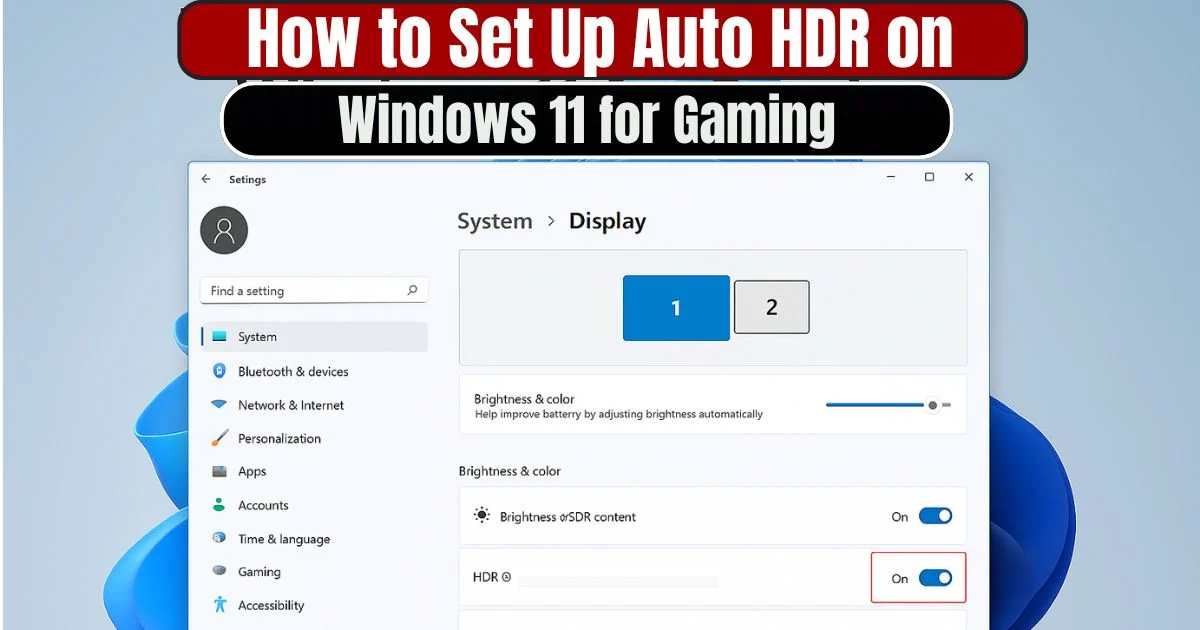
High Dynamic Range (HDR) has rapidly become one of the most essential technologies for modern gaming. From expanded color depth to brighter highlights and richer shadows, HDR delivers a more immersive visual experience across a wide range of games.
But while many new titles are designed with HDR support, a large number of popular older games were originally built for Standard Dynamic Range (SDR). To solve this problem, Microsoft introduced Auto HDR, an intelligent feature in Windows 11 that automatically enhances SDR games by applying HDR-like improvements in real time.
This guide explains in complete detail How to Set Up Auto HDR on Windows 11 for Gaming, including system requirements, step-by-step activation, advanced settings, troubleshooting, real-world examples, and the best titles that benefit from Auto HDR enhancements.
Whether you’re a competitive gamer, a graphics enthusiast, or someone upgrading to Windows 11 for the first time, this article will give you a clear, structured understanding of how Auto HDR works and how to get the most out of your gaming display.
Also Read: How to Use Windows 11 Focus Sessions to Improve Productivity- Complete Guide
What Is HDR and Auto HDR? A Complete Background Overview
Before diving into How to Set Up Auto HDR on Windows 11 for Gaming, it’s important to understand the basic difference between HDR and SDR and why Auto HDR matters.
HDR (High Dynamic Range) Explained
HDR expands both the brightness and color range of content. In games that support HDR natively:
- Highlights appear brighter
- Shadows show more detail
- Colors look more accurate and lifelike
- Contrast ratios improve significantly
HDR allows a display to show extremely bright and dark areas simultaneously without losing detail. This becomes especially noticeable in scenes with dynamic lighting, such as daylight reflections, explosions, neon lights, water surfaces, or dimly lit interiors.
SDR (Standard Dynamic Range)
SDR is limited in its brightness and color capabilities. Older games or titles built for older consoles and PCs often fall into the SDR category, meaning they cannot leverage modern display technologies.
Auto HDR: The Bridge Between SDR and HDR
Auto HDR is a Windows 11 feature that automatically upgrades SDR games using intelligent tone mapping and real-time luminance adjustment. Microsoft originally developed a similar feature for Xbox Series X|S consoles, and its success led to the transition of the technology into the Windows ecosystem.
How Auto HDR Works Internally
- Windows Detects SDR Content
- AI and Algorithms Apply Real-Time Tone Mapping
- The Display Expands the Color and Brightness Range
- The Game Appears More Vivid Without Developer Updates
This means even older DirectX 11 and DirectX 12 games can suddenly look more modern visually, without requiring any patches a developer would normally release.
Auto HDR does not attempt to artificially oversaturate colors; instead, it expands the dynamic range based on the game’s internal lighting and shader data. The improvement is especially noticeable in open-world games, shooters, action adventures, and cinematic titles.
System Requirements for Auto HDR on Windows 11
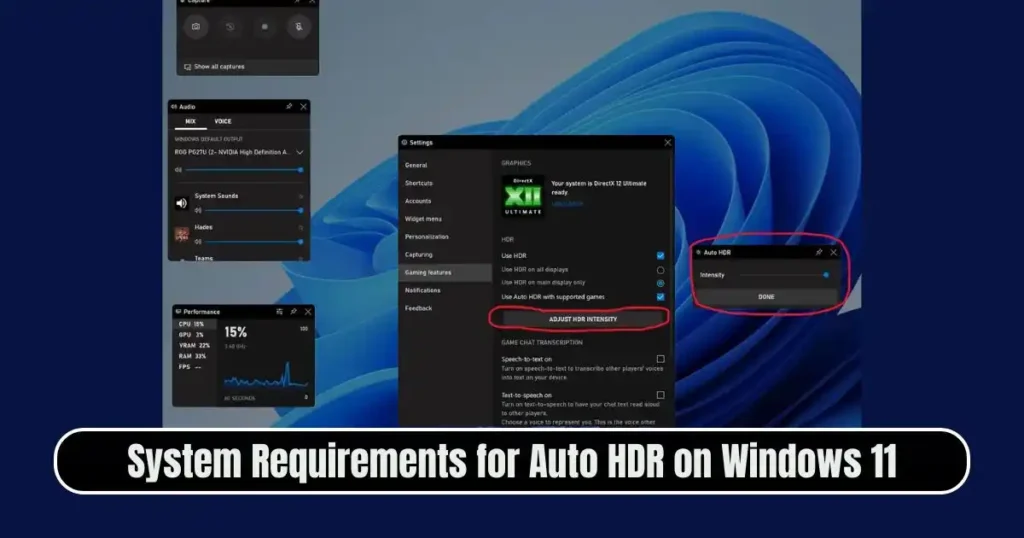
Before learning How to Set Up Auto HDR on Windows 11 for Gaming, it’s important to confirm that your system meets the necessary requirements.
Hardware Requirements
1. HDR-Capable Display
Your monitor or TV must support HDR10 at minimum. Some examples include:
- Samsung Odyssey Ark 55″
- Sony INZONE M9 27″
- Lenovo ThinkVision P27u-20
If your display does not support HDR, Auto HDR cannot be activated.
2. Compatible GPU
HDR output requires a modern graphics card with appropriate hardware capabilities.
Supported GPUs include:
- NVIDIA GeForce GTX 900 series and newer
- NVIDIA RTX series
- AMD Radeon RX 400 series and newer
- AMD Radeon RX 5000 / RX 6000 / 7000 series
Integrated graphics on newer Intel and AMD CPUs may also support HDR, but performance can vary.
3. Proper Display Cables
To enjoy HDR at high refresh rates, the cable matters:
- HDMI 2.1
- DisplayPort 1.4 or newer
HDMI 2.0 can support HDR but may limit refresh rates and resolution.
Software Requirements
- Windows 11 Version 22H2 or later
- Updated GPU Drivers (NVIDIA / AMD)
- Game titles supporting DirectX 11, DirectX 12, or Vulkan
Games that run on older APIs may not work with Auto HDR.
How to Set Up Auto HDR on Windows 11 for Gaming: Step-by-Step Guide
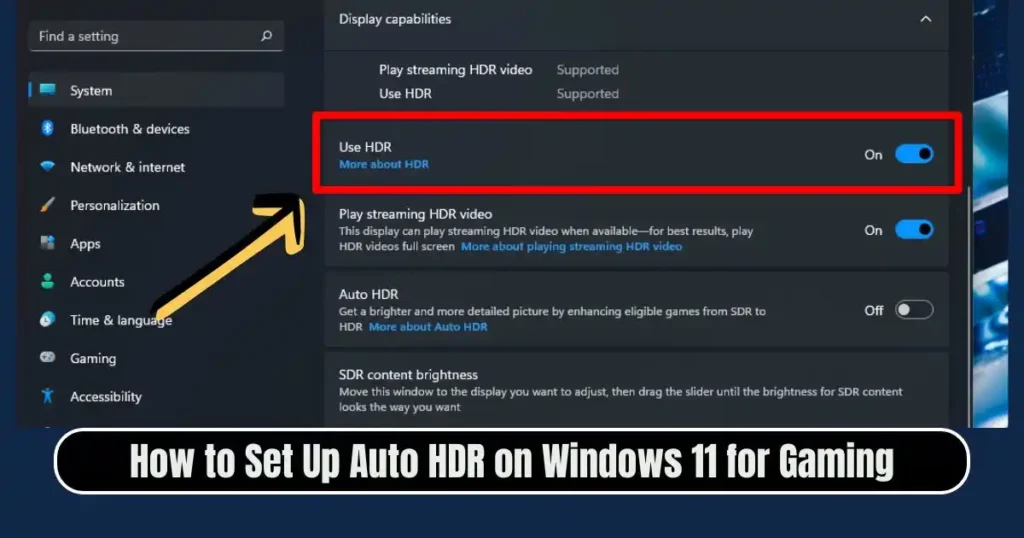
Now let’s go through the detailed process. The steps below provide not only the basic activation but also deeper context, user insights, and relevant tips.
Step 1: Enable HDR for Your Display
Auto HDR only works if HDR itself is enabled.
How to Enable HDR:
- Click Start
- Select Settings
- Go to System
- Click Display
- If multiple displays exist, select your HDR-capable monitor
- Scroll to Display Capabilities
- Confirm Use HDR says Yes
- Toggle Use HDR to ON
Your screen may flicker or dim slightly as Windows adjusts the settings—this is normal.
Why This Step Matters
Without enabling HDR, the system will not expand luminance or color range. HDR must be active before Auto HDR can modify SDR gaming content.
Step 2: Enable Auto HDR in Display Settings
Once HDR is active:
- Remain in Settings > System > Display
- Find the HDR section
- Expand it using the arrow
- Toggle Auto HDR to ON
Now Auto HDR is ready and will activate automatically when you launch compatible SDR titles.
Step 3: Adjust Auto HDR Intensity (Optional)
Windows allows you to modify Auto HDR intensity through Game Bar.
How to Adjust Auto HDR Intensity:
- Launch any game
- Press Windows + G to open Xbox Game Bar
- Click the Settings Gear Icon
- Go to Gaming Features
- Select Adjust HDR Intensity
- Move the slider to change brightness and vividness
This feature is useful if you prefer subtle enhancements or extremely vibrant visuals. Some users prefer lower intensity for cinematic games and higher intensity for fast-paced shooters.
How to Enable Auto HDR Through Game Mode
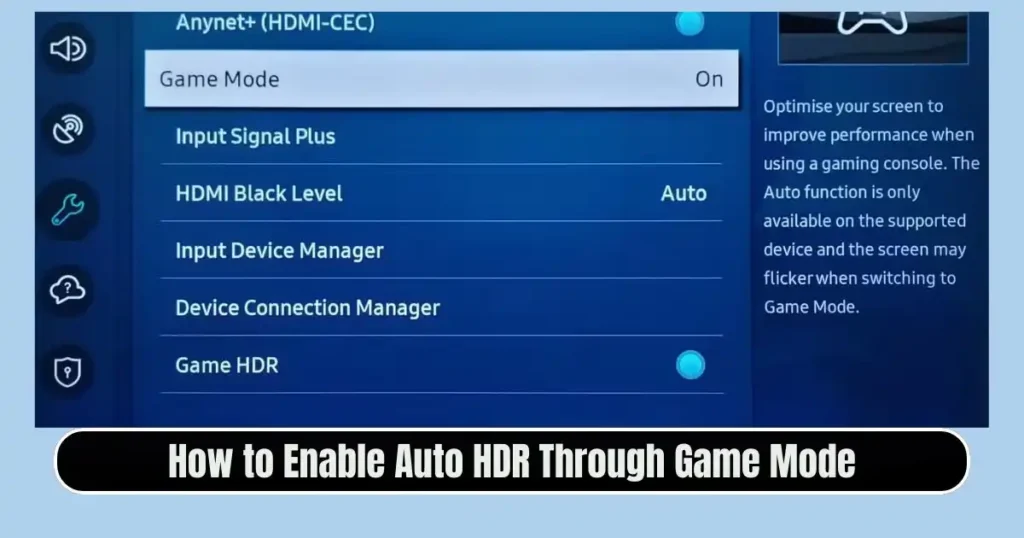
Game Mode in Windows optimizes system resources for gaming. It also provides another pathway to access Auto HDR quickly.
Steps to Enable Auto HDR from Game Mode:
- Open Start Menu
- Type Settings
- Navigate to Gaming
- Click Game Mode
- Toggle Game Mode ON
- Toggle Auto HDR ON
This is especially useful for users who want streamlined gaming optimization without navigating deep into Display Settings.
Alternative Method Through Game Bar
- Launch your game
- Press Win + G
- Open Settings > Gaming Features
- Enable Auto HDR inside Game Bar
This approach is convenient when testing different games to see how they respond to Auto HDR enhancements.
Also Read: How to Block Websites on Your Browser Without Extensions
Understanding How Auto HDR Enhances Games
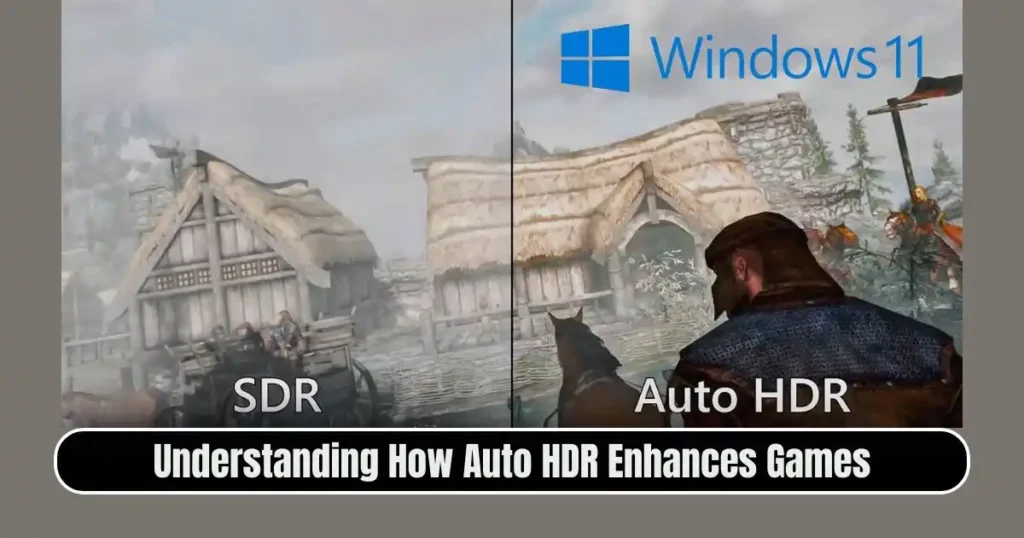
Auto HDR enhances lighting, shadows, reflections, and color gradients by expanding the dynamic range. Some real-world examples:
1. In open-world games:
Sunlight, reflections, skies, and water surfaces appear more realistic.
2. In horror or survival games:
Dark rooms become more detailed and atmospheric.
3. In racing games:
Headlights, tunnels, and reflective surfaces show improved contrast.
4. In shooters:
Explosions, muzzle flashes, and ambient lighting become more immersive.
Different games react differently depending on their native SDR lighting systems.
Top Auto HDR-Compatible Games in 2025

Although Auto HDR works on many SDR titles, certain games show dramatic improvements. Some of the most visually enhanced games include:
- Grand Theft Auto V
- Cyberpunk 2077
- Forza Motorsport 8
- Starfield
- Red Dead Redemption 2
- The Witcher 4
- Resident Evil 7: Biohazard
These titles combine strong art direction with dynamic lighting, making Auto HDR particularly effective.
Troubleshooting Common Auto HDR Problems
Even if you know How to Set Up Auto HDR on Windows 11 for Gaming, issues may occur occasionally. Here are the most common fixes.
1. HDR Option Missing
- Ensure your monitor supports HDR10
- Confirm HDR is enabled in display settings
- Check HDMI/DisplayPort cable version
- Update GPU drivers
2. Colors Look Washed Out
- Adjust monitor HDR settings from its OSD menu
- Lower brightness to balance HDR tone mapping
- Modify Auto HDR intensity via Game Bar
3. Auto HDR Doesn’t Trigger in Certain Games
- Check if the game runs on DirectX 11, 12, or Vulkan
- Disable fullscreen optimizations
- Restart the game or system
4. Flickering or Black Screen
- Replace the display cable
- Set refresh rate manually
- Reinstall GPU drivers
Should You Use Auto HDR? Pros and Cons
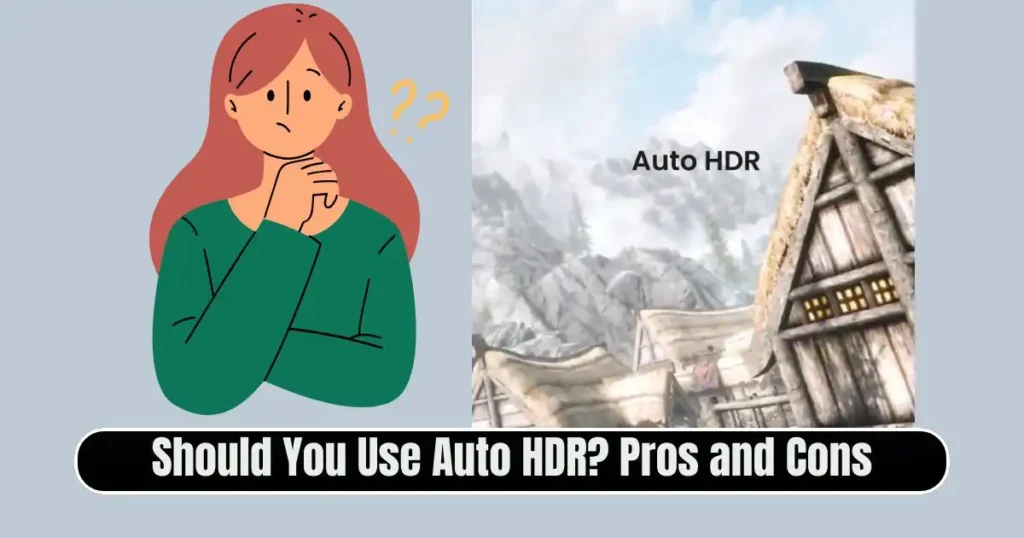
Advantages
- Enhances SDR games significantly
- Requires no developer updates
- Easy to enable and adjust
- Works across a wide variety of genres
- Integrates well with Game Mode
Disadvantages
- Not all games look better with Auto HDR
- Some displays handle HDR poorly
- May introduce slight performance drops on low-end GPUs
Auto HDR is best used on high-quality HDR10 displays to see the full benefit.
Conclusion
Learning How to Set Up Auto HDR on Windows 11 for Gaming helps you unlock richer colors, deeper contrasts, and an overall more immersive visual experience—especially in games that were originally developed without HDR support.
By enabling HDR, turning on Auto HDR, adjusting intensity levels, and ensuring your system meets requirements, you can dramatically enhance your gameplay environment. Auto HDR is one of the most impactful Windows 11 features for gamers, combining intelligent tone mapping with seamless system integration.
Whether you’re exploring open world landscapes, fighting through dark environments, or competing in bright action sequences, Auto HDR ensures every frame looks more vibrant and true to life.
FAQs on How to Set Up Auto HDR on Windows 11 for Gaming
1. Does Auto HDR work on all games?
Auto HDR works on most DirectX 11, DirectX 12, and Vulkan-based SDR games. Older games using outdated APIs may not benefit.
2. Will Auto HDR reduce gaming performance?
Performance impact is minimal on modern GPUs. Older graphics cards may experience slight drops.
3. Can I turn Auto HDR on or off per game?
Yes. Use the Xbox Game Bar to toggle Auto HDR or adjust intensity while in a game.
4. Does Auto HDR work on multi-monitor setups?
Yes, but only the HDR-capable display will use Auto HDR.
5. Is HDR the same as Auto HDR?
No. HDR is native support in games, while Auto HDR enhances older SDR games to mimic HDR quality.
Disclaimer: This article is based on widely available information about Windows 11 Auto HDR at the time of writing. Future Windows updates, GPU driver changes, or game engine updates may alter features or compatibility. Always check official Microsoft and GPU manufacturer documentation for the most current instructions.
Also Read: How to Use Google Keep for Notes and To-Do Lists: Complete Beginner to Pro Guide

Raj Prajapati is a skilled content writer dedicated to creating clear, step-by-step guides on technology, Health, and everyday solutions. With a focus on user-friendly and SEO-optimized content, he simplifies complex topics, helping readers learn and solve problems effortlessly.