
Using more than one desktop on a single computer has become an essential productivity feature for many users. Whether you work on large projects, switch between personal and professional tasks, or simply prefer a cleaner workspace, virtual desktops in Windows can make a major difference in how smoothly you navigate your day. Microsoft introduced this feature to help users organize open apps and windows into separate spaces, which reduces visual clutter and improves task management.
If you want to learn How to Set Up Multiple Desktops in Windows 10/11 and manage them effectively, this detailed guide walks you through every tool, shortcut, and setting you can use. You will also find helpful comparisons, practical tips, and a deeper look at how these desktops improve everyday workflow.
Also Read: How to Use Digital Wellbeing to Limit App Usage Without Locking Apps
What Are Virtual Desktops in Windows and Why They Matter
A virtual desktop is an additional workspace on your computer. Physically, you still have one monitor, but Windows lets you create multiple separate environments inside the same system. Each desktop can hold different apps and windows.
This helps people organize tasks in a more structured way. For example, one desktop can hold your work apps, another can hold your gaming or entertainment tools, while a third can be dedicated to browsing, research, or personal files.
People often switch to virtual desktops when they feel the taskbar is crowded or when they want focus without unnecessary distractions. Instead of constantly minimizing and restoring windows, switching desktops becomes a much more fluid and cleaner option.
How to Access Task View in Windows 10 and 11

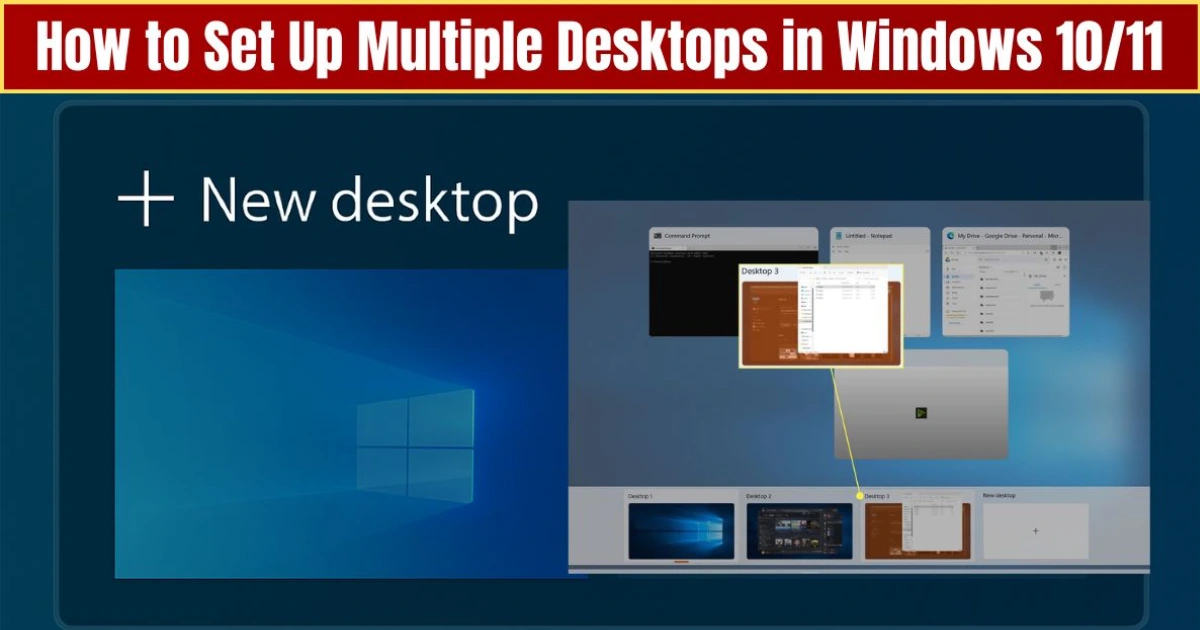
The core feature behind virtual desktops is called Task View. It offers a visual overview of everything running on your PC, along with the option to create and manage additional desktops.
Using the Task View Button on the Taskbar
On most systems, the Task View icon is found beside the Start button. It looks like two overlapping squares. Clicking this icon opens a full screen panel where you can see your open windows and desktops.
If you do not see the icon:
- Right-click the taskbar.
- Select Taskbar settings.
- Enable the toggle for Task View.
Using the Keyboard Shortcut
Pressing Windows key + Tab instantly opens Task View. Many users prefer this shortcut because it is quick and keeps workflow uninterrupted.
Using Touchpad Gestures (Windows 11)
If your laptop uses a precision touchpad, you can simply swipe up with four fingers. This gesture takes you straight into Task View without clicking anything.
How to Create a New Desktop in Windows 10/11
Creating desktops in Windows is simple, and you can use either the Task View interface or a shortcut.
Method 1: Create From Task View
- Press Windows key + Tab or click the Task View icon.
- At the top of the screen, click on New desktop.
- A fresh, empty desktop will appear, and you can switch to it immediately.
This method is ideal for users who want a clear visual layout before setting up new desktops.
Method 2: Create Using Keyboard Shortcut
Press Windows key + Ctrl + D to instantly create a new desktop. Windows will automatically move you to the newly created workspace.
This shortcut is perfect when you are in the middle of work and want a clean workspace right away.
How to Set Up Multiple Desktops in Windows 10/11 for Better Organization
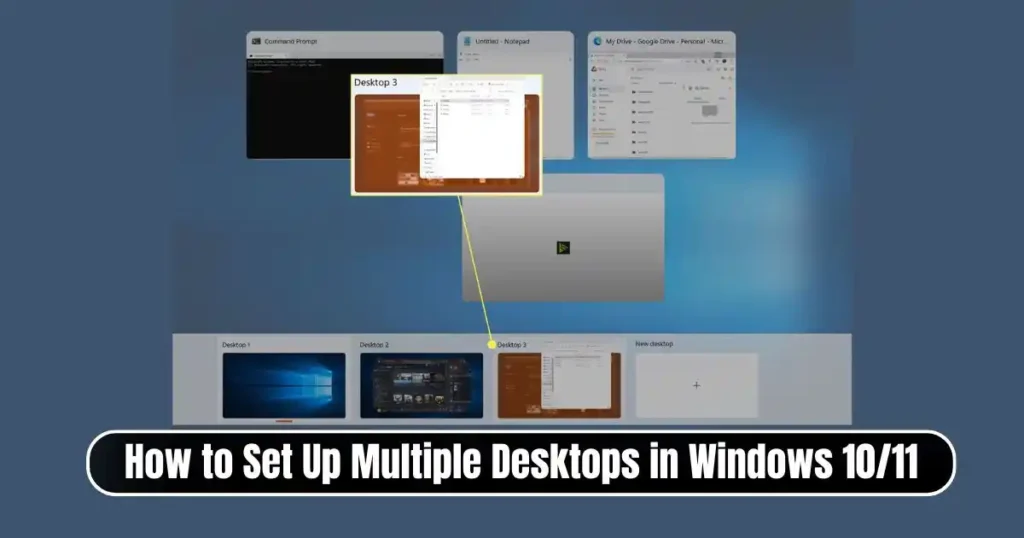
Once you have created several desktops, the real value comes from setting them up in a way that supports your tasks. Below are practical examples of how users arrange their virtual workspaces:
1. Work Desktop
Keep tools like Word, Excel, Teams, Zoom or your writing and editing apps here. This helps you stay focused without seeing social media or entertainment apps on the same screen.
2. Personal Desktop
Move your browser tabs, shopping websites, music, and messaging apps to this space. It keeps personal browsing separate from professional work.
3. Creative Desktop
Perfect for people working on design, editing, writing drafts, or research. You can open all your creative tools here without interrupting your workflow on other desktops.
4. Entertainment or Gaming Desktop
Games, videos, streaming platforms or your music player can be placed here.
This kind of arrangement makes switching between roles much easier. It also prevents your screen from feeling overcrowded.
How to Switch Between Desktops Efficiently
Switching is smooth and can be done through multiple methods depending on your preference.
Using Task View
- Open Task View with the Task View button or Windows key + Tab.
- Click on the thumbnail of the desktop you want to switch to.
This method is useful when you want a visual overview before moving.
Using Shortcut Keys
Windows provides two shortcuts for faster navigation:
- Windows key + Ctrl + Right arrow to move to the desktop on the right.
- Windows key + Ctrl + Left arrow to move to the desktop on the left.
These shortcuts make multitasking faster and help users maintain momentum while working.
Using Touchpad Gestures
On Windows 11 precision touchpads, swipe left or right with four fingers to switch desktops instantly. This gesture feels natural and smooth, especially when you frequently switch between tasks.
How to Move Windows or Apps Between Desktops
Sometimes you may open an app on the wrong desktop. Moving it is simple.
Using Drag and Drop in Task View
- Open Task View.
- Find the app window you want to move.
- Drag it to the desktop thumbnail at the top.
This is very useful for reorganizing your workflow visually.
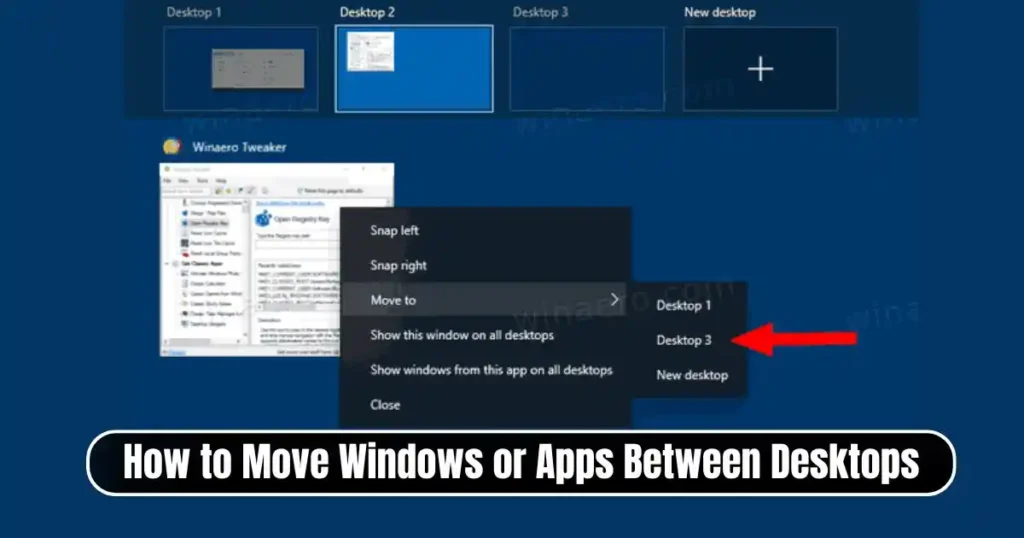
Using the Right-Click Menu
- Open Task View.
- Right-click the app window.
- Select Move to, and choose the target desktop.
This gives you more control when multiple desktops are open.
Also Read: How to Disable Google Maps Tracking Completely: A Full Step-by-Step Guide
How to Rename Desktops in Windows 10/11
Renaming helps users instantly recognize which desktop is meant for which purpose.
- Open Task View.
- Below each desktop thumbnail, you will see the name (for example, Desktop 1).
- Click the name and type a new one like Work, Projects, Entertainment or Personal.
This simple step makes your workspace more structured and easier to manage.
How to Change Desktop Backgrounds in Windows 11
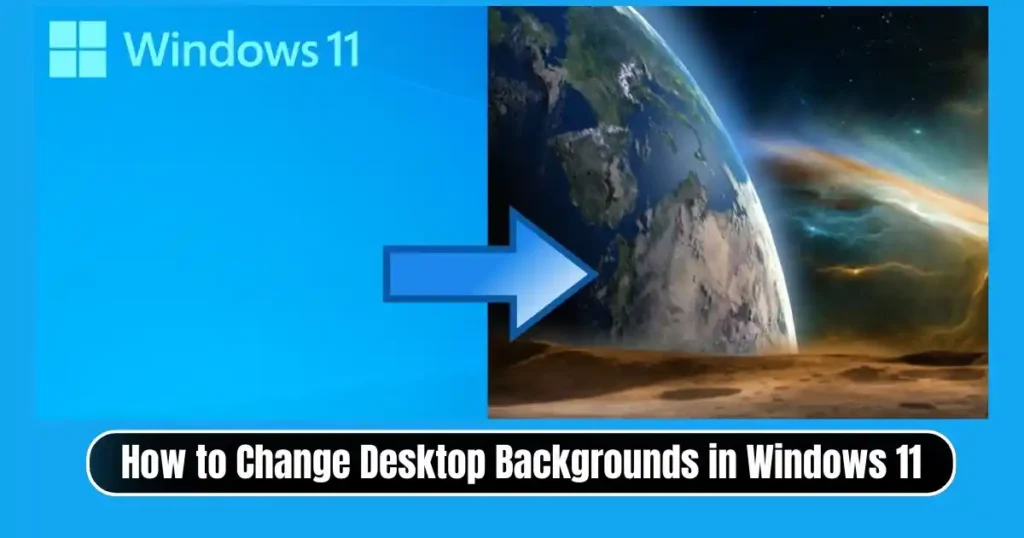
Windows 11 allows you to use different wallpapers for each desktop. This feature helps you visually distinguish them, making navigation faster.
- Open Task View.
- Right-click a desktop thumbnail.
- Select Choose background.
- You will be taken to the Personalization settings where you can set a unique wallpaper.
Having different backgrounds is helpful when you switch desktops frequently throughout the day.
How to Close a Desktop
Closing a desktop does not delete any open apps. Instead, Windows moves those apps to the previous desktop.
Method 1: Through Task View
- Open Task View.
- Hover over the desktop thumbnail.
- Click the X icon in the corner.
Method 2: Using a Shortcut
Press Windows key + Ctrl + F4 to close the active desktop immediately.
This shortcut is useful when cleaning up unused desktops quickly.
Advanced Multitasking Settings in Windows 10/11
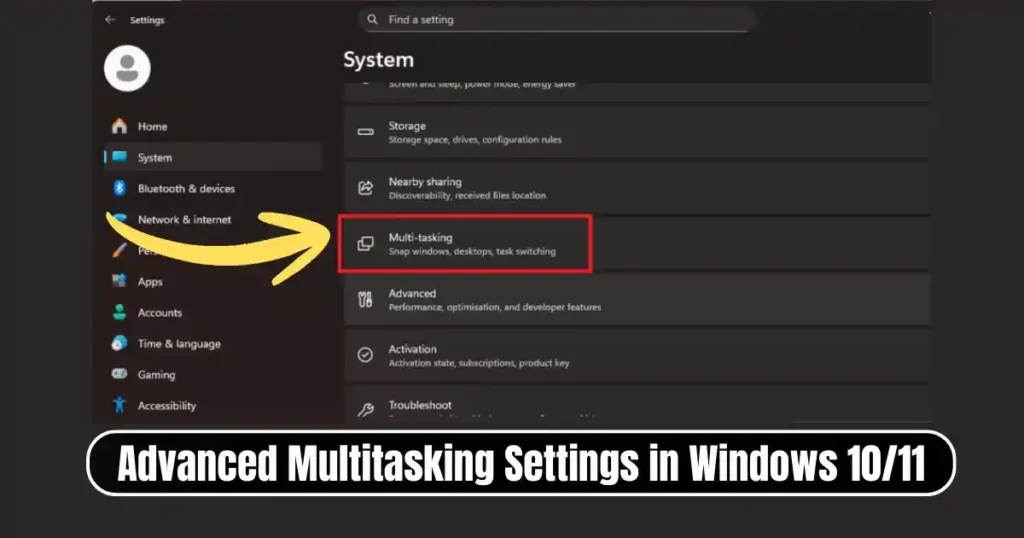
Windows includes deeper customization options for how apps behave across desktops.
To access these settings:
- Open Settings.
- Go to System.
- Select Multitasking.
- Scroll to the Desktops section.
You will find options to control behavior such as:
- Whether open windows appear on all desktops or only on the desktop where they are located.
- Whether the Alt + Tab menu should show windows from all desktops or only the one you are using.
Customizing these settings helps users fine tune how their workspace functions depending on their workflow style.
Practical Examples of Using Multiple Desktops
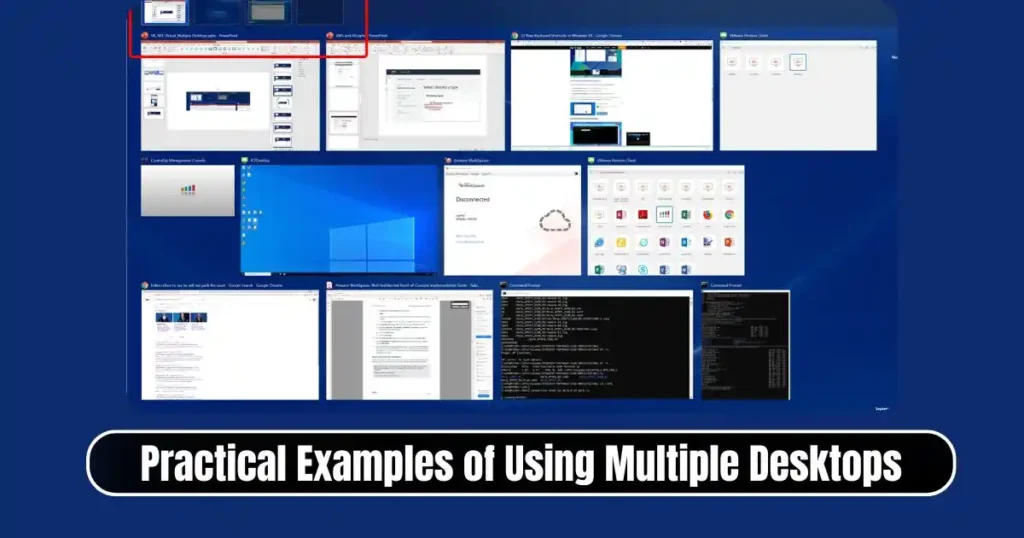
For Students
Students often work on multiple subjects. One desktop can have notes and research, while another can handle videos or lectures. A third space can hold distractions for break time.
For Office Workers
One desktop can manage email and communication apps. Another can hold spreadsheets or documents. A third can run reference material for ongoing tasks.
For Creatives
Writers, designers and editors use separate desktops for drafts, brainstorming, and editing. This makes it easier to maintain focus during each phase.
For Casual Users
People who browse, stream and shop online may find it useful to place each activity on separate desktops to maintain clarity on screen.
Benefits of Learning How to Set Up Multiple Desktops in Windows 10/11
- Cleaner workspace with fewer distractions
- Faster task switching
- Better separation of personal and professional activities
- More organized workflow
- Convenient for heavy multitasking
- Useful for both beginners and power users
Once you understand how to set up multiple desktops in Windows 10/11, the system starts to feel more flexible and modern. It gives you more control over your time and helps reduce distractions, which is important for productivity.
Conclusion
Virtual desktops are one of the most practical features in Windows 10 and Windows 11. Once you learn How to Set Up Multiple Desktops in Windows 10/11, you can create a smoother, cleaner and more organized workflow. Whether you need separate spaces for work, study, personal tasks or entertainment, virtual desktops allow you to switch between them quickly and without clutter.
The combination of Task View, keyboard shortcuts, and customization options makes this feature easy for anyone to use, whether you are a professional, a student or a casual user.
FAQs on How to Set Up Multiple Desktops in Windows
1. Do virtual desktops affect computer performance?
No. Virtual desktops do not consume heavy resources. They simply organize your existing apps into separate workspaces.
2. Can I use different wallpapers for each desktop in Windows 10?
This feature is only available in Windows 11. Windows 10 uses the same wallpaper across all desktops.
3. Will closing a desktop close my apps?
No. When you close a desktop, its apps move automatically to the previous desktop.
4. How many virtual desktops can I create?
Windows allows a large number of desktops. Most users will never hit the limit in regular usage.
5. Can I pin apps to appear on all desktops?
Yes. In Task View, right-click an app and choose Show this window on all desktops.
Disclaimer: This article is for informational purposes and is based on general features available in Windows 10 and Windows 11. Features may vary depending on version, device type or system updates.
Also Read: How to Lock Your Facebook Profile for More Privacy: Step-by-Step Guide

Raj Prajapati is a skilled content writer dedicated to creating clear, step-by-step guides on technology, Health, and everyday solutions. With a focus on user-friendly and SEO-optimized content, he simplifies complex topics, helping readers learn and solve problems effortlessly.