
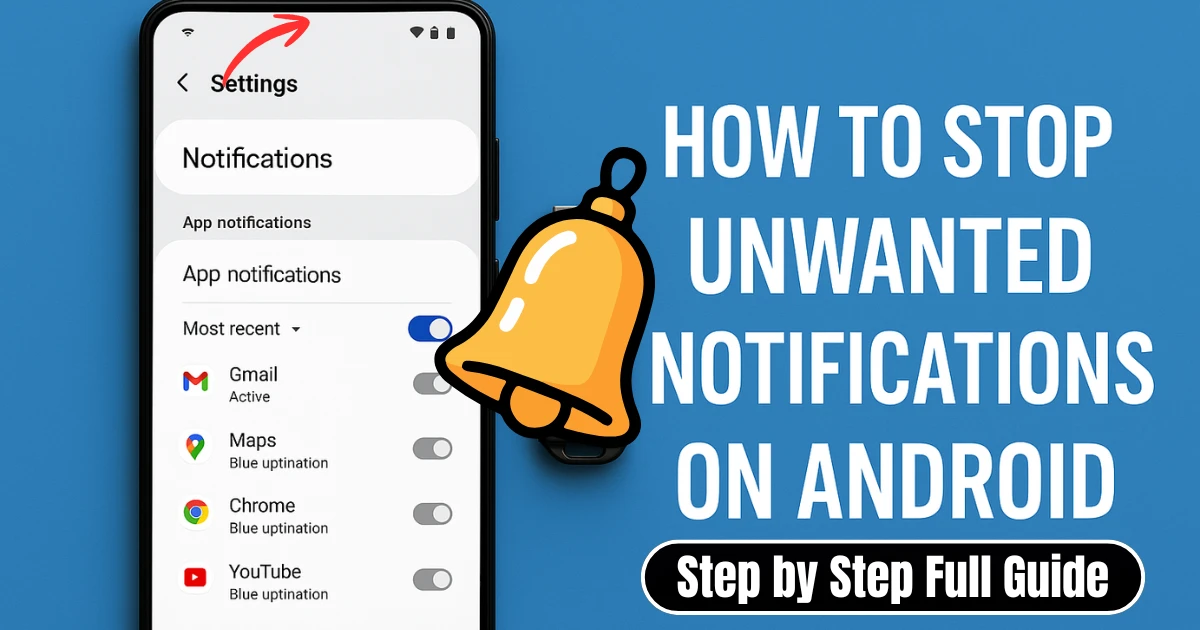
How to Stop Unwanted Notifications on Android: Modern smartphones are capable of incredible things, but there is one major frustration nearly every Android user faces: constant, unwanted notifications. From random promotional messages to pop-up alerts from apps you barely use, notifications can quickly become overwhelming.
What should be a helpful feature often turns into nonstop disturbance. Whether it’s shopping apps sending sale alerts every hour, games reminding you to log in for rewards, or news apps pushing irrelevant updates, the problem is widespread and growing.
If you feel your phone has been buzzing more than you can tolerate, the good news is that you have complete control over what alerts you want to receive. With the right notification settings, you can restore peace, reduce distractions, and reclaim productivity. In this expanded guide, we will explore every method in detail so you can permanently stop unwanted notifications on Android step by step without installing any third-party application.
This article is specially designed for both non-technical and advanced users. Whether you own a Samsung, Xiaomi, Realme, Pixel, Vivo, Oppo, OnePlus, Motorola, or any other brand, the methods remain the same with slight variations in menu names. So sit back and follow each section carefully to learn how to Stop Unwanted Notifications on Android in the most efficient way possible.
Also Read: How to Create a Bootable USB for Windows Installation- Complete Guide 2025
Why Android Notifications Become Distracting Over Time
Notifications were introduced to help users stay updated. However, over the years, app developers have turned them into marketing tools. Many applications use push notifications to increase user engagement instead of delivering something genuinely useful. This is why even after disabling optional pop-ups inside an app, some alerts may continue.
Another factor is the rise of browser push notifications. When users visit certain websites and click “Allow” without noticing, those websites gain permission to send notifications even when the browser is not open. This sometimes makes users feel that their phone has some kind of virus, when in reality it is only a permission that needs to be withdrawn.
The good news is that Android has extremely powerful notification management settings. Once you know exactly where to find them, you can turn your phone back into a calm and productive device rather than a distraction factory.
Method 1 — Disable Notifications from Settings (Recommended)
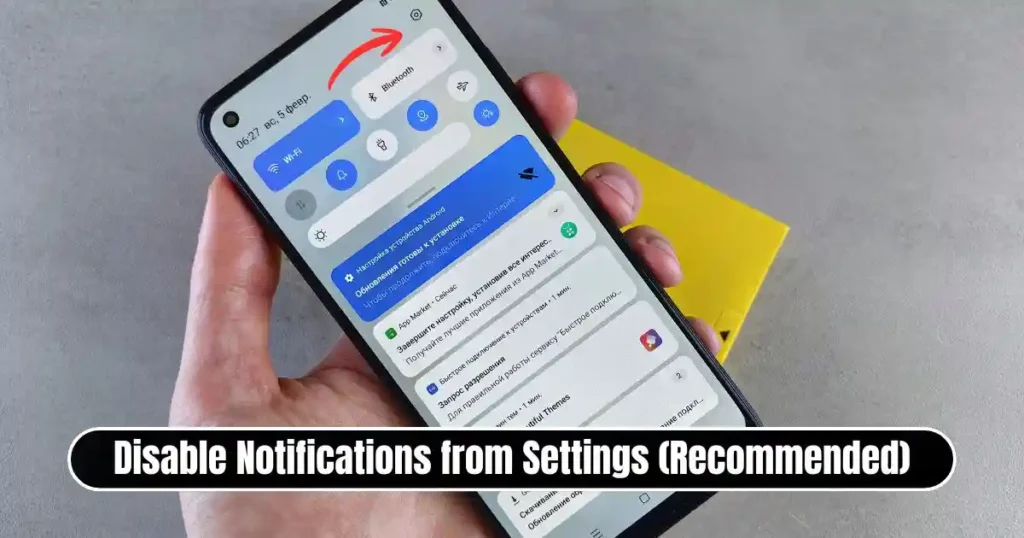
This is the most powerful and reliable method because it allows you to manage notification settings for every installed application in one place. You can completely disable alerts for unnecessary apps or choose to silence only certain types of notifications.
Steps
- Open the Settings app on your Android phone.
- Tap Notifications (in older phones this might appear as Apps & Notifications).
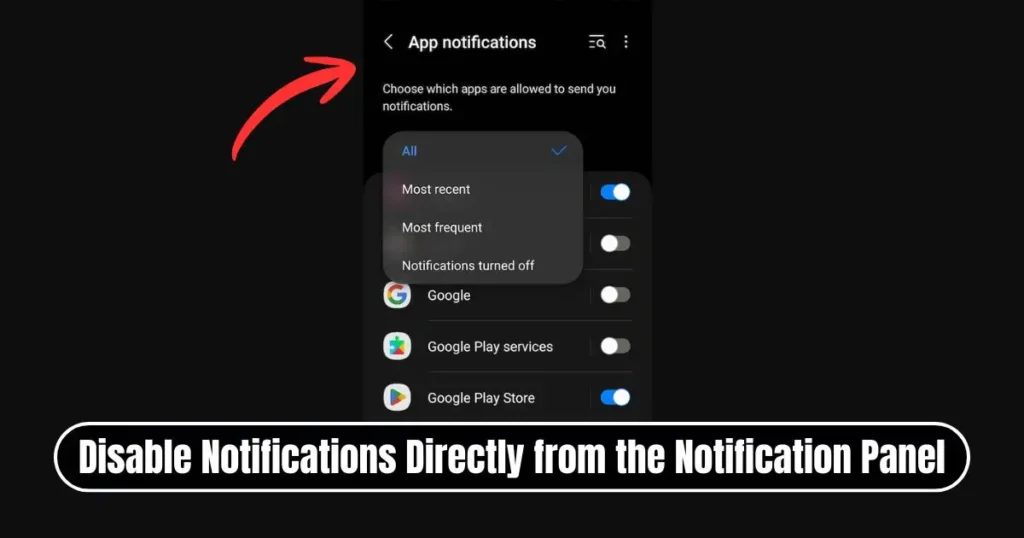
- Select App Notifications or See All Apps.
- If the list shows only a few apps, tap the drop-down menu that says Most Recent and switch it to All Apps.
- Select the app that is sending unwanted notifications.
- Toggle the main switch off to block all notifications from that app.
- If you want more precision, open individual notification categories such as Promotions, Reminders, Account Alerts, Offers, or System Messages. Disable only the categories that you don’t want while keeping the important ones active.
Android internally uses a system known as notification channels. Each channel controls a specific category of alerts. When adjusting channels individually, you gain more control than disabling everything. For example, a banking app may send promotional offers and balance alerts, but you can block only promotions while keeping transaction updates active.
This method ensures that the apps you care about continue to notify you, while the ones sending irrelevant alerts become silent forever.
Method 2 — Disable Notifications Directly from the Notification Panel
Sometimes a spam notification arrives and you want to remove it instantly rather than searching through system menus. Android allows adjusting notification behavior directly from the shade, making it a very convenient method.
Steps
- Swipe down on your phone screen to open notifications.
- Long-press the alert you want to stop.
- Tap the Settings or Gear icon that appears.
- Choose one of the following according to your requirement:
- Turn off all notifications from that app
- Set notifications to Silent (no sound or pop-up)
- Tap Details or More Settings to access category-wise control
This approach is useful when you don’t know which app generated the notification. Instead of opening Settings and searching through apps, you can manage everything instantly.
Method 3 — Turn Off Notifications Within the App
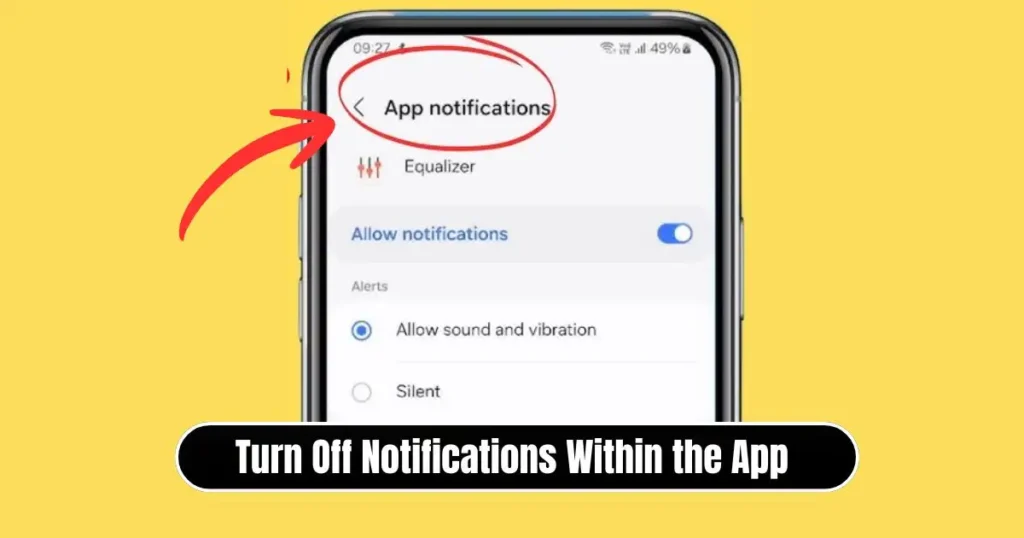
Some apps offer more detailed notification settings internally that are not visible in the system menu. Social media and shopping apps in particular provide in-app toggles for promotional and marketing notifications.
Steps
- Open the app sending unwanted alerts.
- Go to the Profile menu or tap the three-dot menu.
- Open Settings.
- Look for an option named Notifications, Alerts, or Preferences.
- Disable the categories you don’t want.
This method ensures that the app respects your preferences even after updates. For example, e-commerce apps often resume notifications after sales events, but disabling them from inside the app prevents this.
Method 4 — Use Do Not Disturb Mode for Complete Silence
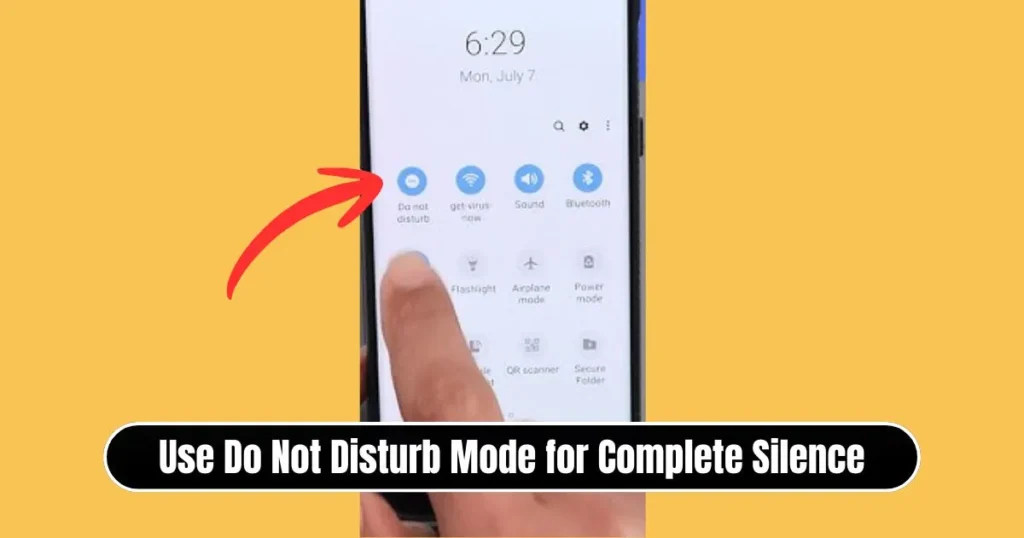
If you want complete peace for a limited period, such as during office hours, study time, or sleep, Do Not Disturb (DND) mode is the best solution. Unlike simple silent mode, DND can block notifications including vibrations and banners, making it ideal for deep focus.
Steps
- Swipe down twice to open the Quick Settings control panel.
- Tap the Do Not Disturb icon.
- Long-press it to open additional settings.
- Choose how you want DND to work:
- Allow calls from specific contacts only
- Allow alarms only
- Block every type of notification including silent alerts
- Adjust visual interruptions such as lock screen previews
- Set a daily schedule such as bedtime hours
This method is powerful because you don’t need to disable apps individually. When your work is finished, you can disable DND and continue normal use.
Bonus Tip — Stop Website Push Notifications on Android
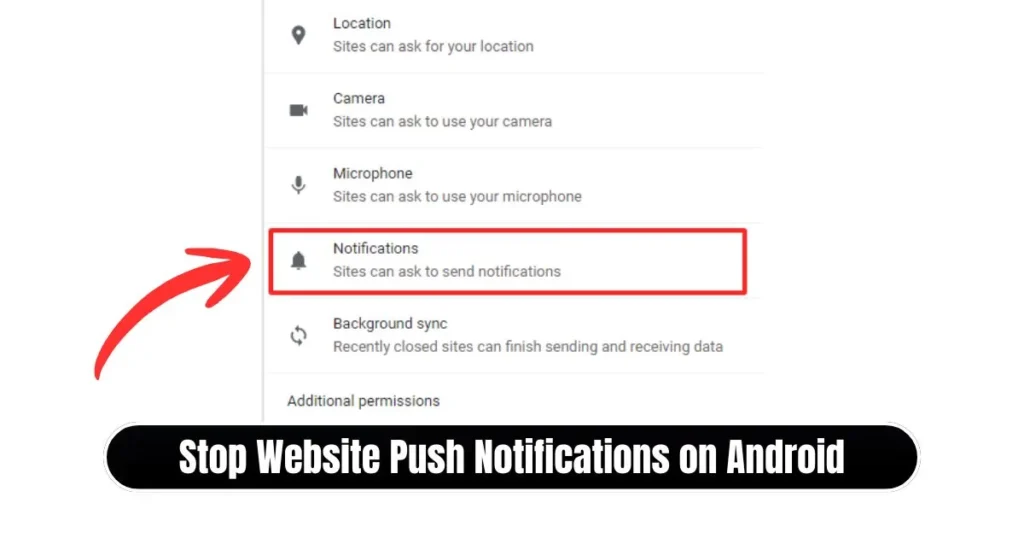
Many users observe that advertisements appear on their notification panel even when apps are closed. This usually happens when notifications from websites have been allowed accidentally. These alerts can be disabled easily.
Steps
- Open Chrome or your phone’s default browser.
- Tap the three-dot menu and choose Settings.
- Scroll down to Site Settings.
- Tap Notifications.
- Remove any websites listed under Allowed.
- If the list is long, you can block all site notifications permanently.
This single setting eliminates a majority of pop-up ads that seem to appear out of nowhere.
Also Read: How to Sync Chrome Bookmarks Across Devices – Full Step-by-Step Guide
Additional Quaries Required by User
How to stop unwanted notifications on Android step by step Samsung
Samsung phones include deeper notification control menus.
Settings → Notifications → Advanced Settings → Notification Categories
Turn off promotional categories and disable App Icon Badges if you want a cleaner home screen.
How to stop pop up ads on Android phone
Uninstall unnecessary apps causing advertisements.
Check and disable browser push notifications and pop-ups.
Settings → Apps → Sort by Last Used → Remove suspicious applications.
How to turn off notifications on Android
Settings → Notifications → App Notifications → Toggle off the switch of unwanted apps.
How to turn on notifications on Android phone
Go to Settings → Notifications → Recently Sent → Select the app and toggle notifications on.
Notification settings on my phone
Settings → Notifications → Advanced Settings.
From here you can enable or disable lock screen previews, banners, floating bubbles, history logging, and sound/vibration controls.
Pop up ads on Android home screen
Pop-up advertisements usually come from lock screen wallpaper and theme apps. Removing such apps will immediately stop home screen ads.
How to block notifications from a website on Android
Chrome → Settings → Site Settings → Notifications → Block or remove websites that have permission.
Final Thoughts
Android delivers one of the most advanced notification systems of any mobile operating system. The key is learning how to customize it properly. Once you take a few minutes to set notification preferences, your mobile experience becomes significantly smoother. Your phone stops buzzing unnecessarily, battery performance improves, and your focus is no longer disrupted.
Controlling notifications is not about missing information; it is about receiving only what truly matters. With the methods shared above, you now have complete control over what deserves your attention. Whether you prefer clean silence or selective alerts, Android gives you every possible tool to shape your digital environment according to your personal routine and comfort.
FAQs on How to Stop Unwanted Notifications on Android
1. Will turning off notifications affect how apps run?
No. Apps continue working normally even if notifications are disabled.
2. Should I turn off all notifications from all apps?
Not necessary. Keep useful alerts like banking, OTP, emergency alerts, alarm and messaging notifications.
3. Why do ads keep appearing on my phone even after disabling app notifications?
Browser push notifications or lock screen apps are usually responsible. Remove those permissions.
4. Do I need to install an antivirus app to stop pop-up ads?
No. Notification and app permission management is enough in most cases.
5. Will factory reset remove notification spam permanently?
Yes, but it is not required. Correct notification and browser settings resolve the issue without deleting phone data.
Disclaimer: This guide is published for educational and informational purposes only. Android menu names may vary slightly depending on device brand and version. how2guidess.online does not encourage disabling essential alerts like banking, OTP, emergency warnings, or system updates. Users are responsible for adjusting notification settings based on their personal needs and safety.
Also Read: How to Free Up Space in Google Drive, Gmail, & Photos- Complete Guide

Raj Prajapati is a skilled content writer dedicated to creating clear, step-by-step guides on technology, Health, and everyday solutions. With a focus on user-friendly and SEO-optimized content, he simplifies complex topics, helping readers learn and solve problems effortlessly.