
In today’s multi-device lifestyle, most of us browse the internet on more than one platform—laptops, smartphones, work PCs, tablets, or even smart TVs. You might find a helpful article on your phone, a shopping page on your laptop, and an important work link on your office desktop. But without synchronization, keeping bookmarks updated across all these devices can become confusing and time-consuming.
This is where the Chrome Sync feature becomes a game-changer. It allows you to access the exact same set of bookmarks, browsing history, saved passwords, and extensions across any device using Chrome. If you’ve ever asked yourself “how to sync Chrome bookmarks across devices without losing anything?”—this is the complete guide you need.
Also Read: How to Free Up Space in Google Drive, Gmail, & Photos- Complete Guide
What Does Sync Mean in Google Chrome?
Syncing in Chrome means all your browser data is stored securely in your Google Account and becomes available on every device where you’re signed in. The moment you bookmark a page on one device, it will automatically show up on the others.
Types of data Chrome can sync
- Bookmarks
- Browsing history
- Saved passwords and autofill
- Tabs currently open
- Extensions and apps
- Themes and preferences
- Payment methods (optional)
You can sync everything, or only selected items depending on your privacy preference. For this article, our focus remains mainly on bookmarks syncing—but understanding the complete picture helps you use Chrome intelligently.
How Chrome Sync Works in Real Life (Scenario Example)
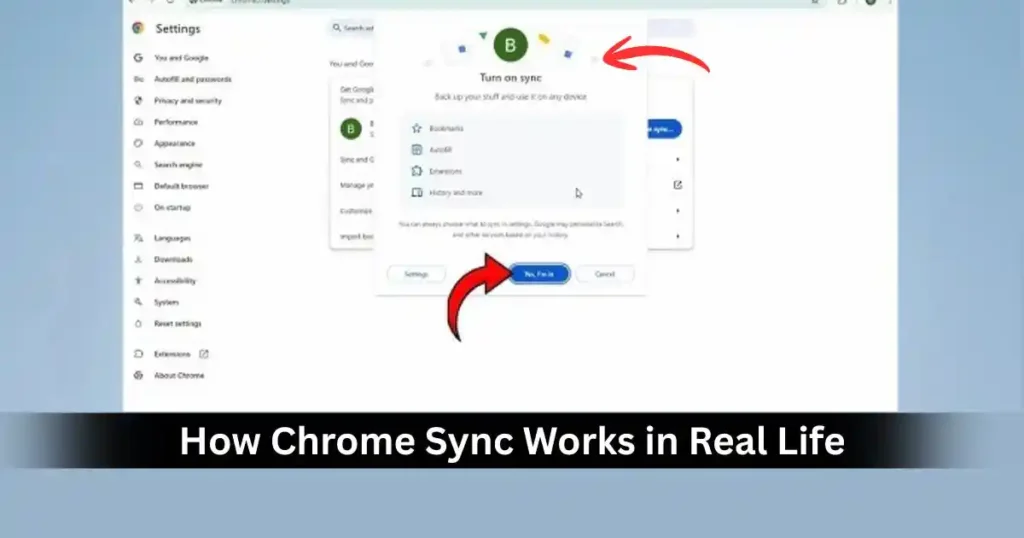
Imagine the following situation:
| Device | Activity |
|---|---|
| Laptop | You bookmark an article to read later |
| Phone | You open Chrome, and the article shows up under bookmarks instantly |
| Work PC | You continue reading from where you left off |
There’s no manual exporting, importing, emailing links to yourself, or searching history. Everything is simply there—automatically.
That’s the magic of syncing.
How to Sync Chrome Bookmarks Across Devices (Step-by-Step for PC)
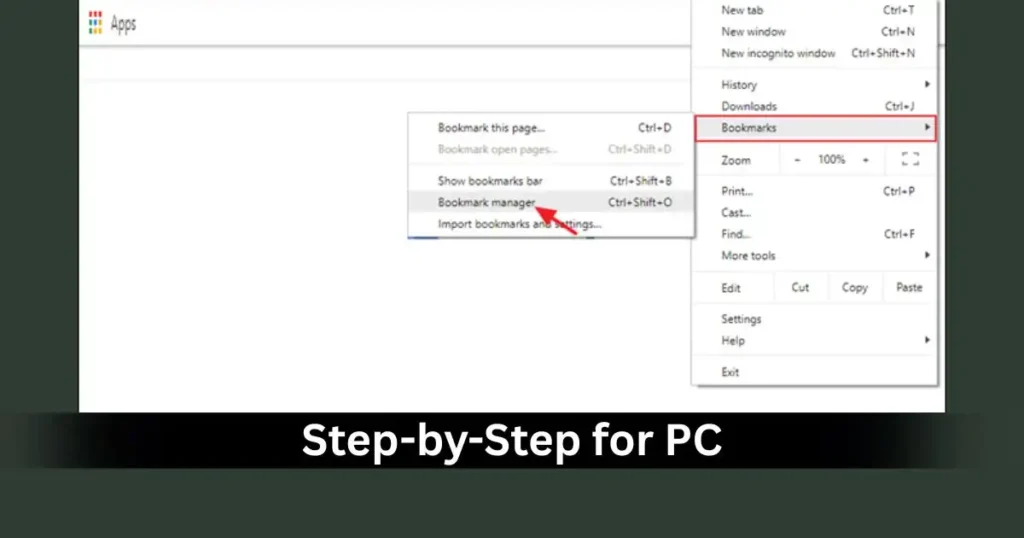
Follow the steps below to set up syncing on a computer:
- Open Google Chrome
- Click the three-dot menu at the top-right corner.
- Select Settings
- Under You and Google, choose Sync and Google services
- If you’re not signed in yet, click Turn on sync
- Sign in using your Google Account
- To choose what to sync:
- Click Manage what you sync
- Select Sync everything ➜ to sync bookmarks along with all other data
- OR choose Customize sync ➜ enable Bookmarks only if you want selective syncing
❗ Important Tip: If you share your laptop with someone else, use Chrome Profiles to separate browsing data before turning on sync.
How to Sync Chrome Bookmarks Across Devices on Android / iOS
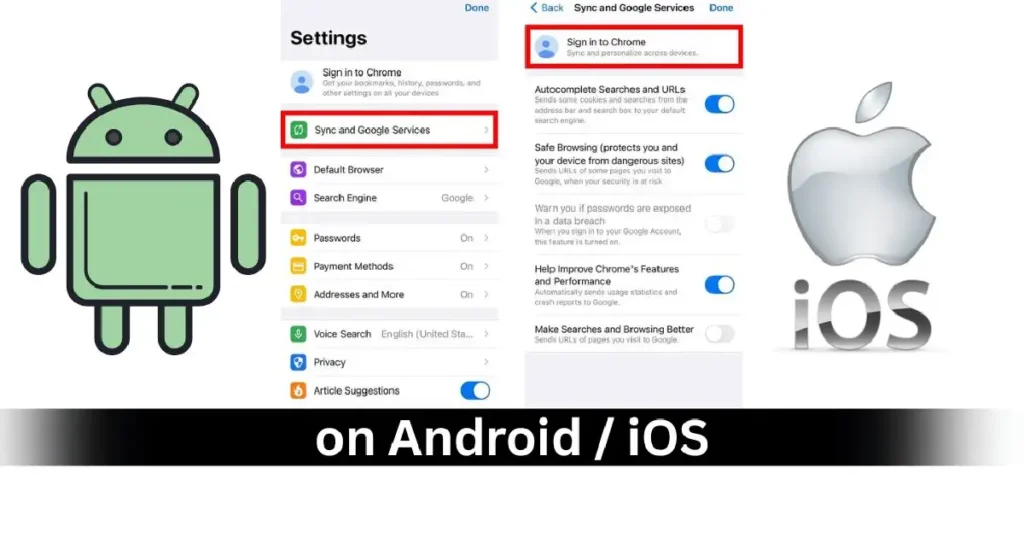
Although the interface varies slightly between Android and iPhone, the process remains simple:
- Open the Chrome app
- Tap the three-dots menu
- Select Settings
- Tap your Google Account
- Press Sync
- Make sure Bookmarks toggle is ON
- Either enable Sync everything or only turn on Bookmarks
Once done, bookmarks saved on one device will appear instantly on another signed-in device.
Why Sometimes Sync Doesn’t Work? (Common Mistakes Users Make)
Even after enabling sync, bookmarks may not appear everywhere if:
| Reason | Fix |
|---|---|
| Logged in with multiple Google accounts | Confirm same account is signed in across devices |
| Sync paused / disabled | Re-enable from Chrome Settings |
| Data limit or Restricted background on phone | Allow background data + remove battery restrictions |
| Bookmarks stored under a different profile | Switch Chrome profile |
| Date/time mismatch across devices | Enable automatic date/time |
If you still do not see changes instantly, wait 1–3 minutes or restart Chrome. For large bookmark collections, syncing may take more time on the first attempt.
Manual Export / Import vs Sync — What’s Better?
Before sync existed, users exported bookmarks manually as an HTML file and imported it to another device. While this still works, it’s no longer the most efficient method.
| Feature | Export / Import | Sync |
|---|---|---|
| Real-time data transfer | No | Yes |
| Multiple devices | Hard | Easy |
| Auto-backup | No | Yes |
| Internet requirement | Not required | Required |
| Privacy | Full control | Based on Google cloud trust |
Manual export is ideal only when:
- You are moving to a new browser
- You are sharing bookmarks with someone else
- You are creating a local backup
In every other case, enabling Chrome Sync is the smartest option.
Security & Privacy: Is Sync Safe?
Chrome encrypts your synced data, and bookmarks/data can only be accessed by someone logged into your Google account.
For extra safety, Chrome offers:
- Default encryption
- Custom passphrase encryption (optional)
A custom passphrase ensures even Google cannot read your synced data.
Also Read: How to Use Google Drive for Backup and File Sharing- Step by Step Guide
People Also Search For-
How to sync Chrome bookmarks across devices on phone
Open Chrome → Settings → Your Google Account → Sync → Turn ON Bookmarks.
How to sync Chrome bookmarks across devices Android
Settings inside Android Chrome → Sync → Toggle ON Bookmarks or Sync Everything.
How to sync Chrome bookmarks across devices Samsung
Samsung phones follow the Android method, but ensure Chrome—not Samsung Internet—is used.
How to sync bookmarks in Chrome across computers
Log into Chrome using the same Google Account on both computers → Enable Sync → Bookmarks ON.
How to export bookmarks from Chrome to another computer
Chrome → Bookmarks → Bookmark Manager → Three-dots → Export Bookmarks → Transfer HTML file → Import on another PC.
How to sync bookmarks in Chrome with Google Account
Turn on Sync after signing in → Choose Sync Everything or Customize → Ensure Bookmarks option is active.
How to sync bookmarks in Chrome Android
Chrome app → Settings → Account → Sync → Turn on Bookmarks.
Chrome bookmarks not syncing
Check if Sync is paused, wrong Google Account is signed in, or Bookmarks toggle is off → Restart Chrome to refresh sync.
Tips to Keep Bookmarks Clean & Organized After Sync
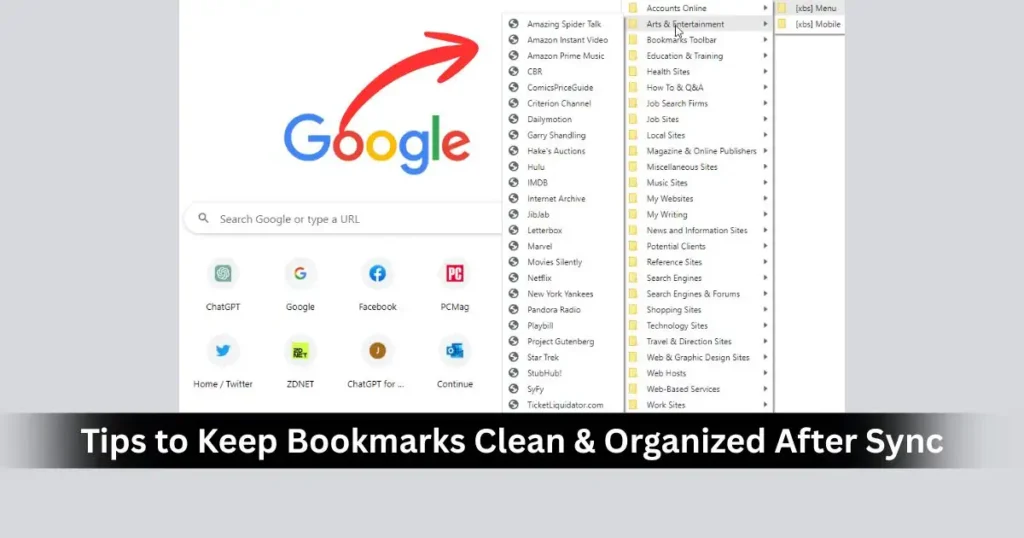
- Use bookmark folders based on topics: Work, Travel, Study, Movies, etc.
- Delete unused bookmarks monthly
- Use Bookmark Bar only for links you visit daily
- Try Chrome extensions like Bookmark Manager or Raindrop.io for advanced sorting
Final Thoughts
Knowing how to sync Chrome bookmarks across devices is one of the best ways to maintain a seamless browsing experience in a multi-device digital world. Whether you switch between home, work, and mobile—and even across platforms—Chrome Sync ensures your bookmarks stay up-to-date everywhere without effort.
Once configured properly, you’ll never need to email links to yourself, hunt through browser history, or lose important saved pages again.
FAQs: How to Sync Chrome Bookmarks Across Devices
Is Chrome Sync free?
Yes, completely free as long as you have a Google Account.
Will syncing bookmarks use heavy internet?
No, syncing only transfers lightweight data and consumes minimal bandwidth.
Can I stop syncing on a specific device?
Yes, turn off Sync from that device’s Chrome Settings.
Will bookmarks disappear if I disable sync?
No, existing bookmarks remain, but changes won’t sync further.
Can I sync bookmarks without a Google Account?
No, sync requires a Google Account.
Disclaimer: Information provided in this article is based on current Chrome features available at the time of writing. Google may update or change sync settings, layouts, or processes in future browser versions. Users should refer to Chrome’s official documentation for the latest updates.
Also Read: How to Clear Cache on Android Phone: Easy Step-by-Step Guide

Raj Prajapati is a skilled content writer dedicated to creating clear, step-by-step guides on technology, Health, and everyday solutions. With a focus on user-friendly and SEO-optimized content, he simplifies complex topics, helping readers learn and solve problems effortlessly.