

How to Use Android Auto Archive Apps Feature: Running out of storage space is one of the most common frustrations for Android users. Between large apps, cached files, offline media, and system updates, even phones with 64GB or 128GB can fill up faster than expected.
Traditionally, when storage became tight, users had to uninstall apps or delete data, which often meant losing login information, saved progress, and personalized settings. But Android now offers a smarter solution that many users still don’t know about: the Auto-Archive Apps Feature.
This feature quietly removes unused app components from your device to free space, while preserving your data in the cloud. The best part is that you can bring the app back instantly with one tap—no setup, no login repetition, and no reconfiguration.
This makes the feature especially helpful for people who switch between apps occasionally, keep multiple social apps installed, or have limited device storage.
In this complete guide, we will break down How to Use Android Auto Archive Apps Feature, how it works, when to enable it, practical use cases, privacy factors, limitations, and expert-level tips to maximize its benefits.
The goal is to help you understand not just how to toggle it on, but how to strategically use it to keep your device running smoothly without losing important data.
Also Read: How to Use Android Hidden Screen Pinning Feature for Privacy and Focus
What Is the Auto-Archive Feature and How Does It Work?
Android’s Auto-Archive system removes unused app files while keeping essential parts of the app intact. It’s like uninstalling an app halfway: the storage-heavy components are deleted, but the identity of the app stays on your device, represented by a faded icon with a cloud symbol.
When you want it back, simply tap the icon and Android downloads only the missing files. You pick up from where you left off as if the app was never gone.
This means:
- Your account remains logged in
- Your preferences and settings stay saved
- App data syncs automatically after restoration
- No setup process is repeated
In other words, instead of deleting apps out of frustration, you can temporarily archive them without consequences. This alone makes the feature incredibly useful for anyone with a storage-limited phone or tablet.
Why the Auto-Archive Feature Matters Today

Almost every Android user reaches a point where the system shows the warning: Storage space is running out. At that moment, people are forced to uninstall apps, clear data, or move files.
With smartphones being our digital notebooks, wallets, cameras, and entertainment hubs, losing data is no longer a small inconvenience—it’s a setback.
Here is why the auto-archive feature is important:
| Problem Android Users Face | How Auto-Archive Helps |
|---|---|
| Limited storage space | Frees up to 60% of app storage |
| Too many apps but afraid to delete | Archives without removing personal data |
| Slow performance due to low space | Clears room for updates and new installs |
| Kids install too many games | Auto removal of unused ones, data kept |
| Phone storage almost full during downloads | System can archive apps instantly |
This feature adds peace of mind. You no longer need to hesitate before installing a new app, recording a 4K video, or downloading files. Android can automatically create the room you need.
How to Enable Auto-Archive Automatically (Recommended)
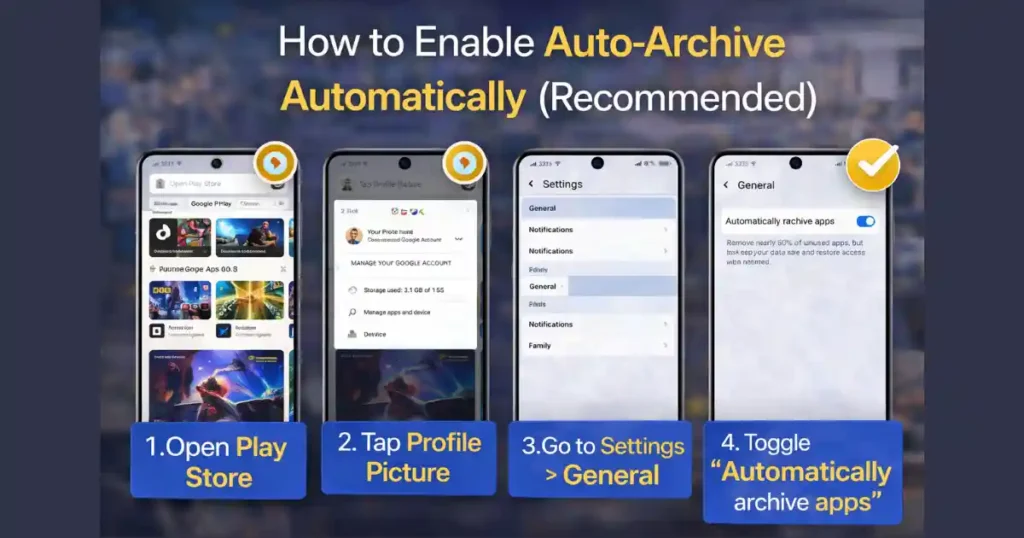
If your goal is to let the device manage space for you, this method is the simplest. Android will start archiving apps when storage becomes low.
Steps:
- Open the Google Play Store app.
- Tap your profile picture in the top right corner.
- Select Settings.
- Go to the General section.
- Toggle on Automatically archive apps.
Once this switch is active, Android monitors app usage patterns. If an app hasn’t been opened for a long time and the device needs space, the system archives it quietly. The icon stays on your home screen, but with a cloud badge.
Bonus Tip
If storage fills up while installing a new app, Android may show a pop-up suggestion. Choose Turn On Auto-Archive to free space immediately.
How to Manually Archive Apps (Control Exactly What Gets Removed)
There are users who prefer to decide for themselves which apps should be archived. Android supports this through device settings.
Steps:
- Open Settings on your phone.
- Go to Apps or Apps & Notifications.
- Tap See all apps if needed.
- Select the app you want to archive.
- Tap Archive at the bottom of the page.
This method is perfect when you know you won’t need a certain app for a while, like a seasonal shopping app, a game you finished, or a travel booking app after returning home.
Alternative Shortcut
- Long-press the app icon on the home screen
- Tap App Info
- Select Archive
This saves time and reduces the steps needed to manage apps individually.
How to Restore an Archived App (Instant Recovery)
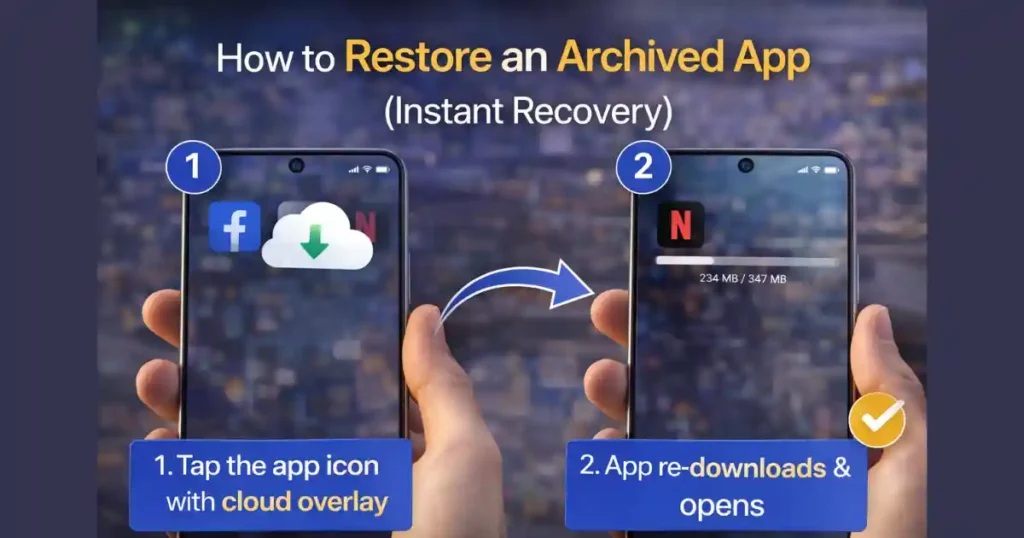
Archived apps are not gone. They behave like paused software waiting to be resumed.
To restore the app:
- Tap the app icon with the cloud overlay
- The Play Store re-downloads remaining files
- The app opens with the same login and settings
There is no need to set it up again or sign back in. The experience is seamless.
If You Don’t Want an App to Ever Archive
- Open Settings > Apps
- Select the app
- Turn off Manage app if unused
This is useful for banking apps, authentication apps, payment tools, or professional software that must always stay installed.
Also Read: How to Free Up Disk Space on Windows: Complete Step-by-Step Guide
How Much Storage Can It Save? (Realistic Expectation)
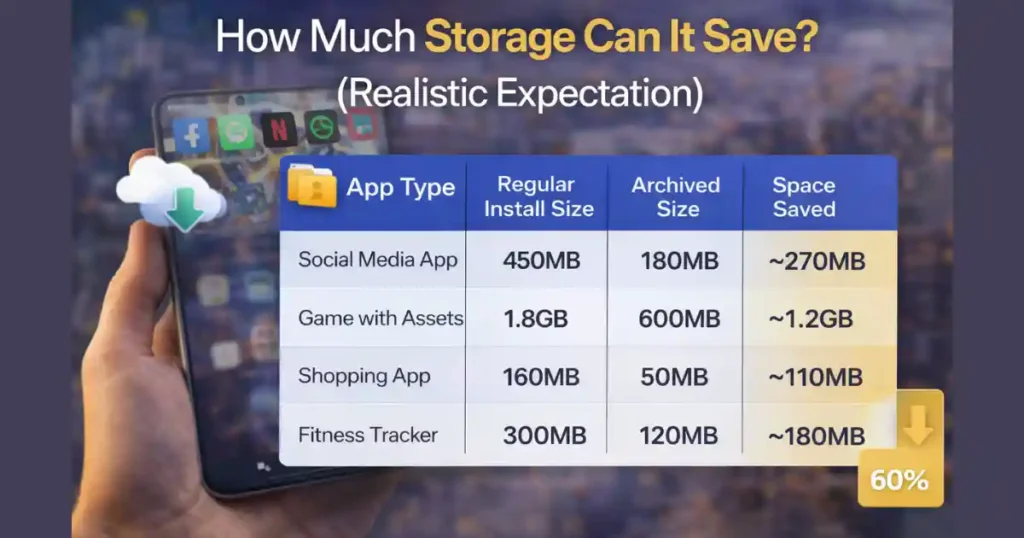
Android claims the feature can free up nearly 60% of an app’s space. This depends on the app’s structure and its content.
Example Scenario:
| App Type | Regular Install Size | Archived Size | Space Saved |
|---|---|---|---|
| Social Media App | 450MB | 180MB | ~270MB |
| Game with Assets | 1.8GB | 600MB | ~1.2GB |
| Shopping App | 160MB | 50MB | ~110MB |
| Fitness Tracker | 300MB | 120MB | ~180MB |
Over time, this small efficiency becomes a big advantage, especially on phones with less storage.
Supported Devices and Requirements
- Works best on Android 14 and above (full integration on Android 15+)
- App must be downloaded from the Google Play Store
- App must support the Android App Bundle format
- System apps and pre-installed tools cannot be archived
- Some enterprise-managed devices may block archiving
If an app doesn’t show the archive option, it may not support app bundles or might be a system app.
Pros and Cons of the Auto-Archive System

| Pros | Cons |
|---|---|
| Saves storage automatically | Not available on every app |
| Keeps login and personal data | Requires internet to restore |
| Eliminates setup time | Doesn’t archive system apps |
| Works silently in background | Some heavy games may re-download slowly |
| Helps low-storage phones perform better | Older devices may handle it slower |
Understanding pros and cons helps you adopt the feature confidently without surprises.
Best Real-World Use Cases
If you are wondering when to use the Auto-Archive feature, here are practical examples:
- Installing a new game but storage is low
- Kids install apps you don’t want to delete yet
- Keeping banking apps untouched but archiving others
- Seasonal apps like travel, festival shopping, or tax apps
- Educational apps used only during exams
- Creators who need space for video files temporarily
In these situations, auto-archive becomes a strategic tool rather than just a switch.
FAQ: How to Use Android Auto Archive Apps Feature
1. Does archiving delete my app data?
No. It preserves data, settings, and account information.
2. Can archived apps send notifications?
Most do not, because they are not active, but this depends on the app.
3. Can system apps be archived?
No. Only Play Store apps that support app bundles can be archived.
4. Is this better than uninstalling?
Yes. Uninstalling removes the app fully, while archiving preserves data and makes restoration faster.
5. Will this help if my phone is lagging?
Indirectly yes. Freeing storage helps reduce performance issues caused by low space.
Conclusion
The auto-archive system might not make headlines like major Android updates, but it solves a daily problem for millions of users. It respects your data, prevents unnecessary uninstalls, and makes storage management effortlessly smart. Once you enable it, your device learns from your habits and optimizes itself silently.
For users with limited storage, budget devices, or heavy app usage, learning How to Use Android Auto Archive Apps Feature can transform the overall experience of using an Android phone.
Disclaimer: This article is for informational purposes. Features may vary depending on device model, Android version, Google Play policies, and app compatibility.
Also Read: How to Reset App Preferences on Android: Full Guide, Benefits, and Steps

Raj Prajapati is a skilled content writer dedicated to creating clear, step-by-step guides on technology, Health, and everyday solutions. With a focus on user-friendly and SEO-optimized content, he simplifies complex topics, helping readers learn and solve problems effortlessly.