
Android has slowly evolved into one of the most privacy-aware mobile operating systems. Over the last few years, Google has focused specifically on giving users more visibility over how apps handle data in the background. One of the most useful additions in this area is Clipboard Access Alerts, a feature introduced in Android 12 and improved further in Android 13 and Android 14.
If you often copy sensitive information like emails, passwords, phone numbers, bank details or one-time codes, this feature can help you track which apps try to read that data. It not only alerts you when an app interacts with your clipboard but also works as a silent watchdog against apps that may try to snoop on your activity.
This guide explains How to Use Clipboard Access Alerts on Android, how to enable it on different devices, how it protects your privacy, and how you should use it effectively in daily life. We’ll also break down Android version-specific features, common misuses, and extra steps you can take to stay safe.
Also Read: How to Turn On Android Anti Theft Reset Protection Properly in 2026
What Clipboard Access Alerts Actually Do
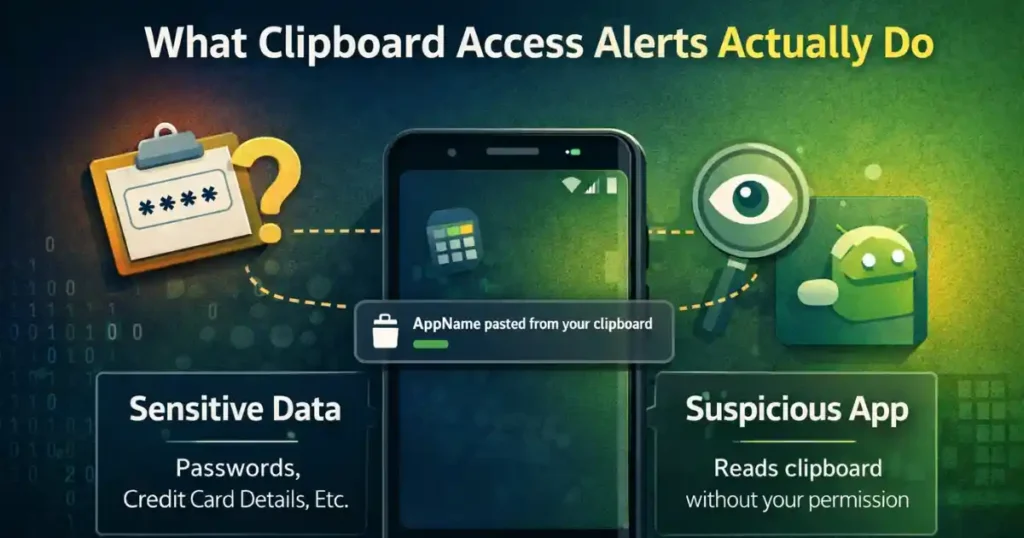
When you copy something on Android, it stays in your clipboard memory until you paste it somewhere else or copy something new. In many cases, this copied data may include private details you don’t want other apps to read.
Starting from Android 12, the system shows a toast notification every time an app reads your clipboard. It usually appears at the bottom of the screen with a message such as:
- “XYZ app pasted from your clipboard”
- “ABC accessed clipboard content”
This small alert works like a security checkpoint. If the alert appears at a time when you didn’t paste anything or weren’t interacting with that app, it tells you something is wrong.
Why this feature exists
Before Android 10, apps could read your clipboard freely, even in the background. This meant any game, keyboard, or random app could monitor copied text silently.
Google restricted this behavior step-by-step:
- Android 10: Only foreground apps can read clipboard content.
- Android 12: Adds visible alerts when apps access clipboard data.
- Android 13/14: Clipboard clears automatically after a set duration.
This layered approach gives users more visibility while preventing silent tracking.
How to Enable Clipboard Access Alerts on Android
Different Android manufacturers group privacy settings in slightly different locations. Below are the correct steps for the most common Android versions and brands.
Enable Clipboard Access Alerts on Samsung Galaxy Phones (One UI)
Samsung has been very active in adopting Android privacy features. In many recent models, this alert is already turned on by default.
Here’s how to check manually:
- Open Settings.
- Tap Security and Privacy.
- Select Privacy.
- Choose Controls and alerts.
- Turn on Alert when clipboard accessed.
Samsung also provides enhanced tools like Sensitive Clipboard Detection, which identifies if the copied data includes passwords or financial details.
Enable Clipboard Access Alerts on Google Pixel / Stock Android (Android 12+)
Google’s stock Android keeps things simple:
- Open Settings.
- Go to Privacy.
- Tap Privacy controls.
- Enable Show clipboard access.
Pixel phones already enforce strict clipboard rules. This toggle mainly turns the notification visibility on or off.
Enable Clipboard Access Alerts on Other Android Phones
On devices from brands like OnePlus, Vivo, Xiaomi, Motorola and Realme, the toggle is usually in:
- Settings → Privacy
- Settings → Security and privacy
- Settings → Additional privacy controls
Look for one of these labels:
- Alert when clipboard accessed
- Show clipboard access
- Clipboard access alerts
If you can’t find it, use the search bar inside the Settings app and type “clipboard”.
How to Use Clipboard Access Alerts for Better Privacy
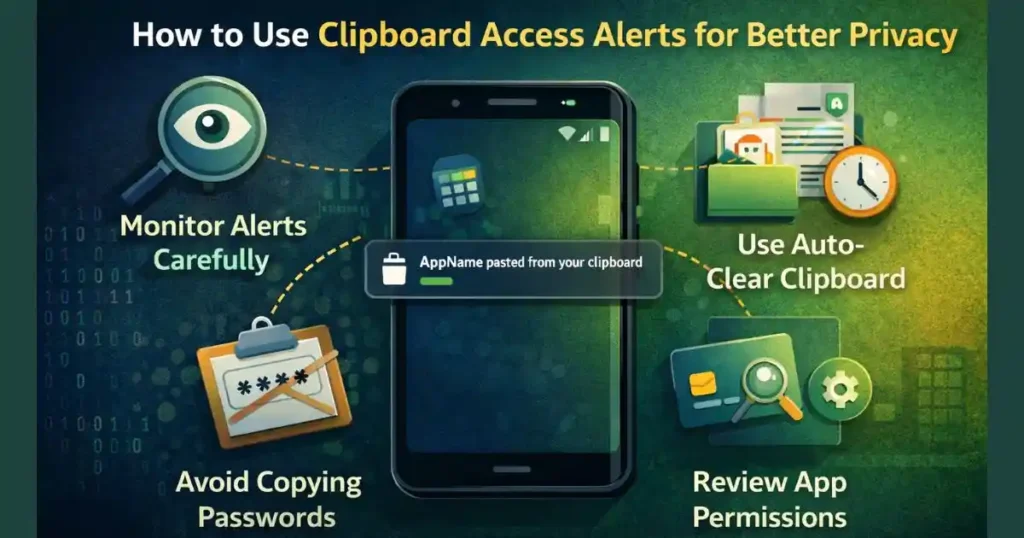
Once enabled, the alerts work automatically in the background. But to get the best protection, here are practices that truly make a difference.
1. Monitor Every “Paste” Alert Carefully
Each time an app reads your clipboard, Android displays the alert. This usually happens when:
- You tap the paste button in a text field.
- An app tries to pre-fill fields by reading clipboard content.
- A malicious app attempts unauthorized access.
What you should do:
- If you see the alert while using a chat, browser or notes app, it’s normal.
- If you see it while using a game, wallpaper app, flashlight app, or any app that has no reason to read text, treat it as a red flag.
This single feature helps spot shady apps instantly.
2. Avoid Copying Passwords or Card Numbers
The clipboard is temporary memory, but it isn’t encrypted like a password vault. If you copy passwords, any app you open after that can potentially read them.
Safer alternatives:
- Use Google Password Manager’s autofill.
- Use Samsung Pass on Galaxy phones.
- Use third-party managers like Bitwarden or 1Password.
Autofill passes data directly into fields without exposing it to the clipboard.
3. Clear Clipboard Manually by Overwriting
If you accidentally copied something sensitive, simply copy a random letter or empty space. This overwrites the old clipboard data instantly.
It’s a quick fix many users forget about.
4. Use Auto-Clear Clipboard on Android 13 and Android 14
One of the best upgrades in newer Android versions is automatic clipboard clearing. The system removes clipboard data after about an hour.
This avoids:
- Long-term exposure
- Accidental pasting
- Background access by apps
Samsung also adds its own version of this feature inside Samsung Keyboard settings.
5. Review App Permissions Regularly
If you notice suspicious clipboard access, check the app permissions:
- Open Settings.
- Go to Apps.
- Select the suspicious app.
- Review permissions like Storage, Contacts, Phone, or Nearby devices.
If the app doesn’t need those permissions for its core function, revoke them or uninstall the app completely.
Key Clipboard Privacy Features by Android Version
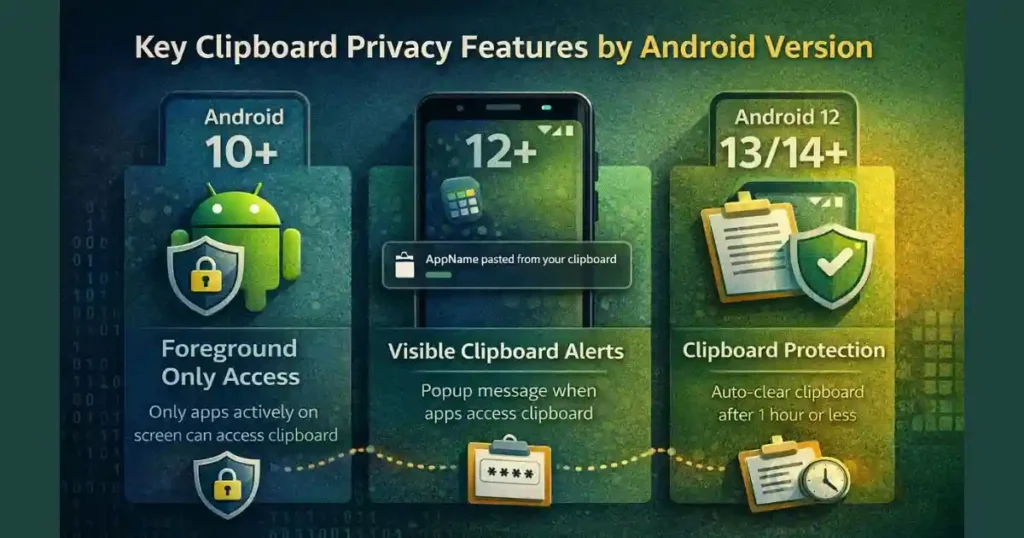
Android’s privacy upgrades didn’t happen overnight. Each version introduced new protections:
Android 10 and Above: Foreground Clipboard Access
Apps can only read clipboard data when they are active on screen. Background apps are blocked.
Android 12: Visible Clipboard Alerts
This is when Android introduced the toast message indicating clipboard usage. It gave users transparency for the first time.
Android 13 and Android 14: Clipboard Protection
New features include:
- Auto-clear clipboard after a short duration.
- Visual preview of clipboard content.
- Sensitive data detection, which hides certain content automatically.
These improvements reduce risks without requiring manual action from users.
How This Feature Protects You in Real Life
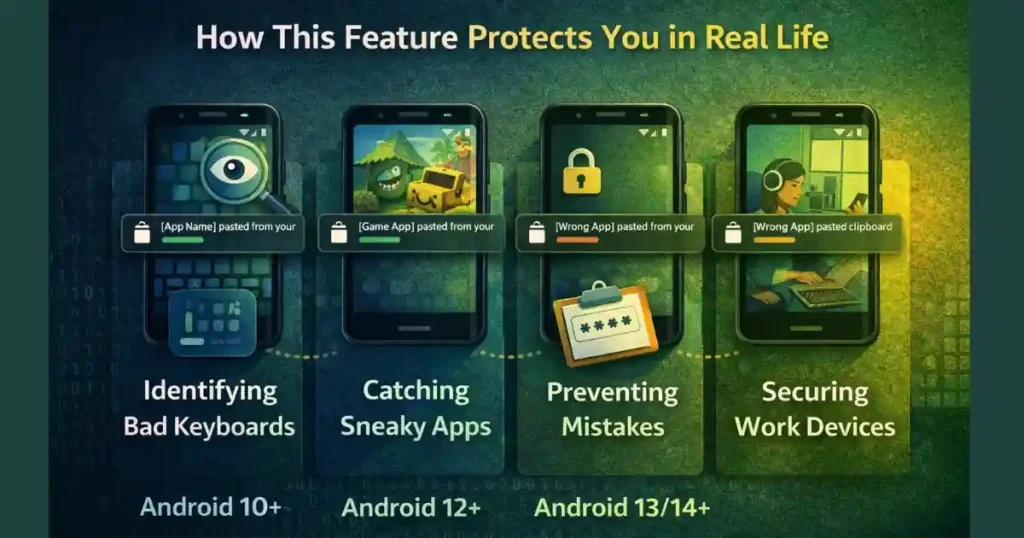
Clipboard Access Alerts help in more situations than people realize. Here are common examples:
1. Identifying Bad Keyboard Apps
Some third-party keyboard apps quietly monitor clipboard data. The alert immediately exposes this behavior.
2. Catching “Data-Harvesting” Games and Utilities
Many free apps collect as much data as possible for advertising networks. Clipboard access alerts let you see what they’re doing.
3. Preventing Accidental Pasting in Wrong Apps
If you copy sensitive info and forget about it, the alert reminds you that it’s still present in memory.
4. Securing Work-from-Home Devices
If you handle corporate documents or personal client files, clipboard alerts ensure no app reads the content in the background.
Also Read: How to Enable Vibration Haptics Control on Android: Complete 2026 Guide
People Also Search For
How to Use Clipboard Access Alerts on Android for Better Privacy Samsung
Samsung’s version is more advanced than many brands. In addition to the main alert toggle, Samsung devices highlight sensitive clipboard items and remove them faster. If privacy is your priority, One UI gives you more control over clipboard behavior.
Android Clipboard Permission
Android doesn’t offer a direct “clipboard permission,” but apps that need to read the clipboard can only do so while they’re in the foreground. This acts like an indirect permission system managed by Android itself.
Stop Apps Pasting from Clipboard Android
You can’t block clipboard access app-by-app, but you can:
- uninstall suspicious apps,
- revoke unnecessary permissions,
- use password managers to avoid storing sensitive data in the clipboard,
- enable automatic clearing on Android 13/14.
How to Disable Clipboard in Android Programmatically
Developers often ask this question. Android doesn’t let users or developers fully disable clipboard, but developers can restrict their own apps from reading it. System-wide disabling isn’t allowed for security reasons.
Android Block Clipboard Access
The operating system itself blocks most background access from Android 10 onward. Your role is to monitor suspicious activity using clipboard alerts and remove unsafe apps.
Alert When Clipboard Accessed Meaning
It means an app you are currently using has read the last thing you copied. If you didn’t actively paste anything, this alert should be taken seriously.
Clipboard on Android
The clipboard is a temporary storage area. You can copy text, images, URLs, files and more. Android 13 shows a preview panel when you copy something, which helps you understand what’s in memory.
Android Copied to Clipboard Popup
This popup appears whenever you copy something. It confirms that the action was successful and tells you what has been stored. It’s different from clipboard access alerts, which only appear when an app reads clipboard data.
Benefits of Using Clipboard Access Alerts
- Helps detect rogue apps instantly
- Protects sensitive financial and work-related data
- Improves overall device security
- Works silently in the background
- Requires no technical skills
- Supports both new and older Android devices
Potential Limitations
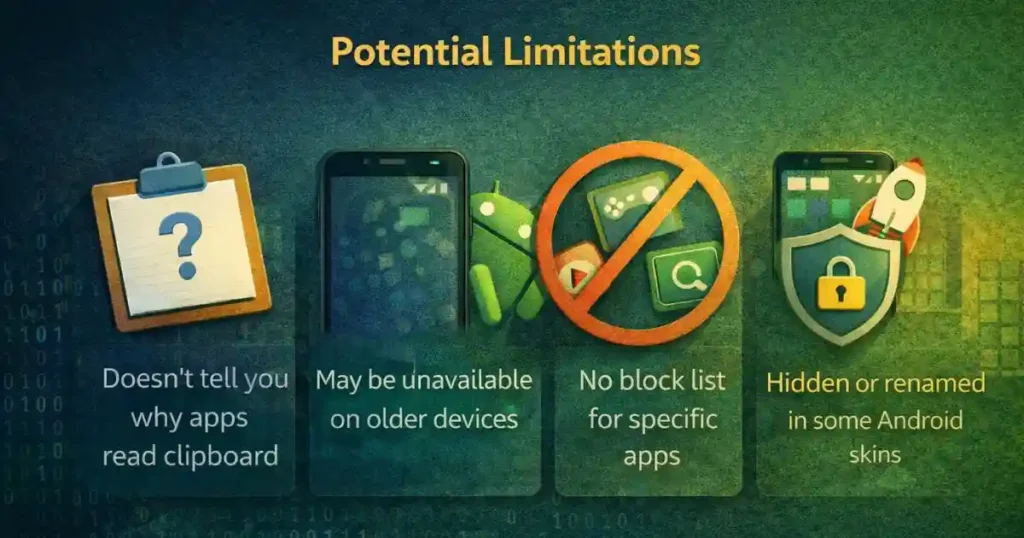
No feature is perfect. Clipboard Access Alerts also have a few restrictions:
- They don’t tell you why the app accessed the clipboard.
- They may not appear on older phones.
- You can’t create a block list for specific apps.
- Some custom Android skins hide the option or rename it.
Still, the protection it provides is significant and useful.
FAQs: How to Use Clipboard Access Alerts on Android
1. Are Clipboard Access Alerts available on all Android phones?
They are available on all Android 12+ devices and partially available on Android 10 and Android 11 with OEM customization.
2. Can I turn off clipboard alerts?
Yes. You can disable the toggle from Settings → Privacy → Show clipboard access.
3. Can an app read clipboard data without my knowledge?
No. Apps can only read clipboard when they’re active on screen. And from Android 12 onward, you’ll get an alert when they do.
4. Does copying OTPs, passwords or card numbers make me vulnerable?
It can. Avoid copying such data or use password managers to skip clipboard exposure.
5. How do I clear clipboard on Android manually?
You can overwrite it by copying any random text. Some phones also offer a “Clear clipboard” button inside keyboard options.
Disclaimer: This article (How to Use Clipboard Access Alerts on Android) is based on Android features available up to 2026. Device-specific menus may vary depending on region, model and OEM customization. Always keep your device updated for the latest security improvements.
Also Read: How to Use Voice Access on Android for Hands-Free Control (2026 Guide)

Raj Prajapati is a skilled content writer dedicated to creating clear, step-by-step guides on technology, Health, and everyday solutions. With a focus on user-friendly and SEO-optimized content, he simplifies complex topics, helping readers learn and solve problems effortlessly.