
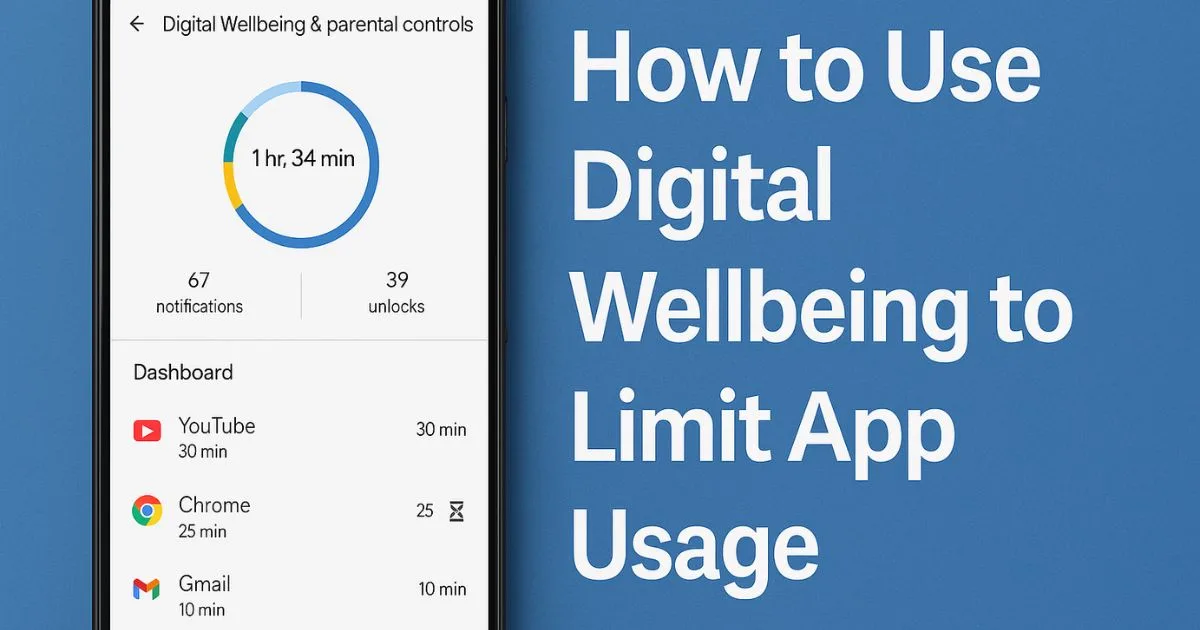
How to Use Digital Wellbeing to Limit App Usage: Staying productive has become harder as smartphones continue to claim more of our attention. Most people pick up their phone intending to check one notification and end up scrolling for half an hour. That is exactly why Google introduced Digital Wellbeing on Android devices. It gives users more control over their screen time and helps them understand how they interact with apps during the day.
If your goal is to cut down on distractions without putting strict locks on your apps, Digital Wellbeing is one of the most convenient tools you can use. This guide explains How to Use Digital Wellbeing to Limit App Usage, how each feature works, and how you can use these options to build better digital habits without relying on app locking or parental control–level restrictions.
This is a 3000-plus-word breakdown designed for everyday users, complete with explanations, comparisons, practical examples, and alternatives.
Also Read: How to Disable Google Maps Tracking Completely: A Full Step-by-Step Guide
What Is Digital Wellbeing on Android?
Digital Wellbeing is a built-in Android dashboard that tracks your app usage, phone unlocks, notifications, and screen time patterns. Every time you pick up your phone, open an app, or spend long stretches online, Digital Wellbeing captures that information and organizes it into an easy-to-read dashboard.
Unlike third-party screen-time apps, Digital Wellbeing doesn’t overwhelm you with too many settings. Its design focuses on awareness and self-control. Instead of forcing hard blocks on apps, the system encourages users to make conscious choices.
While it does have tools that temporarily pause apps, users always retain control. You can disable timers any time, resume apps instantly, or adjust limits as needed. That flexibility is what makes the tool useful for people who prefer warnings and gentle nudges rather than strict locks.
Why Users Want Limits Without Locks
Most Android users looking for digital balance want something between two extremes:
- They don’t want apps to stay fully open and distract them.
- They also don’t want their device to lock them out completely.
When the goal is reducing distractions—not restricting access—Digital Wellbeing is the perfect middle ground. It lets you monitor usage, apply soft limits, and create healthier habits while still maintaining full control.
Many people want this because:
- They need access to apps for occasional important tasks.
- They dislike being fully locked out by strict parental-control apps.
- They want a warning to slow down, not a forced block.
- They prefer apps to pause temporarily but still launchable if urgent.
This guide shows exactly how to do that.
How to Use Digital Wellbeing to Limit App Usage (Step-by-Step Guide)
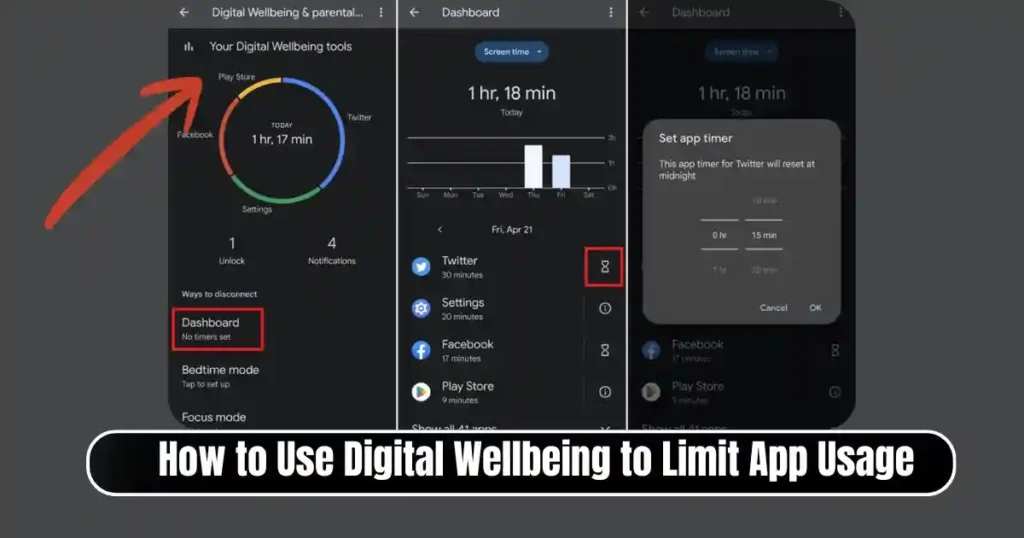
Digital Wellbeing offers a simple way to reduce app usage without installing anything extra. Here is the complete process explained in detail.
Step 1: Open the Settings App
On every Android phone, Digital Wellbeing lives inside the Settings menu.
To find it:
- Unlock your phone.
- Open Settings.
- Scroll down until you find Digital Wellbeing & parental controls.
On some models, this may simply appear as Digital Wellbeing.
The placement may vary depending on your Android skin (Samsung One UI, Xiaomi MIUI, Google Pixel, etc.), but it is always near the middle of the Settings list.
Step 2: Enter Digital Wellbeing Dashboard
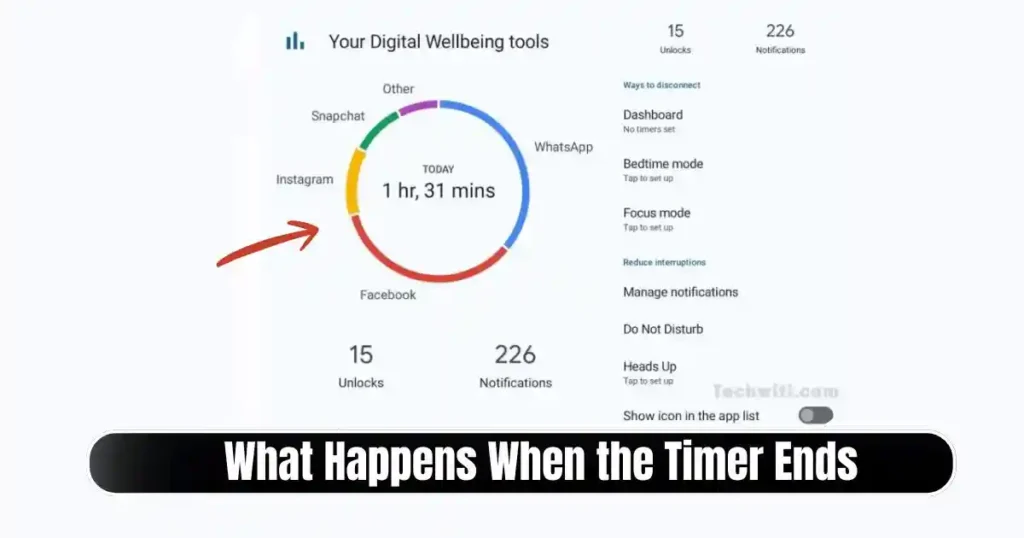
Once inside the Digital Wellbeing screen, you will see:
- A circular chart showing daily screen time.
- The number of notifications received.
- The number of times you unlocked your phone.
- Options like Dashboard, Focus Mode, and Bedtime Mode.
Tap the Dashboard or the chart to open detailed usage metrics.
This is where most of the action happens. The Dashboard shows how many minutes or hours you’ve spent on each app today. It even breaks down usage by hour, helping you understand your patterns better.
Step 3: Select the App You Want to Limit
Scroll through the list until you find the app you want to manage.
You will notice an hourglass icon next to each app. This is where you can set a timer.
This makes it easy to apply limits for:
- Social media (Instagram, Facebook, Snapchat)
- Video streaming apps (YouTube, Netflix)
- Messaging apps that consume too much time
- Games that tend to pull you in for longer sessions
Step 4: Tap the Hourglass Icon
Tapping the hourglass opens the App Timer setting. Here, you simply choose how long you allow yourself to use the app per day.
Common choices include:
- 15 minutes
- 30 minutes
- 45 minutes
- 1 hour
- Custom duration
The idea is not to restrict yourself completely but to set a boundary that guides you throughout the day.
After selecting your preferred limit, tap OK or Done.
Step 5: What Happens When the Timer Ends
Once you hit the daily limit:
- The app icon turns gray.
- The app becomes “paused” by the system.
- The app stops working until the next day.
This pause is similar to a soft lock. The point is to make you stop and think instead of mindlessly diving back into the app. Most users find this pause helpful because it creates a psychological barrier without feeling strict or forceful.
Step 6: Opening the App After Limit (Optional)
Even though the app is paused, you can still open it if needed.
When you tap the app:
- A warning message appears telling you the limit is up.
- You can acknowledge the message and continue.
The app will work, but Digital Wellbeing will pause it again shortly after. This keeps the experience gentle rather than harsh. Users who want more freedom can always override the warning with a single tap.
This is the closest Android comes to “limiting usage without locking apps.”
Step 7: Removing or Editing the Timer
If your schedule changes, or you want more flexibility, you can remove the timer:
- Go back to Settings.
- Open Digital Wellbeing.
- Enter Dashboard.
- Select the app with the timer.
- Tap the trash icon to delete it.
You can also adjust the duration instead of removing it completely. This helps you experiment with different screen-time limits until you find something that works for you.
How App Timers Work Behind the Scenes
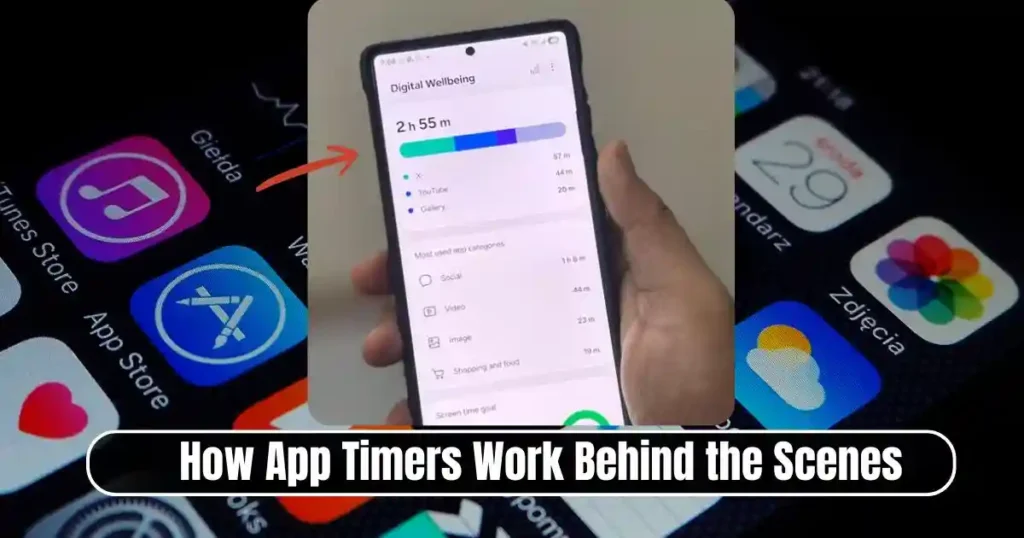
Many users misunderstand Digital Wellbeing timers. They assume that once the limit is reached, the device locks the app permanently. That isn’t how it works.
Here’s what actually happens:
- The system pauses the app temporarily.
- You cannot use it further unless you manually override.
- The next day, the timer resets automatically.
- You always have the option to remove the timer.
App Timers rely on psychology more than technology. Instead of restricting access, they create a small friction point to help you make better decisions.
This is why they are ideal for users who want some control but don’t want strict parental-control style app locks.
Other Helpful Digital Wellbeing Features
While App Timers do most of the heavy lifting, Digital Wellbeing includes several additional tools that support your self-control goals. These tools help reduce screen time without depending on locks or strict restrictions.
1. Focus Mode
Focus Mode is perfect when you want to concentrate without getting interrupted.
How it works:
- You select a group of distracting apps.
- You activate Focus Mode manually or schedule it.
- All selected apps get paused temporarily.
- They stay grayed out until you turn the mode off.
It works like a short session of deep work. This is particularly helpful for:
- Students during study hours
- Professionals working remotely
- Anyone who wants a distraction-free window during the day
Focus Mode is not permanent. You can pause or resume apps at any time.
2. Screen Time Goal
Screen Time Goal lets you set a target for total daily usage.
For example:
- 2 hours
- 3 hours
- 4 hours
- Custom goals
It reminds you when you are nearing the limit. It doesn’t block anything; it simply nudges you to disconnect.
This is extremely effective for building self-awareness and recognizing unhealthy usage patterns.
3. Wind Down / Bedtime Mode
Bedtime Mode creates a healthier nighttime routine.
When enabled:
- The screen turns grayscale.
- Notifications are silenced.
- Visual distractions get minimized.
- Your phone becomes less engaging.
This makes it easier to sleep without the temptation to scroll endlessly.
Unlike App Timers, Bedtime Mode doesn’t lock anything. It simply makes the device less stimulating.
Limitations of Digital Wellbeing: What You Should Know
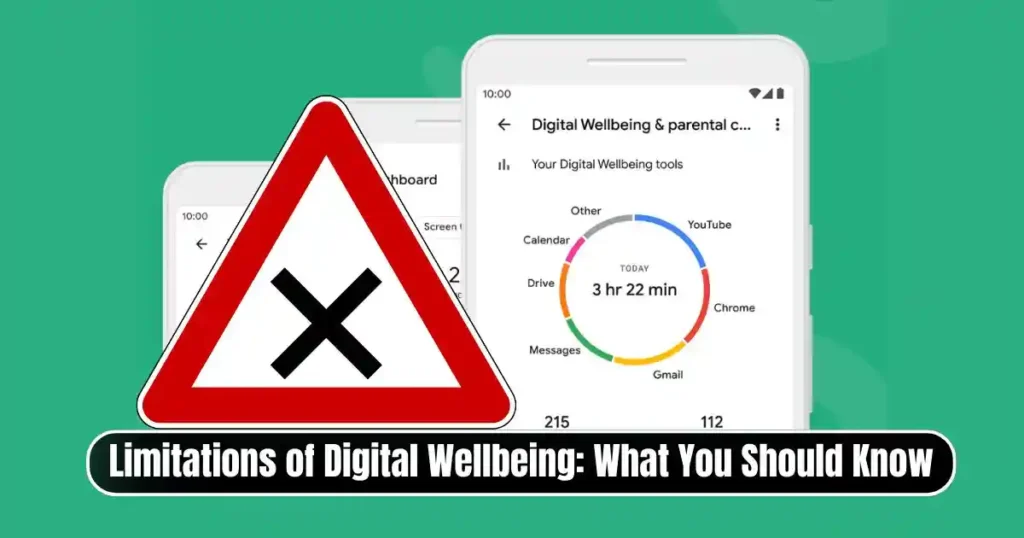
While Digital Wellbeing is useful, it isn’t perfect. Its biggest limitation is that it does not offer a “warning only” option without any form of blocking.
In simple words:
- A timer always ends with a pause.
- A paused app is technically locked until the next day.
- You can override it manually, but it’s still a pause.
Digital Wellbeing is meant to guide you—not fully restrict you. That is why the system leans toward soft interruptions instead of total blocks.
Also Read: How to Lock Your Facebook Profile for More Privacy: Step-by-Step Guide
Non-Locking Alternatives for Users Who Want More Freedom
If you want usage limits that:
- only show warnings
- don’t pause apps
- allow unlimited override
- offer more customization
…then you may need a third-party tool.
Several apps on Play Store provide:
- Warning notifications instead of locks
- Progress bars for daily usage
- Gentle reminders when your time is almost up
- Fully customizable limits without blocking access
Examples include:
- StayFree
- YourHour
- ActionDash
- ScreenTime Lite
These apps provide more customization than Digital Wellbeing, especially for users who want soft limits instead of pauses.
If you want, I can create a comparison chart of the best apps based on features, privacy, accuracy, and user experience.
Who Should Use Digital Wellbeing Instead of Third-Party Apps?
Digital Wellbeing is ideal for users who:
- Prefer built-in tools over external apps
- Want simple and reliable tracking
- Do not need strict app blocking
- Want lightweight solutions that don’t drain battery
- Value privacy and don’t want to share data with developers
Since it is designed by Google and integrated into the Android system, it is more accurate and efficient than most third-party alternatives.
Real-Life Use Cases: How People Use App Timers Effectively
Here are some practical examples of how people use Digital Wellbeing to regain control of their screen time.
1. Reducing Social Media Overuse
Limiting Instagram or TikTok to 30 minutes helps users enjoy content without spending hours scrolling.
2. Improving Productivity
Many users pause entertainment apps during work hours and resume them afterward.
3. Breaking Gaming Addiction
Timers help gamers control long sessions so they can maintain healthier routines.
4. Creating a Better Night Routine
Wind Down mode helps users disconnect from screens and sleep more peacefully.
5. Helping Students Focus
Students set daily limits on YouTube and gaming apps to focus on homework.
These habits gradually improve digital discipline without locking anything fully.
Final Thoughts
Digital Wellbeing is one of the most reliable and user-friendly tools on Android for managing your screen time. It doesn’t take over your phone or force restrictions on you. Instead, it helps you build awareness and healthier usage habits.
If you want to understand How to Use Digital Wellbeing to Limit App Usage without fully locking your apps, this guide gives you everything you need. From App Timers to Focus Mode and Bedtime Mode, each feature plays a role in helping you stay productive, intentional, and balanced.
You remain in control at all times, and that is what makes Digital Wellbeing an effective tool for real-world use.
FAQs on How to Use Digital Wellbeing to Limit App Usage
1. Can Digital Wellbeing limit app usage without locking the app?
Not exactly. The timer pauses the app, but you can still override the warning and open it again. It is more of a soft lock than a strict restriction.
2. Does Digital Wellbeing drain battery?
No. Since it is a built-in system feature, it uses fewer resources than most third-party apps.
3. Can I disable a timer after it pauses an app?
Yes. You can remove or adjust the timer at any time from the Dashboard.
4. Does Focus Mode lock my apps?
Focus Mode pauses selected apps temporarily. You can turn the mode off whenever you want.
5. Can I use Digital Wellbeing on all Android phones?
Most Android phones running Android 9 or later include Digital Wellbeing. Some older or heavily customized devices may not have it.
Disclaimer: This article is for informational purposes based on publicly available Android features. App behavior may vary depending on your device model, Android version, and manufacturer customization.
Also Read: How to Use Pivot Tables in Excel: A Complete Step-by-Step Guide

Raj Prajapati is a skilled content writer dedicated to creating clear, step-by-step guides on technology, Health, and everyday solutions. With a focus on user-friendly and SEO-optimized content, he simplifies complex topics, helping readers learn and solve problems effortlessly.