
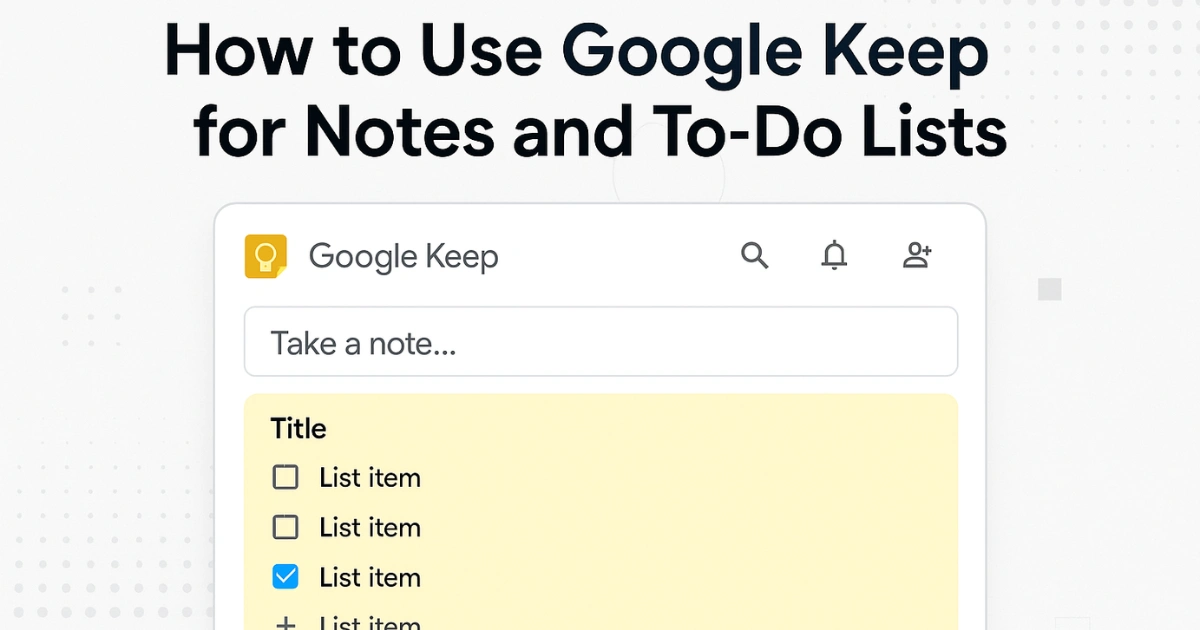
The way we capture and manage information has shifted from physical notebooks to digital ecosystems, and among the many options available today, Google Keep stands out as one of the most practical and lightweight note-taking tools.
Accessible across mobile, desktop, and the web, it offers a clean interface to store ideas, tasks, reminders, and everyday information that might otherwise slip away. From students and professionals to homemakers and entrepreneurs, almost anyone can depend on Google Keep to organize their day efficiently.
In this guide, we will explore how to use Google Keep for notes, to-do lists, reminders, collaboration, and advanced productivity, while making the most of every feature Google offers.
Also Read: How to Hide Apps on Android Without Uninstalling – Complete Guide
What Makes Google Keep Different?
Google Keep may appear simple, but its strength lies in this simplicity. Unlike heavy note-taking software that can overwhelm beginners with too many menus and features, Google Keep prioritizes speed. It allows users to capture information instantly and retrieve it later without searching through cluttered folders.
Some key advantages include:
- Lightweight and fast, suitable for everyday tasks
- Auto-sync across all devices: Android, iOS, web, Chrome extension
- Supports text, lists, voice, image, handwriting, and web clips
- Real-time collaboration with others
- Works seamlessly with Google Docs, Gmail, and Google Calendar
These characteristics make Google Keep a strong alternative to popular productivity apps without requiring a learning curve. Whether someone wants a simple grocery list or a structured project checklist, Google Keep adapts to any workflow.
How to Use Google Keep for Notes
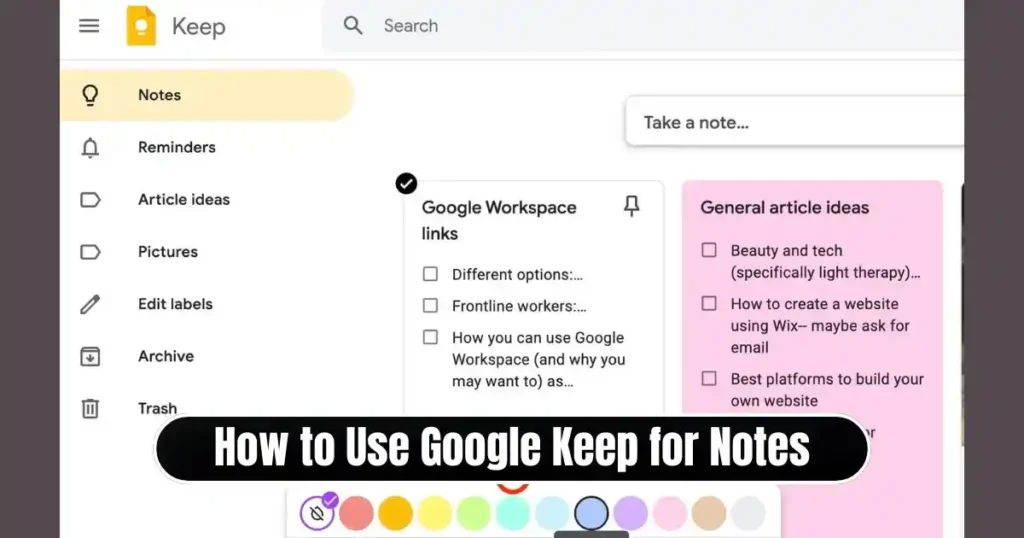
Understanding how to use Google Keep for notes begins with the home screen. Once the app opens or the website loads, users immediately see a field titled “Take a note…” — the gateway to creating any type of note. There is no need to save manually; Google Keep autosaves every edit instantly.
Steps to Create a Standard Note
- Go to Google Keep on the web or open the mobile app.
- Click or tap the “Take a note…” text box.
- Add a title to classify your note.
- Write content inside the note area.
- Click/tap outside the card and the note is saved automatically.
For users who prefer visual learning or sketching, notes do not always have to be text. Google Keep allows creation of notes using:
- Photos (import images or capture from camera)
- Drawings (free-hand sketches)
- Voice recordings (mobile converts voice to text automatically)
This flexibility makes Google Keep suitable for brainstorming, classroom learning, recipe storage, journaling, and project planning.
How to Use Google Keep for To-Do Lists
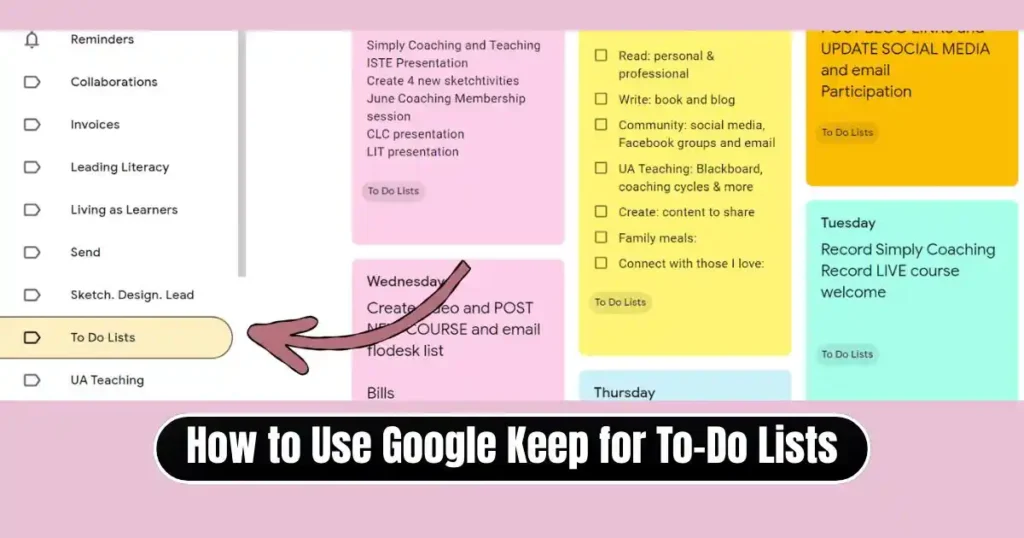
To-do lists are one of the most practical applications of Google Keep, and the app does this incredibly well. Instead of writing plain text lists, Google Keep turns each task into a checkbox so users can mark tasks as completed.
Creating a To-Do List Step by Step
- From the “Take a note…” box, click/tap the checklist icon.
- Add a title for your task list.
- Enter items one by one.
- Tap the checkbox beside each item when you finish it.
On the web interface, pressing Enter creates the next list item. On mobile, tapping “List item” does the same.
A small but powerful productivity feature is available in settings:
Completed items can be moved automatically to the bottom of the list.
This makes it easier to focus on remaining tasks while still keeping track of progress.
To-do lists are ideal for:
- Daily task planning
- Grocery lists
- Shopping checklists
- Project task breakdowns
- Habit tracking
Also Read: How to Sync Chrome Bookmarks Across Devices – Full Step-by-Step Guide
Organizing Notes Like a Pro
Once notes start accumulating, organization becomes necessary. Google Keep offers multiple tools to structure information without complicating anything.
Color Coding
Users can assign different background colors to notes. A practical strategy is to use a color system:
| Category | Suggested Color |
|---|---|
| Work Projects | Orange |
| Personal Tasks | Green |
| Education/Study | Blue |
| Shopping/Home | Yellow |
| Ideas/Brainstorming | Purple |
This allows scanning and identifying notes quickly without reading each title.
Using Labels for Categorization
Labels act like folders without forcing notes into strict hierarchies.
Steps:
- Open a note
- Tap the three-dots menu
- Select Add label
- Choose an existing label or create a new one
Labels reduce clutter and help filter notes instantly from the sidebar.
Pinning Important Notes
Some notes require constant visibility, such as deadlines or reminders. Clicking the pin icon moves a note to the top, preventing it from getting buried under new entries.
Archiving Notes
Notes that are outdated but still important do not need to be deleted. Instead, they can be archived. The archive button keeps the main dashboard clean while retaining the information.
Using Reminders for Time and Location
Google Keep acts not only as a note organizer but also as a reminder service. Users can schedule alerts based on:
- Specific date and time
- Location (e.g., “Remind me when I reach office”)
This helps bridge the gap between planning and execution, especially for task-driven users.
Collaboration: Real-Time Productivity with Others
Collaboration is one of Google Keep’s strongest features. Teams, families, and partners can work on a single note simultaneously. Clicking the collaborator icon allows adding other users via email.
Practical uses:
- Household task lists shared with family
- Shared shopping lists
- Team task planning for projects
- Classroom assignments
- Event planning
Changes appear in real time for all participants, making it more dynamic than messaging apps for task sharing.
Advanced Google Keep Features You Should Know
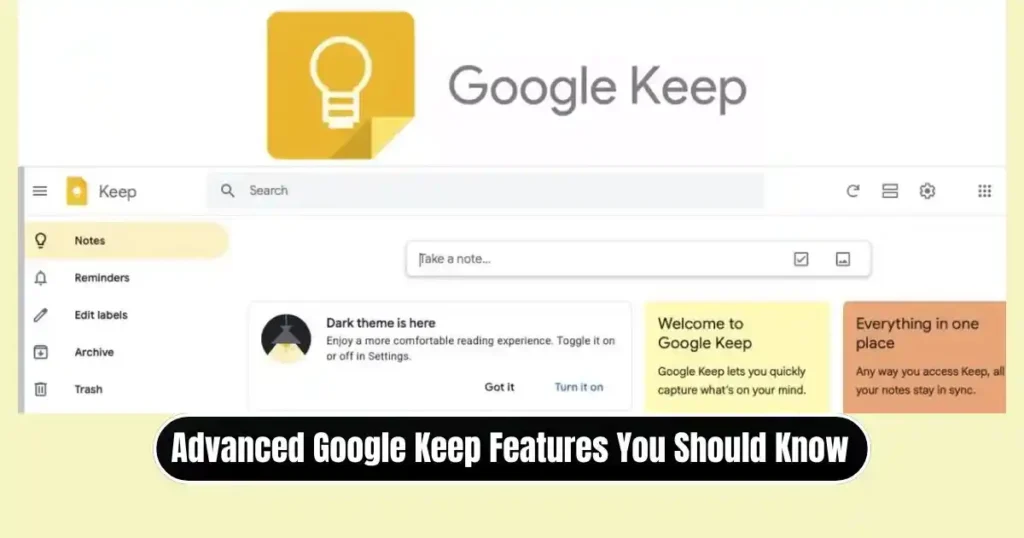
As users explore Google Keep more deeply, they discover advanced functions that enhance productivity beyond simple note-taking.
1. Voice Notes and Transcription
Mobile users can record audio, and Google Keep converts speech into text. The recording remains attached for reference.
2. Grab Text from Images
Google Keep can extract text from photos using OCR (Optical Character Recognition). This is extremely useful for converting:
- Meeting notes on a whiteboard
- Pages from books
- Screenshots
- Documents
3. Export Notes to Google Docs
Long notes requiring structured formatting can be exported directly to Google Docs. This helps writers, students, and researchers scale a rough draft into a full document.
4. Integration with Chrome and Web Browsers
Using the Google Keep Chrome extension, users can save webpages, quotes, and screenshots directly into notes without switching tabs.
5. Access Notes Inside Other Google Apps
Keep appears in the sidebar of many Google apps, including Docs, Calendar, and Gmail, allowing quick access and editing even during work.
Google Keep Best Practices for Maximum Productivity
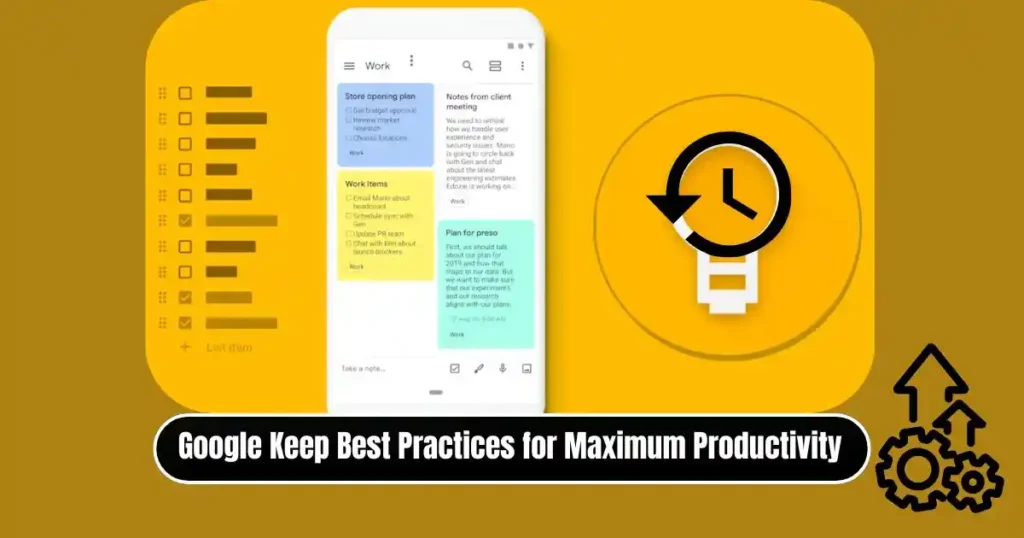
To get the most out of Google Keep, it is important to use habits that keep notes actionable rather than cluttered.
Productivity Suggestions
- Keep separate lists for work and personal life to reduce distraction.
- Pin only the most urgent notes (limit to 3–5 items).
- Delete or archive notes regularly to avoid overwhelming dashboards.
- Use short, clear titles to make scanning faster.
- Convert temporary notes to Google Docs if they become long-term material.
By building these routines, Google Keep remains clean, fast, and reliable — the way it is meant to be.
FAQs on How to Use Google Keep for Notes
1. Is Google Keep free to use?
Yes, Google Keep is completely free and works with any Google account.
2. Can Google Keep work offline?
Yes, on mobile apps and Chrome it supports offline use. Notes sync automatically once the device reconnects to the internet.
3. Is Google Keep safe for storing private notes?
Google Keep uses Google account security and cloud encryption. However, extremely confidential data is best stored in more secure vault apps.
4. Can Google Keep replace apps like Notion or Evernote?
For simple notes and tasks, yes. But for detailed databases or complex documentation, those apps may offer more advanced structure.
5. Does Google Keep notify users when a collaborator updates a note?
All changes sync instantly, and shared users receive reminders if the note includes reminder alerts.
Conclusion
Google Keep may look simple, but beneath that simplicity lies a highly efficient productivity system. Whether someone wants fast note-taking, structured task management, or collaboration features, Google Keep adapts easily to every scenario.
Learning how to use Google Keep for notes and lists is the foundation, and once users include reminders, labels, colors, pinning, exporting, and collaboration in their routine, the app becomes a complete life-management tool. For people who seek a clean, reliable, and cross-platform productivity solution without unnecessary complexity, Google Keep continues to be one of the best choices available.
Disclaimer: This article is based on common Google Keep features available at the time of writing. Interface options and functions may change over time depending on software updates and device platforms. Users should check official Google support for the latest details
Also Read: How to Free Up Space in Google Drive, Gmail, & Photos- Complete Guide

Raj Prajapati is a skilled content writer dedicated to creating clear, step-by-step guides on technology, Health, and everyday solutions. With a focus on user-friendly and SEO-optimized content, he simplifies complex topics, helping readers learn and solve problems effortlessly.