
How to Use Microsoft Authenticator: Modern account security depends heavily on strong authentication. Microsoft Authenticator has become one of the most trusted tools for managing multi-factor authentication across personal, work, and school accounts. The interesting part is that many people still believe the app requires a phone number before it can work.
In reality, you can use Microsoft Authenticator without a phone number as long as you set it up correctly and understand the alternative verification methods available.
This detailed guide explains everything from setup to recovery, including how the app works internally, why phone numbers are optional, and what you must configure before you lose access to your device. The goal is to help you confidently use Microsoft Authenticator without relying on SMS or calls while keeping your account secure.
Also Read: How to Set Up Multiple Desktops in Windows 10/11: Full Step by Step Guide
Why Microsoft Authenticator Works Without a Phone Number
Microsoft Authenticator generates time-based one-time passwords (TOTPs). These are offline codes that refresh every 30 seconds and do not depend on a SIM card, mobile network, or phone number. The app is tied to your Microsoft account through a secure QR-code setup and functions independently afterwards.
Many people mistake the app’s installation for the phone number verification used by apps like WhatsApp or banking services. Microsoft Authenticator does not need that. Instead, it relies on three technical layers:
- Offline Code Generation
The six-digit code visible inside the app is created locally using a secure algorithm. It works even when your phone has no SIM, no mobile network, or no internet connection. - Push Notifications Through Internet
If your phone has Wi-Fi or mobile data, Microsoft can send approval prompts directly to the app. Again, this is tied to your device identity, not your phone number. - QR-Code Device Linking
During setup, a unique QR code connects the app to your Microsoft account. Once this pairing is done, the app is recognized as a trusted authentication device without asking for a number.
This architecture makes it easy for users who want to secure their accounts without exposing their phone numbers or relying on SMS delivery.
Who Needs Microsoft Authenticator Without a Phone Number
Using Microsoft Authenticator without a phone number is helpful in several scenarios:
1. People Who Use Devices Without SIM Cards
Some users rely solely on Wi-Fi tablets, older smartphones, or secondary devices for authentication.
2. Users Concerned About Privacy
You may not want to share or store a personal phone number with online accounts.
3. Employees With IT-Restricted Work Accounts
In corporate environments, phone numbers are often not used for authentication due to compliance rules.
4. Travelers Without Mobile Service
Authenticator codes work offline, which is ideal when traveling internationally.
5. Users Who Lost Access to Their Phone Number
If a SIM card is blocked, lost, or inactive, the Authenticator app still functions normally.
Microsoft designed the system to avoid total dependence on cellular networks, which makes the feature practical and more secure.
How to Use Microsoft Authenticator Without Phone Number (Step-by-Step)
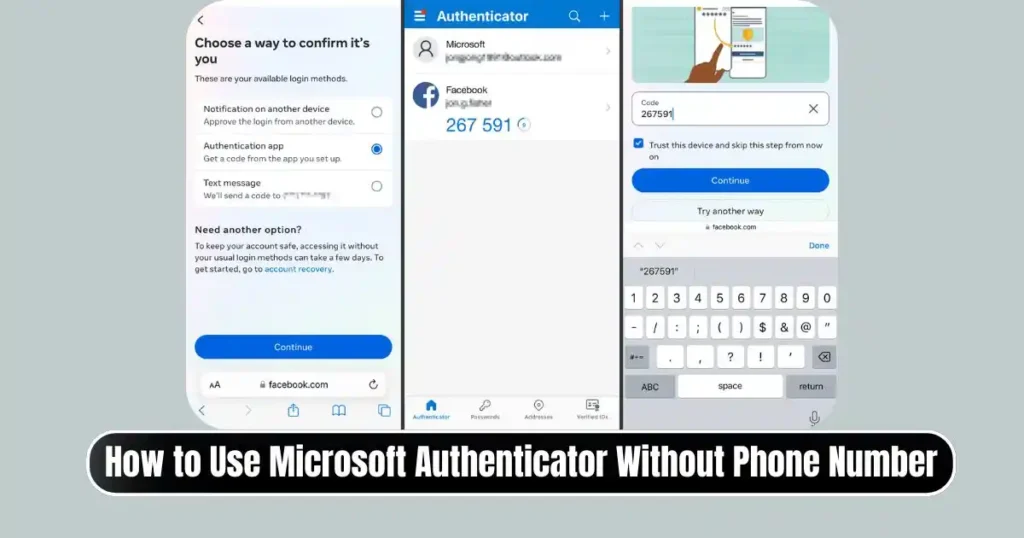
This section provides a complete walkthrough for both personal Microsoft accounts and work or school accounts. Each setup method is written in detailed steps with explanations so you can follow confidently.
Set Up Microsoft Authenticator Without Phone Number for Personal Accounts
If you use Outlook, Hotmail, Skype, OneDrive, or Xbox, you have a personal Microsoft account. Here is how to enable Microsoft Authenticator without relying on a phone number.
1. Open Your Microsoft Account Security Page
Visit:
account.microsoft.com/security
Sign in using your username and password.
2. Go to Additional Security Options
You will see sections related to sign-in preferences, two-step verification settings, and advanced security options. Open Additional security options or Advanced security options, depending on your interface.
3. Choose to Add a New Sign-In Method
Select:
Add a new way to sign in or verify
Then choose:
Authenticator App
Microsoft will show a QR code for linking the device.
4. Install the Microsoft Authenticator App on Your Device
Download it from:
- Google Play Store
- Apple App Store
No mobile number is required during installation.
5. Scan the QR Code From Your Phone
Open the app, tap the plus sign, choose Personal Account, and scan the QR code shown on your computer. This instantly links the app to your Microsoft account.
6. Verify the Setup
Microsoft will ask you to approve a test notification. If your device has internet, you can approve it directly. If not, you can enter a six-digit code displayed inside the app.
After this step, the app is fully linked, and you can use Microsoft Authenticator without any phone number, even on a device that has no SIM card.
Setting Up Microsoft Authenticator Without Phone Number for Work or School Accounts
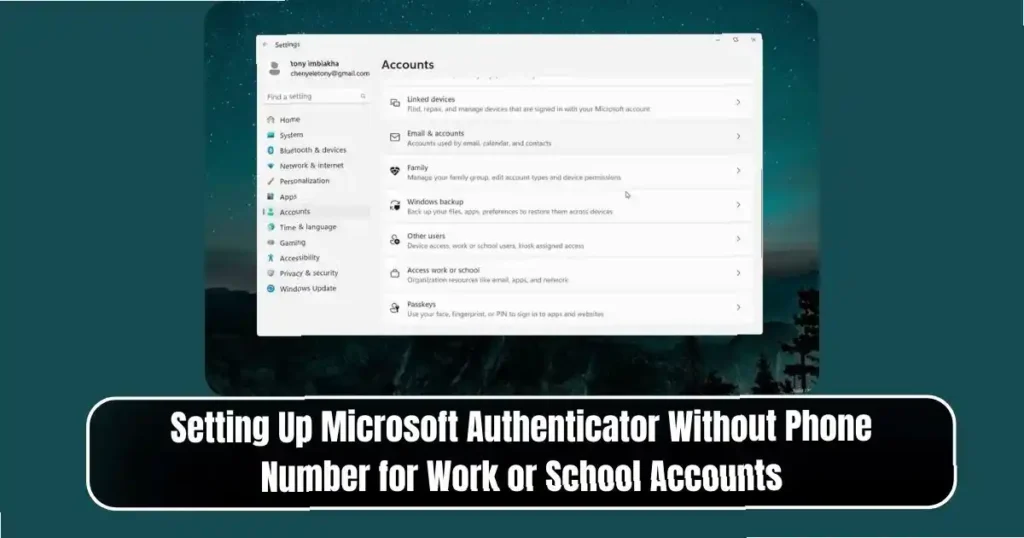
Organizations often rely on Azure Active Directory (Entra ID) for security. Here is how to configure the authenticator app for a corporate or institutional account.
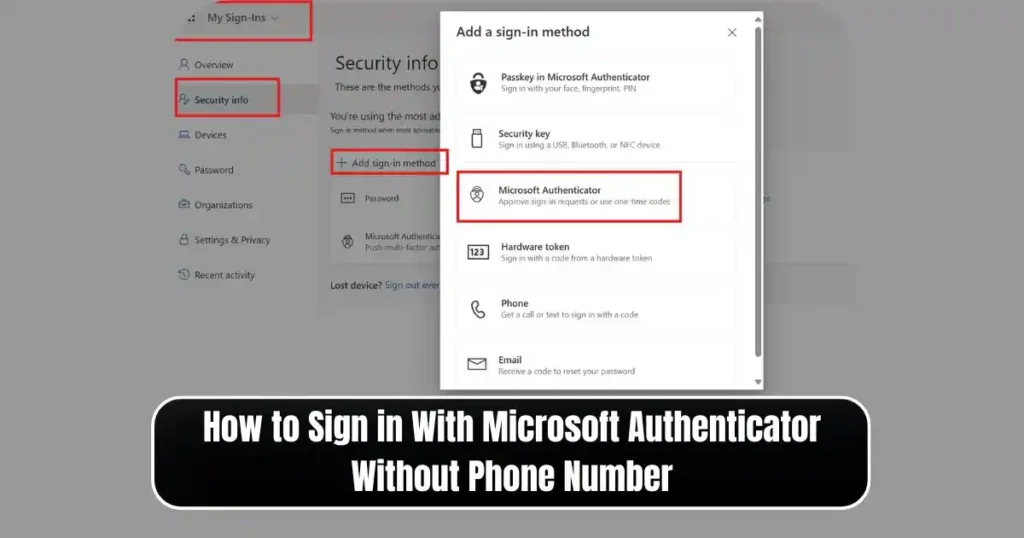
1. Visit the Security Info Portal
Go to:
mysignins.microsoft.com/security-info
This is the central dashboard for managing verification methods.
2. Sign In Using Your Work or School Email
If your organization requires multi-factor authentication, you may pass through conditional access checks.
3. Select “Add Sign-in Method”
Click:
Add sign-in method
Choose:
Authenticator App
4. Scan the QR Code
Your computer will display a QR code.
On your mobile device:
Open Authenticator > tap + > choose Work or School Account > scan the code.
5. Confirm the Setup
You may be asked to approve a notification or enter a verification code.
6. Configure Additional Methods (Highly Recommended)
Depending on your organization’s policy, these options may be available:
- Backup email
- SMS / voice call
- Office desk phone
- Hardware token (TOTP key generator)
These alternatives help you recover access if you lose your primary authentication device.
How to Sign in With Microsoft Authenticator Without Phone Number
You have multiple ways to authenticate without phone number verification.
1. Approve a Notification Through the App
During login, choose:
Approve a request on my Microsoft Authenticator app
A prompt appears inside the app.
You tap Approve, and you’re signed in.
Some accounts also show a number on the screen. The app asks you to enter the same number, adding an extra layer of security.
2. Use the Six-Digit One-Time Code
This is the most reliable method because it works offline.
Steps:
- Open Microsoft Authenticator.
- Locate your account inside the app.
- Read the six-digit code.
- Enter the code into the sign-in form on your computer.
This method works without mobile network, SIM card, or internet.
3. Use Recovery Methods (If You Lost the App)
If you cannot access your Authenticator app:
Click:
I don’t have access to my authenticator app
Microsoft will prompt alternative verification options such as:
- Backup email
- Recovery phone number
- Security key
- Recovery codes
Your ability to recover depends on whether you configured these options earlier.
Also Read: How to Use Digital Wellbeing to Limit App Usage Without Locking Apps
Setting Up Microsoft Authenticator Without Phone Number: Detailed Technical Breakdown
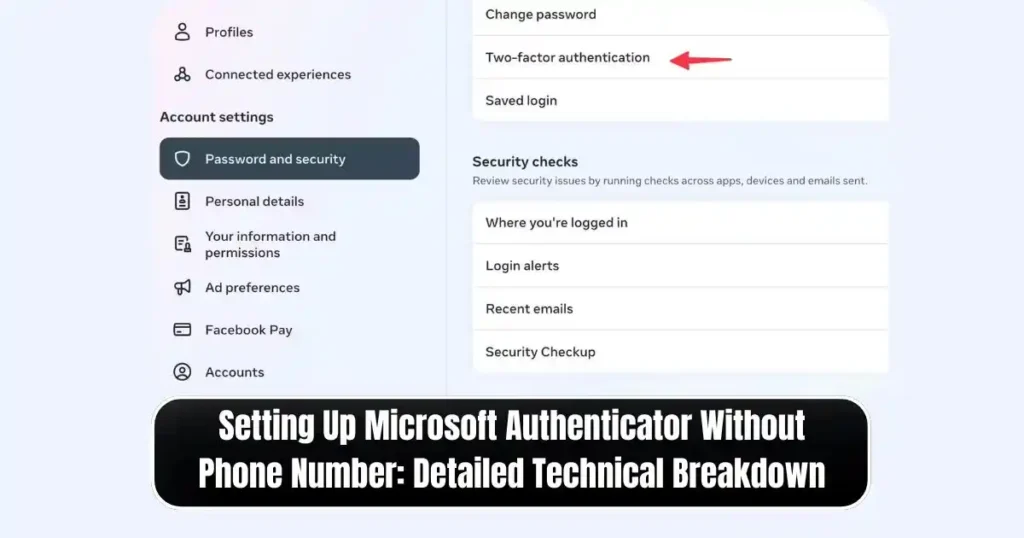
To understand why this workflow is safe and functional, it helps to know how the system works internally.
TOTP Technology
The six-digit codes are generated using algorithms based on:
- Current time
- Secret key stored on the device
- Hash functions
These are synchronized with Microsoft servers.
No network communication is required to generate the code.
Device Registration Through QR Linking
The QR code contains:
- Your account identifier
- A cryptographic seed
- Configuration rules
Once scanned, the device becomes a trusted authenticator.
Push Notification System
Push approvals are sent through Microsoft’s cloud messaging services. They rely on:
- Internet on your device
- Device registration
- Secure certificates
Phone numbers play no role in this process.
Use Cases for Microsoft Authenticator Without a Phone Number
Here are real-world situations where this setup is especially useful.
1. Using Microsoft Authenticator on a Secondary Device
Many users install Authenticator on:
- Old smartphones without SIM
- Tablets
- Wi-Fi-only devices
The app works seamlessly in these situations.
2. Securing Corporate Accounts in Restricted Environments
Some companies do not allow employees to register personal phone numbers. Authenticator solves this problem because it works through:
- Wi-Fi
- Office networks
- Offline codes
No number is required.
3. Traveling Abroad
SMS codes can fail when:
- Roaming is disabled
- SIM cards don’t work in foreign countries
- Network carriers block incoming messages
Authenticator avoids all these problems.
4. Privacy Protection
If you prefer keeping your phone number private, this method gives you complete control over security without exposing personal contact information.
How to Recover a Microsoft Account Without Phone Number and Without Authenticator
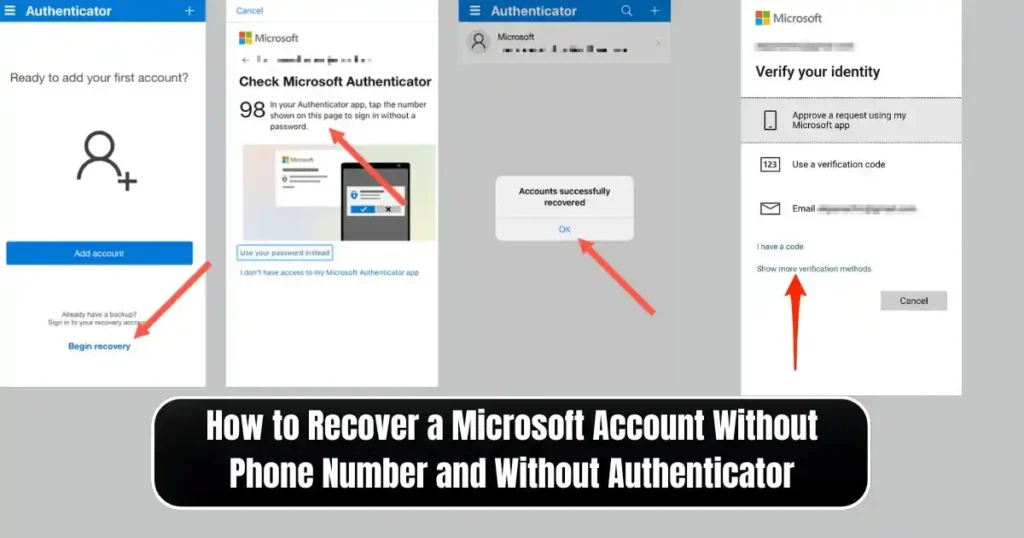
If you lost your phone or reset your device, you can still recover your Microsoft account by using one of these methods.
1. Backup Email
Microsoft sends a verification code to your trusted email address.
2. Recovery Codes (One-Time Codes)
You can generate recovery codes and store them safely. Each code can be used once to regain access.
3. Security Key (FIDO2 Key)
A hardware security key can authenticate you instantly.
4. IT Admin Support (For Work/School Accounts)
Your organization’s admin can reset sign-in methods for you.
Important Tips for Using Microsoft Authenticator Without Phone Number
To avoid lockouts, follow these best practices.
1. Set Up Backup Methods in Advance
Do this immediately after setting up the app:
- Add an alternate email
- Add a recovery phone
- Print backup codes
- Add a physical security key
This prevents account loss if your device is lost.
2. Enable Cloud Backup in Authenticator
This feature stores encrypted authentication data securely. It helps restore your accounts on a new device.
3. Keep Your Device Secure
Use:
- Screen lock
- Biometrics
- PIN
Authenticator is powerful, and protecting your device is essential.
4. Update the App Regularly
New security features are added frequently, so keeping the app updated increases protection.
Common Misconceptions About Microsoft Authenticator
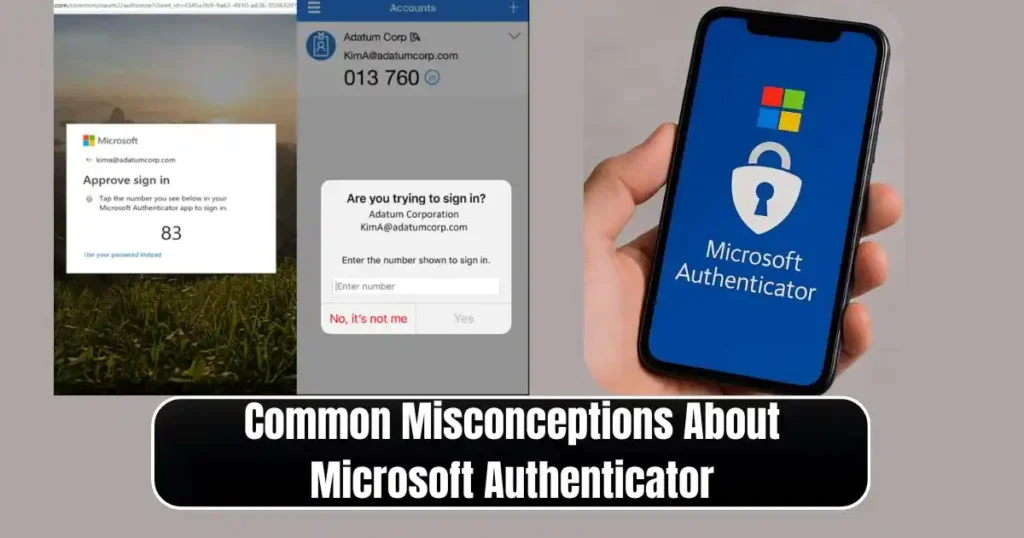
Many users misunderstand how the system works. Here are some assumptions clarified.
Misconception 1: Authenticator requires a phone number
It does not. It requires a device, not a SIM card.
Misconception 2: Push notifications need mobile network
They work over Wi-Fi.
Misconception 3: Authenticator cannot work offline
The six-digit TOTP codes always work offline.
Misconception 4: No alternative methods exist
Microsoft offers multiple backup methods. You are not locked into one system.
Final Thoughts
Here is the final thoughts on ‘How to Use Microsoft Authenticator‘- Microsoft Authenticator is one of the most flexible authentication tools available today. The ability to use Microsoft Authenticator without phone number support makes it ideal for modern users who prefer privacy, travel frequently, or operate in environments with restricted SIM access. As long as you set up alternative recovery options and understand how offline codes work, you can rely entirely on the app without the need for a mobile number.
This approach is secure, reliable, and widely supported across personal and enterprise systems.
FAQs on How to Use Microsoft Authenticator
1. Can I set up Microsoft Authenticator without a SIM card?
Yes. You only need the app installed on a device with a camera. A SIM card is not required.
2. Does Microsoft Authenticator work offline?
Yes. The six-digit verification codes work without internet or mobile service.
3. What if I lose my device and have no backup phone number?
You can still recover your account using backup email, recovery codes, or a security key.
4. Do I need to scan a QR code every time I sign in?
No. QR scanning is required only during initial setup.
5. Can I use Microsoft Authenticator on multiple devices?
Yes, but you must set up each device separately using the security portal.
Disclaimer: This article is based on current Microsoft authentication features and may change as Microsoft updates its security systems. Users should always refer to the latest official documentation for accurate instructions.
Also Read: How to Disable Google Maps Tracking Completely: A Full Step-by-Step Guide

Raj Prajapati is a skilled content writer dedicated to creating clear, step-by-step guides on technology, Health, and everyday solutions. With a focus on user-friendly and SEO-optimized content, he simplifies complex topics, helping readers learn and solve problems effortlessly.