Smart App Control is one of the most significant security additions Microsoft has introduced in Windows 11. It is built to give users stronger protection against unknown, unsigned, or potentially harmful applications without requiring them to constantly manage complex settings.
Understanding How to Use Smart App Control in Windows 11 can help you maintain a more secure system, avoid unsafe downloads, and reduce the risk of malware infections that often enter through unverified apps.
While traditional antivirus programs rely on signature-based detection, Smart App Control goes deeper by combining AI, real-time cloud security intelligence, and digital trust signals to decide whether an application should run on your device.
The idea behind this feature is simple. Modern threats evolve quickly, and attackers often bypass old detection methods by disguising malware as normal software. Smart App Control prevents this by blocking apps that Windows cannot verify. It makes decisions instantly, based on Microsoft’s security graph and the behavior of the file you are trying to execute.
If the system does not recognize the application as trustworthy, it stops it from launching and informs you that the file is unsafe. In this guide, we will walk through everything you need to know about How to Use Smart App Control in Windows 11, how it works, why it is stricter than traditional app-blocking systems, and what its limitations are.
Also Read: How to Save Mobile Data Using Chrome Lite Mode Alternatives: Practical Guide
What Smart App Control Does and Why It Matters
Smart App Control, often referred to as SAC, is a proactive defense system designed to protect users from apps that do not meet Microsoft’s trust standards. These apps can originate from unknown publishers, unverified websites, or unofficial software marketplaces.
Many malware attacks depend on users downloading seemingly harmless tools, installers, or utilities. SAC cuts those risks by applying an automated verification process that evaluates the application before it gets permission to run.
The feature is rooted in Microsoft’s cloud-based security intelligence, which continuously learns from millions of devices worldwide. This intelligence helps SAC identify which applications are safe and which ones pose a risk. For example, an app with a proper digital signature or one that has been widely used without any malicious behavior is typically allowed.
On the other hand, unsigned apps or tools from obscure sources often get blocked. This approach reduces the pressure on users who may not have the technical background to judge whether a file is legitimate.
Another key point is the strict nature of SAC. Unlike older Windows security tools that allowed you to override warnings and run an untrusted file anyway, Smart App Control does not offer such flexibility. Once it decides an application is unsafe, the only options are to accept the block, send feedback to Microsoft, or search the Microsoft Store for a safer equivalent.
This uncompromising design helps prevent accidental exposure to harmful files, especially for users who may not always recognize subtle threats.
System Requirements for Smart App Control in Windows 11
Before exploring How to Use Smart App Control in Windows 11, it’s important to understand its availability. Smart App Control is not enabled on all systems by default. Microsoft restricts it to clean installations of Windows 11 version 22H2 or later. This means that if your computer was upgraded from Windows 10 or from an earlier Windows 11 version, SAC may not be available in full functionality.
Users often get confused when they open the SAC settings and only see the “Off” mode with no way to turn it on. This usually indicates that their copy of Windows was installed through an upgrade instead of a clean installation. Microsoft does this intentionally because SAC needs a controlled environment to establish trust relationships from day one.
On upgraded systems, unknown files might already be present, making SAC’s learning process less reliable. As a result, the company only enables SAC’s evaluation process for devices that were freshly installed.
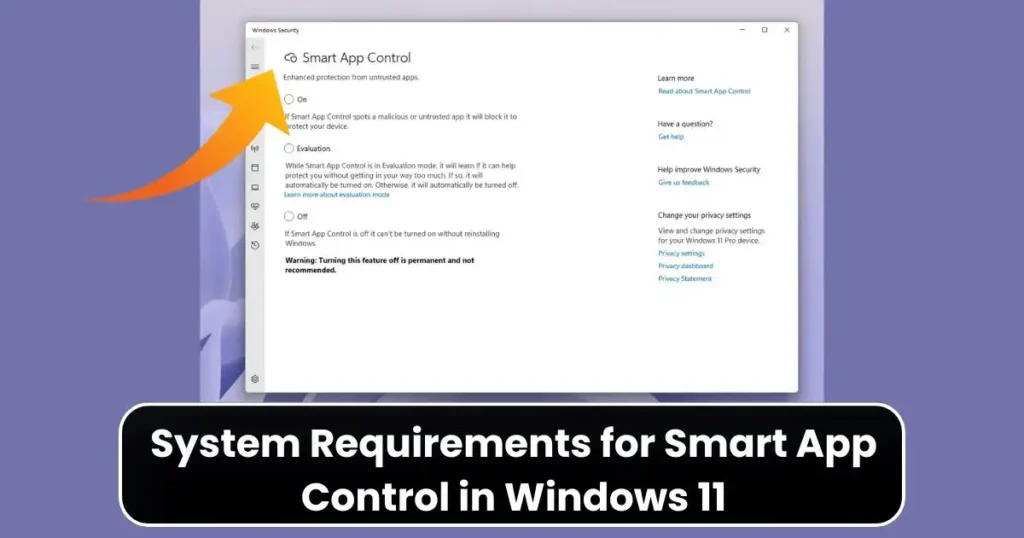
If your system meets the requirements, Smart App Control launches in “Evaluation” mode automatically. This allows Windows to observe your app usage pattern. If it determines that Smart App Control will work well with your software environment, it switches to “On” mode.
If it identifies too many potential conflicts, it disables itself. This decision is permanent unless you reset your computer or reinstall Windows 11.
How to Use Smart App Control in Windows 11: Step-by-Step Instructions
To begin using Smart App Control, follow these steps. They guide you through the Windows Security interface where SAC settings are located.
Step 1. Open Windows Settings
Press Windows key + I to launch the Settings application. This is the quickest and most direct way to access the system configuration panel.
Step 2. Navigate to Privacy and Security
Inside Settings, select Privacy and security from the left menu. Windows places SAC under security controls, so this section is where you will find all device protection features, including Windows Security.
Step 3. Access the Windows Security Dashboard
Click Windows Security. This opens the dashboard that manages virus protection, firewall monitoring, device health reports, and app protection settings.
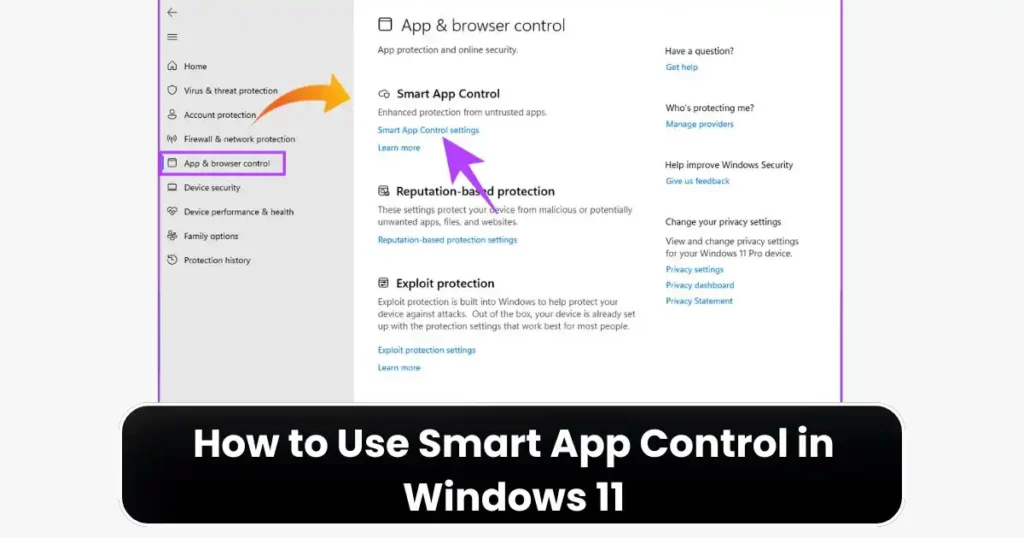
Step 4. Go to App & Browser Control
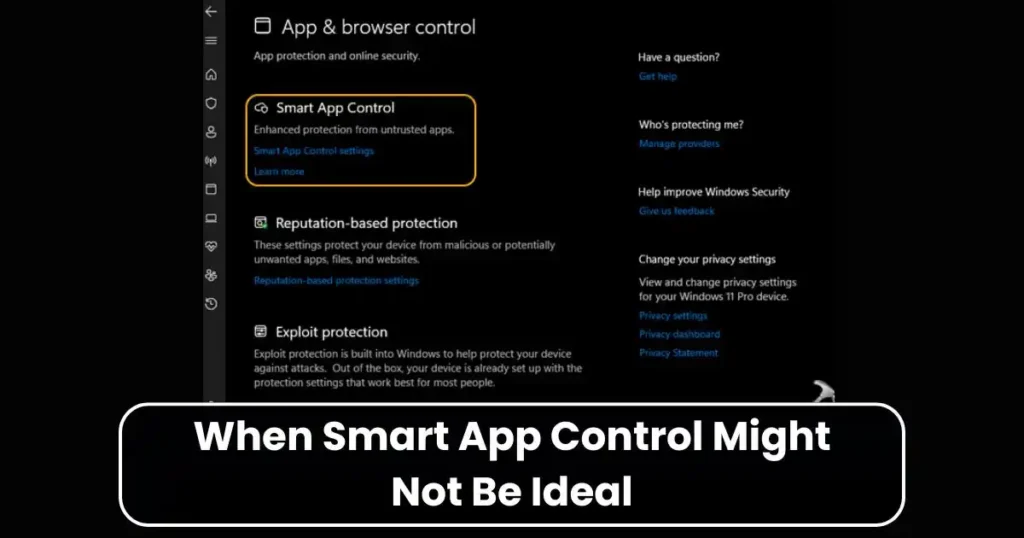
Select App & browser control. This section manages settings for app reputation, SmartScreen, and Smart App Control. It acts as a central hub for deciding which applications Windows should trust.
Step 5. Open Smart App Control Settings
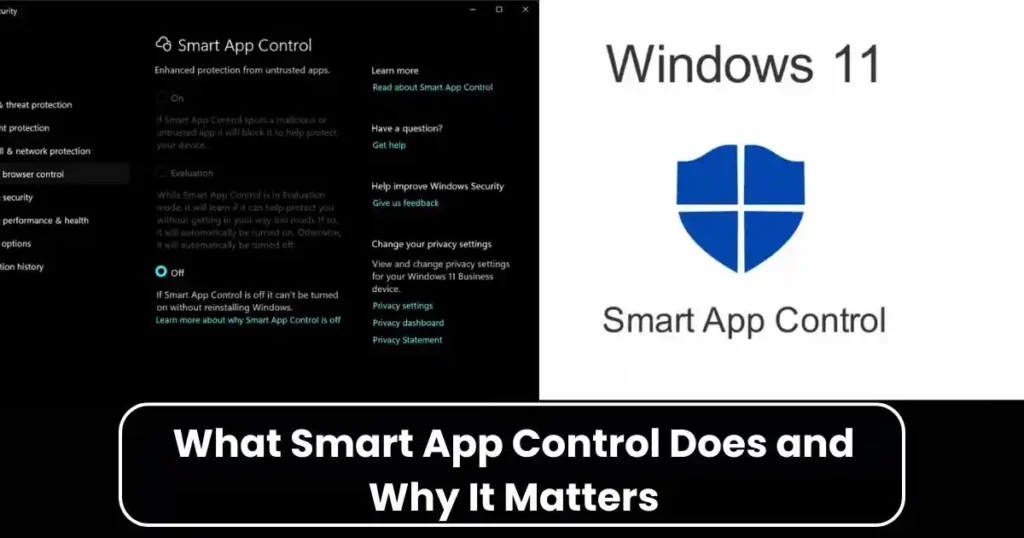
Click Smart App Control settings to reveal three available modes: On, Evaluation, and Off.
Step 6. Choose the Appropriate Mode
Here’s how each mode works:
On
This mode immediately enforces protection. When SAC is turned on, Windows only allows trustworthy, signed, or widely used apps. Unknown or suspicious apps are blocked by default.
Evaluation
This is a temporary learning phase where SAC monitors your usage. It doesn’t block anything during this period. Instead, it evaluates whether enabling SAC permanently would disrupt your workflow. If your app usage aligns well with the system’s expectations, SAC automatically switches to the On mode. If not, it disables itself.
Off
When SAC is turned off, all protection from Smart App Control ends. You cannot re-enable SAC once you switch it off unless you reset Windows or perform a clean installation. This irreversible design prevents users from turning it off temporarily during risky installations and forgetting to turn it back on, which would expose the system.
How Smart App Control Works Behind the Scenes

Understanding How to Use Smart App Control in Windows 11 also requires understanding how it makes decisions. SAC relies on three primary mechanisms: cloud-based intelligence, digital signatures, and behavioral analysis.
Cloud-Based Security Intelligence
Microsoft uses a massive cloud database to classify applications. This database contains information about millions of files and software programs collected from machines around the world. When you try to run an application, SAC checks this cloud intelligence instantly. If the file is known to be safe, it runs without interruption. If the system cannot verify the file or suspects malicious behavior, SAC blocks it.
Digital Signatures and Trust Models
Most legitimate software publishers sign their applications with a digital certificate. This proves the file has not been tampered with and confirms its origin. SAC gives significant weight to digital signatures. If an app is unsigned, modified, or comes from an unknown publisher, SAC treats it as high risk.
Behavioral Indicators
Even if a file appears harmless, SAC also monitors patterns that could indicate potential threats. Suspicious behaviors, such as attempts to modify protected folders or bypass system policies, trigger automatic blocking.
This layered approach allows Smart App Control to perform better than traditional reputation-based filters, which often depend solely on known threats instead of predictive intelligence.
Also Read: How to Use Windows 11 Clipboard History Like a Pro: A Complete Guide
What Happens When Smart App Control Blocks an App
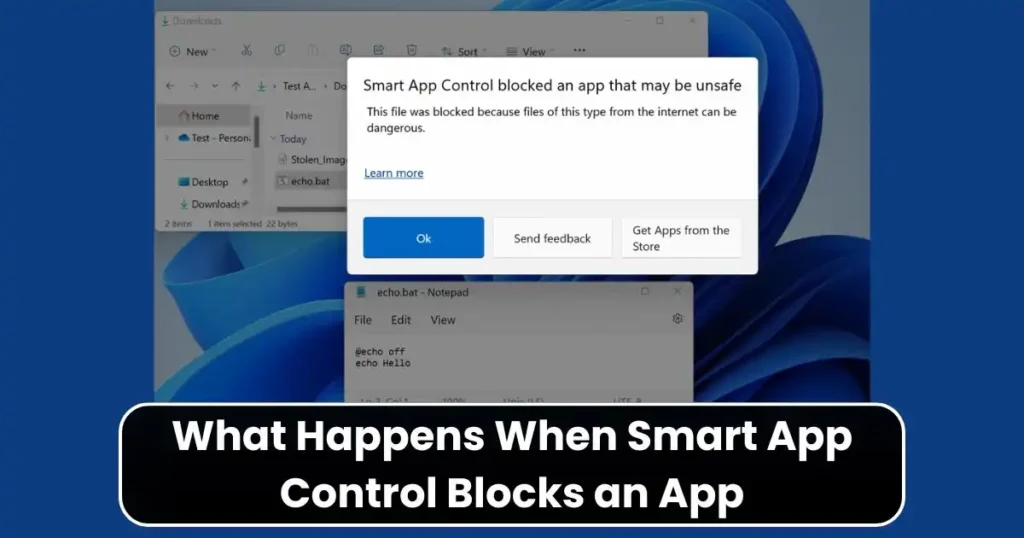
When SAC blocks an app, it displays a notification explaining that the application cannot run because it is untrusted. Unlike Microsoft Defender, which sometimes allows users to bypass warnings, SAC shows only a few options:
Acknowledge the Block
You can choose the option to close the notification. This stops the file from running entirely.
Send Feedback
You can report the block to Microsoft if you believe the application is safe. This does not immediately unblock the app, but it helps refine SAC’s future decisions.
Find Safer Alternatives
Often, SAC suggests searching for the app in the Microsoft Store, where applications go through additional verification.
Smart App Control does not offer an override or “Run Anyway” button. This can feel restrictive, but it is part of Microsoft’s strategy to reduce malware execution on user devices. The only way to run a blocked app is to disable SAC entirely, which requires a PC reset to re-enable later.
For users who rely on niche or custom-built software, this strict system can be challenging, which is why Microsoft allows the Evaluation mode to assess compatibility before locking the feature.
Why Smart App Control Cannot Be Re-Enabled After Turning It Off
A unique characteristic of Smart App Control is that once it is turned off, there is no simple toggle to turn it back on. This is because SAC depends on a well-defined trust environment that starts from a clean system. When a user turns it off manually, Windows assumes the user wants full freedom to run unsigned applications. Restoring SAC would require a complete re-evaluation process, which can only be initiated by reinstalling Windows.
Microsoft states that this design reduces confusion and prevents improper usage. For example, if users could toggle SAC on and off frequently, it could lead to inconsistent protection. This permanent switch keeps the protection predictable and avoids loopholes where malware might exploit gaps in the security flow.
When Smart App Control Might Not Be Ideal
While Smart App Control strengthens Windows security, it is not suitable for everyone. Understanding How to Use Smart App Control in Windows 11 includes knowing when it may interfere with normal usage. Users who run specialized tools, older software, internal company applications, unsigned scripts, or development builds may face frequent blocks. Because SAC does not allow local exceptions, these users may find it impractical.
For such scenarios, running SAC in Evaluation mode initially is helpful. If Windows finds multiple compatibility issues during evaluation, it disables SAC automatically, allowing these apps to run without restrictions. This ensures users who depend on custom software are not forced into a strict security system that disrupts their workflow.
Best Practices for Using Smart App Control Effectively
To make the most of Smart App Control, consider the following recommendations:
Install Windows 11 Fresh to Get Full Functionality
If SAC is unavailable or stuck on “Off,” reinstalling Windows through a clean setup will restore it. This is necessary for users who want maximum protection.
Keep Software Sources Trusted
Avoid downloading applications from random websites. SAC blocks many unsafe downloads, but maintaining good digital habits reduces risks even further.
Use the Microsoft Store Whenever Possible
Apps from the Microsoft Store undergo additional security checks. If SAC blocks a program you need, a safer version might already exist in the Store.
Let Evaluation Mode Complete
Do not force SAC into the On mode immediately unless you are certain it will work well with your applications. Allow Windows to analyze your typical usage to avoid disruptions later.
Benefits of Smart App Control for Everyday Users
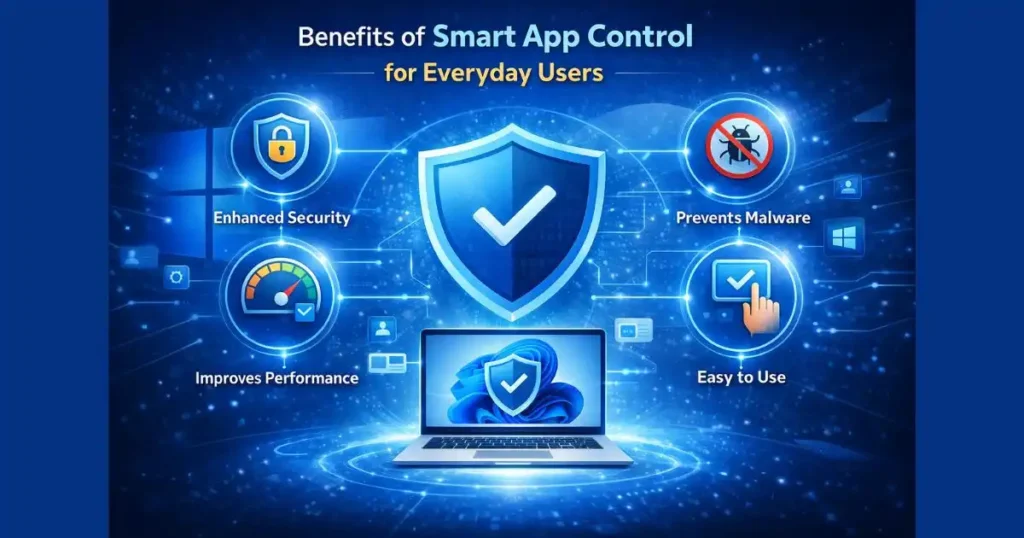
Smart App Control delivers value in various ways, especially for users who prefer a hands-off security solution. It minimizes malware risks, reduces harmful executable files, and prevents accidental installation of unwanted programs.
Because SAC runs silently in the background, users do not need to adjust complicated rule sets as they might with advanced antivirus suites. SAC also provides a strong defense against emerging threats, thanks to Microsoft’s cloud intelligence.
For families, students, and individuals who frequently download files from the internet without verifying authenticity, SAC provides protection that works automatically. Even in organizations, SAC can enhance security for machines that are not centrally managed.
FAQs on How to Use Smart App Control in Windows 11
1. Why is Smart App Control not available on my Windows 11 device?
Smart App Control requires a clean installation of Windows 11 version 22H2 or later. If your device was upgraded from an older Windows version, SAC may show only the Off state and cannot be enabled unless you reinstall Windows.
2. Can I add exceptions to Smart App Control?
No. SAC does not allow local exceptions or “Run Anyway” options. If it blocks an app, your only choices are to accept the block or turn off SAC, which requires a system reset to re-enable.
3. Does Smart App Control replace antivirus software?
No. SAC complements antivirus tools by adding an extra layer of app verification. You should still keep Microsoft Defender or another antivirus program enabled.
4. What happens if SAC turns off automatically after Evaluation mode?
This means Windows determined that enabling SAC could affect the apps you rely on. The decision is permanent unless you reinstall Windows.
5. Is Smart App Control suitable for developers?
Developers who regularly run unsigned builds or test scripts may find SAC too restrictive. The Evaluation mode will likely turn it off automatically if it detects frequent usage of untrusted files.
Disclaimer: This article is for informational and educational purposes. Features and behavior of Smart App Control may change with future Windows updates. Always refer to Microsoft’s latest documentation for the most accurate information.
Also Read: How to Set Up Multiple Desktops in Windows 10/11: Full Step by Step Guide

Raj Prajapati is a skilled content writer dedicated to creating clear, step-by-step guides on technology, Health, and everyday solutions. With a focus on user-friendly and SEO-optimized content, he simplifies complex topics, helping readers learn and solve problems effortlessly.