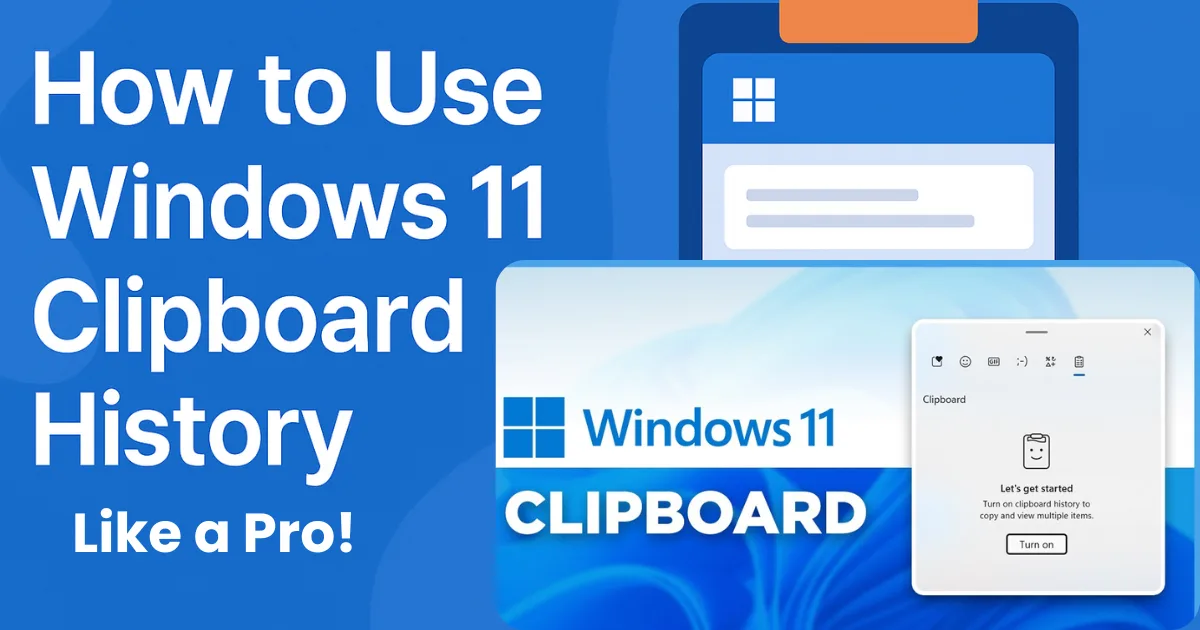
Keeping track of the information you copy throughout the day can make a big difference in how efficiently you work. This is where Windows 11 Clipboard History becomes an essential tool. It saves multiple entries instead of just the latest copied item, which helps you move faster between tasks, reduce repetitive copying, and avoid losing important snippets of text or images.
Many users still rely on the classic single-layer clipboard without realizing that Windows 11 includes a more advanced system that can transform their workflow. If you understand How to Use Windows 11 Clipboard History, you can streamline the way you work across documents, browsers, apps, and even multiple devices.
This guide breaks down how the feature works, how to enable it, and how to use advanced options such as pinning, clearing, and syncing entries. You will also find insider tips, background context, and actionable examples to help you get the most out of Clipboard History in everyday use.
Whether you handle large amounts of text, frequently move data between apps, or simply want to avoid retyping information, Clipboard History can save you time and effort.
Also Read: How to Use Microsoft Authenticator Without Phone Number: Step-by-Step Guide
What Makes Clipboard History Important in Windows 11
Clipboard management has always played a key role in digital productivity. Before this feature existed, Windows users were limited to storing only the most recent copied item. This meant that copying new content instantly replaced the previous one, often causing accidental data loss or forcing users to repeat the same actions.
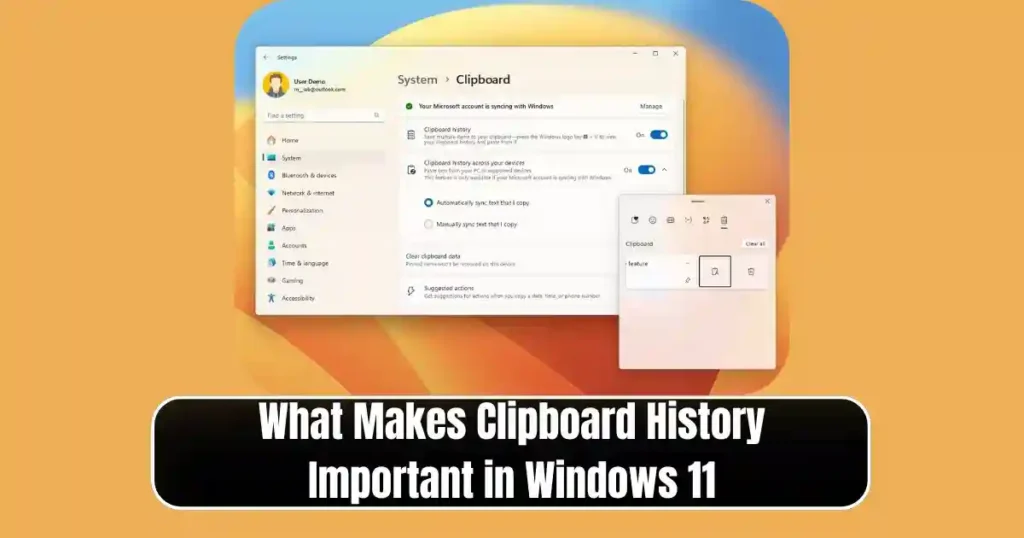
Windows 11 clipboard history solves this problem by allowing the storage of multiple copied items, including formatted text, plain text, images, and small graphics.
Another reason this feature stands out is how seamless it becomes once integrated into your routine. Accessing previous entries takes a single shortcut, and Windows intelligently keeps your pinned items safe even after a restart.
It is a flexible tool that works equally well for students summarizing notes, writers collecting references, developers copying code snippets, designers reusing graphic elements, and office professionals handling repetitive tasks. Understanding How to Use Windows 11 Clipboard History gives you a solid advantage when handling digital content quickly and accurately.
How Clipboard History Works in the Background
Windows 11 stores up to 25 recent clipboard items. These can include text, images up to 4 MB, and HTML content. When the storage limit is reached, the system automatically removes older unpinned items to make space for new ones.
Your pinned items stay intact until you manually delete them. The moment you press Win + V, Windows retrieves this stored data and displays it in an organized panel. Once enabled, the feature works silently in the background without slowing down your computer.
From a user perspective, Clipboard History acts like a miniature library of recently copied content. Instead of repeating the same actions, you can pick the exact item you want and paste it instantly. This builds a more organized workflow and reduces interruptions, especially in research-heavy or multitasking environments.
How to Use Windows 11 Clipboard History: Step-by-Step Guide
Step 1: Enable Clipboard History
Clipboard History is not active by default, so the first step is to turn it on. You can do this in two ways, depending on what feels easier.
Method 1: Through Windows Settings
- Press Win + I to open the Settings menu.
- Select System from the left-hand panel.
- Scroll to Clipboard.
- Turn on the switch for Clipboard history.
This activates the feature and prepares your system to start recording copied items.
Method 2: Using the Win + V Shortcut
If you press Win + V when Clipboard History is disabled, Windows shows a prompt asking if you want to turn it on. Clicking the button instantly enables the feature. This method is quick and preferred by users who want to activate it while working on something.
Step 2: Access and Use Clipboard History (Win + V)

Once enabled, Clipboard History begins storing copied items immediately. You can continue using Ctrl + C to copy anything, just as before. The difference appears when you want to review your previous entries.
Opening the Clipboard Panel
Press Win + V.
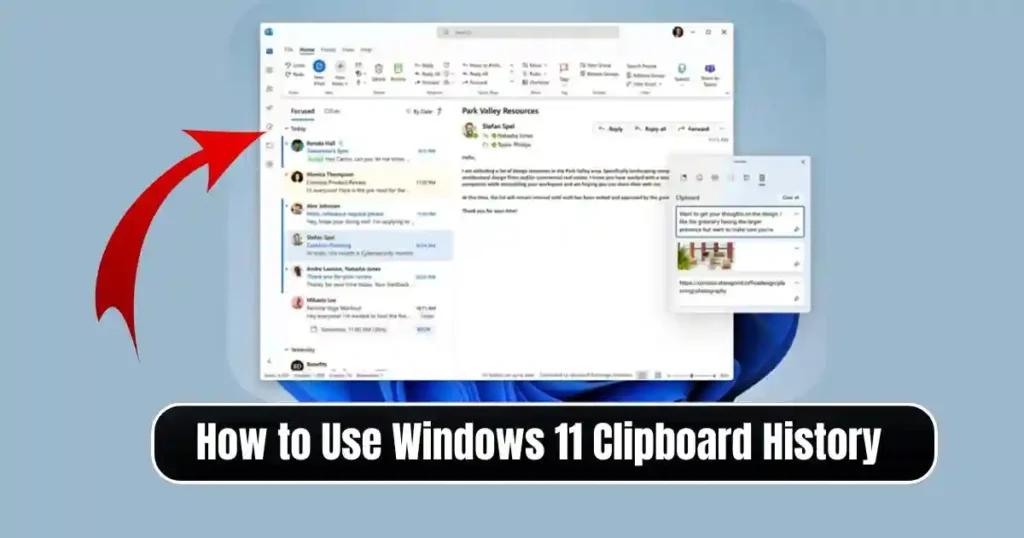
A small floating window appears showing a grid of your recent copied entries.
Each item is represented visually, making it easy to identify text, images, or formatted content at a glance.
Selecting and Pasting Items
To paste something from the list:
- Click the item you want.
- Windows pastes it automatically at the location of your cursor.
This eliminates the need to re-copy items and increases efficiency when switching between apps.
Moving the Panel
You can drag the floating clipboard window to reposition it anywhere on your screen. This helps when you want the panel closer to your work area.
Step 3: Use Advanced Clipboard History Features
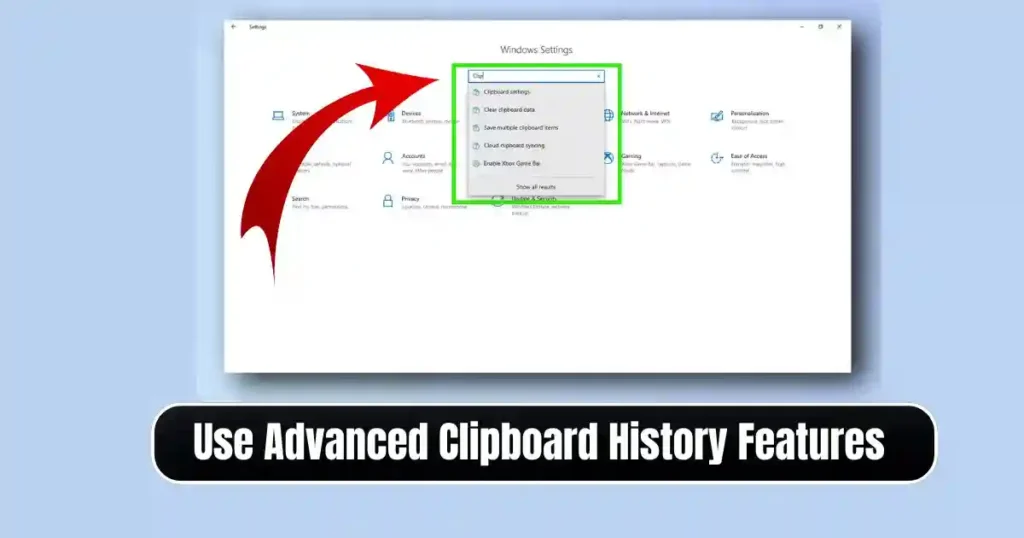
Learning the advanced options is what turns a casual user into a power user. These tools give you better control over the items you store and how you use them.
Pin Frequently Used Items
Pinned items never get deleted unless you remove them manually. They survive system restarts, clearing actions, and the automatic cleanup Windows performs when the clipboard reaches capacity.
To pin an item:
- Open the clipboard panel (Win + V).
- Click the pin icon on the item.
Pinned items are especially useful for:
- Email templates
- Frequently repeated phrases
- Signature lines
- Addresses or IDs
- Code snippets
- Support replies
This saves time and prevents mistakes caused by rewriting or reusing outdated content.
Paste as Plain Text
Often, content copied from websites or documents carries formatting like colors, fonts, hyperlinks, or layout styles. If you want clean text without formatting, Clipboard History offers a direct option.
- Open Win + V.
- Click the three-dot menu next to any text item.
- Select Paste as text.
This is helpful when pasting into applications that must maintain consistent formatting such as reports, emails, documents, or CMS editors.
Delete Individual Items
If you copy something sensitive such as passwords, financial notes, or private conversation text, you might want to remove it manually.
To delete:
- Open Win + V.
- Click the three-dot menu next to the item.
- Select the delete or trash option.
This ensures privacy and prevents accidental pasting of confidential content.
Clear All Unpinned Items
If your clipboard panel becomes cluttered, Windows lets you clear everything at once.
There are two ways to do this:
- From the clipboard panel (Win + V) by selecting Clear all.
- Through Settings > System > Clipboard by choosing Clear clipboard data.
Pinned items remain intact, which helps maintain a clean and organized collection.
Step 4: Sync Clipboard Across Devices
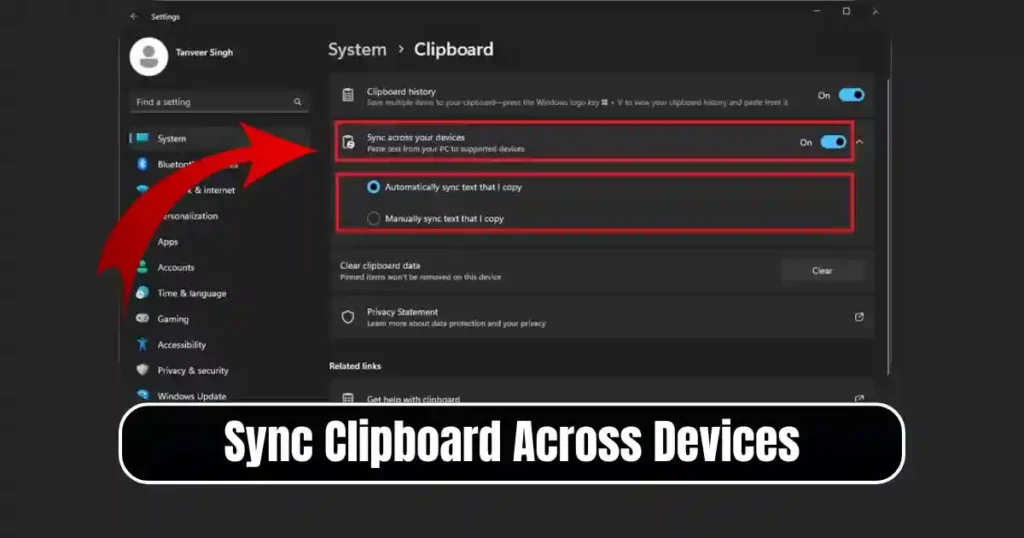
Clipboard History becomes even more powerful when used across multiple devices. If your PCs or Android phones are connected to the same Microsoft account, you can sync copied text automatically.
How to Enable Syncing
- Go to Settings.
- Open System.
- Select Clipboard.
- Turn on Sync across your devices.
You can choose between automatic syncing or manually selecting which items to sync.
Practical Uses of Syncing
- Copy an address from your office computer and paste it on your laptop at home.
- Copy notes on your PC and reuse them on your Android phone through the SwiftKey keyboard.
- Transfer short scripts or command lines from one device to another without email or messaging apps.
This feature creates a unified workspace across all the devices you use daily.
Productivity Benefits of Using Clipboard History
Understanding How to Use Windows 11 Clipboard History gives you access to a range of advantages that improve your workflow. Some key benefits include:
Reduces Repetitive Work
You don’t have to keep recopying the same text repeatedly. Clipboard History speeds up tasks involving data entry, research, and content creation.
Helps Avoid Accidental Overwriting
Even if you copy something else by mistake, your previous items stay in the panel.
Supports Multitasking
Switching between tabs, applications, or documents becomes smoother because you can reference past items instantly.
Saves Time in Writing and Research
Writers, editors, students, and researchers can collect information continuously without worrying about losing earlier pieces.
Useful for Professionals Handling Templates
Customer support teams, HR managers, designers, and developers use repeated content daily. Pinning frequently used items makes this faster and more consistent.
Real-World Examples of Clipboard History in Action
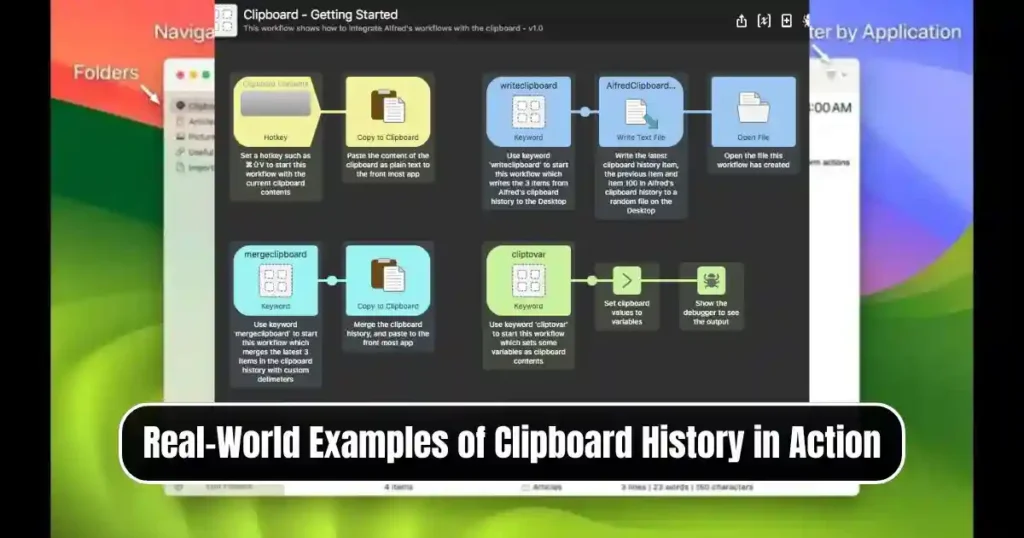
To understand the feature more clearly, consider these practical scenarios:
Example 1: Creating a Multi-Section Report
A writer gathers quotes, statistics, and text from various sources. Clipboard History stores each block of content, allowing the writer to paste them into the report in any order without going back repeatedly.
Example 2: Customer Support Replies
A support agent maintains pinned responses for common queries. Instead of typing or searching templates manually, they simply open the clipboard panel and select the needed response.
Example 3: Developers Reusing Code
A developer often copies small code snippets, variable names, or command lines. Clipboard History helps keep these items accessible without cluttering files.
Example 4: Students Preparing Notes
Students copying information from PDFs, lecture slides, or websites can compile notes faster by pasting items in sequence using the clipboard panel.
Also Read: How to Set Up Multiple Desktops in Windows 10/11: Full Step by Step Guide
Tips to Master Windows 11 Clipboard History
Here are some best practices that can help you use the feature more effectively:
- Keep your pinned items updated. Replace outdated snippets and maintain a clean library of commonly used content.
- Clear your clipboard occasionally to remove unnecessary entries.
- Use “Paste as text” when working on formal documents to maintain consistency.
- Use cloud sync cautiously if handling sensitive or confidential material.
- Combine Clipboard History with Windows 11 Snipping Tool for capturing and reusing images efficiently.
Common Issues and How to Fix Them

Clipboard History Not Working
Ensure the feature is enabled in Settings. If it still fails, restart your system or check for updates.
Sync Not Working Across Devices
Verify that:
- The same Microsoft account is signed in on all devices.
- Sync is turned on for each device.
- Internet connectivity is stable.
Items Disappearing After Restart
This happens because unpinned items are automatically cleared. Pin important items to avoid losing them.
Conclusion
Learning How to Use Windows 11 Clipboard History can significantly improve your productivity, especially if your workflow involves constant copying and pasting. The feature is easy to learn and even easier to integrate into your daily routine. With options like pinning, clearing, syncing, and pasting clean text, Windows 11 offers a well-rounded clipboard experience that supports both casual use and advanced work scenarios.
Whether you are a content creator, programmer, student, or professional working in a fast-paced environment, Clipboard History can save time, reduce errors, and help you manage information more efficiently. The moment you build the habit of using Win + V, the feature becomes an indispensable part of your workflow.
FAQs on How to Use Windows 11 Clipboard History
1. How many items can Windows 11 Clipboard History store?
It can store up to 25 items, including text, HTML, and images up to 4 MB.
2. Are pinned items stored permanently?
Pinned items remain until you manually delete them. Restarting or clearing unpinned items will not remove pinned entries.
3. Does Clipboard History work offline?
Yes, it works offline. Syncing across devices requires internet access, but the local clipboard panel works without it.
4. Is Clipboard History safe to use?
It is safe for regular use, but avoid storing sensitive content if your device syncs clipboard data across the cloud.
5. Can I disable Clipboard History anytime?
You can disable it through Settings > System > Clipboard. Disabling stops new items from being saved.
Disclaimer: This article is based on available features and behavior observed in Windows 11 at the time of writing. Updates or future versions may introduce changes in functionality.
Also Read: How to Use Digital Wellbeing to Limit App Usage Without Locking Apps

Raj Prajapati is a skilled content writer dedicated to creating clear, step-by-step guides on technology, Health, and everyday solutions. With a focus on user-friendly and SEO-optimized content, he simplifies complex topics, helping readers learn and solve problems effortlessly.