
Android updates are supposed to improve your phone. Better security, smoother performance, new features. But for many users, the experience feels confusing. You install an update and suddenly your notification settings are different, permissions are reset, default apps change, or battery behavior feels unfamiliar.
At this point, most users ask the same question: Why Android Settings Change Automatically after updates?
The short answer is this: your phone is not broken, hacked, or acting randomly. These changes are usually intentional, triggered by how Android restructures system behavior during updates. Still, that does not make the experience any less frustrating, especially when important settings quietly revert without warning.
This article explains why Android settings change automatically, what exactly happens behind the scenes, how updates affect privacy, security, and performance, and most importantly, how you can regain control after every update.
Also Read: How Android Decides Which Notifications Are Silent or Important
Understanding Why Android Settings Change Automatically
When users say “Android settings change automatically,” they often imagine something running in the background without consent. In reality, Android updates work like a system reset at a deeper level, even if your data remains untouched.
Every major update modifies core system files, security frameworks, and feature priorities. During this process, Android often re-evaluates existing settings to match the new system logic.
Below are the main reasons this happens.
New Defaults and Feature Rebranding After Updates

One of the most common reasons Android settings change automatically is feature replacement or rebranding.
Android frequently retires old features and introduces new ones that serve the same purpose but work differently. When this happens, the system often resets your old preference to match the new default.
Real-World Example
A good example is Smart Lock, which was later rebranded as Extend Lock. Even though the functionality remains similar, Android treats it as a new system component. After an update, your phone may disable it or reset it to the default behavior.
From a system perspective:
- Old setting no longer exists
- New feature has different configuration rules
- User preference must be re-applied manually
For users, it simply feels like Android settings changed automatically without asking.
Privacy and Security Resets Are Now Standard
Modern Android versions place privacy at the center. That means updates often tighten permission controls, even if that causes inconvenience.
What Android Does During Security-Focused Updates
- Revokes permissions for apps you have not used recently
- Converts “Always Allow” permissions into “One-time” access
- Disables background access for sensitive data like location, microphone, or camera
This is why many users notice location, camera, or microphone settings reset after updates. Android assumes that re-approval is safer than silent access.
From a privacy standpoint, this is a positive change. From a user experience standpoint, it creates confusion and leads to the feeling that Android settings change automatically.
UI and Settings Menu Restructuring
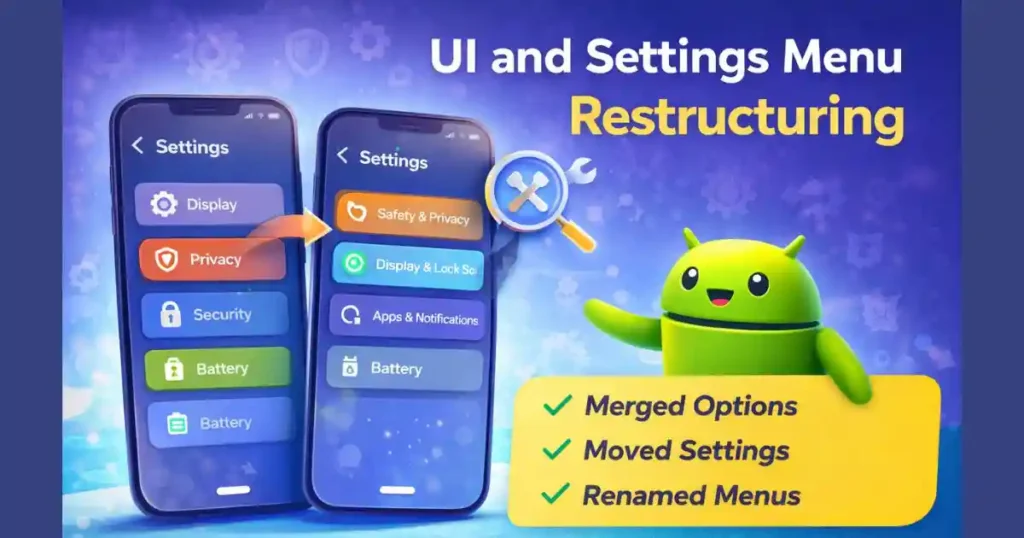
Another big reason settings appear to change is menu reorganization.
Android updates often introduce new design languages, such as Material You. When this happens:
- Settings are renamed
- Menus are merged or split
- Options are moved to different sections
The setting itself may still exist, but because it is no longer in the same place, users assume it has been changed or removed.
This is especially common with:
- Notification categories
- Battery optimization options
- Privacy and security dashboards
In reality, Android is not removing control. It is reorganizing it.
Default Apps Reverting After Major OS Upgrades
Many users notice that after a big update, their browser, phone app, or SMS app changes back to the manufacturer’s default.
This usually happens because:
- The third-party app has not yet optimized itself for the new Android version
- The update resets compatibility flags
- Android prioritizes system stability over user preference
In such cases, Android chooses the safest option: the stock app.
This is a classic example of Android settings change automatically due to compatibility checks, not user error.
Biometric Data and Encryption Changes

Fingerprint and face unlock data are protected by encryption tied to system files. When a major update modifies encryption protocols, Android may force biometric re-registration.
This is done to ensure:
- Old biometric data is not reused under new security rules
- Encryption keys remain secure
- No vulnerability is introduced during the update process
If your fingerprint or face unlock disappears after an update, it is not a bug. It is a security safeguard.
Background Optimization After Updates
Right after an update, Android enters a system optimization phase.
During this time:
- Adaptive Battery may be temporarily adjusted
- Adaptive Connectivity might be enabled or modified
- Background app behavior is recalibrated
- System caches are rebuilt
This can affect performance, battery life, and network behavior for a few days. Users often mistake this for Android settings changing automatically, when in fact it is a temporary optimization phase.
The Role of Software Bugs and Update Glitches

Not every setting change is intentional.
Sometimes:
- Configuration files fail to migrate correctly
- Cached data conflicts with new system rules
- Minor bugs reset preferences to default
These issues are more common during major Android version jumps. While rare, they do happen and usually get fixed through follow-up patches.
App Updates Can Also Reset Settings
Many users blame Android itself, but sometimes the OS is not responsible.
Apps like:
- Google Chrome
- Google Play Services
- Banking apps
can reset their own settings during updates. This includes notification behavior, permissions, and background access.
In such cases, Android settings change automatically because the app updated, not because the OS forced it.
Key Reasons Android Settings Change Automatically (Summary)
- Enhanced security and privacy enforcement
- Introduction of new features with new defaults
- UI restructuring and menu reorganization
- Compatibility issues with third-party apps
- Biometric encryption updates
- Background performance optimization
- Software bugs or failed migrations
- Individual app updates resetting preferences
What to Check Immediately After an Android Update
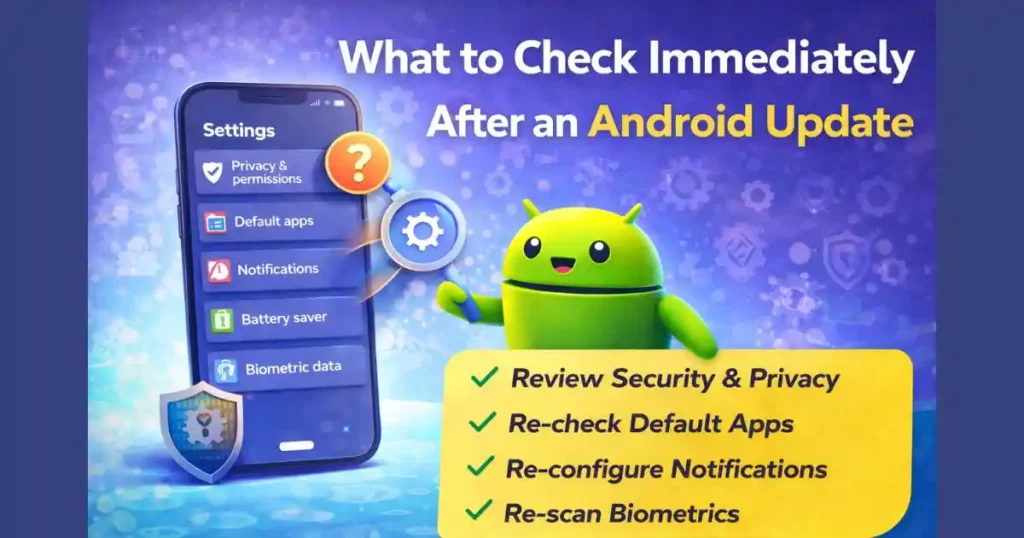
Instead of guessing what changed, it is smarter to follow a checklist.
1. Review Privacy Dashboard and Permissions
Check which apps have access to:
- Location
- Camera
- Microphone
- Files and media
Android may have revoked access automatically.
2. Verify Default Apps
Go to:
Settings > Apps > Default Apps
Ensure your preferred browser, phone app, SMS app, and launcher are still selected.
3. Reconfigure Notification Settings
Updates often:
- Unmute notification categories
- Change priority levels
- Re-enable lock screen alerts
Review notification permissions carefully.
4. Check Battery and Background Usage
Look at:
- Adaptive Battery
- Background activity limits
- App-specific battery restrictions
Re-adjust them if necessary.
5. Re-Register Biometrics If Needed
If fingerprint or face unlock was removed, add it again to restore convenience and security.
How to Reduce Future Setting Changes After Updates
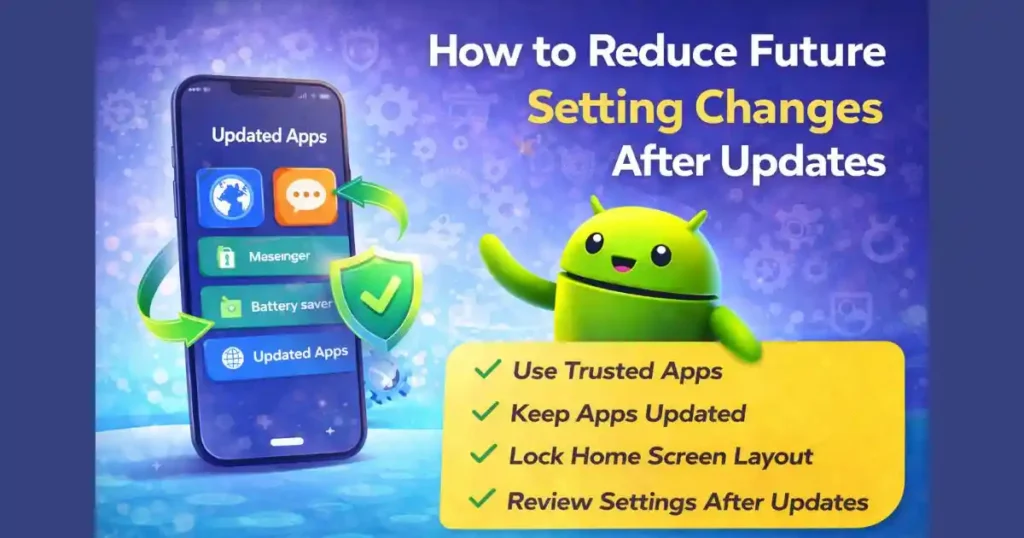
While you cannot completely stop Android from adjusting settings, you can minimize surprises.
Use Trusted Apps Only
Apps that follow Android guidelines are less likely to lose compatibility after updates.
Keep Apps Updated
Outdated apps trigger compatibility resets more often.
Lock Home Screen Layout
Some launchers allow layout locking, preventing icon movement after updates.
Review Settings After Every Major Update
Treat updates as maintenance events. A quick review saves hours of frustration later.
Also Read: What Happens When You Force Stop an App on Android? Real Effects Explained
People Also Ask: Android Settings Change Automatically
Why do my phone settings change automatically?
Phone settings change automatically mainly due to system updates, security improvements, feature replacements, or app compatibility checks. Android prioritizes safety and stability, even if it means resetting some user preferences.
Why does Google keep changing my settings?
Google adjusts settings to enforce new privacy policies, improve security, and support new features. These changes are usually tied to Android updates or Google app updates rather than random behavior.
How do I prevent users from changing settings on my Android phone?
You can restrict changes by using:
- Screen pinning
- Guest mode
- Parental control apps
- Device admin or work profile settings
These tools limit access to system settings.
How to change Android settings back to normal?
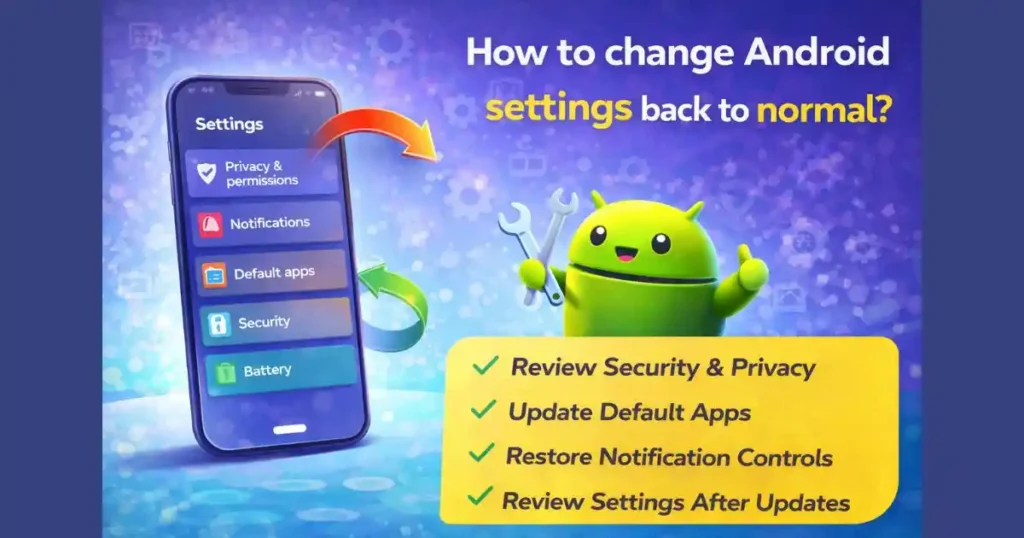
Go through privacy, notification, battery, and default app settings manually after an update. Android rarely deletes settings permanently; most can be restored with a few adjustments.
Final Thoughts: Is Android Really Taking Control Away?
It may feel like Why Android Settings Change Automatically without your consent, but the reality is more balanced. Most changes are driven by:
- Security requirements
- Privacy laws
- System stability needs
Android chooses safety over convenience by default. While this can be annoying, it also protects users from silent data access, outdated permissions, and compatibility risks.
Once you understand why these changes happen, managing them becomes easier and far less frustrating.
FAQs: Why Android Settings Change Automatically
Why do Android settings change automatically after updates?
Android settings change automatically after updates because the system applies new security rules, privacy policies, and feature defaults. During major updates, Android reorganizes system files and resets some preferences to ensure compatibility, stability, and data protection.
Is it normal if Android settings change automatically without asking?
Yes, it is normal. When Android settings change automatically, it usually happens to protect user privacy, fix vulnerabilities, or activate new system features. These changes are system-driven, not a sign of hacking or device malfunction.
Can app updates also cause Android settings to change automatically?
Yes. Sometimes Android settings change automatically due to individual app updates rather than the OS update itself. Apps like browsers, messaging apps, or Google services may reset permissions, notifications, or background activity settings.
How can I stop Android settings from changing automatically?
You cannot fully stop Android settings from changing automatically after updates, but you can reduce impact by keeping apps updated, reviewing settings after every major update, locking home screen layout, and regularly checking privacy and default app settings.
How do I restore settings if Android settings change automatically?
To restore settings, manually review privacy permissions, notification controls, default apps, battery optimization, and security options after the update. Most Android settings can be easily changed back from the Settings menu.
Disclaimer: This article is for informational and educational purposes only. Android features, settings behavior, and update policies may vary by device manufacturer, Android version, and region. Always refer to your device’s official documentation for the most accurate information.
Also Read: How Android Handles Background Apps When RAM Is Full (Android 14 Guide)

Raj Prajapati is a skilled content writer dedicated to creating clear, step-by-step guides on technology, Health, and everyday solutions. With a focus on user-friendly and SEO-optimized content, he simplifies complex topics, helping readers learn and solve problems effortlessly.